KB5094128: Windows Server 2022 June 2026 Security Update (OS Build 20348.5256)
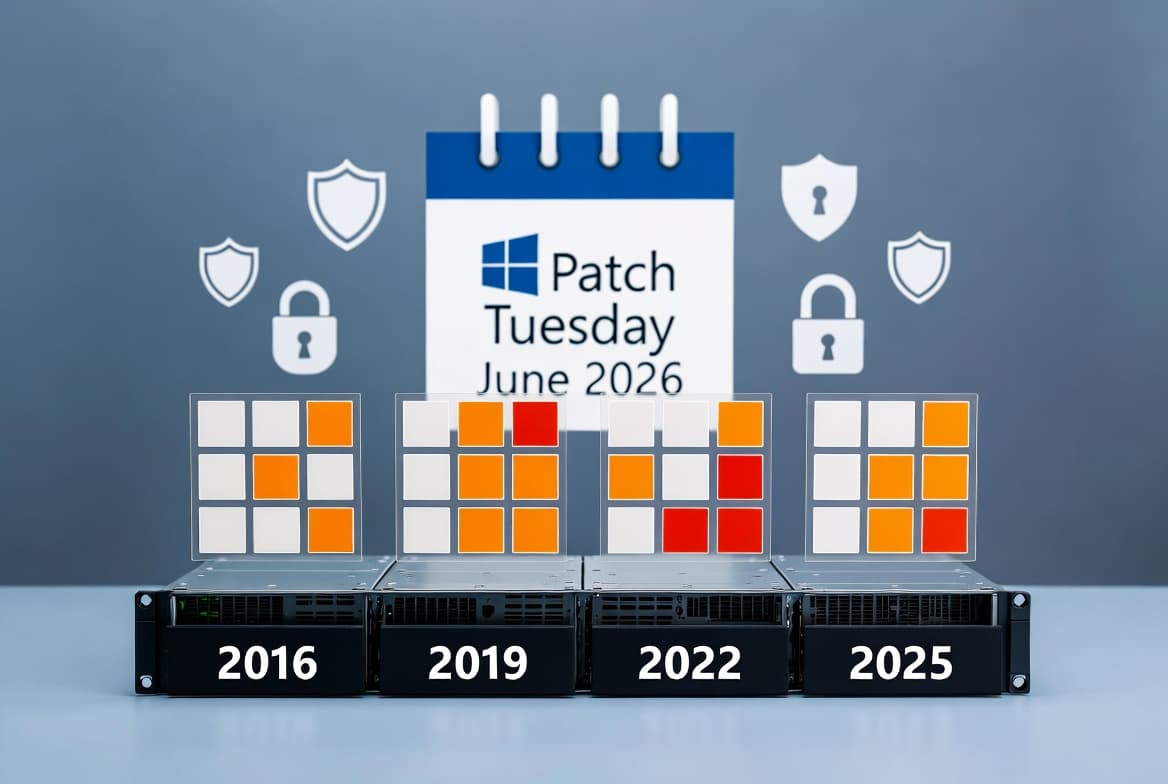
KB5094128 is the June 9, 2026 cumulative security update for Windows Server 2022, bringing OS build to 20348.5256 with security fixes and quality improvements.
Summary
KB5094128 is the cumulative security update for Windows Server 2022, released on June 9, 2026, raising the OS build to 20348.5256. It includes the latest security fixes along with non-security improvements carried over from the previous month's optional preview release. This update also bundles the servicing stack update KB5094147 (build 20348.5251). See Microsoft Support for the full official page.
Highlights
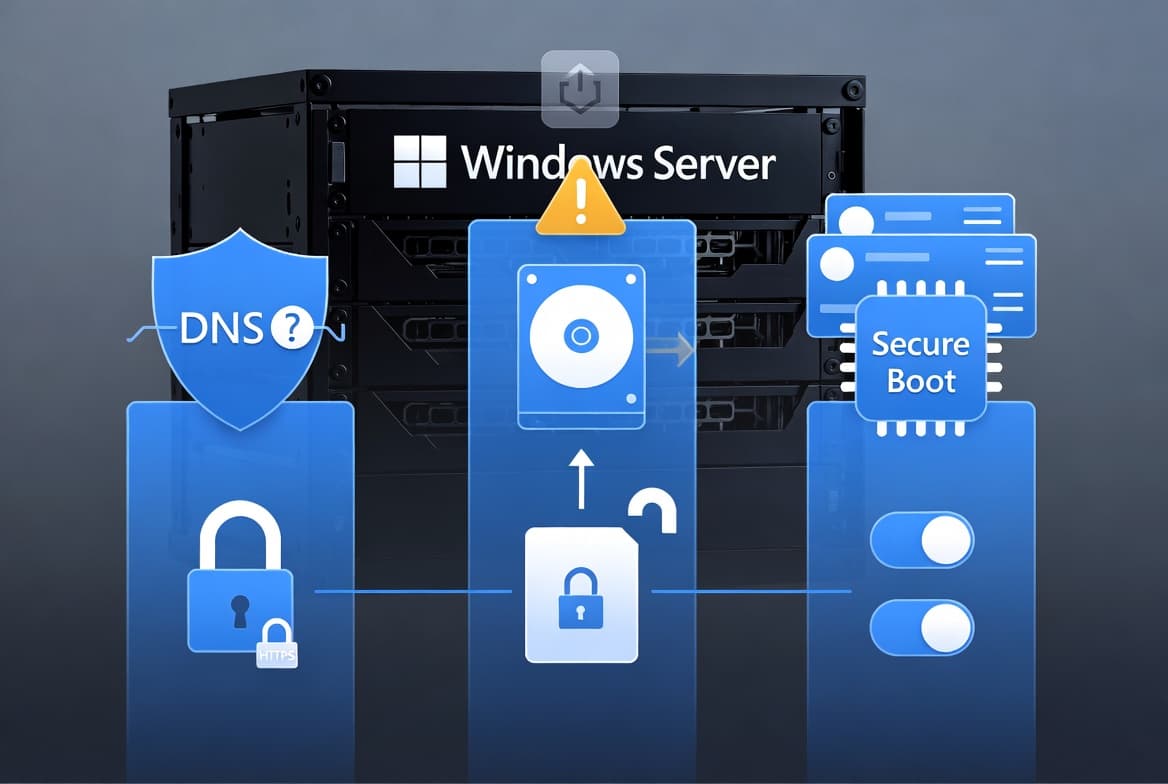
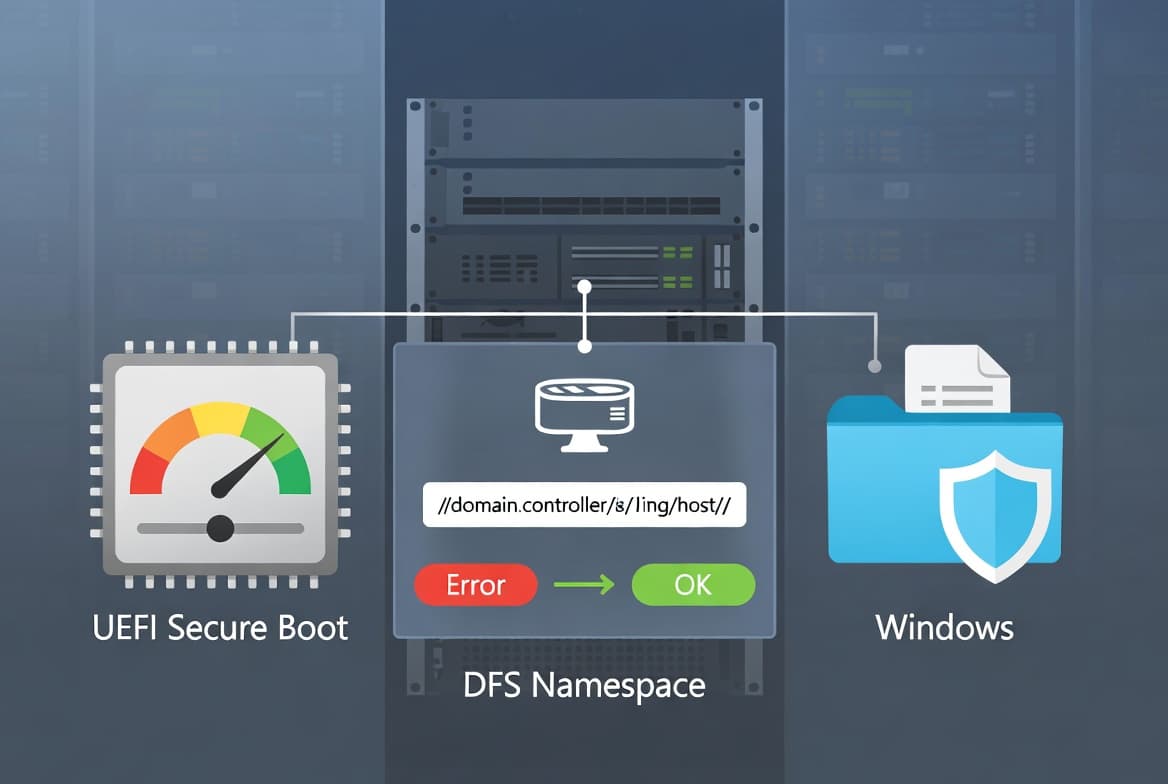
- Secure Boot certificate rollout now includes additional device targeting data to expand automatic certificate delivery coverage.
- A new Group Policy and MDM setting lets administrators limit the Secure Boot service data that Windows sends to Microsoft.
- The Windows Security app gains real-time Secure Boot status updates for improved device security visibility.
- File Explorer search is improved, adding support for Chinese text and UTF-8 encoded files without a byte order mark.
- Windows fonts are updated to include the new Saudi Riyal currency symbol.
- A security hardening change alters how Windows processes desktop.ini files, which may affect custom folder icons or localized folder names for downloaded or remote content.
Improvements and fixes
This update carries all fixes and quality improvements from KB5087545, released May 12, 2026. Key changes include:
- Secure Boot - expanded certificate targeting: Windows quality updates now include additional high-confidence device targeting data, broadening the pool of devices eligible to receive new Secure Boot certificates automatically. Certificates are delivered only after sufficient successful update signals are confirmed, keeping the rollout controlled and phased.
- Secure Boot - new policy to limit service data: A new
LimitSecureBootServiceDataGroup Policy and MDM setting is available under Computer Configuration > Administrative Templates > Windows Components > Secure Boot. When enabled, it suppresses the Secure Boot service data event normally sent to Microsoft and is included in the Windows Restricted Traffic Limited Functionality Baseline. - Windows Security app: Real-time Secure Boot status updates are now surfaced within the Windows Security app, improving visibility into device security state.
- File Explorer search: Search reliability and display quality are improved, with added support for Chinese-language text and UTF-8 encoded files that lack a byte order mark. Text rendering is more consistent across search results, Content view, and tooltips.
- Texts and fonts: Windows fonts now include the Saudi Riyal currency symbol, keeping text accurate and visually consistent across apps.
- Folder customization - security hardening: The way Windows processes desktop.ini files has been hardened. Some users may notice that custom folder icons or localized folder names no longer appear for folders from downloaded or remote locations. Folder access itself is not affected.
Known issues
BitLocker recovery key prompt after update on certain configurations
Symptom: Devices with a specific unrecommended BitLocker Group Policy configuration may be prompted to enter their BitLocker recovery key on the first restart after installing this update. This affects only devices where all of the following are true: BitLocker is enabled on the OS drive; the Group Policy "Configure TPM platform validation profile for native UEFI firmware configurations" is set and includes PCR7; System Information (msinfo32.exe) reports Secure Boot State PCR7 Binding as "Not Possible"; the Windows UEFI CA 2023 certificate is present in the Secure Boot Signature Database; and the device is not yet running the 2023-signed Windows Boot Manager. The recovery key is required only once - subsequent restarts will not trigger recovery as long as the Group Policy remains unchanged.
Workaround: Microsoft recommends removing the Group Policy configuration before installing the update. Steps: open Group Policy Editor (gpedit.msc) or Group Policy Management Console; navigate to Computer Configuration > Administrative Templates > Windows Components > BitLocker Drive Encryption > Operating System Drives; set "Configure TPM platform validation profile for native UEFI firmware configurations" to "Not Configured"; run gpupdate /force to propagate the change; suspend BitLocker with manage-bde -protectors -disable C:; then re-enable with manage-bde -protectors -enable C:. This updates BitLocker bindings to the Windows-selected default PCR profile. A permanent fix is planned in a future update.
WSUS does not display synchronization error details
Symptom: After installing KB5070884 or later updates, Windows Server Update Services (WSUS) does not display synchronization error details in its error reporting. This functionality was temporarily removed to address the Remote Code Execution vulnerability CVE-2025-59287.
Workaround: No workaround is listed. The removal of this functionality is intentional as a security measure.
Microsoft Office applications may fail to open from certain third-party apps
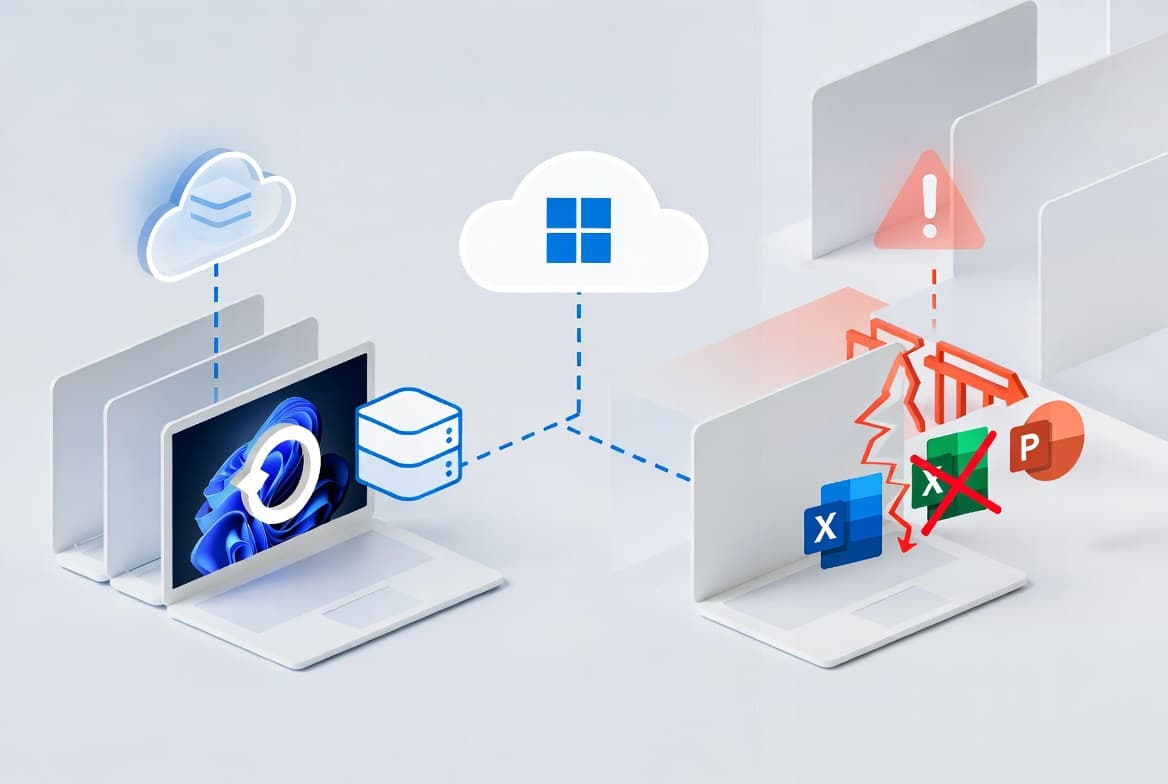
Symptom: Certain third-party applications may be unable to launch Microsoft Office applications or open documents after installing Windows updates released on or after June 9, 2026. The issue affects third-party apps that use OLE automation to interact with Office. In some cases, the Office application or document fails to open with no error message displayed. Affected Office applications may include Word, Excel, PowerPoint, Access, and others. Reported affected third-party applications include CCH Engagement, Workpaper Manager, dental software such as Dentrix and Softdent, and Zotero; other similar applications may also be affected.
Workaround: Open the application or document directly rather than launching it from the affected third-party application. Organizations can also contact Microsoft Support for business to apply an available organizational workaround. A resolution is in progress and will be delivered in a future Windows update.
How to get this update
Microsoft now combines the servicing stack update (SSU) with the latest cumulative update (LCU), so no separate SSU installation is required in most cases. For offline OS image servicing, ensure the image includes KB5030216 (released September 12, 2023) or a later LCU before applying this update; that LCU sets the minimum SSU version to 20348.1960, preventing error 0x800f0823.
When deploying dynamic updates to an existing Windows image, include the boot.stl file in the installation media to avoid error 0xc0430001 during startup. Microsoft recommends using the Update WinPE script to update existing images, or manually copying boot.stl from the device's Windows\Boot\EFI folder to the corresponding folder on your installation media.
This update is available through the following channels:
- Windows Update and Microsoft Update: Downloads and installs automatically.
- Windows Update for Business: Deploys automatically in accordance with configured policies.
- Microsoft Update Catalog: Download the standalone package directly from the catalog website.
- Windows Server Update Services (WSUS): Syncs automatically when Products is set to "Microsoft Server operating system-21H2" and Classification is set to "Security Updates".
Frequently asked questions
Does this update require a separate servicing stack update to be installed first?
For most deployments, no. Microsoft now bundles the servicing stack update (KB5094147, build 20348.5251) with the cumulative update. For offline image servicing only, the image must already include KB5030216 or a later LCU before this update is applied, to meet the minimum required SSU version of 20348.1960.
Will all devices automatically receive new Secure Boot certificates with this update?
Not necessarily. This update expands the pool of eligible devices using high-confidence targeting data, but certificates are delivered only after a device demonstrates sufficient successful update signals. The rollout remains phased and controlled, so not every device will receive the new certificates immediately.
How should administrators handle the BitLocker recovery key issue before deploying this update?
Administrators should audit BitLocker Group Policies for explicit PCR7 inclusion and check msinfo32.exe for PCR7 binding status before deploying. If the unrecommended configuration is present, Microsoft recommends setting the TPM platform validation Group Policy to "Not Configured" and cycling BitLocker suspend and resume before installing the update. A permanent fix is planned in a future update.
What should administrators do if Office applications stop launching from third-party tools after this update?
As an immediate workaround, users should open Office applications or documents directly rather than through the affected third-party application. IT teams at organizations can contact Microsoft Support for business to apply an organizational-level workaround. Microsoft is working on a permanent fix to be included in a future Windows update.