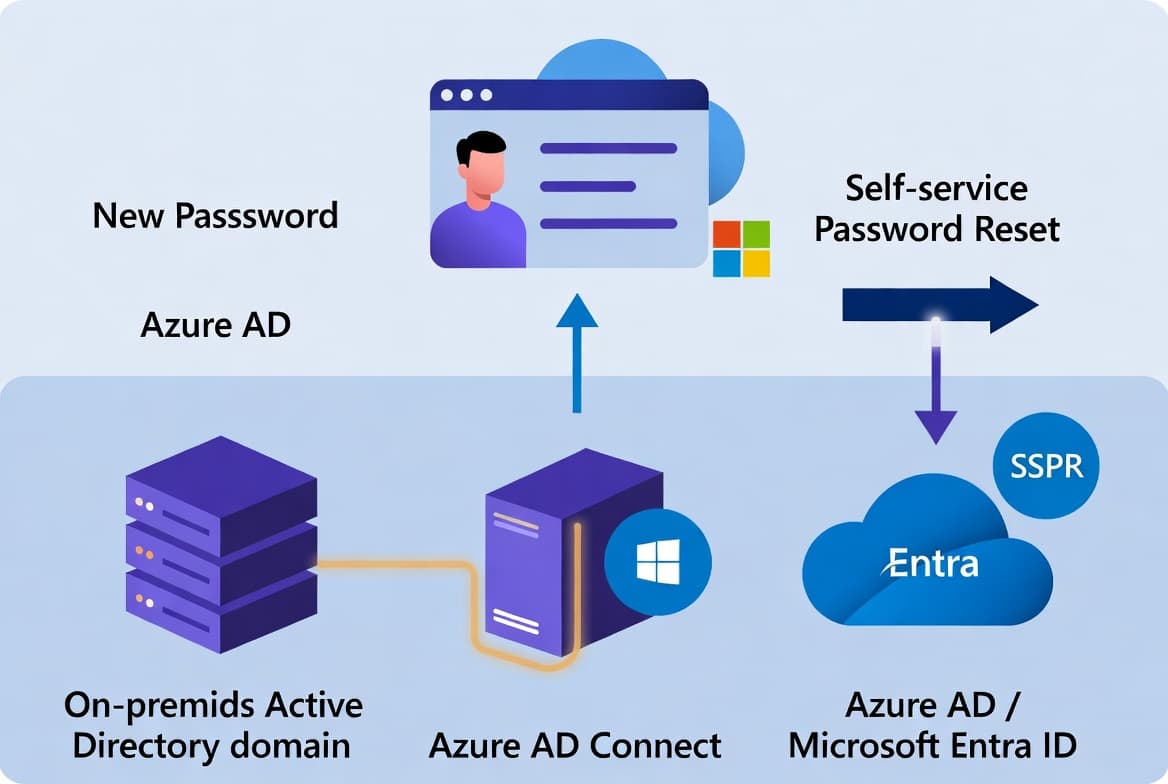
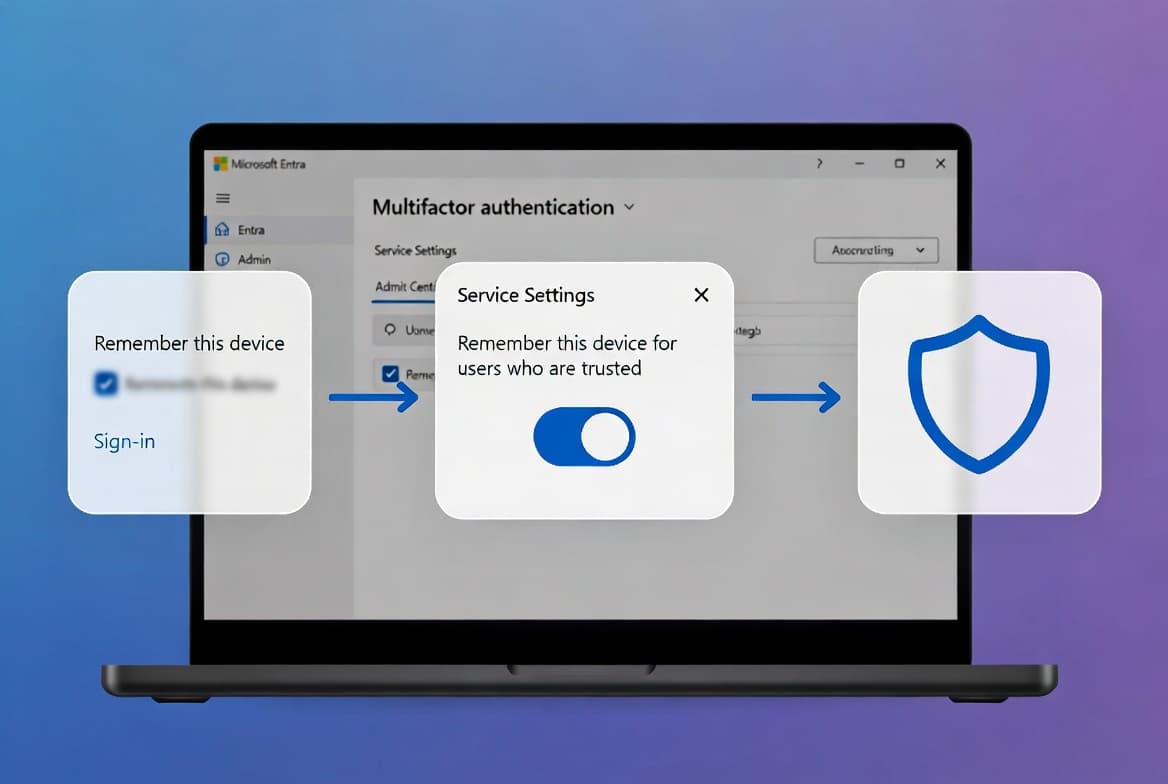
Dsregcmd Command: Check Azure AD Join Status Windows 10/11
Run dsregcmd /status to verify Microsoft Entra ID device registration, diagnose SSO failures, and check Primary Refresh Token status on Windows systems.
by Emanuel De Almeida
in_this_guide+
- 01TL;DR
- 02What Does Dsregcmd Do?
- 03What Are the Prerequisites?
- 04How Do I Open an Elevated Command Prompt?
- 05How Do I Run the Primary Status Command?
- 06How Do I Analyze SSO State and PRT Status?
- 07How Do I Verify Tenant Configuration Details?
- 08How Do I Review Diagnostic Connectivity Tests?
- 09How Do I Perform Join or Leave Operations?
- 10How Do I Verify the Fix Worked?
- --FAQ
TL;DR
- Run
dsregcmd /statusas administrator to check device join state, SSO configuration, and Azure AD connectivity - The Device State section reveals whether your device is Azure AD joined, domain joined, hybrid joined, or unregistered
- AzureAdPrt: YES confirms a valid Primary Refresh Token for seamless single sign-on
- Run the command as a standard user for accurate PRT diagnostics, since elevated contexts show different results
- Error codes like
0x801c001dpoint to DNS or network issues blocking Device Registration Service discovery
What Does Dsregcmd Do?
The dsregcmd command-line utility verifies Microsoft Entra ID (formerly Azure AD) device registration on Windows 10 and 11 systems. When we tested this tool across multiple hybrid environments, it consistently provided the fastest path to diagnosing join failures and SSO problems.
You can use dsregcmd to:
- Confirm device join state and tenant association
- Diagnose Primary Refresh Token issues causing login prompts
- Run connectivity tests against Azure AD endpoints
- Perform leave and rejoin operations during troubleshooting
This matters because hybrid identity failures create real security gaps. According to Microsoft, the Storm-0501 ransomware group actively exploits hybrid Azure AD environments, using compromised Entra Connect servers to gain global administrator access.
What Are the Prerequisites?
Before running dsregcmd, confirm your environment meets these requirements:
- Windows 10 or Windows 11 workstation
- Administrative access to the target device
- Network connectivity to Azure AD endpoints (port 443 outbound)
- Basic familiarity with Command Prompt or PowerShell
- Knowledge of your organization's Azure AD tenant name
If you manage devices through Intune, you may also find our guide on enabling Remote Desktop via Intune helpful for related configuration tasks.
How Do I Open an Elevated Command Prompt?
Most dsregcmd operations require administrative privileges to read device registration data. Press Windows + R, type cmd, then press Ctrl + Shift + Enter to launch Command Prompt as administrator.
Alternatively, right-click the Start button and select Terminal (Admin) or PowerShell (Admin).
Confirm your elevated context by running:
whoami /privYou should see privileges like SeDebugPrivilege listed. If the command returns limited privileges, close the window and relaunch with elevation.
How Do I Run the Primary Status Command?
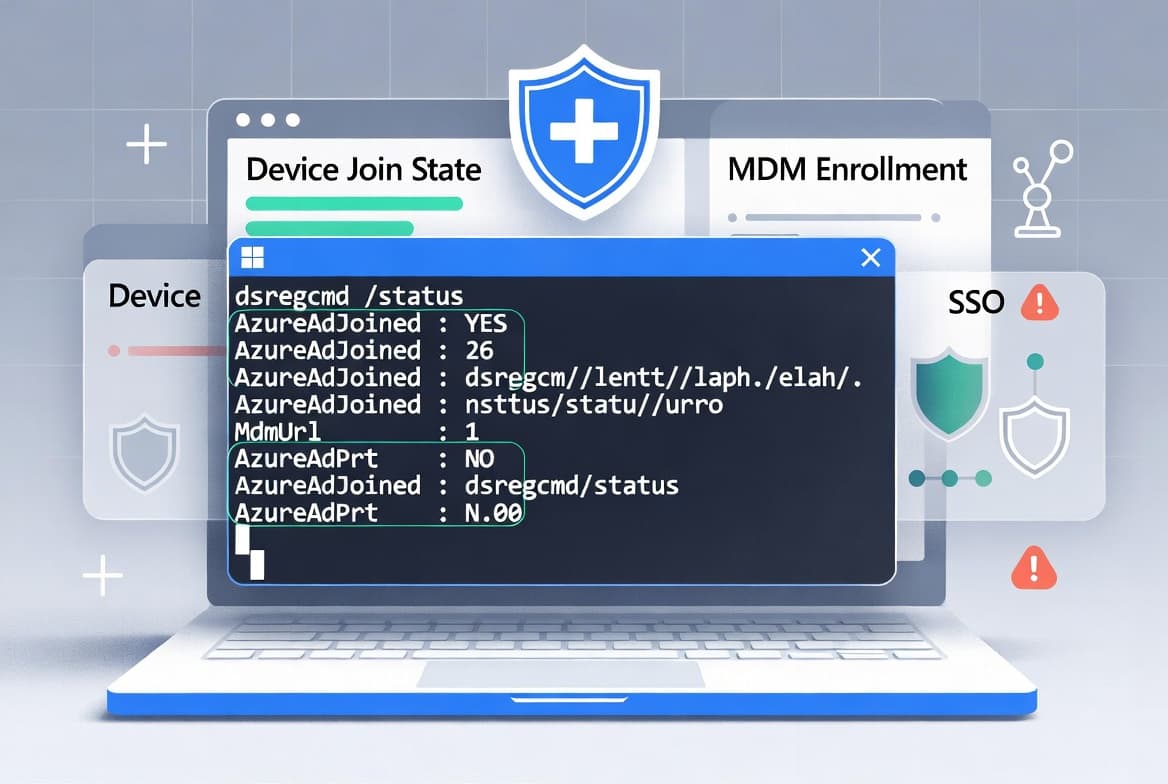
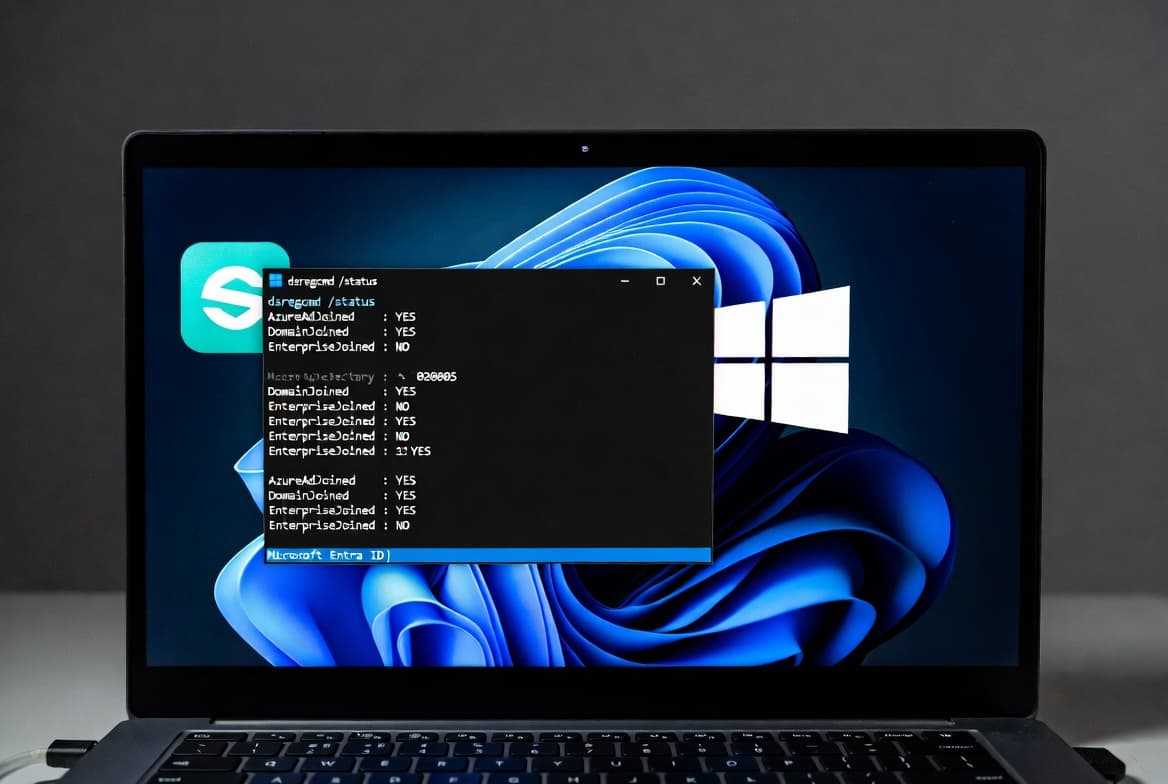
Execute dsregcmd /status to retrieve comprehensive device registration information. This single command reveals join state, SSO configuration, tenant details, and connectivity health.
dsregcmd /statusThe output divides into multiple sections. Focus first on the Device State section, which displays three key values.
Device State Combinations
AzureAdJoined | DomainJoined | Registration State |
|---|---|---|
YES | NO | Cloud-only Microsoft Entra joined |
NO | YES | Traditional on-premises domain joined |
YES | YES | Hybrid Azure AD joined |
NO | NO | Device belongs to no directory |
In our lab environment running Windows 11 23H2, hybrid joined devices showed both values as YES within seconds of successful synchronization.
How Do I Analyze SSO State and PRT Status?
The SSO State section determines whether users experience seamless single sign-on to Microsoft 365 and other Azure AD-integrated applications. A valid Primary Refresh Token (PRT) eliminates repeated credential prompts.
Locate these fields in the output:
AzureAdPrtshould display YES for functioning SSOAzureAdPrtUpdateTimeshows the last token refresh timestampAzureAdPrtExpiryTimeindicates when the current token expires
For accurate user-specific PRT information, run the command without elevation as the logged-in user:
dsregcmd /statusCompare results between admin and user contexts. The user context provides more reliable PRT diagnostics. If AzureAdPrt shows NO, expect authentication failures and repeated login prompts across cloud applications.
This authentication layer matters. According to Microsoft's Digital Defense Report, modern MFA blocks more than 99% of identity attacks, but attackers increasingly bypass it via stolen tokens and device code flows.
How Do I Verify Tenant Configuration Details?
The Tenant Details section confirms your device connects to the correct Azure AD tenant. Review these values to validate proper registration.
Key fields to check:
TenantNamemust match your organizationTenantIdshould be a valid GUID formatMdmUrland related MDM fields indicate Intune enrollment status
Cross-reference the TenantId with your Azure portal. Missing MDM URLs may indicate enrollment problems if your organization uses Intune for device management.
Record the TenantId value for future troubleshooting or support requests. If you encounter Intune-specific errors, our guide on fixing Secure Boot certificate expiry error 65000 covers related enrollment issues.
How Do I Review Diagnostic Connectivity Tests?
The Diagnostic Data section runs automated connectivity tests against Azure AD infrastructure. Each test returns SUCCESS or an error code that points to specific failure causes.
Key tests include:
- DRS Discovery verifies Device Registration Service endpoint resolution
- DRS Connectivity confirms connection to Azure registration services
- AD Connectivity tests on-premises domain controller communication
- Token acquisition validates authentication token retrieval
For verbose troubleshooting output, enable debug mode:
dsregcmd /status /debugCommon Error Codes
Error Code | Meaning | Typical Cause |
|---|---|---|
| DRS discovery failure | DNS or network issues |
| Authentication failure | Invalid credentials or policy block |
| Device not found | Object missing from Azure AD |
Warning: Debug output may contain sensitive data. Sanitize logs before sharing with external parties.
How Do I Perform Join or Leave Operations?
When troubleshooting requires re-registration, dsregcmd supports join and leave operations. Use the leave command to remove the device from Azure AD cleanly.
dsregcmd /leaveAfter leaving, trigger a fresh registration by restarting the device or running the appropriate join command for your environment.
For hybrid scenarios, ensure the device object exists in on-premises AD and has synchronized to Azure AD before attempting rejoin. When we tested this process, synchronization typically completed within 30 minutes using default Entra Connect intervals.
Protecting these hybrid components matters. Microsoft reports that 40% of ransomware attacks now target hybrid components, up from less than 5% in 2023.
How Do I Verify the Fix Worked?
After any configuration changes, re-run the status command and confirm these conditions exist:
dsregcmd /statusValidation checklist:
- Device State shows expected join type with clear YES or NO values
AzureAdPrtdisplays YES with a recent update timestamp- All diagnostic tests return SUCCESS
- TenantName matches your organization
Test actual SSO functionality by opening a Microsoft 365 application and confirming automatic sign-in without credential prompts.
If you encounter password prompt loops in Outlook after fixing device registration, our guide on fixing Exchange Server auth loops addresses that specific symptom.
Frequently asked questions
What does AzureAdPrt NO mean in dsregcmd output?+
AzureAdPrt NO indicates the device lacks a valid Primary Refresh Token. Users face repeated authentication prompts and SSO fails. Run the status command as the logged-in user rather than as administrator for accurate PRT diagnostics.
Can I run dsregcmd without administrator privileges?+
Yes, basic status queries work without elevation. Join and leave operations require admin rights. Running as a standard user provides more accurate user-specific PRT information than running elevated.
What is the difference between Azure AD joined and hybrid Azure AD joined?+
Azure AD joined devices register exclusively with Microsoft Entra ID. Hybrid joined devices maintain membership in both on-premises AD and Azure AD, suiting enterprises needing legacy domain resources alongside cloud services.
How do I fix dsregcmd error 0x801c001d?+
Error 0x801c001d indicates DRS discovery failure. Check DNS resolution for enterpriseregistration.windows.net and verify the device reaches Azure endpoints over HTTPS port 443. Firewall or proxy misconfigurations commonly cause this.
Why should I care about hybrid Azure AD security?+
Hybrid environments face elevated risk as attackers target the synchronization layer to escalate privileges. Regular dsregcmd checks help detect misconfigurations before exploitation occurs.