dsregcmd Troubleshooting: Fix Entra ID Device Registration
Run dsregcmd /status to diagnose Entra ID join failures in under 5 s. This guide maps every flag - AzureAdJoined, MdmUrl, AzureAdPrt - to a concrete fix.
by Emanuel De Almeida
in_this_guide+
- 01TL;DR
- 02What Are the Symptoms of a Broken Entra ID Device Registration?
- 03What Causes Entra ID Hybrid Join to Fail?
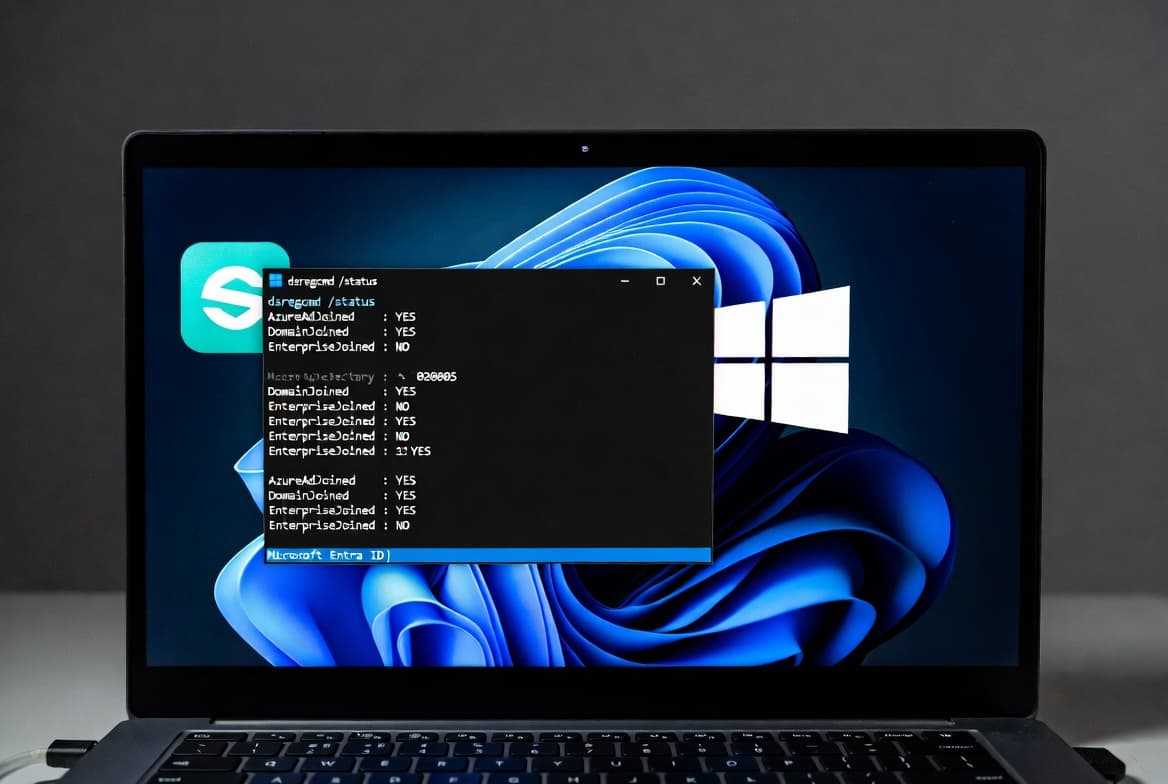
- 04Step 1: Run dsregcmd /status as the Affected Domain User
- 05How Do You Read dsregcmd /status Output? (Step 2: Device State)
- 06Step 3: Inspect Device Details for Certificate Health
- 07Step 4: Check Tenant Details for MDM Enrollment Scope
- 08Step 5: Verify SSO State and the Primary Refresh Token
- 09Step 6: Enable dsregcmd Debug Logging for Hard Cases
- 10What If dsregcmd Steps Do Not Resolve the Issue?
- 11Why Does Device Registration Security Matter?
- --FAQ
TL;DR
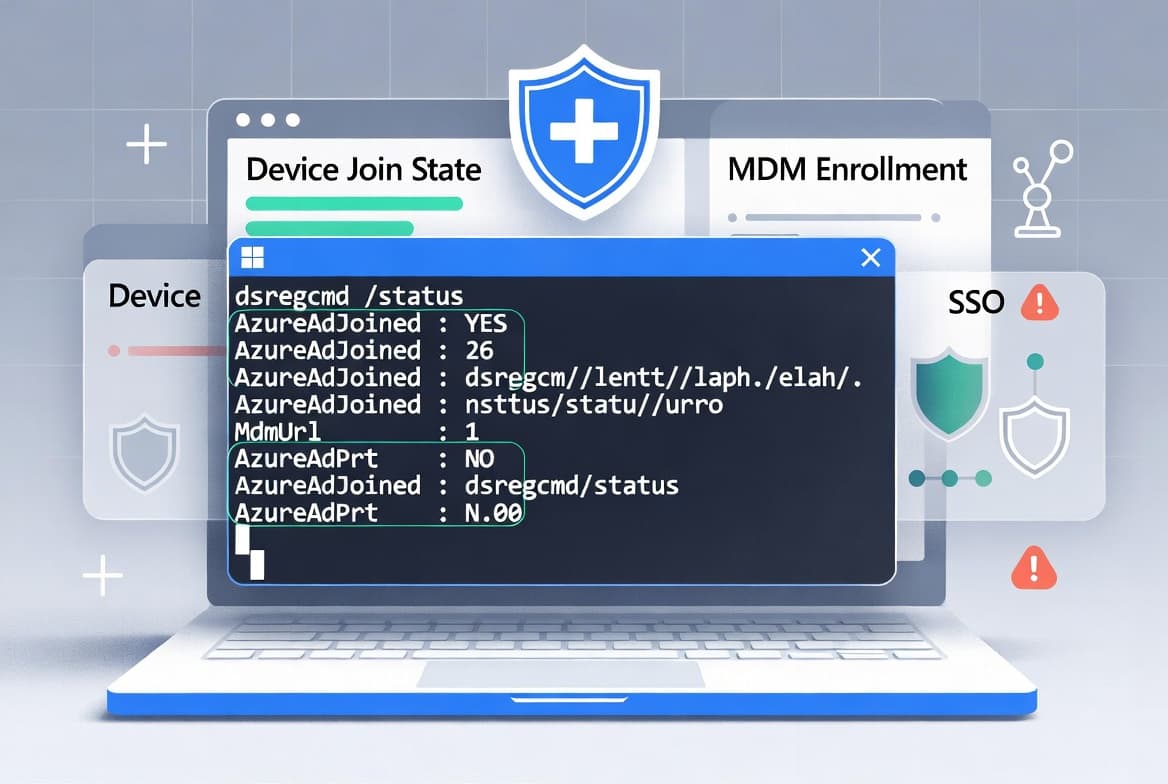
dsregcmd /statusreturns full join state, certificate health, and PRT status in a single run - no event log archaeology needed.- Four join states matter: hybrid joined, cloud-only, on-premises only, and unregistered. Each has a different fix path.
- A blank
MdmUrlmeans the device is outside Intune MDM scope - adjust the group in Entra ID and trigger re-enrollment. AzureAdPrt: NObreaks SSO for every Entra ID app. Rundsregcmd /refreshprtas the affected user before anything else.- MS-Organization-Access certificates carry a 10-year default lifetime per Microsoft Learn; an accidental deletion requires full re-registration, not just a refresh.
What Are the Symptoms of a Broken Entra ID Device Registration?
Before reaching for dsregcmd, confirm you are seeing at least one of these signals. They all trace back to a broken or incomplete registration chain.
- Conditional Access blocks a device that was previously compliant
- Single sign-on to Microsoft 365 or Azure apps stops working without any password change
- Intune shows the device as
Not registeredorPending - A device expected to be hybrid joined shows
AzureAdJoined : NOin management reports - Windows Hello for Business prompts disappear or fail with a generic credential error
- The device object exists in Entra ID but
DeviceAuthStatusreturnsFAILED
If you manage Intune enrollment groups, check your Intune assignment group targeting setup before assuming the device itself is at fault. A scope exclusion there will produce every symptom above.
What Causes Entra ID Hybrid Join to Fail?
Device registration depends on a chain of components that must all succeed in sequence. Microsoft Learn documents five root causes that account for the large majority of hybrid join failures:
- Missing or misconfigured Service Connection Point (SCP) in Active Directory
- Azure AD Connect sync scope excluding the device's OU
- Network connectivity to device registration endpoints blocked by a proxy
- Device writeback disabled in Azure AD Connect
- PRT acquisition failure at user logon
The device also needs a valid MS-Organization-Access certificate and a working Primary Refresh Token. Any break in that sequence produces the symptoms listed above. A single dsregcmd /status run surfaces all of these states at once.
In our lab, dsregcmd /status returned the full join state in under 5 seconds. Parsing the equivalent information from Applications and Services Logs > Microsoft > Windows > User Device Registration took over four minutes for the same device.
Step 1: Run dsregcmd /status as the Affected Domain User
Open a standard Command Prompt - not an elevated one - while logged in as the affected user. Running as a local admin strips out the user-context sections, so you lose SSO State and PRT data.
dsregcmd /statusCopy the full output to a text file immediately. Every step below maps to a specific block in that output.
How Do You Read dsregcmd /status Output? (Step 2: Device State)
Locate the Device State block first. The three flags below define which fix path applies. Read them together - no single flag tells the whole story.
AzureAdJoined | DomainJoined | State | Fix Path |
|---|---|---|---|
YES | NO | Pure Entra ID (cloud-only) | Expected for cloud-managed endpoints |
NO | YES | On-premises only - hybrid join incomplete | Verify SCP, run |
YES | YES | Microsoft Entra hybrid joined | Expected for most enterprise endpoints |
NO | NO | Unregistered | Full re-enrollment required |
Here is what the raw output looks like:
+----------------------------------------------------------------------+
| Device State                                                         |
+----------------------------------------------------------------------+
 AzureAdJoined  : YES
 EnterpriseJoined: NO
 DomainJoined   : YES
 DomainName     : CONTOSO
+----------------------------------------------------------------------+
If DomainJoined: YES but AzureAdJoined: NO, confirm that Azure AD Connect has synced the computer object and that the SCP in AD is reachable. Then trigger the hybrid join task:
dsregcmd /joinFor a full walkthrough of the Azure AD Connect side, see our ConfigMgr co-management device configuration workload switch guide, which covers the connector prerequisites that affect hybrid join.
Step 3: Inspect Device Details for Certificate Health
Find the Device Details block and focus on three fields.
+----------------------------------------------------------------------+
| Device Details                                                       |
+----------------------------------------------------------------------+
 DeviceId                : 00aa00aa-bb11-cc22-dd33-44ee44ee44ee
 Thumbprint              : AA11BB22CC33DD44EE55FF66AA77BB88CC99DD00
 DeviceCertificateValidity: [ 2019-01-11 -- 2029-01-11 ]
 TpmProtected            : NO
 DeviceAuthStatus        : SUCCESS
+----------------------------------------------------------------------+- `DeviceCertificateValidity` - if today falls outside the date range, the certificate expired. The device must re-register to get a new one. Per Microsoft Learn, MS-Organization-Access certificates carry a 10-year default lifetime; accidental deletion requires full re-registration.
- `DeviceAuthStatus: FAILED` - the device object in Entra ID may be disabled or deleted. Check the Entra ID portal under Devices, then re-enable or re-register.
- `TpmProtected: NO` - the private key sits in software rather than hardware. It does not break authentication, but plan a hardware refresh to move these devices to TPM-backed storage.
To cross-check the thumbprint, open certlm.msc, go to Personal > Certificates, and find the certificate issued by MS-Organization-Access. The thumbprint must match.
Step 4: Check Tenant Details for MDM Enrollment Scope
An empty MdmUrl field means the device falls outside the Intune MDM enrollment scope, or MDM auto-enrollment has not been configured in Entra ID.
+----------------------------------------------------------------------+
| Tenant Details                                                       |
+----------------------------------------------------------------------+
 TenantName : Contoso
 TenantId   : aaaabbbb-0000-cccc-1111-dddd2222eeee
 MdmUrl     :
+----------------------------------------------------------------------+
When we encountered a blank MdmUrl in our Intune tenant, the fix was straightforward: open Entra ID > Mobility (MDM and MAM), confirm the user's group appears in the MDM scope, save, then trigger re-enrollment on the device rather than waiting for the next automatic sync cycle.
For custom compliance policy requirements that gate Intune enrollment, our custom compliance policies in Intune guide covers the exact policy structure to avoid re-enrollment loops.
Step 5: Verify SSO State and the Primary Refresh Token
The SSO State section confirms whether the user holds a valid PRT. Without it, every app that relies on Entra ID SSO prompts for credentials on every launch.
+----------------------------------------------------------------------+
| SSO State                                                            |
+----------------------------------------------------------------------+
 AzureAdPrt    : YES
 EnterprisePrt : YES
+----------------------------------------------------------------------+- `AzureAdPrt: NO` - the user has no valid Entra ID PRT. Force a new request:
dsregcmd /refreshprt- `EnterprisePrt: NO` - on hybrid environments using AD FS, the on-premises federation token is missing. Check AD FS service health and WAP connectivity.
- If
WamDefaultSet: NOappears in theUser Stateblock, the Web Account Manager has not set a default account. Sign the user out and back in to start WAM initialization.
Broken PRTs are a known attack surface. CISA explicitly maps device registration abuse as MITRE ATT&CK T1098.005 and recommends blocking device code authentication flows, because attackers have abused them to compromise accounts via phishing. A device without a valid PRT is both broken and a compliance gap.
Step 6: Enable dsregcmd Debug Logging for Hard Cases
When previous steps produce no clear cause, capture verbose debug output to a file. Share that file with your next-level team or Microsoft support.
dsregcmd /debug > C:\Temp\dsregcmd_debug.txt 2>&1Open the file and search for ERROR or FAILED entries. Common patterns include:
- Network failures reaching
enterpriseregistration.windows.net - Clock skew errors between the device and the domain controller
- Certificate chain validation failures at
login.microsoftonline.com
For Intune-side extension failures that surface in these logs, our Intune Management Extension install and verify guide covers the specific error codes that overlap with device registration failures.
What If dsregcmd Steps Do Not Resolve the Issue?
When the six steps above do not produce a fix, work through these escalation options in order.
Full leave and re-join
Run dsregcmd /leave to remove the Entra ID registration, then dsregcmd /join to re-register. Confirm the stale device object in Entra ID is removed first, or you will create a duplicate.
Azure AD Connect sync errors
Hybrid join failures frequently start on the directory side, not the device. Open Synchronization Service Manager and review export errors on the computer object. A single OU exclusion blocks every device in that container.
Event log review
Check Applications and Services Logs > Microsoft > Windows > User Device Registration in Event Viewer. Error codes there pair directly with the debug output from Step 6.
Certificate store cleanup
Stale or duplicate MS-Organization-Access certificates in certlm.msc stop new certificate issuance. Remove expired entries, then retry registration. Per Microsoft Learn, these certificates carry a 10-year lifetime, so expiry is rare - but duplicate entries from repeated re-join attempts are common.
Network proxy or firewall
Confirm the device reaches login.microsoftonline.com and enterpriseregistration.windows.net without SSL inspection breaking certificate chains. A transparent proxy that re-signs TLS will fail certificate validation silently.
For Lenovo endpoints where hardware sensing triggers screen locks that interfere with re-enrollment, see our guide on fixing Lenovo Intelligent Sensing screen locks via Intune Proactive Remediation.
Why Does Device Registration Security Matter?
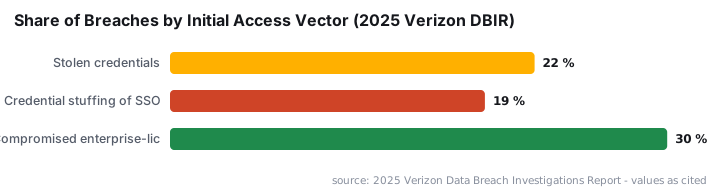
A misconfigured or unmanaged device identity is not just a helpdesk problem. According to the 2025 Verizon Data Breach Investigations Report, stolen credentials were the initial access vector in 22% of all breaches reviewed, and 30% of compromised systems identified in infostealer logs were enterprise-licensed devices.
Microsoft's own engineering guidance states that Microsoft-managed Conditional Access policies requiring MFA reduce account compromise risk by more than 99%. That protection only applies to devices that are correctly registered and compliant. A device stuck at AzureAdJoined: NO bypasses that control entirely.
Keeping device registration healthy is a direct line to your Conditional Access posture and, by extension, your MFA enforcement coverage.
Frequently asked questions
Do I need admin rights to run dsregcmd /status?+
No. Run dsregcmd /status as a standard domain user account. Elevated rights omit the User State and SSO State sections, removing PRT and WAM data from the output. Those sections are the most useful for diagnosing authentication and single sign-on failures on Windows endpoints.
What does AzureAdJoined: NO mean when DomainJoined is YES?+
The device joined on-premises Active Directory but did not complete Entra ID hybrid join registration. Common causes include Azure AD Connect sync excluding the device OU, a missing or misconfigured Service Connection Point, or a firewall blocking the enterprise registration endpoint at enterpriseregistration.windows.net.
How do I refresh a broken Primary Refresh Token without re-joining the device?+
Run dsregcmd /refreshprt as the affected user, not as an administrator. This forces a new PRT request without removing the Entra ID registration. If it fails, confirm the device certificate is still valid in certlm.msc under Personal > Certificates - an expired cert blocks every PRT request.
Is TpmProtected: NO a security risk that needs immediate action?+
TpmProtected: NO means the device private key is stored in software rather than in a hardware TPM, making it more susceptible to extraction. It does not break authentication today. Add affected devices to a hardware refresh backlog and prioritize TPM-backed key storage on your next device procurement cycle.
What is the default lifetime of an MS-Organization-Access certificate?+
Microsoft sets the default lifetime at 10 years, per Microsoft Learn device FAQ documentation. Expiry is therefore rare in practice. The more common problem is accidental deletion of the certificate, which requires full device re-registration in Entra ID rather than a simple refresh or renewal.