Custom Compliance Policies in Intune: Step-by-Step Guide
Build custom Intune compliance policies with PowerShell + JSON in 6 steps. Covers multi-rule checks, Company Portal remediation strings, and pilot testing.
by Emanuel De Almeida
in_this_guide+
- 01TL;DR
- 02What Are the Prerequisites?
- 03What Are the Two Required Components?
- 04How Do You Write the PowerShell Detection Script?
- 05Step 3: Create the JSON Validation File
- 06Step 4: Upload the Policy in the Intune Admin Center
- 07How Do You Assign and Pilot Test the Policy?
- 08Step 6: Automate More Frequent Compliance Checks
- 09How Do You Verify the Policy Is Working?
- --FAQ
TL;DR
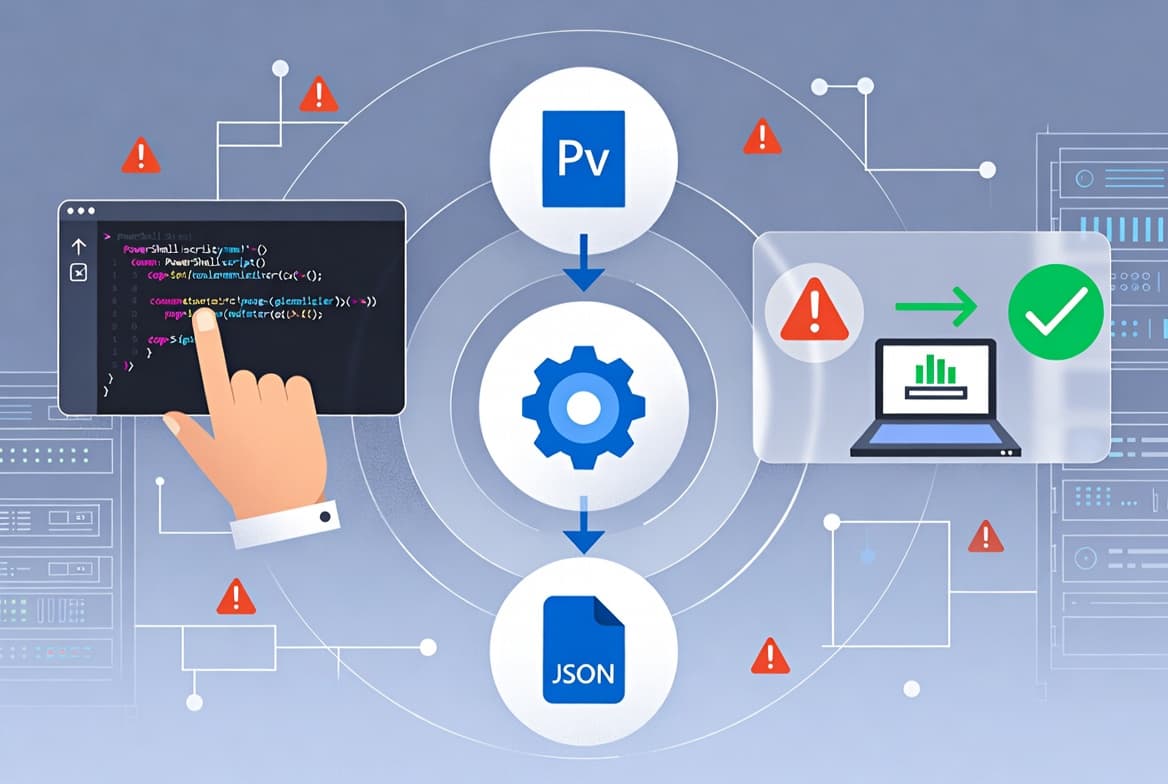
- Custom compliance policies in Microsoft Intune require exactly two files: a PowerShell detection script and a JSON validation file.
- The script outputs a compressed JSON object; the validation file tells Intune how to evaluate each value and what remediation text to show users.
- Six steps cover authoring, uploading, assigning, and verifying the policy - completable in under 30 minutes on a single test device.
- Always assign to a pilot group first. A broken script assigned broadly causes false-noncompliant states at scale.
- Combine custom rules with built-in compliance settings for layered coverage without conflicts.
*Last verified: July 2025 against Microsoft Intune admin center.*
What Are the Prerequisites?
Before building custom compliance policies in Microsoft Intune, confirm you have every dependency in place. Missing any one of these blocks progress at the upload step, not at authoring - which wastes time.
- An active Microsoft Intune Enterprise license (required for the custom compliance feature).
- A Windows 10 or later device enrolled in Intune for testing. See our Microsoft Intune setup guide for IT admins if enrollment is not yet complete.
- Basic familiarity with PowerShell scripting.
- Permissions to create and assign compliance policies in the Intune admin center.
- A target Azure AD group to scope the pilot deployment.
What Are the Two Required Components?
Every custom compliance policy has exactly two required components that must work together, as documented in the custom compliance walkthrough on scloud.work and the Microsoft Intune custom compliance settings reference.
- A PowerShell script that runs on the device and collects one or more values.
- A JSON validation file that tells Intune how to interpret those values and what to show users when a check fails.
The script outputs a compressed JSON object. Each key in that object maps to a named rule in the validation file. The names are case-sensitive - WindowsUpdateService and windowsupdateservice are treated as different settings.
Optionally, each rule can include a MoreInfoUrl link and RemediationStrings so noncompliant users see actionable guidance inside the Company Portal.
Endpoints outside managed compliance coverage carry real risk. Infostealers compromised credentials on 30% of corporate devices and 46% of unmanaged devices holding company credentials, per the Verizon 2025 DBIR - a direct argument for tightening custom compliance rules beyond built-in defaults.
How Do You Write the PowerShell Detection Script?
Keep the script focused on detection only - no remediation logic. The final line must always return a compressed JSON object. When we tested this on a Windows 11 23H2 device enrolled in a production tenant, omitting ConvertTo-Json -Compress caused the upload validator to reject the script silently.
Below is a practical example that checks whether the Windows Update service is running. The same pattern applies to any third-party agent such as CrowdStrike, SentinelOne, Qualys, or Rapid7 - swap the service name.
# Check if the Windows Update service is running
$ServiceName = "wuauserv"
$Service = Get-Service -Name $ServiceName -ErrorAction SilentlyContinue

$output = @{
    WindowsUpdateService = if ($Service.Status -eq "Running") { $true } else { $false }
}

return $output | ConvertTo-Json -Compress
For scenarios that require multiple simultaneous checks - verifying both a service and a registry key, for example - extend the hashtable:
# Multi-check example
$ServiceRunning = (Get-Service -Name "wuauserv" -ErrorAction SilentlyContinue).Status -eq "Running"
$RegistryPresent = Test-Path "HKLM:\SOFTWARE\YourScanner\Installed"

$output = @{
    WindowsUpdateService = [bool]$ServiceRunning
    ScannerRegistryKey   = [bool]$RegistryPresent
}

return $output | ConvertTo-Json -Compress
Test the script locally first. Run it in an elevated PowerShell session and confirm the output is valid JSON before uploading. For guidance on signing requirements, see our article on deploying Citrix Workspace App via the Intune Enterprise App Catalog, which covers script signing patterns that apply equally here.
Step 3: Create the JSON Validation File
The JSON file contains a Rules array. Each rule corresponds to one key returned by the script. The Microsoft Intune custom compliance JSON schema reference defines every allowed field.
The table below maps each field to its allowed values:
Field | Allowed Values |
|---|---|
| Exact hashtable key from the script (case-sensitive) |
|
|
|
|
| Always a string in the file, e.g., |
| Optional URL shown to noncompliant users in Company Portal |
| Array of language-specific |
Here is the validation file that pairs with the multi-check script above:
{
  "Rules": [
    {
      "SettingName": "WindowsUpdateService",
      "Operator": "IsEquals",
      "DataType": "Boolean",
      "Operand": "true",
      "MoreInfoUrl": "https://your-internal-docs/windows-update-service",
      "RemediationStrings": [
        {
          "Language": "en_US",
          "Title": "Windows Update service is not running. Current value: {ActualValue}.",
          "Description": "Restart your device. If the problem persists, contact the help desk."
        }
      ]
    },
    {
      "SettingName": "ScannerRegistryKey",
      "Operator": "IsEquals",
      "DataType": "Boolean",
      "Operand": "true",
      "MoreInfoUrl": "https://your-internal-docs/scanner-install",
      "RemediationStrings": [
        {
          "Language": "en_US",
          "Title": "Vulnerability scanner registry key is missing. Current value: {ActualValue}.",
          "Description": "Re-install the vulnerability scanner or contact your support team."
        }
      ]
    }
  ]
}
Save the file with a .json extension. The {ActualValue} placeholder is replaced automatically by Intune with the real value returned from the device.
Step 4: Upload the Policy in the Intune Admin Center
With both files ready, upload and configure the policy. Follow these steps exactly - the JSON upload field only appears after the PowerShell script is attached.
- Open the Microsoft Intune admin center.
- Go to Devices > Compliance policies > Policies.
- Click + Create policy and select Windows 10 and later as the platform.
- Under Compliance settings, expand Custom Compliance.
- Set the toggle to Require and upload your
.ps1PowerShell script. - Upload the
.jsonvalidation file in the adjacent field. - Complete the remaining policy settings (actions for noncompliance, notifications) and click Create.
For naming the policy consistently with your other Intune objects, our Intune naming conventions guide covers a practical schema that scales across large tenants.
How Do You Assign and Pilot Test the Policy?
Always test on a small, representative group before a broad rollout. A broken script assigned to all devices generates widespread false-noncompliant states that flood your help desk fast.
- Assign the policy to a dedicated pilot Azure AD group containing two or three test machines.
- On a test device, force an immediate sync from an elevated PowerShell session:
# Trigger a manual Intune compliance sync
Get-ScheduledTask | Where-Object { $_.TaskName -like "*Schedule*Scan*" } | Start-ScheduledTask- Alternatively, open Settings > Accounts > Access work or school, click the enrolled account, and select Sync.
In our lab, stopping wuauserv reliably triggered a Not Compliant state within one sync cycle, and the Company Portal displayed the exact remediation string from the JSON file. That confirmed both components were wired correctly before we widened the assignment.
If you have Conditional Access policies tied to compliance state, see our overview of how Conditional Access policies work to understand the block-at-login flow before you assign broadly.
Step 6: Automate More Frequent Compliance Checks
The default compliance script interval is roughly 8 hours, per the Microsoft Intune device profile troubleshooting documentation. For security-sensitive checks, deploy a scheduled task that forces a sync more often.
The example below runs every 60 minutes:
# Deploy a scheduled task to sync compliance every 60 minutes
$Action  = New-ScheduledTaskAction -Execute "C:\Windows\System32\deviceenroller.exe" -Argument "/o"
$Trigger = New-ScheduledTaskTrigger -RepetitionInterval (New-TimeSpan -Minutes 60) -Once -At (Get-Date)
$Settings = New-ScheduledTaskSettingsSet -Hidden

Register-ScheduledTask -TaskName "IntuneComplianceSync" `
    -Action $Action `
    -Trigger $Trigger `
    -Settings $Settings `
    -RunLevel Highest `
    -Force
Deploy this script through Intune as a platform script, or wrap it in a Win32 app for broader control over targeting and logging.
The urgency of tighter check intervals is real. The Verizon 2025 DBIR found that only 54% of perimeter device vulnerabilities were fully remediated, with a median patch time of 32 days. Frequent compliance checks shrink the window between a configuration drift event and detection.
How Do You Verify the Policy Is Working?
Verification has two layers: confirming the noncompliant state surfaces correctly, then confirming the compliant state resolves cleanly.
- In the Intune admin center, go to Devices > Monitor > Device compliance and filter by your pilot group.
- Confirm that devices you deliberately made noncompliant (stopping the test service, for example) show a Not compliant state with the correct remediation message.
- Check that compliant devices show a Compliant state within one to two sync cycles.
- Review the Per-setting status view inside the policy to confirm each individual rule evaluates correctly - not just the overall policy result.
- If you connected a Conditional Access policy, verify that noncompliant devices are blocked from the targeted cloud app as expected.
Microsoft holds a leadership position in the unified endpoint management category per IDC's 2024 MarketScape, and Gartner forecasts that more than 50% of organizations will adopt autonomous endpoint management by 2029. Custom compliance policies are an early step toward that automated posture.
Frequently asked questions
Does custom compliance work on macOS?+
No. As of mid-2025, custom compliance policies in Microsoft Intune are supported only on Windows 10 and later devices. macOS devices use a separate compliance framework with different built-in settings. Check the Microsoft Intune release notes for any platform expansion announcements, as the feature set does evolve across quarterly updates.
What happens if the PowerShell detection script returns an error?+
If the script throws an unhandled exception or returns output that is not valid compressed JSON, Intune marks the device as Not compliant by default and logs a script error in the per-device compliance detail view. Always test locally in an elevated session first and wrap risky calls in try-catch blocks to avoid false-noncompliant states at scale.
Can I combine custom and built-in compliance settings in the same policy?+
Yes. A single compliance policy can include both built-in settings (such as minimum OS version or BitLocker enforcement) and the custom compliance section. All rules must pass for the device to be marked Compliant. This lets you enforce baseline Intune checks alongside bespoke script-based checks without creating multiple overlapping policies.
How long does it take for a compliance status change to reach Conditional Access?+
After a device sync updates the compliance state in Intune, Conditional Access typically enforces the change within a few minutes, though token cache lifetimes can delay the block by up to one hour in some configurations. Forcing a token refresh on the device or signing out and back in to the target app accelerates enforcement during testing.