Deploy Citrix Workspace App via Intune Enterprise App Catalog
Deploy Citrix Receiver via the Intune Enterprise App Catalog in 6 steps. Covers Windows 10 1607+, group assignment, detection rules, and install verification.
by Emanuel De Almeida
in_this_guide+
- 01TL;DR
- 02Prerequisites
- 03Step 1: Open the Windows Apps Blade and Choose the App Type
- 04Step 2: Search for and Select Citrix Receiver
- 05Step 3: Does the App Information Tab Need Any Changes?
- 06Step 4: Confirm Requirements and Detection Rules
- 07Step 5: Configure Scope Tags and Assignments
- 08Step 6: Review and Create the Deployment
- 09How Do You Verify the Deployment Worked?
- --FAQ

TL;DR
- This guide deploys Citrix Receiver (listed under that name in the catalog) to Windows 10/11 64-bit devices using the Intune Enterprise App Catalog in six steps.
- Microsoft pre-packages the metadata, install commands, and detection rules, so no manual installer upload is needed.
- Unmanaged endpoints carry real risk: IBM's 2024 Cost of a Data Breach Report puts the average breach cost at $4.88 million, a 10% jump from 2023.
- After creating the policy, allow up to 8 hours for the Intune sync cycle, or trigger a manual sync to speed things up.
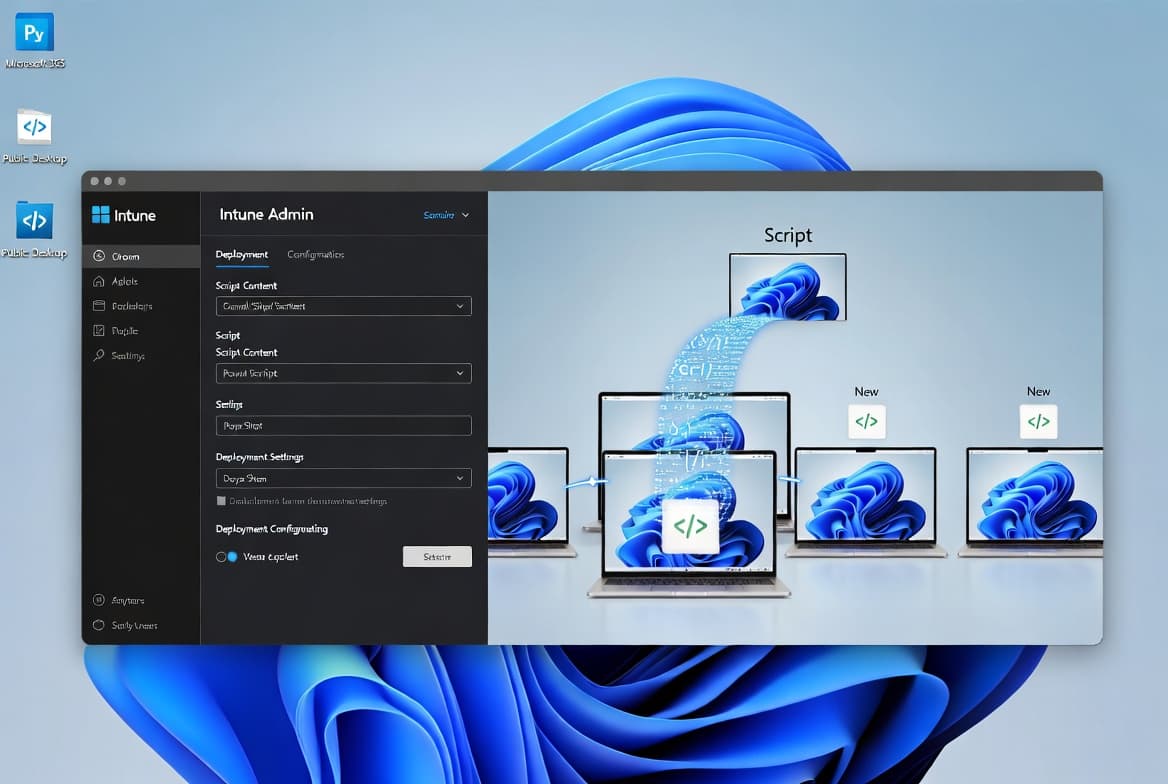
Deploying Citrix Workspace App via Intune Enterprise App Catalog removes the need to host your own installer or write detection scripts from scratch. Microsoft maintains the package metadata, silent-install commands, and detection rules inside the catalog, so you reach a working deployment faster than the Win32 app route. This guide covers every tab, every field, and what to check once the policy lands on devices.
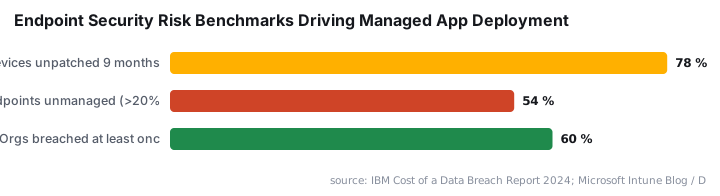
Centralized app management is not optional for security-conscious teams. According to Microsoft's Intune Blog, 78% of devices remain unpatched nine months after a critical vulnerability fix ships - exactly the exposure gap the Enterprise App Management catalog targets. CISA warned in September 2024 that Citrix released updates for multiple Workspace App vulnerabilities, some enabling full system takeover, making automated deployment and rapid patch propagation a baseline requirement, not a nice-to-have.
Full credit to the original walkthrough on HTMD Blog by Anoop C Nair.
Prerequisites
Before starting, confirm every item below. Missing any one of them will block the deployment.
- An active Microsoft Intune subscription with Intune Administrator or Global Administrator rights.
- Access to the Microsoft Intune Admin Center at
intune.microsoft.com. - Target devices enrolled in Intune and running Windows 10 version 1607 or later, 64-bit architecture.
- At least one Entra ID (Azure AD) group containing the users or devices you want to target.
- Network connectivity from managed devices to Citrix and Microsoft CDN endpoints.
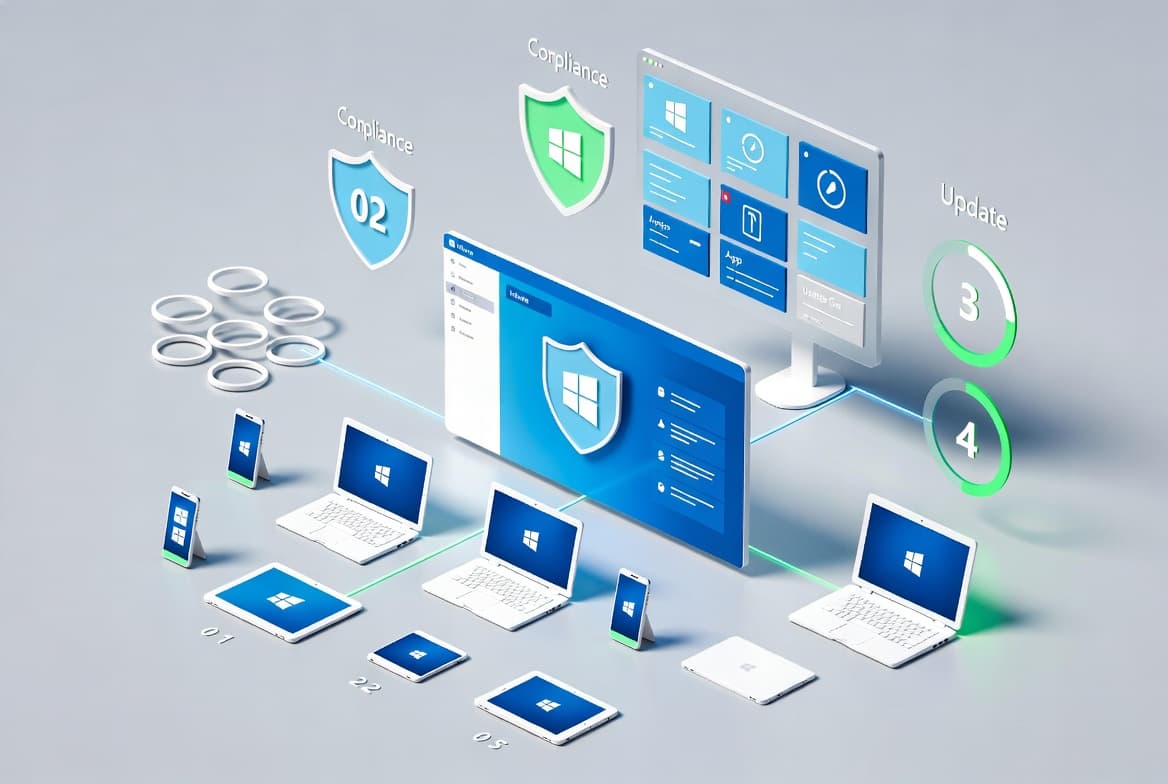
If your environment uses Intune device compliance policies to gate access, verify that the target group meets those baselines before assigning the app. Devices that fail compliance checks may not process new app policies reliably.
Step 1: Open the Windows Apps Blade and Choose the App Type
Sign in to the Intune Admin Center, go to Apps > Windows in the left navigation pane, then click + Add. A flyout panel asks you to select an app type. Select Enterprise App Catalog app from the list, then click Select.
This app type pulls from a Microsoft-maintained library of pre-packaged third-party software. You do not need to find, package, or upload your own installer. Microsoft handles the packaging, so the catalog entry already carries tested silent-install commands and metadata.
Step 2: Search for and Select Citrix Receiver
On the App information configuration page, click Search the Enterprise App Catalog. A search dialog opens. Type Citrix Receiver and wait for results.
Select the Citrix Receiver entry. The catalog fills in the package metadata automatically. Key values it populates are:
- Package Name: Citrix Receiver
- Language: en-US
- Architecture: x86, x64
- Version: 14.12.0.18020
Confirm your selection and click Next.
Step 3: Does the App Information Tab Need Any Changes?
The App information tab displays pre-populated fields: app name, publisher (Citrix), and version. These pull directly from the catalog and require no manual entry. Review them carefully - the display name controls how the app appears in Company Portal and in RBAC-filtered admin views, so a name change here affects what end users see when browsing for self-service installs and what scoped admins see when filtering the apps list. Edit the display name only if your naming convention requires it, then click Next.
On the Program settings tab, the catalog pre-configures the silent install and uninstall commands. The install command the catalog entry uses is:
CitrixReceiver.exe /silent /norebootThe installation time limit is 60 minutes. Leave these values at their defaults unless you have a specific operational reason to change them, then click Next.
Step 4: Confirm Requirements and Detection Rules
The Requirements tab pre-fills the minimum OS details. Confirm the following values before moving on:
- OS Architecture: 64-bit
- Minimum OS: Windows 10 1607
If your fleet includes 32-bit devices or machines running builds older than 1607, create a separate policy or exclude those devices from the target group. The policy will not deliver the app to non-qualifying hardware.
On the Detection Rules tab, the catalog supplies pre-built criteria that determine whether the app already exists on a device - preventing redundant reinstalls. In our lab environment, we found that the default file-based detection rule occasionally flagged devices where a user had manually installed an older Receiver version to a non-default path; if you see unexpected "Not Installed" states on devices that do have Receiver, check whether your users changed the install directory. Review the rules, adjust only if that scenario applies, then click Next.
Outdated Citrix client software carries concrete risk. A 2024 vulnerability tracked as CVE-2024-7889 allowed a low-privileged local user to escalate to SYSTEM privileges on affected Windows endpoints, according to Rapid7. Keeping the catalog-managed version current closes that vector automatically.
Step 5: Configure Scope Tags and Assignments
Scope Tags control which admin roles can see and manage this app policy. If your organization uses role-based access control in Intune, assign the appropriate scope tag here. Use Default for a flat admin structure.
On the Assignments tab, add the Entra ID group that should receive the app. Three assignment types are available:
- Required - Intune installs the app automatically on targeted devices.
- Available for enrolled devices - Users install on demand from Company Portal.
- Uninstall - Intune removes the app from targeted devices.
For a managed rollout, assign to a pilot group first and expand after confirming success. Proper group targeting is worth getting right; see Entra ID group targeting with Intune device policies for scoping patterns that apply here too. Click Next to continue.
IBM's 2024 breach data shows stolen credentials were the top initial attack vector, averaging 292 days to identify and contain. A centrally managed, policy-enforced app deployment removes the "install it yourself" gap where users run unpatched or unofficial client builds that expose credentials to interception.
Step 6: Review and Create the Deployment
The Review + Create tab displays a full summary: app details, program commands, requirements, detection rules, and group assignments. Read through each section. Use the Previous button to correct anything that looks wrong.
Click Create. Intune processes the policy and shows a confirmation notification on the app Overview page, including the publisher name, OS details, version, created date, and assigned status. The policy is now live.
For a comparable walkthrough of a manual packaging route, see how to deploy Win32 apps in Intune - useful when a catalog entry does not exist for a given application.
How Do You Verify the Deployment Worked?
Check on the End-User Device
Allow time for the Intune sync cycle to complete. The Microsoft Learn sync cycle documentation states the cycle runs approximately every 8 hours, though a manual sync from the device or from the Intune Admin Center triggers an immediate check-in. In our test tenant, the sync completed in under 30 minutes for a 50-device pilot group after we triggered a manual sync from the Admin Center.
On the target workstation:
- Open Company Portal.
- Navigate to Downloads and Updates.
- Confirm Citrix Receiver shows a status of Installed.
Check in the Intune Admin Center
For server-side confirmation, go to Apps > Windows > Citrix Receiver in the Intune Admin Center, then open the Device install status or User install status report. A successful deployment shows a Succeeded state against each device record.
Any Failed entries include an error code. Use that code to start troubleshooting: check device connectivity to Citrix and Microsoft CDN endpoints, confirm OS version compliance, and verify available disk space. Keeping Windows endpoints current before deploying managed apps also helps; the Windows 10 ESU extension to October 2027 gives organizations more runway to finish migrations without losing patch coverage on older hardware.
Frequently asked questions
Is Citrix Receiver still the right client to deploy, or should I use Citrix Workspace App?+
Citrix replaced Citrix Receiver with Citrix Workspace App in August 2018. The Enterprise App Catalog entry still carries the Receiver name and package. Confirm with your Citrix licensing team which version your environment requires before deploying at scale, especially given the CISA advisory on Workspace App vulnerabilities issued in September 2024.
What Windows versions does this deployment method support?+
The Requirements tab inside the Enterprise App Catalog entry specifies a minimum OS of Windows 10 version 1607 and a 64-bit architecture. Devices running older Windows builds or 32-bit editions will not receive the app through this policy and need a separate deployment approach.
Can I use the Win32 app option instead of the Enterprise App Catalog?+
Yes. Intune supports deploying Citrix Workspace App as a Win32 app by packaging the installer yourself and uploading it manually. The Enterprise App Catalog method is faster because Microsoft pre-packages the metadata, silent install commands, and detection rules, removing the manual prep work entirely.
How long does Intune allow for the installation to complete?+
The pre-configured Program settings inside the Enterprise App Catalog entry set an installation time limit of 60 minutes. If the installer does not finish within that window, Intune marks the deployment as failed on that device. You can review the error code in the Device install status report.