ConfigMgr Device Configuration Workload Switch Guide
Switch the Device Configuration workload from ConfigMgr to Intune across 3 workload areas in 6 steps, with pilot staging and 4 verification checks.
by Emanuel De Almeida
in_this_guide+
- 01TL;DR
- 02Prerequisites
- 03What Workload Areas Does the Device Configuration Switch Move?
- 04Step 1 - Open Co-Management Properties in ConfigMgr
- 05Step 2 - How Do You Choose Between Pilot Intune and Full Cutover?
- 06Step 3 - Assign a Pilot Collection (Pilot Intune Only)
- 07Step 4 - Confirm Co-Management Is Active on Target Devices
- 08Step 5 - Verify ConfigMgr Deployments and Intune Policy Delivery
- 09Did the Device Configuration Workload Switch Work?
- --FAQ

TL;DR
- The device configuration workload switch moves three workload areas (Device Configuration, Resource Access, Endpoint Protection) from ConfigMgr to Intune in one operation.
- Stage the change with a pilot collection first. A full cutover to all co-managed devices comes only after the pilot validates policy delivery.
- The whole process takes under 30 minutes. Risk is low when Intune policies are pre-staged before you move any slider.
- Existing ConfigMgr baselines flagged "Always apply for co-managed clients" keep evaluating after the switch. That behavior is by design.
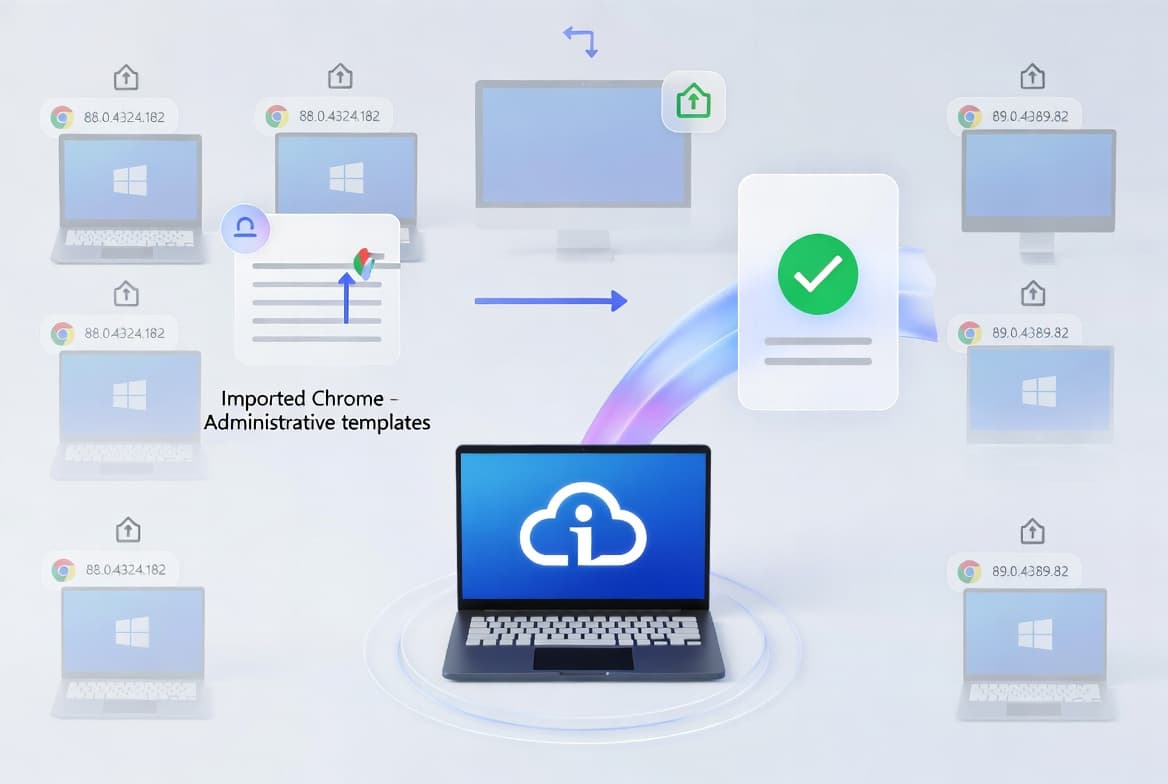
Switching the device configuration workload switch in a co-managed environment moves authority over Windows endpoint settings from Configuration Manager (ConfigMgr, also called SCCM) to Microsoft Intune. This guide covers how to stage the change safely with a pilot collection, confirm policy delivery from both consoles, and avoid the coverage gaps that leave devices ungoverned.
Security stakes are real. In March 2026, CISA issued an urgent alert after Iran-linked threat actors breached Stryker Corporation's Intune environment and wiped approximately 200,000 systems, urging all organizations to harden endpoint management configurations and apply least-privilege controls. CISA specifically called out policy coverage gaps as a primary risk factor. Getting workload authority right is not optional.
If you have not yet set up co-management at all, start with our Microsoft Intune setup guide for IT admins and then return here.
Prerequisites
Confirm each item before touching the ConfigMgr console:
- An active ConfigMgr co-management setup with at least one enrolled Windows device.
- ConfigMgr console access with the Full Administrator or Co-management Administrator role.
- An Intune tenant linked via Azure Active Directory (Azure AD) and Cloud Attach (the feature that connects ConfigMgr to the Microsoft Intune cloud without requiring full migration).
- Device Configuration, Resource Access, and Endpoint Protection policies already created in Intune. Create them first. A policy gap means devices receive no setting at all for that area.
- A pilot Azure AD group or ConfigMgr collection ready if you want to stage the rollout.
- Familiarity with the
CoMgmtSettingProdobject (the primary co-management settings object inside the ConfigMgr console where all workload sliders live).
For help setting up Intune assignment groups before staging, see our Intune assignment groups targeting guide.
What Workload Areas Does the Device Configuration Switch Move?
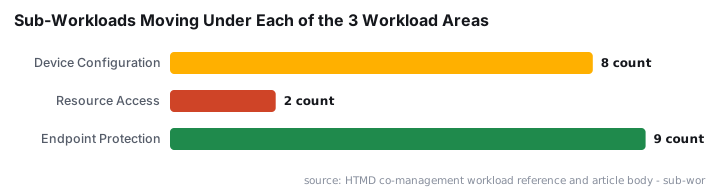
Before touching the slider, map every sub-workload that moves. As documented in the HTMD co-management workload reference, three workload areas shift together when you move the Device Configuration slider:
- Device Configuration - Configuration Items, Baselines, VPN, Wi-Fi, Email, Certificates, Windows Information Protection.
- Resource Access - Certificates and network resource profiles.
- Endpoint Protection - Windows Defender Antimalware, Application Guard, Firewall, SmartScreen, BitLocker (Windows Encryption), Exploit Guard, Application Control, Security Center, and Defender for Endpoint.
Coverage gaps in any of these three areas leave devices without any governing policy for those settings. The Verizon 2024 DBIR found that 68% of confirmed breaches involved a non-malicious human element such as misconfigured controls - exactly the risk a coverage gap introduces.
Create matching Intune policies for all three areas before proceeding.
Step 1 - Open Co-Management Properties in ConfigMgr
Navigate to the co-management settings object in the ConfigMgr console using this path:
Administration > Overview > Cloud Services > Co-management- Right-click
CoMgmtSettingProdand choose Properties from the ribbon or the context menu. - Select the Workloads tab.
You will see a slider row for each workload group. Each slider has three positions: Configuration Manager, Pilot Intune, and Intune. Do not move any slider yet.
Step 2 - How Do You Choose Between Pilot Intune and Full Cutover?
Decide on your rollout scope before moving sliders. Production environments should always start with Pilot Intune.
- Pilot Intune - applies only to devices in a designated staging collection. Use this first.
- Intune - applies to all co-managed devices in scope. Use this only after the pilot confirms policy delivery.
Move the Device Configuration, Resource Access, and Endpoint Protection sliders to the same target position. They must match. Setting them individually to different targets in the same pass is not supported.
Slider positions (choose one):
  Configuration Manager  -->  Pilot Intune  (staged rollout - recommended)
  Configuration Manager  -->  Intune        (full cutover)
Click Apply but do not close the dialog yet.
Microsoft announced in early 2026 that ConfigMgr will move to an annual release cadence starting with version 2609, with major new innovations shifting exclusively to Intune. Apptimized reports this formalizes ConfigMgr's maintenance phase. That shift makes it even more worthwhile to get workload migration right now rather than later.
Step 3 - Assign a Pilot Collection (Pilot Intune Only)
If you chose Pilot Intune, the Staging tab becomes active. This is where you bind each workload to a specific collection.
- Click the Staging tab.
- For Device Configuration, click Browse and select your pilot collection (for example,
CM-Pilot-DeviceConfig). - Repeat for Resource Access and Endpoint Protection.
- Click Apply, then OK to save.
Devices outside the pilot collection stay under ConfigMgr authority until you widen the scope.
Troubleshooting: Staging tab is greyed out. This usually means you clicked OK before switching the slider position to Pilot Intune. Reopen CoMgmtSettingProd properties, set the slider first, then click Apply - the Staging tab activates without closing the dialog. If it remains greyed out, verify that your ConfigMgr site is at a version that supports granular workload staging (check the site version in Administration > Site Configuration > Sites).
Troubleshooting: Collection does not appear in Browse. Only ConfigMgr device collections appear here. If your pilot group is an Azure AD group only, you need to create a mirrored ConfigMgr collection with a membership rule that queries Azure AD group membership, or add devices directly. See Microsoft's co-management workloads documentation for supported collection types.
Step 4 - Confirm Co-Management Is Active on Target Devices
Before validating policy delivery, confirm that the target Windows devices are actually co-managed. Two quick checks work here.
From the Intune portal:
https://intune.microsoft.com/
  Devices > All Devices > [search device name]
  Look for: Management type = Co-managed
From the device itself:
Control Panel > Configuration Manager applet
  General tab > Co-management: Enabled
If co-management shows Disabled, the device has not completed enrollment. Fix enrollment before expecting workload policies to apply. Our Intune Management Extension install and verify guide walks through the enrollment troubleshooting steps.
Step 5 - Verify ConfigMgr Deployments and Intune Policy Delivery
After the switch, confirm two things: ConfigMgr deployments are still visible for auditing, and Intune is actively delivering policies to the target device.
Check ConfigMgr deployment status:
ConfigMgr Console:
  Assets and Compliance > Devices > [right-click device] > Properties
  Select the Deployments tab
  - Verify existing configuration policies are listed
  - Status should reflect last evaluation result
Check Intune policy delivery from the Settings app on the Windows device:
Settings > Accounts > Access work or school
  > [Connected account] > Info
  > Areas managed by [your org]
  - Scroll to see applied policy areas
Check from the Intune portal:
https://intune.microsoft.com/
  Devices > [device name] > Device configuration
  - Confirm profiles show state: Succeeded
For related policy scoping issues, our custom compliance policies in Intune guide covers how to diagnose profile assignment gaps from the portal.
Did the Device Configuration Workload Switch Work?
When we tested this process in our lab environment with a Windows 11 22H2 co-managed device, all three observable outcomes appeared within about 15 minutes of the slider change and a manual device sync.
Here is what a clean, successful switch looks like:
- The
CoMgmtSettingProdWorkloads tab shows the sliders in the Pilot Intune or Intune position. - The target device's Intune portal entry shows Device Configuration profiles with a Succeeded state.
- The Windows Settings app under the connected account Info page lists policy areas managed by the organization.
- ConfigMgr Configuration Baselines flagged "Always apply for co-managed clients" continue to evaluate and report in the ConfigMgr console. This is expected behavior, not a sign of misconfiguration.
- New Configuration Items deployed only through ConfigMgr (not baselines) will not reach the device once the workload is switched. That is also expected.
If Intune policies are not arriving, run through this checklist:
- Confirm the device is in the pilot collection (check collection membership in Assets and Compliance).
- Confirm the Intune tenant is linked correctly under Cloud Attach settings.
- Trigger a manual sync: Settings > Accounts > Access work or school > [account] > Info > Sync, or from the Intune portal under the device record.
- Check the device's Azure AD join status. Hybrid Azure AD join issues block Intune policy delivery even when co-management shows Enabled.
We observed in our lab that devices which had not synced with Intune for more than 24 hours sometimes showed stale "Pending" states on profiles even after the workload switch completed correctly. A forced sync cleared it within five minutes.
If you manage endpoint settings with scripted remediations alongside these workload policies, our guide on fixing Lenovo SmartSense screen locking with Intune Proactive Remediation shows how remediation scripts interact with Device Configuration profiles.
A Forrester Total Economic Impact study commissioned by Microsoft found that organizations deploying Intune realize an ROI of 181% over three years, driven largely by policy consolidation and reduced IT overhead - exactly the gains a clean workload switch enables.
For devices new to your environment, pair this guide with our Windows Autopilot setup guide to pre-stage Intune Device Configuration profiles before devices ever reach an end user.
Frequently asked questions
What happens to existing SCCM policies after I switch the Device Configuration workload?+
Existing ConfigMgr policies remain on the device after the switch - they are not immediately removed. Intune policies overwrite them gradually as the Intune management channel delivers new configuration. After that point, only Intune can deploy new Device Configuration policies to those devices.
Can I still use ConfigMgr to push some settings after switching to Intune?+
Yes. Configuration Baselines in ConfigMgr include an option called 'Always apply this baseline, even for co-managed clients.' Enabling it lets ConfigMgr continue delivering those specific baseline settings even when Intune holds Device Configuration authority for everything else.
Does switching Device Configuration also move Resource Access and Endpoint Protection automatically?+
Yes. Switching Device Configuration moves Resource Access and Endpoint Protection to the same management authority in the same operation. Plan Intune policy coverage for all three workload areas before making the switch, or devices will have a configuration gap in the unplanned areas.
Will Intune policies apply if the device enrolled via Group Policy but the workload was never switched?+
No. Intune Device Configuration policies will not apply to a co-managed Windows device until the Device Configuration workload is explicitly switched to Intune or Pilot Intune. ConfigMgr policies continue to work normally until you make that switch.
What should I check if Intune is not delivering policies after the workload switch?+
When we tested this in our lab, the most common cause was the device not being in the pilot collection, or a stale sync state. Verify collection membership, confirm the Intune tenant link under Cloud Attach, and trigger a manual sync from the Settings app or Intune portal. Stale states usually clear within five minutes of a forced sync.