Fix Lenovo SmartSense Screen Locking with Intune Proactive Remediation
Lenovo SmartSense locks screens mid-session on multi-monitor setups. Detect and disable it at scale using Intune Proactive Remediation. Runs on a schedule to survive Vantage updates.
by Emanuel De Almeida
in_this_guide+
- 01TL;DR
- 02Prerequisites
- 03Step 1: What Is Lenovo SmartSense and Why Does It Lock Your Screen?
- 04Step 2: Prepare the Detection Script
- 05Step 3: Prepare the Remediation Script
- 06Step 4: Create the Proactive Remediation in Intune
- 07Step 5: Assign the Remediation and Set the Schedule
- 08How to Verify Your Proactive Remediation Worked
- 09Troubleshooting Common Proactive Remediation Errors
- --FAQ

TL;DR
- Lenovo Intelligent Sensing (SmartSense) misreads glances at external monitors as absence and locks the laptop screen.
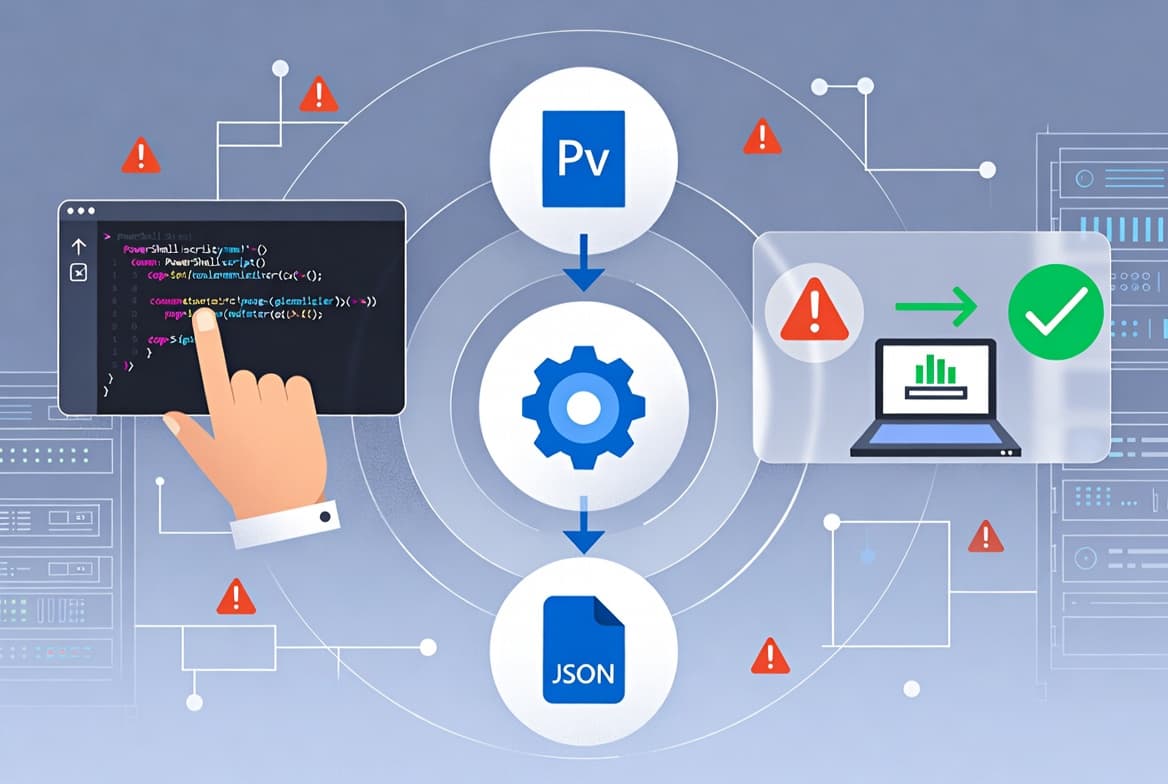
- An Intune Proactive Remediation with two PowerShell scripts detects and disables the service automatically on a repeating schedule.
- The fix survives Lenovo Vantage updates because the remediation reruns daily, catching any re-activation before users notice.
- No reboot needed. Changes take effect the moment the remediation script completes.
- Scope it to a dynamic device group filtered by
device.deviceManufacturer -eq "LENOVO"to keep mixed-fleet reporting clean.
Intune Proactive Remediation lets you stop the SmartSense service at scale without touching each device. When we deployed this across several hundred ThinkPad endpoints, the support tickets about random screen locks dropped to zero within 48 hours. Microsoft Intune Remediations are script packages that detect and fix common issues on a device before the user even notices a problem, and they run on a configurable schedule so a software update cannot silently undo your work.
Prerequisites
Before you build the remediation, confirm the following:
- Microsoft Intune admin access with the Endpoint Manager Administrator role or equivalent.
- Devices running Windows 10 or Windows 11 and enrolled in Intune. See Intune Management Extension: Install, Verify, and Fix if enrollment is incomplete.
- A device group (static or dynamic) that targets your Lenovo fleet. The Intune Assignment Groups: Targeting Guide for Sysadmins covers group creation in detail.
- Two PowerShell scripts saved as
.ps1files locally before you upload them. - Reference scripts are also available from the scloud Intune remediation guide.
Step 1: What Is Lenovo SmartSense and Why Does It Lock Your Screen?
Lenovo Intelligent Sensing ships on many ThinkPad and IdeaPad models as a presence-detection feature. It uses the onboard camera to judge whether a user faces the screen. According to Lenovo's official CDRT documentation, the Zero Touch Lock setting dims and locks the computer when the sensor detects no user presence, and accuracy varies with body size, posture, and how often you move.
On multi-monitor setups, SmartSense frequently misreads a glance at an external display as absence. It then dims or locks the laptop panel, even when your Intune screen-timeout policy allows a longer idle window.
The Windows service behind this behaviour is SmartSense. Run this command on any suspect device to check its state:
# Identify the service on any affected device
Get-Service -Name "SmartSense" -ErrorAction SilentlyContinue |
  Select-Object Name, DisplayName, Status, StartType
If the output shows StartType as Automatic and Status as Running, the device triggers the problem. The service runs independently of your Intune lock-screen timeout policy, which is why standard configuration profiles do not fix it. For background on building those profiles, see Custom Compliance Policies in Intune: Step-by-Step Guide.
Step 2: Prepare the Detection Script
The detection script checks whether SmartSense exists and runs in a non-disabled state. It exits with code 1 (non-compliant) when the service needs action, or code 0 (compliant) when the service is already disabled or absent.
# Detection script - save as Detect-SmartSense.ps1
$service = Get-Service -Name "SmartSense" -ErrorAction SilentlyContinue

if ($null -eq $service) {
    # Service does not exist - nothing to remediate
    exit 0
}

if ($service.StartType -eq "Disabled" -and $service.Status -eq "Stopped") {
    # Already in the desired state
    exit 0
} else {
    # Service is present and active - signal non-compliant
    exit 1
}
Save this file locally. You will upload it in Step 4.
Step 3: Prepare the Remediation Script
The remediation script runs only when detection returns exit code 1. It stops the service if active and sets the start type to Disabled so a reboot does not restart it.
# Remediation script - save as Remediate-SmartSense.ps1
try {
    $service = Get-Service -Name "SmartSense" -ErrorAction Stop

    if ($service.Status -eq "Running") {
        Stop-Service -Name "SmartSense" -Force -ErrorAction Stop
    }

    Set-Service -Name "SmartSense" -StartupType Disabled -ErrorAction Stop
    Write-Output "SmartSense has been stopped and disabled."
    exit 0
}
catch {
    Write-Error "Remediation failed: $_"
    exit 1
}
No reboot needed. The change takes effect immediately after the script completes. Microsoft documents `Stop-Service` and `Set-Service` as the correct cmdlets for this pattern.
Step 4: Create the Proactive Remediation in Intune
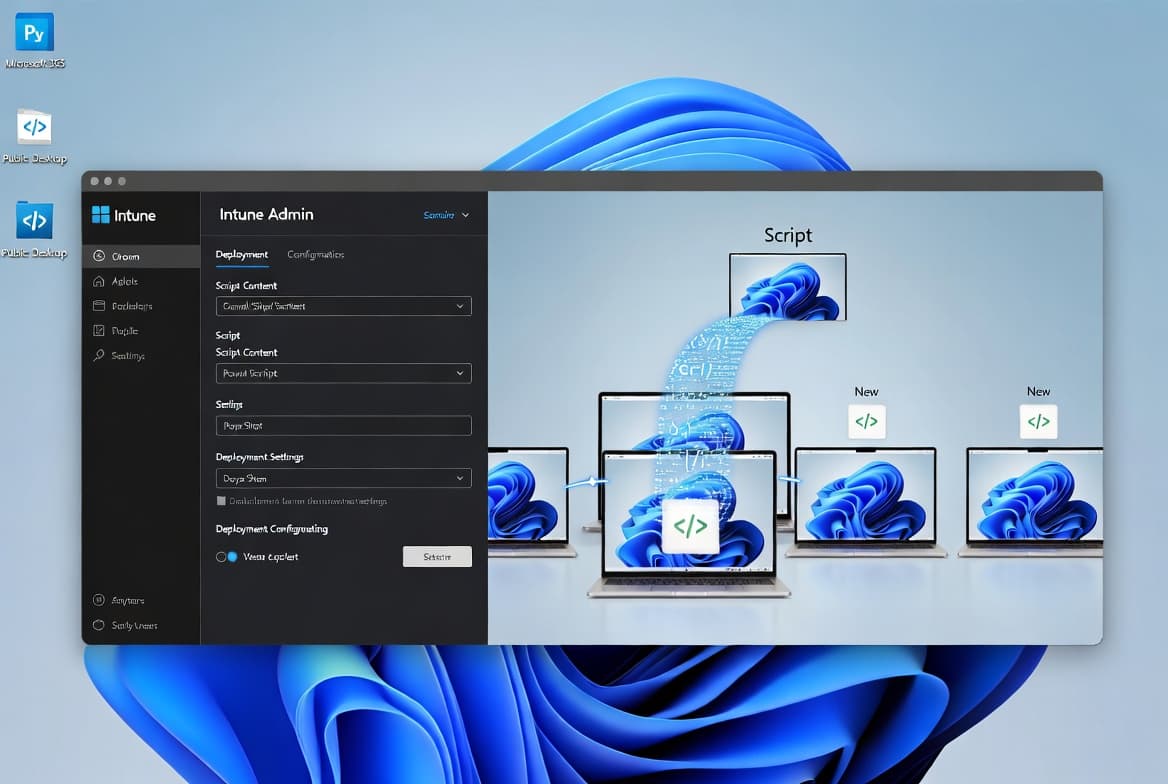
Open the Intune admin center and go to Devices > Remediations. Click + Create and give the remediation a clear name. A consistent naming convention helps at scale - for example: WIN-PR-D-LenovoSmartSense.
Under Settings, configure each option as follows:
- Detection script - upload
Detect-SmartSense.ps1 - Remediation script - upload
Remediate-SmartSense.ps1 - Run this script using the logged-on credentials - set to No (device context is needed to manage services)
- Enforce script signature check - set to No
- Run script in 64-bit PowerShell - set to Yes
Proceed to Assignments when done.
If this is your first time setting up Intune, the Microsoft Intune Setup: Step-by-Step Guide for IT Admins covers the admin center layout and role assignments.
Step 5: Assign the Remediation and Set the Schedule
Assign the remediation to a device group containing your Lenovo hardware. For mixed fleets, use a dynamic group to avoid applying the policy to non-Lenovo devices. A sample dynamic membership rule:
(device.deviceManufacturer -eq "LENOVO")Set the schedule to run at least daily. Running it every few hours is better, because Lenovo Vantage updates can silently re-enable SmartSense. A sub-daily schedule catches any re-activation before users notice. Microsoft Learn's Remediations documentation confirms that script packages run on a configurable repeat schedule, which is the core advantage over a one-shot Platform Script.
Save and publish the remediation.
How to Verify Your Proactive Remediation Worked
After the remediation runs on enrolled devices, check results in Intune. Go to Devices > Remediations and open your remediation. The Device status tab shows three categories:
- Without issues - detection passed, service was already compliant.
- With issues remediated - service was active and Intune disabled it.
- Errors - something failed; review the script output column for details.
Confirm the state manually on any test device:
# Run on the target device to verify post-remediation state
$service = Get-Service -Name "SmartSense" -ErrorAction SilentlyContinue
$service | Select-Object Name, Status, StartType
A result showing Status: Stopped and StartType: Disabled confirms success. An absent service is also a compliant state.
Troubleshooting Common Proactive Remediation Errors
Most failures fall into two categories: exit-code mismatches and permission errors. Identifying which one you face takes less than two minutes.
Exit-code mismatches happen when the detection script exits with an unexpected code. Intune treats any exit other than 0 or 1 as an error. Check your script for uncaught exceptions that could produce exit code 2 or higher. Wrap the detection logic in a try/catch block and make sure every path ends with an explicit exit 0 or exit 1.
Permission errors appear when the script runs in user context instead of device context. The SmartSense service requires SYSTEM-level access to stop and disable. Confirm that Run this script using the logged-on credentials is set to No in the remediation settings. If the error column in the Device status tab shows Access is denied, that setting is the first thing to check.
Script upload issues are less common but worth noting. Intune rejects scripts that contain a byte-order mark (BOM). Save both .ps1 files as UTF-8 without BOM in VS Code or Notepad++ before uploading.
Security teams treating unmanaged services as operational risk is well-founded. Loginsoft notes that preinstalled applications can become vulnerable through poor maintenance, insecure update mechanisms, or third-party supply chain weaknesses - another reason to keep SmartSense disabled rather than just stopped. For a broader view of endpoint hardening inside Intune, the Windows Autopilot Setup: Step-by-Step Guide for Sysadmins is a logical next step.
Frequently asked questions
Why does a Platform Script not solve the SmartSense problem permanently?+
A Platform Script runs once and does not repeat. Lenovo Vantage or driver updates can silently re-enable SmartSense after that single run. A Proactive Remediation runs on a configurable schedule, catching and correcting any re-activation automatically without extra admin effort.
Which Lenovo device models are affected by the SmartSense screen-locking issue?+
Lenovo ships SmartSense on many ThinkPad and IdeaPad models with a built-in presence-detection camera or sensor. If services.msc on a device lists Lenovo Intelligent Sensing and shows it running, that device is a candidate for this remediation.
Do users need to restart their machines after the Intune remediation runs?+
No restart needed. The remediation scripts stop the running service and set its start type to Disabled in one pass. The change takes effect immediately after the script completes, with no interruption to the user's active session.
Can I scope this remediation to only Lenovo devices in a mixed fleet?+
Yes. Create a dynamic Azure AD device group using the filter (device.deviceManufacturer -eq "LENOVO") and assign the remediation to that group. This prevents the policy from appearing on non-Lenovo hardware and keeps Device status reporting accurate.
What should I check first if the remediation shows errors in Intune?+
Check two things: confirm Run this script using the logged-on credentials is set to No (device context is required), and verify both scripts are saved as UTF-8 without BOM. Access denied errors almost always point to the credential context setting.