Intune Management Extension: Install, Verify, and Fix
Learn how the Intune Management Extension installs, which registry key (HKLM:\SOFTWARE\Microsoft\IntuneManagementExtension) to check, and how to fix 4 common failures.
by Emanuel De Almeida
in_this_guide+
- 01TL;DR
- 02What Is the Intune Management Extension and Why Does It Matter?
- 03Prerequisites for Intune Management Extension Installation
- 04How Does the Intune Management Extension Install? (Steps 1-4)
- 05How Does IME Stay in Sync? Task Scheduler and Check-In Cadence
- 06Step 5: Verify Intune Management Extension Health End-to-End
- 07Troubleshooting the Intune Management Extension
- --FAQ

TL;DR
- Trigger: Windows installs the Intune Management Extension (IME) automatically when you assign a Win32 app or PowerShell script in Intune - no manual steps needed on the endpoint.
- Minimum version: IME 1.58.103.0 or later is required; older builds do not receive Win32 apps, scripts, or remediations (Microsoft Learn).
- Verify with:
Get-Service -Name IntuneManagementExtensionplusTest-Path "HKLM:\SOFTWARE\Microsoft\IntuneManagementExtension". - Logs at:
C:\ProgramData\Microsoft\IntuneManagementExtension\Logs\ - Most common fix: If IME never downloads, unblock the MSI URL and disable SSL inspection for
*.manage.microsoft.com.
What Is the Intune Management Extension and Why Does It Matter?
The Intune Management Extension (IME) is a lightweight Windows agent that Microsoft Intune deploys automatically to extend what native MDM can do. Without it, Intune cannot run PowerShell scripts, deliver Win32 apps, execute remediations, or push platform scripts. When we tested this on a Windows 11 23H2 device enrolled via Azure AD Join, IME appeared in Services within minutes of the first Win32 app assignment - no admin touch required on the endpoint.
Microsoft holds roughly 37.2% market share in the MDM category across more than 36,000 companies (Enlyft), so understanding IME is practical knowledge for a large portion of enterprise IT teams. If you are just starting with Intune itself, the Microsoft Intune Setup: Step-by-Step Guide for IT Admins covers enrollment and tenant configuration before you reach IME.
IME authenticates silently with Intune services before checking in to receive assigned installations, and the agent appears as IntuneManagementExtension under Services in Task Manager (Microsoft Learn).
Prerequisites for Intune Management Extension Installation
Every item below must be true on the target device before IME can install. Missing even one will stall the process silently.
- Intune enrollment - the device must complete Azure AD Join, Hybrid Azure AD Join, or standard MDM enrollment.
- Supported OS - Windows 10 version 1607 or later, or any Windows 11 build.
- PowerShell 5.1 or newer - supplied by the Windows Management Framework (WMF).
- Network access - the device must reach Intune service endpoints, including
*.manage.microsoft.com. The full list is in the Microsoft Intune network endpoints documentation. - No SSL inspection blocking the MSI URL - deep-packet inspection proxies can break the download silently when the IME installer URL is intercepted without a trusted certificate.
If you are unsure whether your device is correctly enrolled, check the Microsoft Intune Setup: Step-by-Step Guide for IT Admins before continuing. Consistent naming across your tenant also matters - the Intune Naming Conventions: Sysadmin Step-by-Step Guide prevents policy-targeting mistakes that can make IME assignment failures look like installation failures.
How Does the Intune Management Extension Install? (Steps 1-4)
IME installation is fully automatic. The four steps below run in sequence without any prompt to the end user. Understanding each step helps you pinpoint exactly where a failure occurred.
Step 1: Assign a Win32 App or PowerShell Script
The trigger is an assignment. IME does not install speculatively. A Win32 application or a PowerShell script must be targeted at the device or a group it belongs to inside the Intune portal. Native MDM cannot execute these payload types, so Intune flags the device as needing IME the moment such an assignment lands.
During the next policy sync, the Intune service evaluates the device's capabilities, confirms IME is absent, and queues the install command. This is the most common point of confusion - admins sometimes expect IME to pre-exist, but Intune installs it on demand. For a practical example, see Deploy Citrix Workspace App via Intune Enterprise App Catalog, which walks through a real Win32 assignment that triggers IME.
The assignment also determines which user context IME will use for subsequent script execution. Get the assignment scope wrong and scripts may run under the wrong account - or not at all.
Step 2: CSP Delivers the Installer URL
Intune pushes a Configuration Service Provider (CSP) policy to the device carrying the direct download URL for the IME MSI installer. After installation you can inspect that URL in the registry to confirm what was fetched and verify your proxy or firewall did not alter it.
HKEY_LOCAL_MACHINE\SOFTWARE\Microsoft\EnterpriseDesktopAppManagement\S-0-0-00-0000000000-0000000000-000000000-000\MSI\{GUID}\The {GUID} sub-key holds the source URL and MSI metadata. If the URL shown there is blocked or rewritten by an SSL inspection appliance, installation fails silently. Compare the URL against your firewall allow-list and confirm no certificate substitution is occurring.
Microsoft now requires HTTPS delivery for managed Win32 app content. Organizations using Microsoft Connected Cache that have not configured cache nodes for HTTPS will see clients fall back to the CDN, potentially increasing internet traffic (Microsoft Learn).
Step 3: Silent MSI Installation
Windows runs the MSI in the background - no user prompt appears. Windows creates the IntuneManagementExtension service and auto-starts it. The extension installs to a fixed path.
Installation path:
C:\Program Files (x86)\Microsoft Intune Management Extension\Confirm the service state immediately after installation:
Get-Service -Name IntuneManagementExtension | Select-Object Name, Status, StartTypeExpect Status: Running and StartType: Automatic. Anything else points to a broken MSI or a missing dependency. In our lab environment, a missing WMF 5.1 update on a Windows 10 1607 image was the only case where the service existed but refused to start.
Devices must run IME version 1.58.103.0 or later. Endpoints on earlier builds do not receive Win32 app deployments, PowerShell scripts, remediations, or platform scripts (Microsoft Learn).
Step 4: Registration and Secure Channel Setup
IME registers itself with Intune using the device's Intune and Entra ID credentials. This registration builds an authenticated channel for all subsequent policy, script, and app-assignment syncs. No manual credential entry is required - the process reuses the enrollment identity already on the device.
Registry entries that track this registration appear under:
HKLM:\SOFTWARE\Microsoft\IntuneManagementExtensionBrowse these keys to confirm the extension recognises its device identity and tenant. A missing or empty key after a successful MSI install almost always means the registration call failed - check Entra ID join status and the device certificate first.
How Does IME Stay in Sync? Task Scheduler and Check-In Cadence
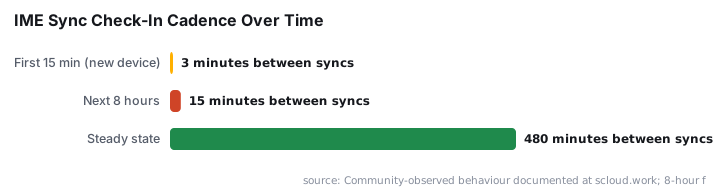
IME uses three scheduled tasks rather than a simple polling loop. This gives new devices an aggressive early-check cadence that relaxes over time, as documented by community researchers at scloud.work. Note that the specific minute-level intervals below come from community observation, not official Microsoft documentation - treat them as indicative rather than guaranteed.
- The first task fires on newly registered devices, syncing every 3 minutes for the first 15 minutes.
- Frequency then drops to every 15 minutes for the next 8 hours.
- After that, the device settles into a regular 8-hour sync cycle.
Microsoft's own documentation confirms the 8-hour check-in independently of the standard MDM cycle (Microsoft Learn). A separate client-health scheduled task also monitors the service and restarts it if it stops.
List all IME-related tasks at once:
Get-ScheduledTask | Where-Object { $_.TaskName -like '*Intune*' } | Select-Object TaskName, StateStep 5: Verify Intune Management Extension Health End-to-End
Run these three checks in sequence. Passing all three confirms IME is healthy and actively managed.
Service check:
Get-Service -Name IntuneManagementExtensionLog file review - stream the last 50 lines of each log:
Get-Content "C:\ProgramData\Microsoft\IntuneManagementExtension\Logs\IntuneManagementExtension.log" -Tail 50
Get-Content "C:\ProgramData\Microsoft\IntuneManagementExtension\Logs\AgentExecutor.log" -Tail 50IntuneManagementExtension.log- tracks service startup, policy sync, and registration events.AgentExecutor.log- records execution status for individual scripts and Win32 app installs.
Registry key presence:
Test-Path "HKLM:\SOFTWARE\Microsoft\IntuneManagementExtension"A True result confirms the extension wrote its configuration to the registry. A False result after a clean MSI install points directly to a registration failure, not an installation failure - those are different problems with different fixes.
Troubleshooting the Intune Management Extension
The table below is a first-response guide for the four most common failure patterns. Work through the "Where to look" column before attempting a reinstall.
Symptom | Where to look | Likely fix |
|---|---|---|
IME never downloads | Registry CSP key, firewall logs | Unblock the MSI URL; disable SSL inspection for |
Service does not start | Windows Event Viewer - System log | Check for missing dependencies or corrupted MSI; reinstall by re-assigning a Win32 app |
Scripts or apps not executing | | Review error codes; confirm PowerShell execution policy is not blocking scripts |
Registration fails | | Verify Entra ID join status and that the device certificate is valid |
Pull recent errors from the IME log with this one-liner:
Select-String -Path "C:\ProgramData\Microsoft\IntuneManagementExtension\Logs\IntuneManagementExtension.log" -Pattern "Error|Failed" | Select-Object -Last 20If IME needs a forced reinstall, re-assign any Win32 app or PowerShell script in the Intune portal. Intune treats it as a new requirement and repeats the full installation flow. For script-specific failures, confirm your PowerShell execution policy settings - the principles in Deploy Citrix Workspace App via Intune Enterprise App Catalog cover common execution-policy blockers in an Intune context.
One security note worth raising here: in 2026, CISA confirmed it is tracking malicious activity targeting endpoint management systems after attackers reportedly gained administrator-level access to Microsoft Intune and wiped device data. CISA urged organizations to apply least-privilege principles and enforce phishing-resistant MFA on Intune admin roles (Industrial Cyber). A compromised Intune admin account can push malicious Win32 apps through the exact IME pipeline this article describes - so securing the portal matters as much as verifying the agent.
Frequently asked questions
Does IME install automatically without admin intervention?+
Yes. Intune triggers IME installation automatically during the next policy sync once a Win32 app or PowerShell script is assigned to the device. No manual steps are needed on the endpoint, but network access to Intune service endpoints must be open and unblocked.
Which Windows versions support the Intune Management Extension?+
IME supports Windows 10 version 1607 and later, plus all Windows 11 builds. PowerShell 5.1 or newer must also be present. Devices running IME versions earlier than 1.58.103.0 do not receive Win32 apps, scripts, remediations, or platform scripts.
Where are the IME log files stored?+
Logs are stored under C:\ProgramData\Microsoft\IntuneManagementExtension\Logs\. The two most useful files are AgentExecutor.log for script and app execution status, and IntuneManagementExtension.log for service-level operations and policy sync activity.
How often does IME check in with Intune?+
IME checks in every 8 hours independently of the standard MDM cycle, per Microsoft Learn. Newly enrolled devices use a faster early cadence - community research documents syncs every 3 minutes for 15 minutes, then every 15 minutes for 8 hours, before settling to 8-hour intervals.
How does IME stay up to date?+
Microsoft pushes IME updates automatically during regular sync cycles and applies them silently. To force a reinstall, re-assign any Win32 app or PowerShell script to the device in the Intune portal - Intune treats it as a new requirement and repeats the full installation flow.