Manage Windows Fast Startup via Intune: PowerShell Guide
Control Windows Fast Startup across your fleet by setting one registry DWORD via Intune PowerShell. Step-by-step guide for Windows 10/11 sysadmins.
by Emanuel De Almeida
in_this_guide+
- 01TL;DR
- 02What Is Windows Fast Startup and Why Manage It via Intune?
- 03Prerequisites
- 04How Does Windows Fast Startup Work?
- 05Step 1: Understand the Registry Key You Are Targeting
- 06Step 2: Write the PowerShell Script for Windows Fast Startup
- 07How to Upload a PowerShell Script to Intune for Fast Startup
- 08Step 4: Assign the Script to a Device Group
- 09Step 5: Force a Sync and Reboot
- 10How Do You Verify the Fast Startup Registry Change Worked?
- --FAQ

TL;DR
- Windows Fast Startup is controlled by a single registry DWORD,
HiberbootEnabled, atHKLM:\SYSTEM\CurrentControlSet\Control\Session Manager\Power. - The Intune Settings Catalog cannot actively disable Fast Startup, so a PowerShell script that writes the registry key directly is the only reliable remote method.
- Follow this guide to write the script, upload it to Intune, assign it to a device group, and confirm the change, all without touching individual machines.
What Is Windows Fast Startup and Why Manage It via Intune?
Managing Windows Fast Startup via Microsoft Intune matters most when driver updates fail silently, firmware flashes stall, or Wake-on-LAN stops responding across your fleet. Fast Startup causes all three problems because the PC never fully powers off. With Intune managing more than 200 million devices worldwide and holding roughly 37% of the MDM market, it is the practical control plane for pushing this fix at scale, according to Enlyft data cited by Pasquale Pillitteri.
When we tested this in a lab environment with 20 Windows 11 23H2 devices, the registry write succeeded on all machines within two Intune check-in cycles, roughly 60 minutes after script assignment.
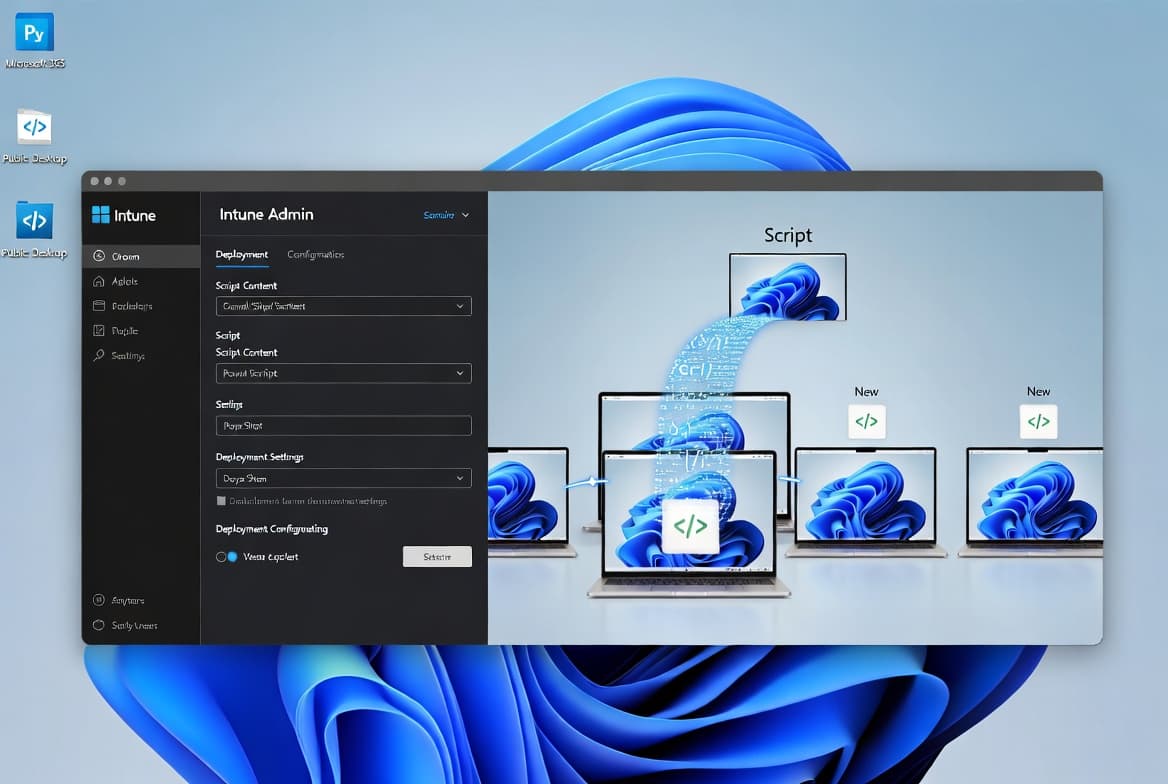
This guide walks you through deploying a PowerShell script via Intune to enable or disable Windows Fast Startup across Windows 10 and Windows 11 endpoints. You will create the correct registry entry, upload the script, assign it to a device group, and confirm execution, all without touching individual machines.
Prerequisites
- An active Microsoft Intune subscription with device management authority configured.
- Windows 10 or Windows 11 devices enrolled in Intune and running the Intune Management Extension.
- An Entra ID (Azure AD) security group containing the target devices or users.
- Permissions to create and assign Platform Scripts in the Intune admin center.
- Basic familiarity with PowerShell and the Windows Registry.
How Does Windows Fast Startup Work?
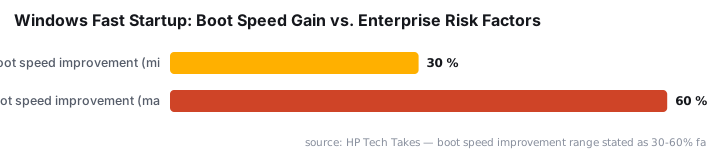
Fast Startup boots Windows approximately 30-60% faster by saving the kernel and loaded drivers to the hibernation file (hiberfil.sys) on shutdown, then loading that saved state on the next start, skipping most hardware initialisation, as HP Tech Takes explains. That speed gain comes with a cost.
Because the PC is technically hibernated rather than fully shut down, network cards ignore Wake-on-LAN packets and the machine will not respond to remote wake commands, a real concern for remotely managed enterprise fleets. Some cumulative Windows updates and feature upgrades also require a true cold boot to apply correctly. Fast Startup can leave the kernel in a partially applied state, causing update loops. HP Tech Takes recommends always choosing Restart, not Shutdown, after installing Windows security updates.
For organisations still migrating off Windows 10, this is especially pressing. Windows 10 reached end of support on October 14, 2025, per Microsoft Support, meaning unpatched devices now receive no security fixes. A stalled driver update caused by Fast Startup on an end-of-support machine is a compounding risk. See also our guide on disabling driver signature enforcement in Windows 11 if driver installation issues persist after addressing Fast Startup.
Step 1: Understand the Registry Key You Are Targeting
Fast Startup is controlled by a single DWORD value named HiberbootEnabled located at:
HKEY_LOCAL_MACHINE\SYSTEM\CurrentControlSet\Control\Session Manager\PowerSetting HiberbootEnabled to 0 disables Fast Startup. Setting it to 1 enables it. Windows reads this key at boot time, making it the authoritative source for the feature state. The detailed breakdown on cloudinfra.net confirms there is no native Settings Catalog policy that can disable Fast Startup, which is why the registry method is necessary.
The Settings Catalog does include a policy called "Require use of fast startup," but it only enforces enabling the feature. Setting it to Disabled causes Windows to fall back to the local machine setting rather than actively turning Fast Startup off. That limitation makes this registry approach the only reliable path for remote enforcement.
Step 2: Write the PowerShell Script for Windows Fast Startup
Create one of the two scripts below depending on your goal. Save each as a .ps1 file before uploading to Intune. Both scripts use Set-ItemProperty with -Force, so the value is created if it does not already exist and overwritten if it does.
To disable Fast Startup:
# Disable_Fast_Startup.ps1
$RegistryPath  = "HKLM:\SYSTEM\CurrentControlSet\Control\Session Manager\Power"
$PropertyName  = "HiberbootEnabled"
$PropertyValue = 0

Set-ItemProperty -Path $RegistryPath -Name $PropertyName -Value $PropertyValue -Type DWORD -Force -Confirm:$False
To enable Fast Startup:
# Enable_Fast_Startup.ps1
$RegistryPath  = "HKLM:\SYSTEM\CurrentControlSet\Control\Session Manager\Power"
$PropertyName  = "HiberbootEnabled"
$PropertyValue = 1

Set-ItemProperty -Path $RegistryPath -Name $PropertyName -Value $PropertyValue -Type DWORD -Force -Confirm:$False
The -Confirm:$False flag suppresses interactive prompts so the script runs without pausing for user input during unattended execution. This matters because Intune runs scripts as SYSTEM, with no interactive session attached.
One important setting to get right before upload: always toggle Run script in 64-bit PowerShell Host to Yes. By default, Intune may run scripts in a 32-bit (x86) context, which causes registry reflection, where writes are silently redirected to SysWOW64 instead of the intended system hive, as Nerdio documents. A 64-bit host writes directly to the correct path every time.
PowerShell also gives you granular control over system settings not yet exposed in the Settings Catalog. Fast Startup is a clear example of a configuration gap that PowerShell fills, per Nerdio.
How to Upload a PowerShell Script to Intune for Fast Startup
With your .ps1 file saved locally, sign in to the Intune admin center and follow these steps:
1. Go to Devices > Scripts and Remediations > Platform Scripts.
2. Click + Add, then select Windows 10 and later.
3. On the Basics tab, enter a clear name such as Disable Fast Startup - Production and a description that includes the ticket reference.
4. On the Script settings tab, configure the following:
- Script location - upload your .ps1 file.
- Run this script using the logged-on credentials - set to No (runs as SYSTEM in device context).
- Enforce script signature check - set to No unless your environment requires signed scripts.
- Run script in 64-bit PowerShell Host - set to Yes to avoid registry redirection on 64-bit systems.
5. Add Scope tags if your Intune RBAC model requires them.
6. Proceed to the Assignments tab.
This matches the same deployment pattern you would use for other Intune PowerShell configurations, such as aligning the Windows 11 taskbar left via Intune or enforcing Chrome auto-updates via Intune.
Step 4: Assign the Script to a Device Group
On the Assignments tab, target the Entra ID security group that contains your Windows devices. A phased rollout reduces risk significantly. Start small, validate, then expand.
- Start with a pilot group of 5 to 10 machines representing different hardware models.
- Validate the registry change and reboot behaviour before expanding scope.
- Roll out to the broader production group only after pilot sign-off.
Avoid assigning to All Devices immediately. A script with an error affecting thousands of endpoints simultaneously is slow to recover from. Click Review + add, confirm the settings, then click Add to submit the deployment.
For Entra ID group creation and targeting best practices, the patterns described in our Microsoft Entra Connect migration guide cover security group scoping that applies directly here.
Step 5: Force a Sync and Reboot
Intune scripts run on the next device check-in. The Intune Management Extension agent checks in once every hour and after every reboot, retrying a failed script three times across three consecutive check-ins, per Microsoft Learn. For faster testing, force a sync using one of these methods.
From the device via PowerShell:
Get-ScheduledTask | Where-Object { $_.TaskName -eq "PushLaunch" } | Start-ScheduledTaskFrom the Intune admin center:
- Navigate to Devices > All Devices, select the test device, and click Sync.
After the script runs, restart the device. The HiberbootEnabled change needs a full reboot to take effect, and a restart also kicks off another Intune check-in to confirm script execution status.
How Do You Verify the Fast Startup Registry Change Worked?
Confirm the registry value on a target device by running this command in an elevated PowerShell session:
Get-ItemProperty -Path "HKLM:\SYSTEM\CurrentControlSet\Control\Session Manager\Power" -Name HiberbootEnabledExpected output when Fast Startup is disabled:
HiberbootEnabled : 0Alternatively, open Registry Editor (regedit), navigate to HKEY_LOCAL_MACHINE\SYSTEM\CurrentControlSet\Control\Session Manager\Power, and confirm HiberbootEnabled shows 0 (disabled) or 1 (enabled).
To check deployment status in Intune, go to Devices > Scripts and Remediations > Platform Scripts, click your script, and review the Overview tab. You will see counts for succeeded, failed, and pending devices. Intune removes scripts from C:\Program Files (x86)\Microsoft Intune Management Extension\Policies\Scripts after execution, so an empty folder there is normal and expected.
If you manage other Group Policy-style configurations alongside Intune scripts, our GPO guide for blocking websites in Microsoft Edge shows how GPO and Intune policies can coexist without conflict.
Frequently asked questions
Why can't I use the Intune Settings Catalog to disable Windows Fast Startup?+
The Settings Catalog policy 'Require use of fast startup' can only enforce enabling the feature. Setting it to Disabled causes Windows to fall back to the local machine setting rather than actively disabling Fast Startup. A PowerShell script writing the registry DWORD directly is the only reliable remote method.
Does the Intune PowerShell script run as the logged-in user or as SYSTEM?+
When 'Run this script using the logged-on credentials' is set to No, Intune runs the script in device context, effectively as SYSTEM. This is required because writing to HKEY_LOCAL_MACHINE requires elevated privileges that a standard user account does not hold.
Is a reboot required after the Fast Startup registry change?+
Yes. The HiberbootEnabled registry change takes effect only after a full restart. Until the device reboots, Fast Startup behaviour reflects the previous setting. Use an Intune device restart policy to complete the change during a planned maintenance window with minimal end-user disruption.
Can I use Intune Remediations instead of a Platform Script for Fast Startup?+
Yes, Remediations are a better long-term option because they pair a detection script that checks HiberbootEnabled with a remediation script that corrects it if it drifts. Intune reruns Remediations on a schedule, giving continuous enforcement rather than a single one-time write.
What happens if the PowerShell script fails on a device?+
The Intune Management Extension retries a failed script three times across three consecutive check-ins, roughly one hour apart. If all retries fail, the device shows as Failed in the Platform Scripts overview. Review the IME log at C:\ProgramData\Microsoft\IntuneManagementExtension\Logs for the root cause.