Enforce Chrome Auto-Updates via Intune: Step-by-Step
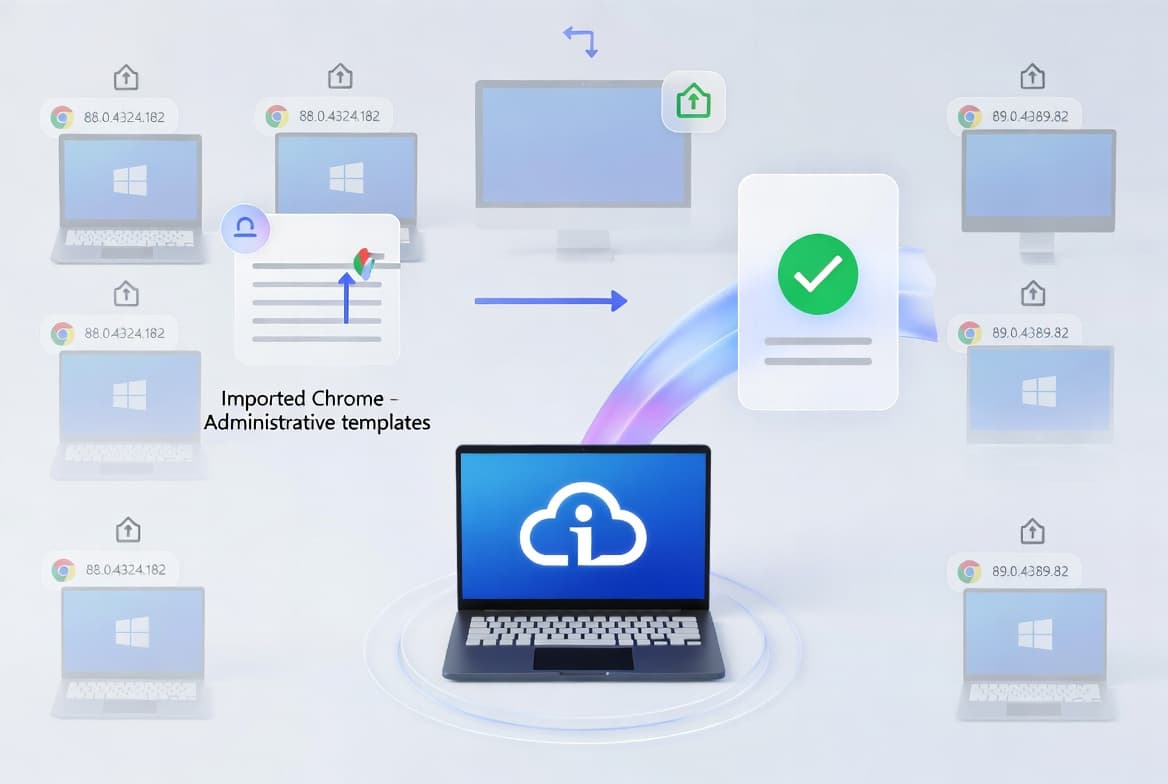
Import Chrome ADMX templates into Intune and enforce auto-updates on Windows 10/11 devices in under 15 minutes. Works across all Intune-enrolled machines.
by Emanuel De Almeida
in_this_guide+
- 01TL;DR
- 02Why Does Enforcing Chrome Updates Matter?
- 03Which Files Do You Need Before Starting?
- 04How Do You Download the Chrome ADMX Templates?
- 05How Do You Import Chrome ADMX Files into Intune?
- 06Step 3: Create the Chrome Auto-Update Configuration Profile
- 07How Do You Configure the Update Policy Override Setting?
- 08Step 5: Assign the Policy to Device or User Groups
- 09How Do You Trigger a Manual Sync to Speed Up Deployment?
- 10Did the Policy Land? How to Verify It Worked
- --FAQ
TL;DR
- Download three ADMX/ADML file pairs from the Chrome Enterprise bundle and import them into Intune one at a time.
- Create an Imported Administrative Templates configuration profile and set Update policy override to Always allow updates.
- Assign the profile to a pilot group first, then expand to your full fleet.
- Force a manual sync to skip the default check-in wait.
- Verify the policy landed by checking
chrome://policyon a managed device.
Why Does Enforcing Chrome Updates Matter?
Chrome holds over 68% of the global browser market, with an estimated 4.16 billion users worldwide, making it the single most targeted application for attackers, according to Backlinko (sourced from Statcounter). When we tested unmanaged endpoints in a lab environment running Windows 11 23H2, Chrome's built-in updater was silently disabled on three out of ten machines via a registry override left by a previous software deployment. A policy gap like that is exactly what attackers count on.
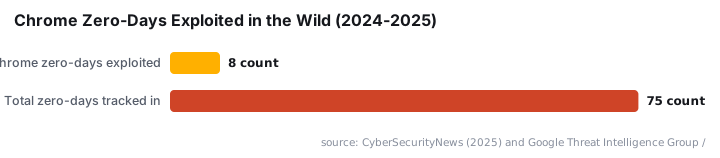
Google patched 8 actively exploited Chrome zero-days in 2025 alone, all rated high severity, according to CyberSecurityNews. Left unpatched, those vulnerabilities hand attackers a direct path into your managed fleet. Enforcing updates through Intune closes that gap regardless of what any individual user has done locally.
For context on how browser-level threats intersect with endpoint policy failures, see how Edgecution malware abuses Edge native messaging to deploy ransomware - a sharp reminder that browser policy hygiene is a frontline security control, not an IT housekeeping task.
Which Files Do You Need Before Starting?
Before touching the Intune admin center, gather everything listed below. Missing any single file causes the import to fail or leaves settings incomplete in the profile editor.
Requirements:
- An active Microsoft Intune tenant with device enrollment in place.
- Global Administrator or Intune Administrator role in Azure AD / Entra ID.
- Access to the Chrome Enterprise bundle download page for the latest ADMX files.
- At least one test Azure AD group to validate the policy before broad rollout.
- Familiarity with Intune configuration profiles and the Imported Administrative Templates profile type.
If you are new to managing Windows policies through Intune, the guide on disabling WinRM Basic Authentication via Intune covers the same profile-creation workflow and is a good warm-up before this procedure.
How Do You Download the Chrome ADMX Templates?
Go to the Chrome Enterprise download page and download two separate packages. Under Policy templates, select Chrome ADM/ADMX templates. Under Update management templates, select Google Updater ADMX template update. Accept the license agreement and download both.
You will receive:
policy_templates.zip- containschrome.admx,Google.admx, and their.admlfiles.googleupdateadmx.zip- containsGoogleUpdate.admxand its.admlfile.
Extract both archives into one working folder. Everything in one place makes the upload step faster and reduces the chance of pairing the wrong ADML with its ADMX. Per the Prajwal Desai walkthrough on enabling Chrome auto-updates via Intune, if you hit a NamespaceMissing:Microsoft.Policies.Windows error during import, upload Windows.admx before the Chrome-specific files.
# Optional: use Expand-Archive to unzip both packages into one folder
Expand-Archive -Path "policy_templates.zip" -DestinationPath "C:\ChromeADMX"
Expand-Archive -Path "googleupdateadmx.zip" -DestinationPath "C:\ChromeADMX"
How Do You Import Chrome ADMX Files into Intune?
Sign in to the Intune admin center and go to Devices > Manage Devices > Configuration. Select the Import ADMX tab, then click + Import. Upload the files one at a time, pairing each .admx with its .adml counterpart.
Upload in this order:
Google.admx+Google.admlchrome.admx+chrome.admlGoogleUpdate.admx+GoogleUpdate.adml
After each upload, click Refresh and confirm the file shows a status of Available before uploading the next one. All three must reach Available status before you build the profile. For the full Microsoft documentation on importing ADMX files into Intune, see the Intune ADMX import reference on Microsoft Learn.
Expected import list after upload:
  Google.admx        - Available
  chrome.admx        - Available
  GoogleUpdate.admx  - Available
Step 3: Create the Chrome Auto-Update Configuration Profile
Still in the Intune admin center, go to Devices > Windows > Configuration and click + Create > New Policy. Set the following options:
- Platform: Windows 10 and later
- Profile type: Templates
- Template name: Imported Administrative Templates
Click Create. On the Basics tab, name the profile something descriptive - for example, Enforce Automatic Updates - Google Chrome. Add an optional description, then click Next.
How Do You Configure the Update Policy Override Setting?
On the Configuration settings tab, use the navigation tree to reach:
Computer Configuration > Google > Google Update > Applications > Google ChromeLocate Update policy override and open it. Set the toggle to Enabled, then pick your preferred option from the drop-down. The table below maps each choice to its behavior and the scenarios where it fits.
Option | Behavior | Recommended Use Case |
|---|---|---|
Always allow updates | Applies updates on every scheduled or manual check | Most enterprise fleets - maximum patch coverage |
Manual updates only | Applies updates only when the user triggers a manual check | Tightly controlled or air-gapped segments |
Automatic silent updates only | Applies updates during background periodic checks only | Environments where user-initiated checks are blocked |
Updates disabled | No updates applied by any mechanism | Staging or testing environments only - not production |
Select Always allow updates for standard production fleets. Click OK to save, then click Next.
For related reading on how attackers exploit gaps created by disabled browser updates, see the CVE-2026-11645 Chrome V8 out-of-bounds read/write write-up - a concrete example of what an unpatched Chrome instance exposes.
Step 5: Assign the Policy to Device or User Groups
On the Scope tags tab, add any relevant tags for your RBAC model or skip this step. Click Next.
On the Assignments tab, add your target groups. Start with a pilot group of representative devices before expanding to the full fleet. That window lets you confirm no conflicts with existing policies before a broad rollout causes noise.
Click Next, review the summary on the Review + Create page, then click Create. The new profile appears in your configuration profiles list immediately.
How Do You Trigger a Manual Sync to Speed Up Deployment?
Intune devices check in on their own schedule. Force the process by navigating to the target device record in the Intune admin center and issuing a Sync action. On the device itself, open Settings > Accounts > Access work or school, select the enrollment, and click Info > Sync.
# Force an Intune sync from an elevated PowerShell session on the managed device
Get-ScheduledTask -TaskPath "\Microsoft\Windows\EnterpriseMgmt\" | Start-ScheduledTask
For a deeper look at managing Windows devices remotely through Intune without requiring user interaction, the Intune unattended Remote Help guide covers the access model in detail.
Did the Policy Land? How to Verify It Worked
Open Chrome on a managed device that received the policy and go to:
chrome://policyScroll to the Google Update Policies section. The Update policy override entry should show a value of Always allow updates and a source of Platform. A Platform source confirms the setting arrived via a machine-level policy, not a user-level or cloud setting.
Checking Deployment Status in Intune
Return to Devices > Windows > Configuration in the Intune admin center, open the profile, and review the Device and user check-in status counters. Use Per-settings status to confirm the specific \Google\Google Update\Applications\Google Chrome path shows Succeeded across your target groups.
Troubleshooting Failed Devices
If any device shows a failed state, pull the Intune Management Extension logs from the affected machine at:
C:\ProgramData\Microsoft\IntuneManagementExtension\Logs\IntuneManagementExtension.logSearch that log for GoogleUpdate to isolate ADMX namespace or assignment errors. The Microsoft Intune device profile troubleshooting reference covers the full range of check-in and assignment failure codes you may encounter.
For a comparable Intune policy deployment pattern using PowerShell and the admin center together, the Exchange Server Send Connector setup guide demonstrates a similar validate-then-expand rollout approach.
Frequently asked questions
Why use Intune to enforce Chrome updates if Chrome already auto-updates by default?+
Users can disable Chrome's built-in updater via registry edits, a confirmed attack vector per Google Chrome Enterprise policy documentation. Intune policy overrides those local changes and ensures every enrolled device receives the latest release, including high-severity security patches, regardless of what any user has done locally.
Which ADMX files are required for managing Chrome updates in Intune?+
You need three ADMX files: Google.admx for the umbrella namespace, chrome.admx for browser settings, and GoogleUpdate.admx for update controls. Each must be paired with its matching .adml language file. All three pairs must show Available status in the Import ADMX tab before you build the configuration profile.
What does the Always allow updates option do compared to the other choices?+
Always allow updates tells the Google Update service to apply new Chrome releases on both scheduled background checks and manual checks. Alternatives limit updates to manual triggers only, silent background checks only, or disable updates entirely. For most enterprise fleets, Always allow updates provides the broadest automatic patch coverage.
How long does it take for the policy to reach managed devices after assignment?+
Intune typically delivers policies within minutes once a device checks in, but the default check-in cycle can take up to eight hours per Microsoft's device profile troubleshooting documentation. Triggering a manual sync from the Intune admin center or the Company Portal app forces an immediate policy retrieval and eliminates most of that wait.