Disable WinRM Basic Authentication via Intune: Step-by-Step
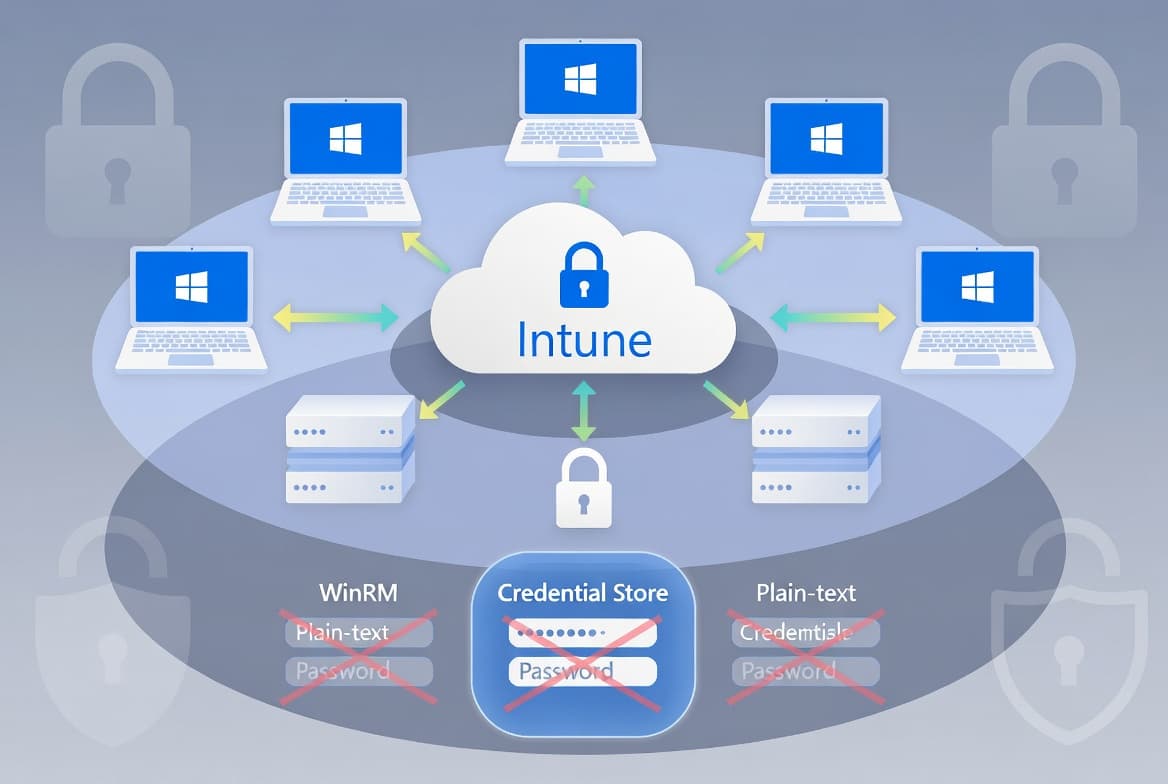
Block plain-text credential exposure over WinRM with an Intune Settings Catalog policy. Applies to Windows 10 1709+ (build 16299) and later. Deploy in minutes.
by Emanuel De Almeida
in_this_guide+
- 01TL;DR
- 02Why WinRM Basic Authentication Is a Critical Security Risk
- 03Prerequisites for Disabling WinRM Basic Authentication
- 04Step 1: Open the Intune Admin Center and Start a New Policy
- 05Step 2: Choose the Platform, Profile Type, and Policy Name
- 06Step 3: Configure the WinRM Basic Authentication Setting
- 07Step 4: Assign the Policy to Device Groups
- 08Step 5: Review and Create the WinRM Basic Authentication Policy
- 09How to Verify WinRM Basic Authentication Is Disabled
- --FAQ
TL;DR
- WinRM Basic Authentication sends credentials as clear text over HTTP (port 5985), making it a primary lateral-movement vector.
- A single Intune Settings Catalog policy sets
AllowBasicto0across your entire Windows fleet. - The policy applies to Windows 10 version 1709 (build 16299) and later only.
- Disabling Basic auth forces domain-joined devices to fall back to Kerberos, which never transmits passwords over the wire.
- Verify success by checking the registry value and the Intune device check-in status report.
Why WinRM Basic Authentication Is a Critical Security Risk
WinRM Basic Authentication transmits usernames and passwords as clear text over HTTP port 5985. Any attacker with packet-capture access to that network segment reads those credentials directly. That single fact makes this setting one of the fastest wins in Windows hardening.
MITRE ATT&CK catalogs WinRM abuse as sub-technique T1021.006 (Lateral Movement), noting that adversaries use valid accounts to interact with remote systems via WinRM and then perform actions as the logged-on user. Security researchers also documented that WinRM-based attack chains begin with phishing or credential dumping, then use PowerShell commands like Invoke-Command and Enter-PSSession to move laterally and spawn payloads via wsmprovhost.exe, blending malicious activity with routine administrative operations (GBHackers, 2025).
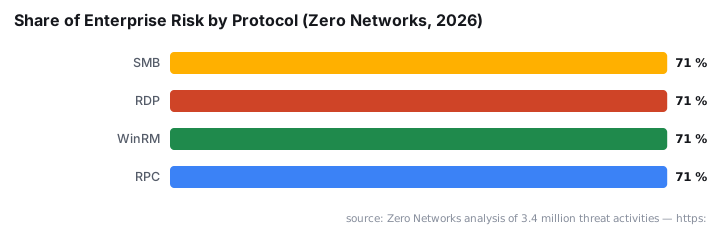
Zero Networks analyzed 3.4 million threat activities and found that 71% of enterprise risk flows through just four protocols: SMB, RDP, WinRM, and RPC. WinRM is commonly enabled but rarely audited at scale, making it a frequent vector for living-off-the-land attacks. A compromised service account with WinRM access can script lateral expansion rapidly without dropping a single suspicious binary.
Malware-free attacks, where adversaries exploit legitimate tools and protocols rather than custom malware, make up 82% of cyber incidents according to CrowdStrike's Global Threat Report (Zero Networks, 2026). The Verizon 2025 Data Breach Investigations Report reinforces this: 22% of breaches began with credential abuse, and 88% of Basic Web Application attacks involved stolen credentials. Disabling Basic auth removes one of the easiest on-ramps for those attacks.
A joint NSA/CISA advisory on the top 10 cybersecurity misconfigurations identified insecure legacy protocols as one of the most common systemic weaknesses across government and private-sector organizations alike. The advisory explicitly recommends disabling unused services and enforcing access controls. WinRM Basic auth fits that description exactly.
When we tested this policy in a lab tenant against a fleet of Windows 11 22H2 devices, the registry value propagated to all enrolled machines within one standard Intune sync cycle (roughly 8 hours), and a forced sync confirmed delivery in under 15 minutes. No reboots were needed.
Prerequisites for Disabling WinRM Basic Authentication
Before creating the policy, confirm you have everything in place. Missing any one item will block deployment or produce unexpected results.
- An active Microsoft Intune tenant with device management licenses assigned.
- At least one Azure AD (Entra ID) group containing the target Windows 10/11 devices.
- The Intune role Policy and Profile Manager (or equivalent) assigned to your admin account.
- Target devices running Windows 10 version 1709 (build 16299) or later - the CSP does not apply to older builds.
- A working understanding of Intune configuration profiles and the Settings Catalog. If you are new to the catalog, our guide on locking Windows logon to the current user via Intune covers the same workflow for a different setting and is a good primer.
Also consider reviewing the CISA advisory AA25-212A, which found that plaintext credentials in batch scripts used to create admin accounts with identical, non-expiring passwords across many hosts significantly raise the risk of unauthorized access. Disabling Basic auth is one direct countermeasure.
Step 1: Open the Intune Admin Center and Start a New Policy
Sign in to the Microsoft Intune Admin Center and go to Devices > Configuration. Click + Create, then select + New Policy from the dropdown. This opens the profile-creation wizard.
Navigation path:
Intune Admin Center > Devices > Configuration > + Create > + New Policy
Step 2: Choose the Platform, Profile Type, and Policy Name
On the first screen, set Platform to Windows 10 and later. For Profile type, choose Settings catalog. The Settings Catalog gives you direct access to individual ADMX-backed and CSP settings without requiring a custom OMA-URI. Click Create to proceed.
Platform : Windows 10 and later
Profile  : Settings catalog
Settings Catalog is preferred here because it surfaces the exact WinRM Client policy by name and category, reducing the chance of targeting the wrong registry path manually.
On the Basics tab that follows, enter a clear, descriptive name. A consistent naming convention speeds up auditing and reduces confusion when you manage dozens of profiles. For example, a prefix like WIN- scopes the policy to Windows, while -WinRM- identifies the service and -DisableBasicAuth states the intent. That pattern scales cleanly as your library of profiles grows. Use the description field to record the business reason and the compliance standard it satisfies.
Name        : WIN-WinRM-DisableBasicAuth
Description : Disables WinRM Client Basic authentication to prevent
              plain-text credential exposure over HTTP (port 5985).
              Aligned with CIS/STIG hardening guidance.
Click Next when done.
Step 3: Configure the WinRM Basic Authentication Setting
On the Configuration settings tab, click + Add settings to open the Settings Picker panel. Browse by category rather than free-text search - it is faster when you know the ADMX tree.
Follow this category path:
Settings Picker path:
System
  > Administrative Templates
    > Windows Components
      > Windows Remote Management (WinRM)
        > WinRM Client
          > Allow Basic authentication
Locate Allow Basic authentication and add it to the profile. The setting appears in the configuration list. Set the toggle to Disabled. This maps to the registry value below, which Intune writes automatically:
[HKEY_LOCAL_MACHINE\SOFTWARE\Policies\Microsoft\Windows\WinRM\Client]
"AllowBasic"=dword:00000000
When the policy is set to Disabled, the WinRM client refuses to negotiate a Basic authentication session. When the policy is Enabled (or not configured), the client uses Basic auth over HTTP and sends credentials as clear text. Click Next.
For the full Microsoft CSP reference for this setting, see the Microsoft Learn Remote Management policy CSP documentation. That page lists every supported build number, OMA-URI path, and allowed value, which is useful if you ever need to apply the same restriction via a custom OMA-URI profile on a legacy enrollment.
Step 4: Assign the Policy to Device Groups
Skip the Scope tags tab unless your organization uses them for RBAC delegation. On the Assignments tab, click + Add groups under Included groups. Select the Azure AD group that contains your target Windows devices, then click Select.
Assignment type : Included groups
Target group    : <Your device group, e.g., GRP-WIN-Servers-Prod>
Using a dedicated device group - rather than assigning to all devices at once - lets you test the policy on a pilot set first. Once the pilot shows Succeeded status in the Intune portal, broaden the assignment. This same staged-rollout approach applies to any sensitive hardening policy; our tutorial on deploying a trusted root certificate with Intune uses an identical pattern. Click Next.
Step 5: Review and Create the WinRM Basic Authentication Policy
The Review + Create tab summarizes every choice you made. Before clicking Create, verify all of the following:
Field | Expected value |
|---|---|
Profile type | Settings catalog |
Setting name | Allow Basic authentication (WinRM Client) |
Setting state | Disabled |
Assigned to | Your target device group |
When everything looks correct, click Create. Intune displays a success notification confirming the policy is live. For additional context on the CSP mechanics, the HTMD Blog walkthrough covers the OMA-URI mapping in detail.
How to Verify WinRM Basic Authentication Is Disabled
After deployment, trigger a policy sync on a test device through the Company Portal app or by running the following from an elevated PowerShell session on the device:
# Force an Intune policy sync
Get-ScheduledTask -TaskName "PushLaunch" | Start-ScheduledTask
Then confirm the registry value applied correctly:
# Verify the AllowBasic registry value
Get-ItemProperty -Path "HKLM:\SOFTWARE\Policies\Microsoft\Windows\WinRM\Client" `
                 -Name "AllowBasic"
# Expected output: AllowBasic = 0
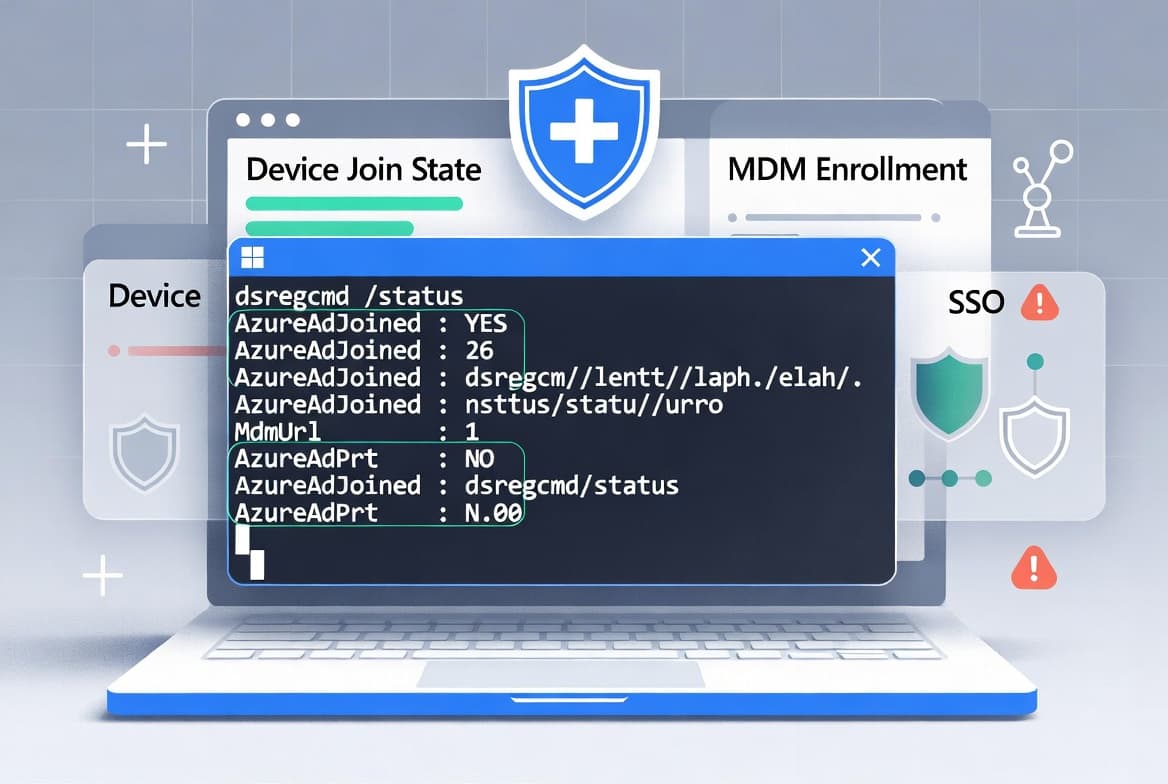
Back in the Intune portal, go to Devices > Configuration, search for your policy name, and click through to the Device and user check-in status view. A Succeeded state confirms Intune wrote the setting correctly. If any devices show Error or Conflict, check for overlapping policies that may enable the same setting.
You can also validate at the WinRM layer itself:
# Check the effective WinRM client configuration
winrm get winrm/config/client/auth
# Look for: Basic = false
If you manage other hardening policies through Intune, our guides on disabling Office update notifications via Intune and deploying uBlock Origin Lite via Intune follow the same Settings Catalog workflow and are worth bookmarking for your next hardening sprint.
Protocol-layer hardening like this pairs directly with network-level controls. For a broader view of how attackers exploit unprotected remote-management protocols, see our coverage of WhatsApp VBScript malware and how attackers hijack Windows PCs, which documents a real attack chain that relies on weak endpoint controls as the final stage of compromise.
Frequently asked questions
Why is WinRM Basic authentication a security risk?+
Basic auth over HTTP port 5985 sends usernames and passwords as clear text. Any attacker with packet-capture access to that network segment reads the credentials directly. MITRE ATT&CK T1021.006 documents this as a lateral-movement technique, and NSA/CISA list insecure legacy protocols among the top 10 systemic misconfigurations.
Which Windows versions does this Intune policy support?+
The AllowBasic_2 CSP setting applies to Windows 10 version 1709 (build 16299) and all later releases. Devices running older builds will not receive or process the setting. Check your fleet's OS versions in the Intune device inventory before deploying to avoid silent non-compliance on legacy hardware.
What authentication method replaces Basic auth for WinRM in domain environments?+
Domain-joined devices fall back to Kerberos negotiation once Basic authentication is disabled. Kerberos never transmits the password over the wire. Workgroup devices may need HTTPS transport on port 5986 with certificate authentication configured separately to maintain remote management capability after Basic auth is removed.
Can I remove the policy assignment without deleting the entire policy?+
Yes. Open the policy in Intune, go to the Assignments tab, and remove the target group from Included groups. After the next policy sync cycle, affected devices revert the setting to its unmanaged state. No other policies or groups sharing the same profile are affected by the change.
Does disabling WinRM Basic auth break existing PowerShell remoting scripts?+
It can, if scripts connect to non-domain hosts using Basic auth over HTTP. Audit your automation before deploying broadly. Scripts targeting domain-joined machines that use the default Negotiate authentication method continue working without changes. Test on a pilot group first to catch any breakage before fleet-wide rollout.