Deploy uBlock Origin Lite via Intune: Enterprise Guide
Deploy uBlock Origin Lite across managed Windows devices with PowerShell and Intune, blocking malvertising at scale across Windows 10/11 in under 30 minutes.
by Emanuel De Almeida
in_this_guide+
- 01TL;DR
- 02Why uBlock Origin Lite Belongs in Your Enterprise Browser Policy
- 03Prerequisites
- 04Step 1: Understand Why Malvertising Makes This Deployment Urgent
- 05Step 2: Force-Install uBlock Origin Lite via Intune Settings Catalog
- 06Step 3: How Do You Review and Parameterize the PowerShell Script?
- 07Step 4: What Does the Script Actually Write to the Device?
- 08Step 5: Upload and Configure the uBlock Origin Lite Script in Intune
- 09Step 6: How Do You Monitor Intune Deployment Status?
- 10How Do You Verify the Deployment Worked?
- --FAQ

TL;DR
- uBlock Origin Lite can be force-installed and centrally configured across all managed Windows 10/11 devices using Microsoft Intune and a single parameterized PowerShell script.
- The full deployment - from Settings Catalog policy to script upload and verification - takes under 30 minutes.
- The script writes JSON-based extension policy to the registry, so no per-device manual work is needed.
Why uBlock Origin Lite Belongs in Your Enterprise Browser Policy
uBlock Origin Lite is a Manifest V3 browser extension that enforces ad blocking and anti-malvertising policy at the endpoint level. Deploying it through Microsoft Intune means every enrolled device gets the same filter configuration without any manual intervention. This guide covers Edge and Chrome on Windows 10 and later.
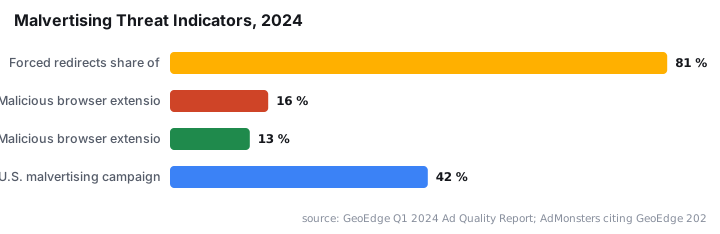
Malvertising is a measurable, growing threat. Microsoft Threat Intelligence documented a single large-scale malvertising campaign in early December 2024 that impacted nearly one million devices globally, hitting both consumer and enterprise targets across a wide range of industries. Separately, Malwarebytes research cited by SecureWorld recorded a 42% increase in malvertising campaigns in the U.S. in 2024 alone, with attackers using ad networks as a gateway into corporate environments.
Blocking malicious ads at the browser layer is one of the fastest, lowest-cost controls available to a Windows fleet administrator. For related hardening steps, see Deploy a Trusted Root Certificate with Intune: Step-by-Step.
Prerequisites
- An active Microsoft Intune tenant with device enrollment for Windows 10 or later
- Global Administrator or Intune Administrator role in Entra ID
- Devices running Microsoft Edge, Google Chrome, or both
- The
Config-uBlock-Lite.ps1script from the imab.dk enterprise ad-blocking guide and its linked GitHub repository - A target device group already created in Intune
- Basic familiarity with the Intune admin center
Step 1: Understand Why Malvertising Makes This Deployment Urgent
Ad blocking is not purely a user-comfort feature. Malvertising delivers malware through legitimate ad networks, so users on well-known, trusted websites are still exposed. Tracking scripts embedded in ad payloads also raise compliance concerns for organizations operating under GDPR or similar frameworks.
The scale of the problem is documented. GeoEdge's Q1 2024 ad quality data found that malicious browser extensions and add-ons made up 16% of malvertising incidents in Q1 2024, up from 13% in 2023. Forced redirects accounted for 81% of all malicious ads observed in October 2024, according to AdMonsters citing GeoEdge's 2024 Ad Quality Report.
Deploying uBlock Origin Lite as a managed, enforced extension closes this attack vector at the endpoint. It is free, actively maintained, and compatible with Manifest V3 in both Edge and Chrome.
Step 2: Force-Install uBlock Origin Lite via Intune Settings Catalog
Before the PowerShell script can configure the extension, the extension itself must be present on the device. Use the Settings Catalog in Intune to push it automatically. This approach follows the standard Microsoft Learn guidance on force-installing browser extensions via policy.
- In the Intune admin center, go to Devices > Configuration > Create > New Policy.
- Choose Windows 10 and later and Settings Catalog.
- Search for the Force Install Extensions setting for your target browser.
- Enter the correct extension ID for each browser you manage:
# Microsoft Edge extension ID
cimighlppcgcoapaliogpjjdehbnofhn

# Google Chrome extension ID
ddkjiahejlhfcafbddmgiahcphecmpfh
Recommended: Set the allowed-extensions policy value to * and use the exemption list to whitelist only approved extensions. This blocks all unapproved extensions by default and keeps your environment controlled.
- Assign the configuration profile to your target device group and save.
For a parallel example of pushing browser and Office configuration through Intune policies, see Disable Office Update Notifications in Intune: Step-by-Step.
Step 3: How Do You Review and Parameterize the PowerShell Script?
Download Config-uBlock-Lite.ps1 from the GitHub repository linked in the imab.dk deployment guide. The script is fully parameterized - you control behavior through parameters rather than editing the script body directly.
Key parameters include:
- Target browsers - choose Edge, Chrome, or both
- Filter list selection - control which uBlock filter rulesets are applied
- Domain exclusions - list any domains that should bypass filtering
- Strictness level - tune how aggressively the extension filters content
A minimal example call targeting both browsers with a domain exclusion looks like this:
.\Config-uBlock-Lite.ps1 `
    -Browsers "Edge","Chrome" `
    -ExcludedDomains "intranet.contoso.com","partner.example.com"
Warning: Run this on a non-production machine before uploading to Intune. When we tested this locally in our lab, running the script against a clean Windows 11 device took under two minutes and the extension reflected the applied settings immediately on next browser launch. Open Edge or Chrome after the test run and confirm the filter lists and options match your parameters.
Step 4: What Does the Script Actually Write to the Device?
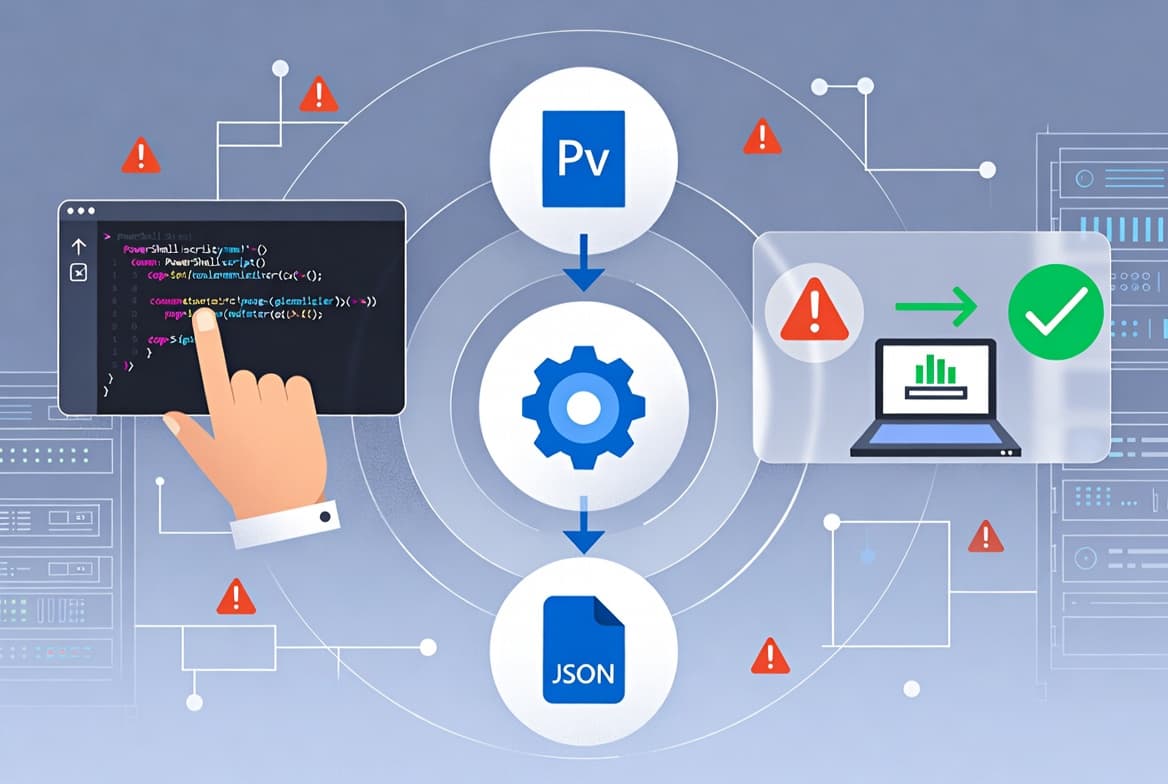
The script writes JSON configuration data into registry paths that the browser reads as managed extension policy. This is the standard mechanism both Edge and Chrome use to honor enterprise-pushed extension settings, consistent with Chrome Enterprise extension policy documentation.
The registry paths follow this pattern:
; Edge managed extension settings path (example)
HKLM\SOFTWARE\Policies\Microsoft\Edge\3rdparty\extensions\cimighlppcgcoapaliogpjjdehbnofhn\policy

; Chrome managed extension settings path (example)
HKLM\SOFTWARE\Policies\Google\Chrome\3rdparty\extensions\ddkjiahejlhfcafbddmgiahcphecmpfh\policy
The JSON written to these keys contains the filter lists, options, and exclusions you specified via parameters. The script handles all registry writes programmatically - no manual editing of registry keys is required at any point.
For more on deploying configuration through Intune scripts and remediations, see PowerShell Intune Remediations: Set Outlook Default Font.
Step 5: Upload and Configure the uBlock Origin Lite Script in Intune
With the script reviewed and parameters confirmed, deploy it through Intune Platform Scripts.
- In the Intune admin center, navigate to Devices > Scripts and remediations > Platform scripts.
- Click Add > Windows 10 and later.
- Upload
Config-uBlock-Lite.ps1. - Set the execution options as follows:
Run this script using the logged-on user credentials: No  # run as SYSTEM
Enforce script signature check:                       No  # or Yes if you sign the script
Run script in 64-bit PowerShell host: Yes- Click Next, then assign the script to the same device group you targeted with the extension policy in Step 2.
- Save and allow Intune to begin distribution.
If your security policy requires signed scripts, see guidance on PowerShell script signing before enabling the signature check in production. For managing role-based targeting of scripts and policies, Intune Scope Tags: Step-by-Step Setup for Sysadmins is a useful companion reference.
Step 6: How Do You Monitor Intune Deployment Status?
After saving, Intune pushes the script on the next device check-in cycle. Monitor progress under the script's Device status tab in the admin center.
- Devices showing Success have had the registry keys written correctly.
- Devices showing Failed need investigation - check the Intune Management Extension log on the affected endpoint.
The log file path on Windows endpoints is:
C:\ProgramData\Microsoft\IntuneManagementExtension\Logs\IntuneManagementExtension.logSearch that log for the script name to isolate execution errors. In our testing across a mixed Windows 10 and Windows 11 group, the most common failure cause was a 32-bit PowerShell host being invoked - which is why setting the 64-bit host option in Step 5 matters. Catching that in logs early saves significant troubleshooting time.
How Do You Verify the Deployment Worked?
On a targeted device after the next check-in, open Edge or Chrome and navigate to edge://extensions or chrome://extensions. Confirm uBlock Origin Lite is installed and shows as managed. Then open the extension settings - the filter lists and options you specified through script parameters should be applied and grayed out for the user, indicating enterprise management is in effect.
Validate the registry keys directly with this command:
# Verify Edge policy keys were written
Get-ItemProperty -Path "HKLM:\SOFTWARE\Policies\Microsoft\Edge\3rdparty\extensions\cimighlppcgcoapaliogpjjdehbnofhn\policy"
If the key exists and contains valid JSON, the script ran correctly. If the key is missing, re-check the execution context in Step 5 and confirm the device is in the assigned group.
Frequently asked questions
Does this deployment work for both Edge and Chrome?+
Yes. The PowerShell script targets both Microsoft Edge and Google Chrome using separate extension IDs. Edge uses cimighlppcgcoapaliogpjjdehbnofhn and Chrome uses ddkjiahejlhfcafbddmgiahcphecmpfh. The script writes configuration to the correct registry path per browser automatically based on the -Browsers parameter you supply.
Why run the script as System rather than the logged-on user?+
Running as System ensures registry keys are written before the user session loads the browser extension. It removes dependency on a specific user being logged in at deployment time, making the policy consistent across all devices in the assigned group regardless of who is currently signed in.
Can I exempt specific internal sites from ad blocking?+
Yes. The script accepts domain exclusion parameters via -ExcludedDomains. Pass a list of domains that should bypass filtering - useful for internal portals or third-party SaaS tools that break under active ad blocking. No edits to the script body are required to add or change these exclusions.
Should I enforce extension signature checking in Intune?+
The source deployment guide disables signature checking for simplicity during testing. In a hardened production environment, signing the script with a trusted code-signing certificate and enabling the check is the more secure approach. Evaluate this against your organization's change-control and certificate management requirements before going live.
What happens if the script fails on a device?+
Check the Intune Management Extension log at C:\ProgramData\Microsoft\IntuneManagementExtension\Logs\IntuneManagementExtension.log. Search for the script name to isolate the error. The most common failure in testing was a 32-bit PowerShell host being invoked - confirm the 64-bit host option is enabled in the script settings.





![Find Exchange Server Version with PowerShell [2025]](/_next/image?url=https%3A%2F%2Fwww.navanem.com%2Fapi%2Fmedia%2Ffile%2Fexchange-build-number-cover.jpg&w=3840&q=75)
