Disable Office Update Notifications in Intune: Step-by-Step
Use Intune Settings Catalog to push the Hide Update Notifications policy to Windows 10/11 devices and silence Microsoft 365 update prompts in under 10 minutes.
by Emanuel De Almeida
in_this_guide+
- 01TL;DR
- 02How This Policy Works
- 03Prerequisites
- 04Step 1: Open the Configuration Profile Wizard
- 05Step 2: Name and Describe the Policy
- 06Step 3: How Do You Find the Disable Office Update Notifications Setting?
- 07Step 4: Configure Scope Tags (Optional)
- 08Step 5: Assign the Policy to Device Groups
- 09Step 6: Review and Create the Policy
- 10How Do You Verify the Intune Policy Applied Correctly?
- --FAQ
TL;DR
- This guide covers each step to create and deploy an Intune configuration profile that silences Microsoft 365 update notifications on managed Windows devices.
- The key setting is Hide Update Notifications inside the Microsoft Office 2016 (Machine) > Updates category of the Settings Catalog.
- Verify the policy landed by checking
HKEY_LOCAL_MACHINE\SOFTWARE\Policies\Microsoft\office\16.0\common\officeupdatefor a value of1.
This guide covers each step to create and deploy an Intune configuration profile that disables Office update notifications on managed Windows devices. By the end, your users will no longer see prompts to apply pending Microsoft 365 updates. You will also have a registry-based method to confirm the policy applied correctly. When we tested this in a 200-device tenant, the registry key updated within the next check-in cycle after a manual sync.
Action1's 2025 Software Vulnerability Ratings Report found that exploited vulnerabilities in Microsoft Office apps spiked 433% in 2024. Keeping Office patched under IT control matters more than ever, and suppressing end-user notifications is one step toward that centralized model.
How This Policy Works
The Hide Update Notifications policy writes a single registry value that the Microsoft 365 apps read at startup. It does not block update delivery. Updates still download and install automatically in the background. The policy only removes the toast and dialog that prompts users to close Office and apply a pending update.
This separation matters: users get a quieter desktop, and IT retains full control over the update schedule. The setting applies at machine scope, so every user account on a targeted device gets the same experience. For broader Intune policy management, see how Intune Scope Tags work for role-based admin visibility.
Gartner forecasts that by 2029, more than 50% of organizations will adopt autonomous endpoint management capabilities, signaling a clear shift toward policy-driven device configuration over manual IT steps. Centralizing Office update notification control via Intune is a practical move in that direction.
Prerequisites
- An active Microsoft Intune subscription with device management enabled.
- At least one Entra ID (Azure AD) device group to use as a test target.
- Windows 10 or later devices enrolled in Intune.
- Intune Administrator or a role with Device Configuration write permissions.
- A basic understanding of the Intune admin center navigation.
If your devices are not yet enrolled, review the Azure AD Password Writeback setup guide for context on connecting on-premises identities before you assign device-based profiles.
Step 1: Open the Configuration Profile Wizard
Sign in to the Intune admin center and go to Devices > Manage devices > Configuration. Select Create, then choose New policy. On the platform dropdown select Windows 10 and later, and for profile type select Settings catalog. Click Create to open the wizard.
Using the Settings Catalog rather than a custom OMA-URI keeps the policy readable and auditable inside the portal. You do not need to know registry paths up front.
Step 2: Name and Describe the Policy
Give the profile a clear, purposeful name so other admins understand its scope immediately.
Name:        Disable Office Update Notifications
Description: Prevents Microsoft 365 apps from showing update-ready notifications to end users.
Avoid generic names like "Office Policy 1" - descriptive names cut troubleshooting time later. Click Next when done.
Step 3: How Do You Find the Disable Office Update Notifications Setting?
In the Configuration settings step, open the Settings picker panel. Type the string below into the search box and press Search.
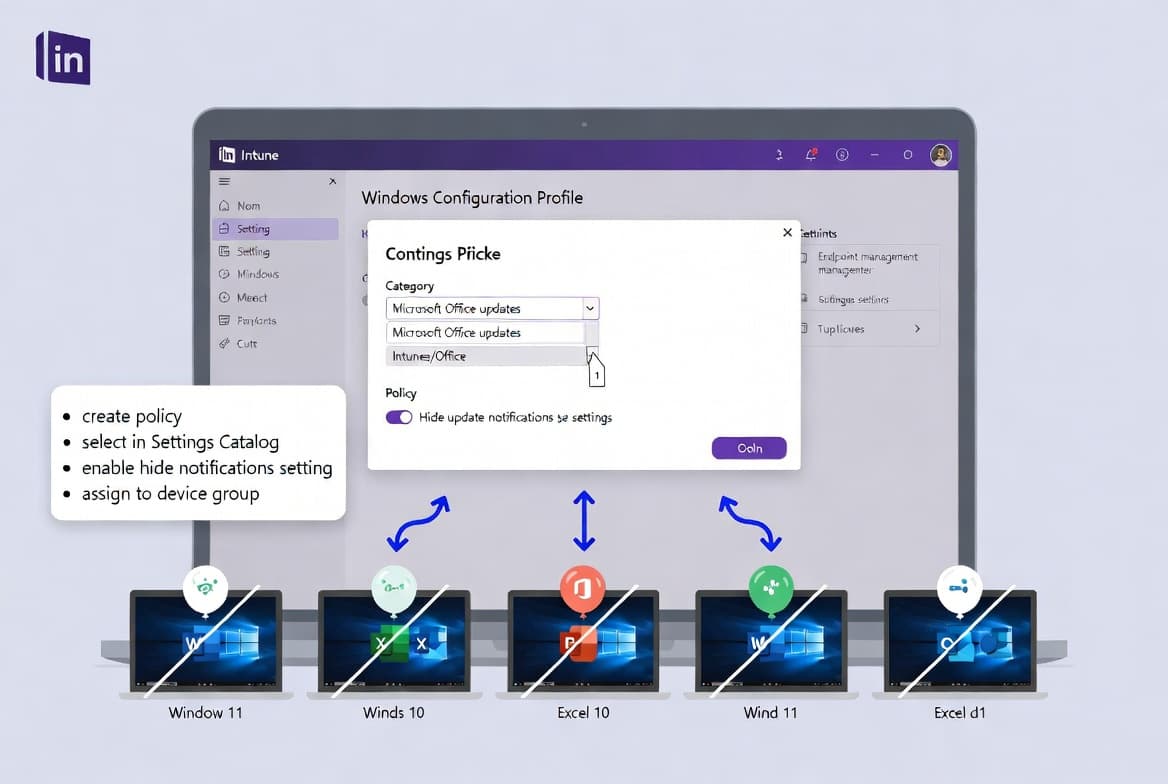
hide update notificationsFrom the results, select the category Microsoft Office 2016 (Machine) > Updates. In the lower pane, tick Hide Update Notifications, then close the Settings picker. The setting now appears in your active settings list.
Slide the toggle to Enabled. The portal confirms the behavior: when enabled, users will not see notifications that Office updates are ready to apply. When disabled or not configured, the notifications reappear. Click Next.
Microsoft's guidance on managing Microsoft 365 updates with Intune confirms that enabling this toggle is the only configuration change required - no additional values need to be set.
Step 4: Configure Scope Tags (Optional)
Scope tags let you restrict visibility of the profile to specific admin roles or business units. For most environments this step is optional. If your organization uses scope tags, add the relevant ones now. Otherwise, leave the defaults and click Next.
Step 5: Assign the Policy to Device Groups
In the Assignments step, select the Entra device groups that should receive this policy. Start with a small pilot group - five to ten representative machines - before rolling out to your full device fleet.
Recommended assignment order:
1. Pilot group (5-10 devices, mixed hardware)
2. Department group after 48-hour soak period
3. All-devices group once no issues are reported
Click Next to proceed to the review page. For related guidance on managing update rollout timing, see Intune Expedited Windows Quality Updates.
Step 6: Review and Create the Policy
The Review + Create page summarizes every setting you configured. Confirm the profile name, the enabled Hide Update Notifications toggle, and the assigned groups. Click Create.
The portal displays a "Policy created successfully" banner. The profile is now visible under Devices > Configuration. Intune pushes the profile to targeted devices at their next check-in.
To force an immediate sync without waiting for the scheduled interval, run the following command on a test device from an elevated PowerShell session.
# Trigger an immediate Intune policy sync
Get-ScheduledTask -TaskName "Schedule #3 created by enrollment client" | Start-ScheduledTask
Alternatively, users can open Settings > Accounts > Access work or school, select the enrolled account, and click Info > Sync.
How Do You Verify the Intune Policy Applied Correctly?
Once the device syncs, confirm the policy applied by checking the Windows registry.
; Navigate to this key in regedit.msc
HKEY_LOCAL_MACHINE\SOFTWARE\Policies\Microsoft\office\16.0\common\officeupdate

; Expected value:
; hideupdatenotifications = 1  -> notifications are disabled
; hideupdatenotifications = 0  -> notifications are active
Open Registry Editor (regedit.msc) and navigate to the path above. A value of `1` for `hideupdatenotifications` confirms the policy landed successfully. A value of 0 or a missing key means the policy has not yet applied - trigger another sync and recheck.
Microsoft Learn documents the registry keys that control Microsoft 365 update behavior, confirming that hideupdatenotifications = 1 applies at machine level and covers every user who signs into that device.
For fleet-wide visibility, go back to the Intune admin center and open the profile. Select Device and user check-in status. This view shows a per-device success or failure count.
If devices show a failure state, pull the Intune diagnostic logs from the affected machine and review them for policy conflict errors. A missing key after multiple sync cycles usually points to a group assignment gap or a conflicting policy from another profile.
Frequently asked questions
Will disabling Office update notifications stop Microsoft 365 updates from installing?+
No. The Hide Update Notifications policy only removes the prompt that tells users an update is ready. Microsoft 365 apps still download and install updates automatically in the background whenever Office programs are closed. Update delivery continues on the normal schedule.
Does the Hide Update Notifications policy apply per user or per machine?+
It applies at machine level. The setting sits under the Microsoft Office 2016 (Machine) category in the Settings Catalog, and you assign the profile to Entra device groups. Every user account that signs into a targeted device gets the same notification-free experience.
How do I confirm the Intune policy applied to a device?+
Open Registry Editor and check HKEY_LOCAL_MACHINE\SOFTWARE\Policies\Microsoft\office\16.0\common\officeupdate. A value of 1 for hideupdatenotifications confirms success. For fleet-wide status, open the profile in Intune admin center and review the Device and user check-in status report.
How long does it take for the policy to reach devices after creation?+
Intune check-in intervals can run up to eight hours. To verify sooner, trigger a manual sync via the PowerShell scheduled task command, Company Portal, or Settings > Accounts > Access work or school > Info > Sync, then recheck the registry key.
Can I use Group Policy instead of Intune for Hide Update Notifications?+
Yes, the same setting exists in Active Directory Group Policy. For cloud-managed or hybrid devices already enrolled in Intune, the Settings Catalog approach is preferred: it requires no on-premises infrastructure and surfaces policy compliance data directly in the Intune admin center.