Intune Expedited Windows Quality Updates: Step-by-Step
Deploy emergency Windows security patches using Intune expedited update policies - requires Windows E3/E5 or Intune Plan 1, reaching devices in as little as 0-2 days.
by Emanuel De Almeida
in_this_guide+
- 01TL;DR
- 02Why Speed Matters for Windows Security Patches
- 03Prerequisites
- 04Step 1: Review Update Ring Compatibility in Intune
- 05Step 2: Understand the Update Naming Convention
- 06Step 3: Create an Expedited Quality Update Policy in Intune
- 07Step 4: Configure the Restart Deadline
- 08Step 5: Assign the Policy and Deploy
- 09How Do You Verify the Expedited Update Worked?
- 10What Licenses Do You Need for Expedited Update Policies?
- --FAQ
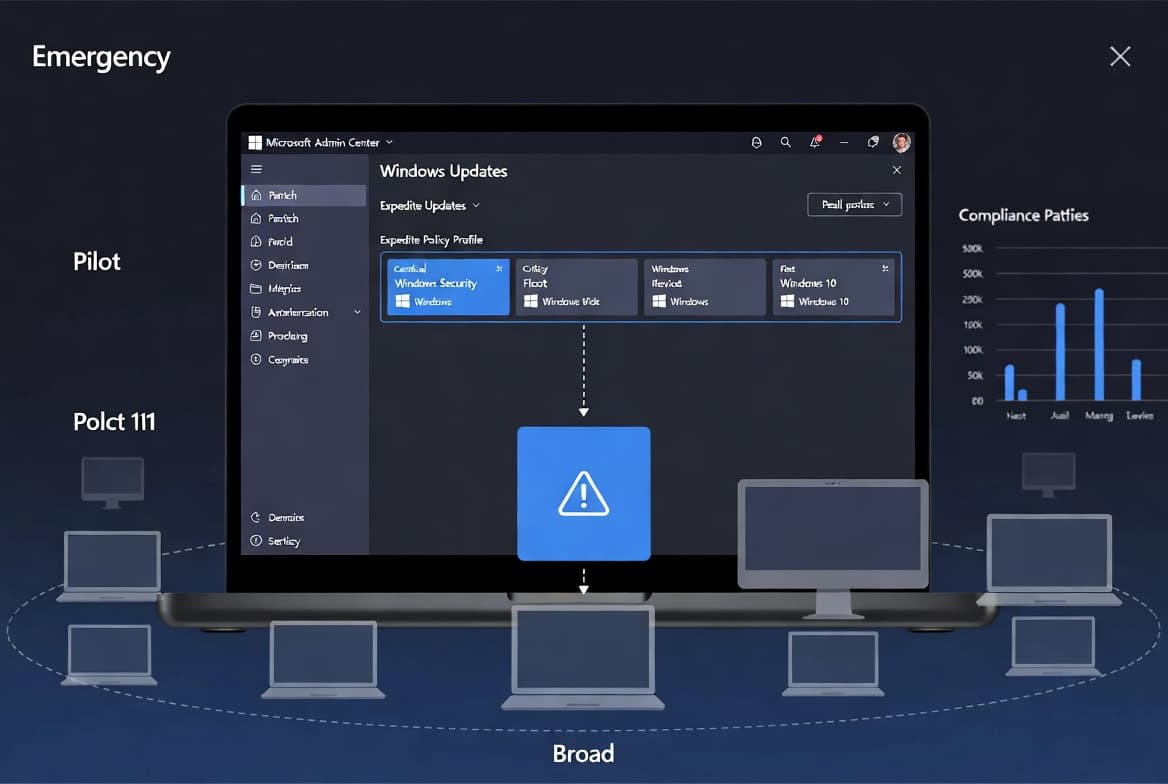
To expedite a critical Windows security patch to all managed devices in under an hour using Intune, create an Expedited Quality Update policy under Devices > Manage updates > Quality updates. This guide shows you how to configure, assign, and monitor that policy - covering every prerequisite so the rollout actually lands.
TL;DR
- Goal: Push an emergency Windows security patch to Intune-managed devices without touching existing Update Ring policies.
- Prerequisite: Each device needs a qualifying license - Windows Enterprise E3/E5, Education A3/A5, Microsoft 365 Business Premium, or Intune Plan 1.
- Time required: Around 15 minutes to create and assign the policy; devices begin updating after their next scan, typically within hours.
- Key limit: Only security updates can be expedited - non-security quality updates, feature updates, and drivers are not eligible.
- Context: According to the Verizon DBIR 2026, organizations patched only 26% of critical KEV vulnerabilities in 2025, with a median resolution time of 43 days - expedited policies exist to close that gap fast.
Why Speed Matters for Windows Security Patches
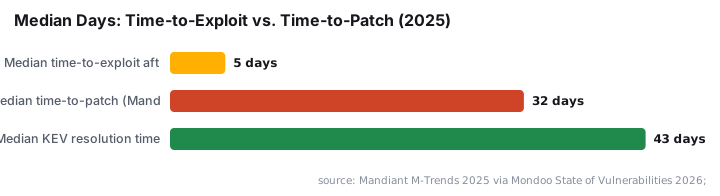
The window between vulnerability disclosure and active exploitation has collapsed. Mandiant M-Trends 2025 found the median time-to-exploit is now just 5 days after disclosure - yet organizations still take a median of 32 days to patch. That 27-day gap is where breaches happen.
Vulnerability exploitation has surpassed stolen credentials as the top initial access vector, now accounting for 31% of breaches according to the Verizon DBIR 2026. Standard Update Rings with deferral periods of 7-14 days simply cannot respond at that speed. Expedited quality updates in Intune give administrators a direct override path.
Adding urgency further: The Register documented that out-of-band patches are now routine, with at least two OOB updates issued in the weeks after the very first Patch Tuesday of 2026 alone. When a zero-day like CVE-2026-50656 (RoguePlanet) hits Defender, waiting for the next ring cycle is not an option.
Prerequisites
Check every item below before creating a policy. Missing any single one causes the policy to fail silently or leaves devices non-compliant.
- License: Each managed device needs an Intune license plus a plan that includes Windows Autopatch - Windows Enterprise E3/E5, Education A3/A5, Microsoft 365 Business Premium, or Microsoft Intune Plan 1.
- Supported OS: Windows 10 or Windows 11, x86 or x64, on the Professional, Enterprise, Education, Pro Education, or Pro for Workstations editions.
- Enrollment: Devices must be enrolled in Intune MDM and be either Microsoft Entra joined or Microsoft Entra hybrid joined. Workplace Join is not supported.
- Network: Devices need internet access to reach Intune service endpoints, Windows Update endpoints, and Windows Autopatch endpoints.
- Update source: Devices must receive quality updates directly from the Windows Update service - not a local WSUS or Configuration Manager source.
- Data collection: Your Intune tenant must have data collection enabled before expedited update reports are visible.
- Update Ring settings: Review existing Update Ring policies. Set
Enable pre-release buildsto Not configured. Also avoid setting change notification to *Turn off all notifications, including restart warnings* - that setting blocks the restart countdown users need to see.
For related Intune enrollment patterns, see Install Microsoft Intune Company Portal on Mac: Step-by-Step and Map Network Drives in Intune Using Custom ADMX Files.
Step 1: Review Update Ring Compatibility in Intune
Check your existing Update Ring for Windows 10 and later before touching the expedited policy. Two settings most often block expedited installs: pre-release build enrollment and suppressed restart notifications. Catching them now saves a failed deployment later.
You can audit relevant settings via the Microsoft Graph API or a PowerShell query. The snippet below retrieves all Update Ring policies in your tenant so you can spot conflicts fast.
# Requires Microsoft.Graph PowerShell module
Connect-MgGraph -Scopes "DeviceManagementConfiguration.Read.All"

Get-MgDeviceManagementDeviceConfiguration | Where-Object {
    $_.ODataType -eq "#microsoft.graph.windowsUpdateForBusinessConfiguration"
} | Select-Object DisplayName, Id
Open each returned policy in the Intune admin center and check these three settings:
Enable pre-release buildsis set to Not configuredAutomatic update behavioris set to Reset to default- Change notification is not set to *Turn off all notifications*
Step 2: Understand the Update Naming Convention
When you create the expedited policy, you pick a specific update from a drop-down list. Reading the name correctly prevents selecting the wrong release.
Suffix in Name | Meaning |
|---|---|
B (e.g. | Released on Patch Tuesday |
D (e.g. | Released after Patch Tuesday, same monthly window |
OOB | Critical out-of-band release, typically for an actively exploited vulnerability |
No | Non-security update - cannot be expedited |
Any update name that does not include the word SecurityUpdate is a non-security update and is not eligible for expediting.
Step 3: Create an Expedited Quality Update Policy in Intune
With prerequisites checked and the target update identified, build the policy in the Intune admin center. This takes roughly 5 minutes.
- Sign in to the Microsoft Intune admin center.
- Go to Devices > Manage updates > Quality updates.
- Select Create > Expedite Policy.
- On the Settings tab, complete the fields using the table below.
Setting | Value |
|---|---|
Name | Descriptive label including KB or month/year, e.g. |
Description | Note the vulnerability or incident that triggered the deployment |
Select the quality update to expedite | Choose the correct update using the naming rules from Step 2 |
Days before enforced reboot | 0, 1, or 2 days (see Step 4 for guidance) |
A completed policy header looks like this:
Policy Name:   Expedite-2026-01B-Critical
Update:        2026.01 B Update for Windows 10 and later
Enforced reboot: 1 day
For context on how Microsoft's official expedited updates feature works at the service level, see the Microsoft Learn expedited updates documentation.
Step 4: Configure the Restart Deadline
The restart deadline is the most user-visible setting in this policy. Your choice here directly determines how much disruption users experience versus how fast devices become protected.
- 0 days - the device notifies the user immediately after install and enforces a restart with minimal delay. Reserve this for zero-day scenarios where every hour matters.
- 1 day (24 hours) - users get a full workday to save work and schedule the restart before it becomes mandatory.
- 2 days (48 hours) - the most lenient option. Use this for Patch Tuesday releases where speed matters but business continuity takes priority.
Users see Windows toast notifications counting down to the deadline. They can restart immediately or schedule a restart. Windows can also pick a time outside active hours if the user takes no action.
When a breach-linked patch is in play - for example, one addressing a broken Entra access control like those that exposed FIFA World Cup streams - 0-day or 1-day deadlines are the right call.
Step 5: Assign the Policy and Deploy
After configuring settings, move through the remaining wizard tabs to complete the deployment.
- On the Scope tags tab, add any relevant scope tags to control admin visibility. This step is optional.
- On the Assignments tab, click Add groups and select the Entra ID device or user groups that should receive the update.
- Review the summary on the Review + create tab, then click Create.
Once saved, Intune targets the selected groups. Devices begin the update process after their next update scan - no manual trigger is needed on endpoints. For managing group membership dynamically, see Create a Dynamic Team in Microsoft Teams with Entra ID Groups.
How Do You Verify the Expedited Update Worked?
Monitoring requires data collection to be enabled on your tenant (see Prerequisites). Once that is on:
- Go to Devices > Manage updates > Quality updates in the Intune admin center.
- Select your expedited policy and open the Device status report.
- Look for devices in the Succeeded state - this shows the update installed and any required restart completed.
Devices in a Pending state have not yet completed their next update scan - wait and recheck. Devices in a Failed state need manual diagnosis. Check that they can reach Windows Update endpoints and that no Group Policy redirects updates to a WSUS server.
If devices appear stuck, run this on a test endpoint to force an immediate update scan:
# Force Windows Update scan from an elevated PowerShell prompt
usoclient StartScan
Then recheck the policy status in the admin center after a few minutes. For a related patching scenario involving a recent Patch Tuesday regression, see KB5094126 Patch Tuesday Bug Breaks Recycle Bin Delete Dialogs - useful context for why targeted expedited rollouts sometimes need staged assignments.
What Licenses Do You Need for Expedited Update Policies?
Expedited update policies require an Intune license combined with a subscription that includes Windows Autopatch. The qualifying plans are:
Plan | Qualifies? |
|---|---|
Windows Enterprise E3 or E5 | Yes |
Windows Education A3 or A5 | Yes |
Windows Virtual Desktop Access E3 or E5 | Yes |
Microsoft 365 Business Premium | Yes |
Microsoft Intune Plan 1 | Yes |
Intune standalone (without above) | No |
For the full official prerequisites list, see Microsoft's Windows Autopatch prerequisites documentation. If your organization manages macOS alongside Windows, the Firefox SSO with Intune: Step-by-Step guide covers cross-platform Intune policy patterns.
Frequently asked questions
Can I expedite any Windows update through Intune?+
No. Only security updates qualify for expediting in Intune. Non-security quality updates, feature updates, and driver updates are not eligible. For routine monthly patching, use standard Update Rings or Windows quality update policies instead of an expedited policy.
What licenses are required to use expedited update policies in Intune?+
You need an Intune license plus a subscription that includes Windows Autopatch. Qualifying plans include Windows Enterprise E3/E5, Education A3/A5, Windows Virtual Desktop Access E3/E5, Microsoft 365 Business Premium, and Microsoft Intune Plan 1.
What does the update naming convention mean in the expedite drop-down list?+
A 'B' in the name means the update shipped on Patch Tuesday. A 'D' means it released after Patch Tuesday in the same month. 'OOB' indicates a critical out-of-band release issued outside the normal monthly schedule, typically for an actively exploited vulnerability.
Will an expedited policy reinstall an update devices already have?+
No. Windows Update checks each device's current build revision. If a device already runs a build equal to or newer than the expedited update, Windows Update skips it entirely. Only devices on a lower build version receive and install the update.
How quickly do devices receive the expedited update after policy creation?+
Devices check in after their next scheduled update scan, typically within a few hours in most environments. To accelerate a specific endpoint, run usoclient StartScan in an elevated PowerShell session to trigger an immediate scan, then recheck status in the admin center.