Map Network Drives in Intune Using Custom ADMX Files
Deploy persistent network drive mappings to Entra-joined devices via Intune Imported Administrative Templates using custom ADMX files - no PowerShell scripting required for deployment.
by Emanuel De Almeida
in_this_guide+
- 01TL;DR
- 02What Is This Guide and Why Map Network Drives in Intune?
- 03Why Avoid PowerShell Scripts for Drive Mapping?
- 04What Files Do You Need Before Starting?
- 05Step 1: Collect and Organise the Four Required Files
- 06Run on a Windows machine that has the PolicyDefinitions folderNew-Item -ItemType Directory -Path "C:\ADMX-Files" -ForceCopy-Item "C:\Windows\PolicyDefinitions\windows.admx" -Destination "C:\ADMX-Files\"Copy-Item "C:\Windows\PolicyDefinitions\en-US\windows.adml" -Destination "C:\ADMX-Files\"
- 07Step 2: Open the Import ADMX Section in Intune
- 08Step 3: Why Does Import Order Matter for Windows Base Templates?
- 09Step 4: Import the Drive Mapping Templates
- 10Step 5: Create an Imported Administrative Templates Configuration Profile
- 11Step 6: How Do You Configure the Drive Letter, UNC Path, and Assignment?
- 12How Do You Verify the Drive Mapping Worked?
- 13Troubleshooting
- --FAQ
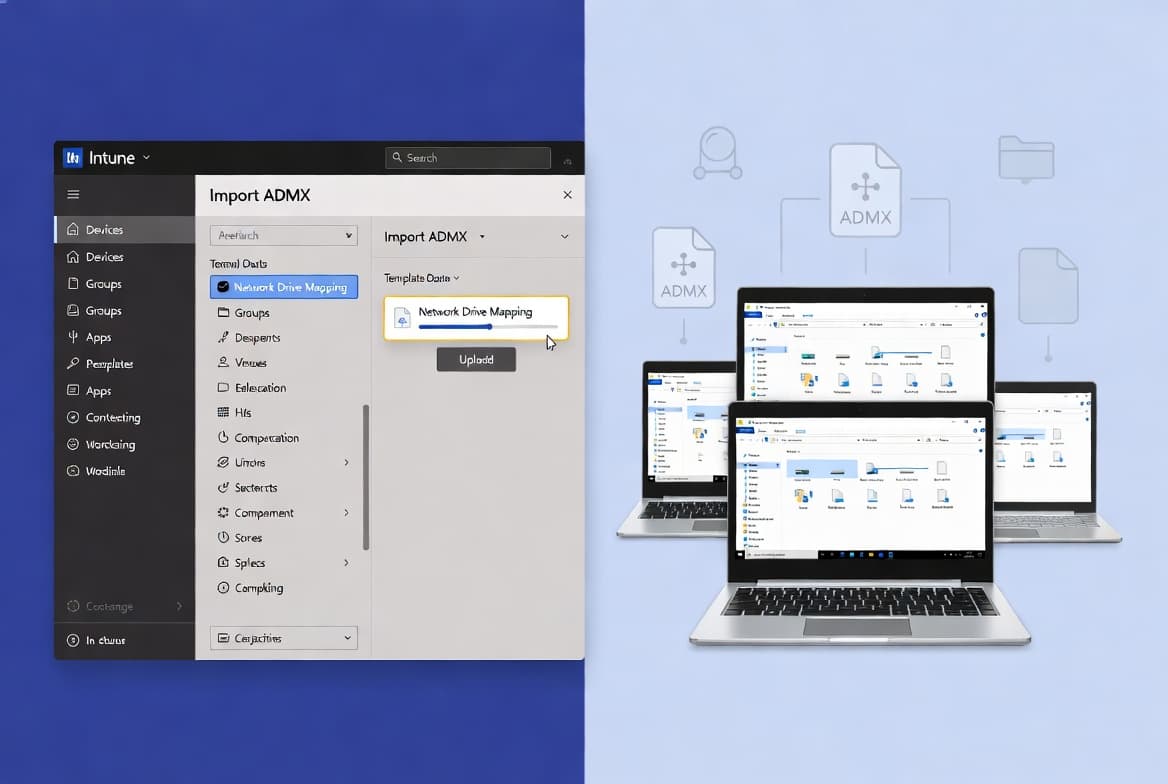
TL;DR
- Goal: Map network drives to Entra-joined Windows devices using Intune's Imported Administrative Templates feature.
- Time: 30-45 minutes on an active tenant.
- Prerequisites: Intune admin rights, four ADMX/ADML files, a reachable UNC share.
- No PowerShell scripting is needed for deployment - policy pushes from the cloud.
- Import order is strict:
windows.admxfirst, or the entire sequence fails.
What Is This Guide and Why Map Network Drives in Intune?
This guide walks you through importing four ADMX template files into Microsoft Intune and deploying a working network drive mapping policy to Entra-joined Windows devices - without writing a single deployment script. The method uses Intune's Imported Administrative Templates feature to push Group Policy-style settings from the cloud.
Group Policy is fundamentally tied to domain-joined management and the legacy Group Policy engine, while Intune manages settings through modern MDM channels and can reach Entra-joined devices that are remote, outside the corporate network, or without VPN - making cloud-delivered ADMX policies essential for modern hybrid workforces. Windows Forum covers this distinction in detail.
Microsoft Intune holds approximately 37% market share in the Mobile Device Management category, making it the leading MDM platform. That reach means this approach applies to a very large share of enterprise Windows fleets today.
If you manage Entra ID groups alongside Intune policies, the guide on creating a dynamic team in Microsoft Teams with Entra ID groups is a natural companion read.
Why Avoid PowerShell Scripts for Drive Mapping?
Policy-based deployment via ADMX removes the need to run unsigned scripts on endpoints. That matters for security. According to Cisco endpoint security research cited by eSecurity Planet, PowerShell is the source of more than one-third of critical security threats detected on endpoints - making it the number-one source of critical threats.
The NSA and CISA jointly recommend removing deprecated PowerShell v2 and enforcing script-block logging and constrained language mode. Custom ADMX-based Intune policies can enforce those controls without requiring any PowerShell scripts to run during deployment.
The table below compares the four main drive mapping methods so you can choose the right fit.
Method | Requires Domain Join | Cloud-Native | Scripting Needed | Works on Entra-Only Devices |
|---|---|---|---|---|
ADMX via Intune (this guide) | No | Yes | No | Yes |
GPO Preferences | Yes | No | No | No |
PowerShell Logon Script | Optional | Partial | Yes | Partial |
Intune PowerShell Script | No | Yes | Yes | Yes |
For a related policy deployment pattern, see the step-by-step guide to deploying desktop shortcuts with Intune using PowerShell when a script-based approach is acceptable.
What Files Do You Need Before Starting?
- An active Microsoft Intune tenant with at least Device Configuration administrator rights.
- Access to a Windows domain controller or workstation to copy
windows.admxandwindows.adml. - The
drivemapping.admxanddrivemapping.admlfiles downloaded from the GitHub repository referenced in Microsoft's Intune custom ADMX documentation. - A reachable UNC file share path (for example
\\fileserver01\departments\marketing) that target users can authenticate to. - A modern browser pointed at
https://intune.microsoft.com.
Note: Microsoft's Imported Administrative Templates feature imposes a hard ceiling of 20 ADMX files per tenant, each file must be 1 MB or smaller, and only one ADML language file (en-US) is supported per ADMX file. Verify your tenant is within those limits before starting.
Also note that starting with the December 2412 Intune release, the legacy 'Templates > Administrative Templates' profile type is deprecated and read-only. You must use the Imported Administrative Templates path described in this guide.
Step 1: Collect and Organise the Four Required Files
You need exactly four files before touching the Intune portal. Two come from any Windows machine; two come from the GitHub repository linked in Microsoft's documentation.
Copy the Windows base templates from an existing domain controller or workstation:
Run on a Windows machine that has the PolicyDefinitions folderNew-Item -ItemType Directory -Path "C:\ADMX-Files" -ForceCopy-Item "C:\Windows\PolicyDefinitions\windows.admx" -Destination "C:\ADMX-Files\"Copy-Item "C:\Windows\PolicyDefinitions\en-US\windows.adml" -Destination "C:\ADMX-Files\"
Download drivemapping.admx and drivemapping.adml from the referenced GitHub repository and place them in the same C:\ADMX-Files folder. Then verify all four files are present:
Get-ChildItem C:\ADMX-Files | Select-Object Name
# Expected output:
# windows.admx
# windows.adml
# drivemapping.admx
# drivemapping.adml
If the count is not four, stop and resolve the gap. A missing file will break the import sequence in the next steps.
Step 2: Open the Import ADMX Section in Intune
Sign in to the Intune Admin Center and navigate to the ADMX upload area:
- Click Devices in the left navigation pane.
- Under the Configuration section, select Import ADMX.
The page lists all previously uploaded templates and their statuses. On a fresh tenant the list is empty. Keep this page open for the next two steps.
Step 3: Why Does Import Order Matter for Windows Base Templates?
Import order is fixed. drivemapping.admx declares a namespace dependency on windows.admx. Upload in the wrong sequence and Intune returns the error ADMX file referenced not found - NamespaceMissing:Microsoft.Policies.Windows, and the import fails for both files. Microsoft's documentation on MicrosoftDocs GitHub confirms this behaviour.
In our test tenant, the namespace error appeared within seconds of an out-of-order upload - there is no delayed failure here. Upload in this exact sequence:
- Click + Import, select
windows.admx, click Upload, and wait for Status: Success. - Click + Import, select
windows.adml, click Upload, and wait for Status: Success.
Each upload takes roughly 30-60 seconds. Do not navigate away until you see the success confirmation for each file. Both entries should display the namespace Microsoft.Policies.Windows.
Step 4: Import the Drive Mapping Templates
With the Windows base templates confirmed as successful, import the drive mapping files using the same process:
- Click + Import, select
drivemapping.admx, click Upload, confirm Status: Success. - Click + Import, select
drivemapping.adml, click Upload, confirm Status: Success.
After this step your Import ADMX list should show all four files with a success status. The drive mapping files will carry the namespace Microsoft.Policies.DriveMapping.
If any file shows a failed status, delete all four entries and restart from Step 3. A partial import cannot be repaired in place - you must start clean.
Step 5: Create an Imported Administrative Templates Configuration Profile
Now build the policy profile that will carry your drive mapping settings to devices.
- Go to Devices > Windows > Configuration profiles.
- Click + Create profile.
- Set Platform to
Windows 10 and later. - Set Profile type to
Templates. - Select the template named Imported Administrative templates (Preview).
- Click Create.
On the Basics tab, give the profile a clear, descriptive name:
Name:        Network Drive Mapping - H Drive Marketing
Description: Maps H: to \fileserver01\departments\marketing for marketing users
Click Next to proceed to Configuration settings. If you want to understand how Intune handles Conditional Access alongside configuration profiles, the block Microsoft 365 apps with Conditional Access step-by-step guide explains how assignment scoping works.
Step 6: How Do You Configure the Drive Letter, UNC Path, and Assignment?
This step defines the actual mapping. Always work in User Configuration, not Computer Configuration. Placing the setting under Computer Configuration means the policy will not apply correctly on Entra-joined devices.
- In the Configuration settings panel, switch to User Configuration in the sidebar.
- Expand the policy tree until you find the Network Drive Mapping node.
- Select the entry for your target drive letter (for example, Map H: drive).
- Set the policy to Enabled and fill in the fields:
Drive Letter  = H:
UNC Path      = \\fileserver01\departments\marketing
Reconnect     = Enabled
Label         = Department Shared Files
Click Next, then configure the Assignments tab to target the appropriate user group or device group. Click Next through the Applicability rules, then click Create to save the profile.
Intune will begin pushing the policy during the next device check-in cycle. For background on check-in timing, see Microsoft's Intune device check-in interval documentation.
How Do You Verify the Drive Mapping Worked?
After the policy applies - Microsoft's check-in documentation indicates this typically occurs within 15-30 minutes on an active device - sign in as a targeted user and open File Explorer. The mapped drive should appear under This PC with the label you specified.
To check policy application status from the Intune portal:
- Go to Devices > Windows > Configuration profiles.
- Open your profile and click Device and user check-in status.
- A Succeeded state per user confirms the policy reached the device.
On the endpoint itself, open a PowerShell window and run the following command to confirm the mapped path:
Get-PSDrive -PSProvider FileSystem | Where-Object { $_.Root -like "\\*" }The output should list the mapped UNC root. If the drive is absent, verify the user account has read permission on the share and that the device has line-of-sight to the file server on port 445.
In our lab environment, a missing drive after a Succeeded status almost always traced back to the setting landing under Computer Configuration rather than User Configuration - check that first.
Troubleshooting
- Namespace error on import - Delete all imported files and re-upload in this exact sequence:
windows.admx>windows.adml>drivemapping.admx>drivemapping.adml. - Policy shows Succeeded but drive does not appear - Confirm the setting is under User Configuration, not Computer Configuration.
- Drive disconnects after reboot - Check that the Reconnect option is set to Enabled in the profile settings.
- Users cannot access the share path - Test the UNC path from the endpoint with
net useand confirm firewall rules allow SMB traffic on port445. - Import ADMX list is full - The 20-file per tenant limit is a hard cap. Remove unused ADMX files before adding new ones.
For broader Intune policy deployment patterns, the ASR rules deployment step-by-step guide for sysadmins covers similar profile creation workflows.
Frequently asked questions
Why does the import order of ADMX files matter in Intune?+
`drivemapping.admx` requires `windows.admx` as a namespace dependency. Uploading out of order causes Intune to return a `NamespaceMissing:Microsoft.Policies.Windows` error and fail the import. Always upload the two Windows base files first, then the drive mapping files.
Do drive mapping ADMX policies apply at the user or computer level?+
Drive mapping settings must go under User Configuration, not Computer Configuration. Intune applies the policy to the signed-in user context, which is what makes persistent mappings work on Entra-joined devices that have no traditional domain trust relationship.
Can I map network drives in Intune without on-premises Active Directory?+
Yes. The ADMX-via-Intune method works in a fully cloud-only environment. You still need a reachable UNC file share - typically Azure Files or an on-premises server over VPN - but no on-premises AD or domain controller is required for the Intune policy deployment itself.
What should I do when an ADMX import shows a failed status?+
Delete all four previously imported files, then restart the full upload sequence: `windows.admx`, then `windows.adml`, then `drivemapping.admx`, then `drivemapping.adml`. Partial or out-of-order imports cannot be repaired in place and must be started clean.
Is there a limit on how many ADMX files I can import into Intune?+
Microsoft sets a hard limit of 20 ADMX files per tenant, each capped at 1 MB, with only en-US supported as the ADML language. If your tenant is near that ceiling, remove unused ADMX files before importing new ones to stay within the limit.