Block Microsoft 365 Apps with Conditional Access - Stepy by Step
Block Microsoft 365 apps on unmanaged devices using Entra Conditional Access. Covers licensing, break-glass exclusions, Report-only testing, and sign-in log verification.
by Emanuel De Almeida
in_this_guide+
- 01TL;DR
- 02Prerequisites
- 03Step 1: Open the Conditional Access Policies Blade
- 04Step 2: Define User and Group Assignments
- 05Step 3: Specify Target Resources (Cloud Apps)
- 06Step 4: Set Device Platform Conditions
- 07Step 5: Choose Client App Types
- 08Step 6: Configure the Block Access Control
- 09Step 7: Enable the Conditional Access Policy Safely
- 10Verify Your Conditional Access Block Policy
- --FAQ
TL;DR
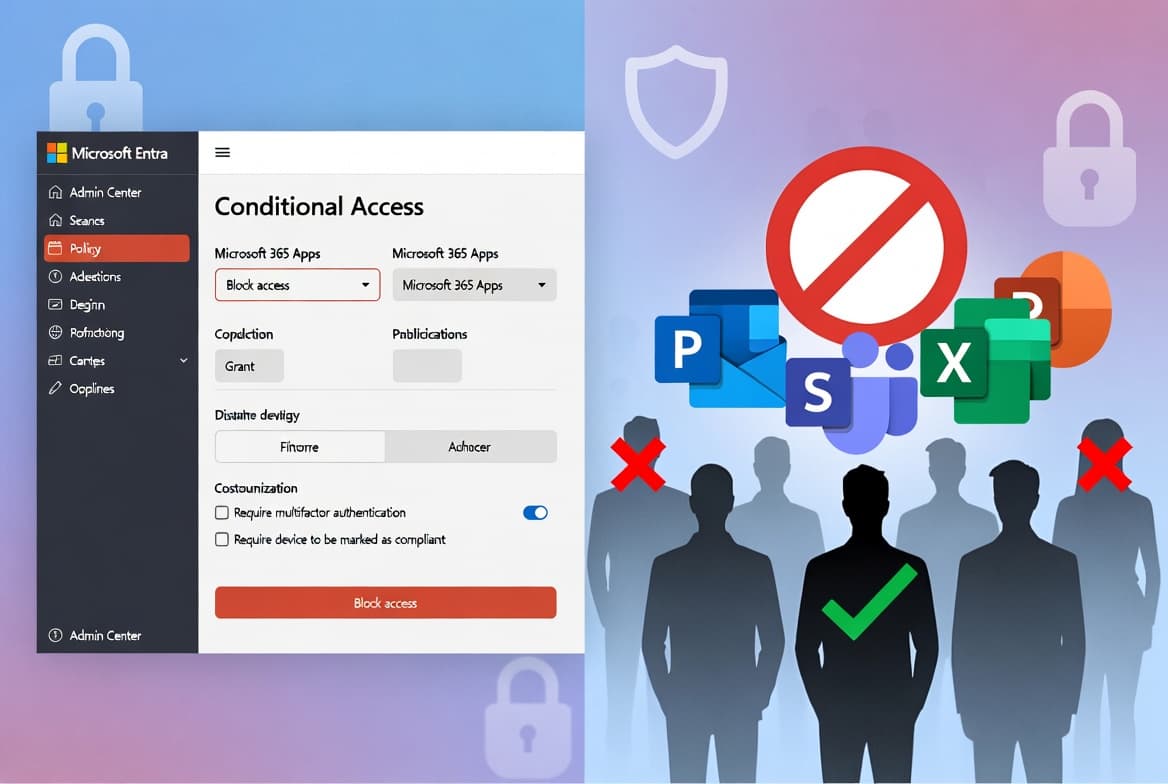
- This guide shows you how to build a Conditional Access policy in Microsoft Entra that blocks Microsoft 365 apps on unmanaged or non-compliant devices.
- You need at least a Microsoft Entra ID P1 license per user; without it, you cannot create Conditional Access policies.
- The biggest risk is admin lockout: always exclude break-glass accounts and test in Report-only mode before switching the policy on.
- Start with a pilot group, review sign-in logs, then expand to the full organisation.
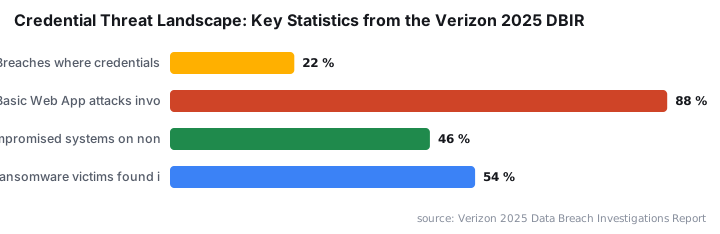
This guide walks you through configuring a Conditional Access policy in Microsoft Entra to block access to Microsoft 365 apps from unmanaged or non-compliant devices. By the end, you will have a policy that targets specific users or groups, restricts chosen platforms and client app types, and can be validated safely before going live. The Verizon 2025 Data Breach Investigations Report found that compromised credentials were the initial access vector in 22% of all breaches reviewed, making device-gated access one of the most direct controls you can deploy.
Prerequisites
Before you start, verify every item below is in place. Missing even one can cause the policy to fail silently or lock out the wrong users.
- Microsoft Entra ID P1 or P2 license (or a trial) attached to the tenant.
- Admin account with the Conditional Access Administrator role (or Global Administrator) to create and edit policies. A Security Reader role is sufficient for read-only review.
- Windows devices registered in Microsoft Entra ID and assigned a valid license.
- A pilot group containing test users or devices, so you can validate the policy before expanding it to the entire organisation.
- At least one emergency access (break-glass) account that is documented, monitored, and excluded from the policy.
The CISA SCuBA baseline for Microsoft Entra ID mandates that any new Conditional Access policy start in Report-only mode before switching to On, to prevent unintended consequences. Follow that pattern throughout this guide.
For a related hardening task you can pair with this policy, see the ASR Rules Deployment: Step-by-Step Guide for Sysadmins.
Step 1: Open the Conditional Access Policies Blade
Sign in to the Microsoft Entra admin center using an account that holds the Conditional Access Administrator or Global Administrator role. Navigate to:
ID Protection > Risk-based Conditional Access > PoliciesSelect New policy to open a blank policy canvas. Give the policy a descriptive name that makes its intent obvious, for example Block-M365-Apps-Windows-Pilot. A clear name matters because Entra displays the policy name in sign-in logs, making troubleshooting far faster.
Step 2: Define User and Group Assignments
Under Assignments, select Users or agents. On the Include tab, add the Entra group that contains your pilot users. Avoid selecting All users during initial rollout.
Switch to the Exclude tab and add your emergency access or break-glass accounts. This single step prevents a total admin lockout if the policy is misconfigured. Microsoft's own emergency access guidance confirms that excluding break-glass accounts from every Conditional Access policy is a documented best practice. Skip this exclusion, and a misconfigured policy can lock every administrator out of the tenant simultaneously.
For step-by-step instructions on setting up break-glass accounts, see the Deactivate an Entra ID App Registration: Step-by-Step Guide for context on how Entra ID authentication controls interact.
Step 3: Specify Target Resources (Cloud Apps)
Under Target resources, select Resources (formerly cloud apps), then switch to the Include tab and choose Select resources.
You have two options depending on your organisation's requirements:
- Block the full M365 suite: Select the Office 365 app. This covers Teams, Exchange Online, SharePoint Online, OneDrive, and related services in one selection.
- Block individual apps: Search for and select specific services such as
Office 365 Exchange OnlineorOffice 365 SharePoint Online.
Note: Some resources display a "Resource unsupported in Conditional Access" message. Remove those from your selection before saving.
Blocking the full Office 365 suite is generally safer. Individual app dependencies, for example Teams relying on SharePoint for the Files tab, stay intact under a unified policy rather than breaking unpredictably.
Step 4: Set Device Platform Conditions
Under Conditions, select Device platforms. Toggle the configure switch to Yes, then pick the platforms this policy should apply to. A typical enterprise scope includes both Windows and macOS.
Conditions > Device platforms > Configure: Yes
Include: Windows, macOS
Conditional Access identifies the platform through user-agent strings the device provides. Select Done before moving on. If you need to manage the devices feeding into this policy through Intune, the Dell Management Portal for Intune: Integration Setup Guide covers device enrollment and compliance policy assignment.
Step 5: Choose Client App Types
Still under Conditions, select Client apps and toggle configure to Yes. Two categories matter under Modern authentication clients:
- Browser: Blocks access through any supported web browser.
- Mobile apps and desktop clients: Blocks the native M365 desktop and mobile applications.
Select both options to cover all access vectors. If your organisation only wants to restrict browser access while allowing managed desktop clients, select only Browser.
The CISA SCuBA baseline also requires blocking legacy authentication protocols via Conditional Access, because legacy protocols do not support MFA. Adding a separate policy for legacy auth closes that gap alongside the device-platform restriction you are building here.
Step 6: Configure the Block Access Control
Under Access controls, click Grant. You will see options to grant access with conditions or to block access outright. Select Block access.
Access controls > Grant > Block accessThis is the enforcement action. Any user in scope who attempts to reach the targeted resources from a matching platform and client type receives an access-denied response. Confirm the selection and return to the policy summary screen.
Why Credential Theft Makes This Step Urgent
Stolen credentials are the reason device-gating matters. The Verizon 2025 DBIR found that 46% of compromised systems with corporate logins in their credential data were non-managed devices, most likely BYOD endpoints. Blocking unmanaged devices at the Conditional Access layer removes the path attackers rely on even when they hold valid credentials.
Threat actors who compromise Microsoft 365 environments sometimes abuse legitimate infrastructure for persistence. The DragonForce Abuses Microsoft Teams TURN Servers for C2 report shows why restricting which devices can authenticate to M365 services reduces attacker dwell time.
Step 7: Enable the Conditional Access Policy Safely
Report-Only Review
Do not switch the policy directly to On. Set Enable policy to Report-only first.
Enable policy: Report-onlyIn Report-only mode, Entra evaluates every sign-in and writes the outcome to the Sign-in logs without blocking anyone. In our test tenant, Report-only mode surfaced two service accounts within minutes of enabling the policy, accounts that would have been blocked and broken automated workflows. Review the logs carefully for any admin accounts or service principals appearing in the "Would be blocked" results.
Going Live
Once you confirm the scope is correct, return to the policy and switch the toggle:
Enable policy: OnEntra now denies access when an in-scope user tries to reach the targeted M365 apps from a non-compliant or unregistered device. Entra logs the block event against the correct policy name in the Sign-in logs, giving you a clear audit trail.
Verify Your Conditional Access Block Policy
Test the policy from a device that matches your defined conditions before expanding the rollout.
- Sign in to a Windows device that is not Entra-registered or compliant.
- Attempt to open a targeted app, such as Outlook on the web or the Teams desktop client.
- Expected result: access is denied with a Conditional Access policy message.
- Check Microsoft Entra Sign-in logs to confirm Entra logged the block event against the correct policy name.
- Test your break-glass account separately to confirm it still has full access.
If a user reports unexpected blocking, check their group membership, device compliance state, and whether overlapping policies exist.
Using the What If Tool
The What If tool in the Conditional Access blade lets you simulate a specific user's sign-in scenario without triggering real enforcement. Enter the user, target app, device platform, and client app type, then run the simulation. The tool returns which policies apply and what the outcome would be. Use it any time a user's access behaviour does not match your expectations.
For automating related device management tasks across your tenant, the Deploy Desktop Shortcuts with Intune Using PowerShell tutorial shows how to combine Intune and PowerShell for scalable endpoint control.
Frequently asked questions
Should I block individual M365 apps or the entire Office 365 suite?+
Target the full Office 365 suite wherever possible. Many apps share dependencies — blocking SharePoint individually breaks the Files tab in Teams. A unified policy avoids partial breakage, reduces policy count, and simplifies long-term maintenance as Microsoft adds new services to the suite.
What happens if I accidentally lock out all administrators?+
Excluding emergency access or break-glass accounts before enabling any Conditional Access policy prevents this. Those accounts bypass all policies and let a Global Administrator sign in to correct misconfigurations. Microsoft documents this requirement in its emergency access guidance on Microsoft Learn.
Can I use Report-only mode to test without blocking anyone?+
Yes. Report-only mode evaluates every sign-in and records what would have been blocked in the Microsoft Entra Sign-in logs, without denying access. Switch to On only after reviewing those logs and confirming no admin accounts or service principals appear in the blocked results.
Which license is required to create Conditional Access policies?+
You need at least a Microsoft Entra ID P1 license per user, or an equivalent bundle such as Microsoft 365 Business Premium or an E3/E5 plan that includes Entra ID P1. A trial license also satisfies the requirement for lab or evaluation environments.
Does this policy block legacy authentication protocols?+
Not automatically. The client apps condition targets modern authentication clients. Add a separate Conditional Access policy to block legacy protocols explicitly. Legacy protocols do not support MFA, so credential theft against those endpoints bypasses your device-platform restriction entirely.