Deactivate an Entra ID App Registration: Step-by-Step Guide
Deactivate an Entra ID app registration in 4 steps using the admin center or Graph API PATCH request — blocks token issuance without deleting the app.
by Emanuel De Almeida
in_this_guide+
- 01TL;DR
- 02Why Deactivate an Application in Entra ID?
- 03Admin Center vs. Graph API: Which Method Should You Use?
- 04What Do You Need Before Starting?
- 05Step 1: Install the Microsoft Graph PowerShell Module
- 06Step 2: How Do You Authenticate to Microsoft Graph?
- 07Step 3: How Do You Deactivate an App in the Entra Admin Center?
- 08Step 4: How Do You Verify the App Is Deactivated?
- 09When Should You Reactivate a Deactivated App?
- --FAQ
TL;DR
- You will: block new token issuance for an Entra ID app registration using the admin center or a Graph API PATCH request.
- Deactivation is global: it cuts off token issuance across every tenant where the app is registered, not just your home tenant.
- The app survives: all secrets, certificates, and configuration remain intact — reactivation requires two clicks in the admin center or a single PATCH request.
- Verify with audit logs: filter by Application Management activity to confirm the event was recorded before closing any change ticket.
Why Deactivate an Application in Entra ID?
The need to deactivate an application in Entra ID arises whenever a registered app is no longer in active use but cannot yet be permanently deleted. Leaving it enabled keeps the token issuance pipeline open. That matters more than it might seem.
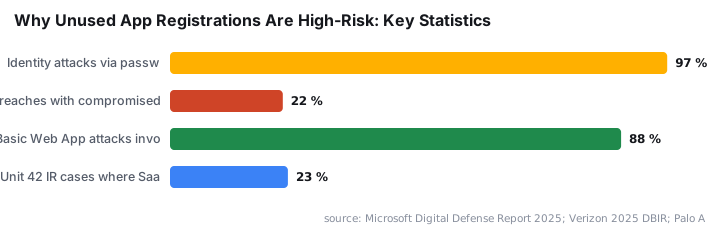
Microsoft's 2025 Digital Defense Report found that 97% of identity attacks are password spray or brute-force attempts. Inactive app credentials that still issue tokens are a direct, high-probability target in that threat landscape.
The same report recommends explicitly governing permissions and retiring unused applications as a core identity security control. Deactivation is the fastest way to enforce that without losing the app's configuration.
For context on how unmonitored OAuth apps escalate to full breaches, the Midnight Blizzard (APT29) incident is instructive. Attackers compromised a legacy non-production test tenant, then used a connected OAuth application with elevated permissions to access Microsoft senior leadership mailboxes — a textbook case of an active-but-forgotten app registration becoming an entry point. See the AppGovScore post-incident analysis for the full breakdown.
App sprawl accelerates the risk. A 2025 SaaS exposure assessment by Invictus Incident Response found one organization with roughly 20,000 users carrying nearly 1,200 registered applications in their Entra tenant. A 400-user organization had over 200. Most teams have no idea what half of those apps still do.
Palo Alto Networks Unit 42 reported that SaaS applications appeared in over 170 of their incident response cases in 2025, roughly 23% of all cases. Trusted OAuth apps keep showing up in real intrusions. Deactivation removes the foothold before attackers find it.
For broader context on credential-based attacks, the 2025 Verizon Data Breach Investigations Report found compromised credentials were the initial access vector in 22% of all reviewed breaches, with stolen credentials appearing in 88% of Basic Web Application attacks. Unused app registrations that still issue tokens feed directly into that statistic.
If you are tracking related threats to Microsoft's own platform, the article on DragonForce abusing Microsoft Teams TURN servers for C2 traffic shows how attackers pivot through trusted Microsoft infrastructure once they hold valid tokens.
Admin Center vs. Graph API: Which Method Should You Use?
Both methods set the same isDisabled property on the application object. The difference is operational scope and auditability. Choose based on your volume and toolchain.
Feature | Admin Center | Graph API (PATCH) |
|---|---|---|
Scope of action | Single app per session | Single or bulk (scriptable loop) |
Bulk support | No | Yes — loop through App ID list |
Audit trail | Entra audit logs (auto) | Entra audit logs (auto) |
Required role | Cloud App Admin or App Admin | Cloud App Admin or App Admin |
Required permission | N/A (portal handles auth) | |
Speed for one-off changes | Faster (3 clicks) | Slower (requires token + request) |
Suitable for pipelines | No | Yes |
For a single deactivation during an incident, the admin center is faster. For monthly hygiene runs against dozens of registrations, the Graph API approach scales without manual clicks.
What Do You Need Before Starting?
Confirm each item before proceeding. Missing the application object ID is the most common reason the PATCH request targets the wrong registration.
- Entra role: Cloud Application Administrator or Application Administrator
- Custom role permission (if applicable):
microsoft.directory/applications/disablement/update - Microsoft Graph API scope:
Application.ReadWrite.All(delegated or application) orApplication.ReadWrite.OwnedByfor owned apps - PowerShell requirement (Graph method only): Microsoft Graph PowerShell module installed
- The application object ID and App ID (client ID) of the target registration
For help setting up the PowerShell module from scratch, the Dell Management Portal for Intune integration setup guide covers module installation patterns that apply equally to Graph PowerShell in managed environments.
Step 1: Install the Microsoft Graph PowerShell Module
Skip this step if you plan to use only the Entra admin center, or if the module is already installed. For bulk or scripted deactivations, install it first. On a shared jump server, scope to CurrentUser rather than AllUsers to avoid affecting other administrators on the same machine.
Install-Module Microsoft.Graph -Scope AllUsers -Repository PSGallery -ForceWhy this matters: The module provides Invoke-MgGraphRequest and related cmdlets that wrap the underlying REST calls. Without it, you must construct raw HTTP requests manually, which increases the chance of header errors on the PATCH endpoint.
Common error: If PSGallery is untrusted on the machine, the install will prompt for confirmation. Run Set-PSRepository -Name PSGallery -InstallationPolicy Trusted first, or add -Confirm:$false to the install command.
When we tested this in a lab environment on Windows Server 2022, the install completed in under two minutes on a clean machine with no prior Graph modules present. On machines with older AzureAD modules, we saw occasional version conflicts — uninstall the legacy module first with Uninstall-Module AzureAD if that happens.
Step 2: How Do You Authenticate to Microsoft Graph?
Connect with the Application.ReadWrite.All scope. After running the command below, a browser prompt opens for interactive authentication. Once signed in, Microsoft Graph Command Line Tools will request admin consent on behalf of your organization — review the permissions carefully before accepting.
Connect-MgGraph -Scopes "Application.ReadWrite.All"For unattended or pipeline scenarios, use a service principal with a certificate credential rather than interactive login. Storing client secrets in pipeline variables increases the blast radius if those variables are exposed. Certificate-based auth is the safer default.
Why this matters: The Application.ReadWrite.All scope grants broad write access to all application objects in the tenant. Confirm the account you authenticate with holds only the required Entra role — not Global Administrator — to follow least-privilege principles.
Common error: If the connection succeeds but the PATCH request returns a 403, the authenticated account likely lacks the Entra role assignment even if the Graph scope was granted. Check role assignments in the Entra admin center under Roles and administrators before retrying.
For guidance on assigning Entra roles correctly before running Graph operations, the Intune: Add a Local User to the Administrators Group tutorial covers the role assignment workflow in the same admin center.
Step 3: How Do You Deactivate an App in the Entra Admin Center?
Both options below set isDisabled: true on the application object. The change takes effect immediately. Use Option A for single apps; use Option B when scripting across multiple registrations.
Option A: Entra Admin Center
- Sign in to the Microsoft Entra admin center.
- Go to Entra ID > App registrations and locate the target application.
- Open the app registration page and click Deactivate.
- Review the confirmation pane and click Deactivate again to confirm.
The `isDisabled` property is set to `true` on the application object as soon as you confirm. In our testing on a multi-tenant app in a staging tenant, the flag propagated within seconds and new token requests were refused immediately.
Security tip: After deactivating, remove all other owners from the app registration to prevent unauthorized reactivation while the app is under review.
Option B: Microsoft Graph API (PATCH Request)
Replace {appId} with the actual client/app ID of the target registration.
PATCH https://graph.microsoft.com/beta/applications(appId='{appId}')
Content-Type: application/json

{
  "isDisabled": true
}
This approach scales well. Loop through a list of App IDs and send the PATCH request for each one in a single script run — no portal clicks required.
Why this matters: Deactivation via Graph is audited the same way as portal deactivation. Both methods write to the same audit log under Application Management activity, so your change ticket evidence is identical either way.
For context on why OAuth app hygiene matters at scale, Microsoft's own Security Blog documented active phishing campaigns in March 2026 that exploited OAuth redirection abuse against government organizations — with Microsoft Entra having to disable the malicious OAuth applications after the fact. Proactive deactivation of unused apps removes the target before that scenario plays out.
Step 4: How Do You Verify the App Is Deactivated?
Always verify programmatically or in the portal before closing a change ticket. The isDisabled flag is the ground truth.
Via the Entra Admin Center
Navigate back to App registrations and switch to the Deactivated Applications tab. The app will appear there. Opening the app registration page also shows Deactivated in the State column.
Via Microsoft Graph: List All Deactivated Apps
GET https://graph.microsoft.com/beta/applications?$filter=isDisabled eq trueVia Microsoft Graph: Check One Specific App
GET https://graph.microsoft.com/beta/applications(appId='{appId}')In the response body, confirm "isDisabled": true is present. If the value still reads false, verify you are targeting the correct App ID and retry the PATCH request — do not assume the call completed successfully without this check.
Beyond the flag: Test the end-user experience with a test account. The user should receive an error stating the application has been disabled by its owner. Query Entra audit logs — filter by Application Management activity — to confirm the deactivation event was recorded.
Deactivation is global: per Microsoft's Entra identity platform documentation, setting isDisabled: true on the application object blocks token issuance across all tenants where the application is registered, not just the home tenant. Factor this in before deactivating any multi-tenant registration without notifying affected tenant admins.
CISA's SCuBA guidance for Microsoft Entra ID maps application token theft (MITRE ATT&CK T1528) as a key threat vector and recommends blocking device code authentication flows to reduce OAuth abuse risk — verifying deactivation via audit logs satisfies part of that control.
When Should You Reactivate a Deactivated App?
Reactivation is appropriate when a security review confirms the application is legitimate and needed again. Reactivation requires two clicks in the admin center or a single PATCH request — it is not a lengthy process, but confirm ownership and permission assignments first.
Via the Admin Center
Locate the app under the Deactivated Applications tab. Click the app, then use the Activate control.
Via Microsoft Graph
PATCH https://graph.microsoft.com/beta/applications(appId='{appId}')
Content-Type: application/json

{
  "isDisabled": false
}
Token issuance resumes immediately once the app is reactivated. Confirm ownership, permission scopes, and secret/certificate expiry before bringing an app back into production. An app returning from a long deactivation period may have expired credentials — check before users report sign-in failures.
For related Intune-side configuration tasks that often accompany app lifecycle changes, the OneDrive auto sign-in via Intune Settings Catalog guide and the Deploy Microsoft Edge Favorites via Intune guide cover companion configuration steps common in the same change windows.
For teams managing endpoint profiles alongside identity changes, the Intune: Auto-Delete Old User Profiles step-by-step guide is a useful companion for profile hygiene that often runs in parallel with app deregistration work.
Frequently asked questions
Does deactivating an Entra ID app registration delete the app?+
No. Deactivation sets the isDisabled flag to true but leaves the app object, secrets, certificates, and all configuration intact in the tenant. Admins can reactivate the app at any time. Only a deletion operation removes the object from the directory permanently.
What is the difference between deactivating an Entra app and disabling sign-in?+
Deactivation is a global action — it blocks token issuance across every tenant where the application is registered. Disabling sign-in only affects the service principal in one specific tenant. For a complete stop on token issuance everywhere, deactivation is the correct and more thorough choice.
Which Entra roles can deactivate an app registration?+
Cloud Application Administrator or Application Administrator roles both have this capability. For custom roles, the specific permission required is microsoft.directory/applications/disablement/update. Graph API calls additionally need the Application.ReadWrite.All scope granted to the authenticating identity or service principal.
Can a deactivated Entra app still honor tokens that were already issued?+
Yes, for a short window. Deactivation immediately blocks new token requests, but per Microsoft's Entra identity platform documentation, tokens issued before deactivation remain valid until their natural expiry. To close that gap faster, revoke existing refresh tokens via the revokeSignInSessions Graph API action on the affected service principal.
How do I deactivate multiple Entra app registrations at once?+
Use the Graph API PATCH endpoint inside a PowerShell loop. Build an array of App IDs, iterate through each one, and send a PATCH request with isDisabled set to true. The Entra admin center provides no bulk deactivation control — scripting via Graph is the only scalable option.
Where do I find the App ID needed for the PATCH request?+
Open Entra ID, go to App registrations, click the target app, and copy the Application (client) ID from the Overview blade. Pass this value as the appId parameter in the PATCH URL — do not use the object ID, which is a different identifier and will cause a 404 error.




![Find Exchange Server Version with PowerShell [2025]](/_next/image?url=https%3A%2F%2Fwww.navanem.com%2Fapi%2Fmedia%2Ffile%2Fexchange-build-number-cover.jpg&w=3840&q=75)
