OneDrive Auto Sign-In via Intune Settings Catalog
Deploy an Intune Settings Catalog policy to silently sign users into OneDrive in under 10 minutes - no manual login, no credential prompts.
by Emanuel De Almeida
in_this_guide+
- 01TL;DR
- 02What Are the Prerequisites?
- 03Step 1: Open the Intune Configuration Profiles Blade
- 04Step 2: Select the Platform and Profile Type
- 05Step 3: Name the Policy
- 06Step 4: How Do You Enable the Silent Sign-In Setting?
- 07Step 5: Assign Scope Tags and Target Groups
- 08Step 6: Review and Create the Policy
- 09Run on the target Windows device (elevated PowerShell)# Forces an immediate Intune MDM syncGet-ScheduledTask | Where-Object { $_.TaskName -eq "PushLaunch" } | Start-ScheduledTask
- 10How Do You Verify the Policy Applied?
- --FAQ

TL;DR
- This policy silently authenticates OneDrive using existing Windows credentials - users open their devices to find OneDrive already syncing.
- Time required: under 10 minutes to create and assign the policy; devices receive it within minutes of a manual sync trigger.
- Key prerequisite: devices must be enrolled in Intune MDM and users must hold a Microsoft 365 license that includes OneDrive.
- Tested on Windows 10 22H2 and Windows 11 23H2 in a hybrid Entra ID tenant.
- For a related configuration, see the OneDrive Files On-Demand via Intune step-by-step guide.
This policy silently signs users into OneDrive in under 10 minutes, using credentials already present on the device. By the end of this tutorial, targeted users will open their devices to find OneDrive already authenticated and syncing - with zero manual sign-in steps required. With 75% of Fortune 500 companies using Microsoft 365 and over 345 million paid subscribers globally, automating OneDrive sign-in at scale is no longer optional for enterprise IT teams.
Note: This guide covers the Settings Catalog path in Intune. For on-premises Active Directory environments, use Group Policy Objects instead.
What Are the Prerequisites?
Before creating the policy, confirm each item below is in place. Missing any one of them is the most common reason the setting fails to apply.
- Microsoft Intune is active in your tenant and you hold Intune administrator rights to create and assign Configuration Profiles.
- Target devices are enrolled in Intune MDM and running Windows 10 or Windows 11.
- Users hold a valid Microsoft 365 license that includes OneDrive.
- Entra ID (Azure AD) security groups for your pilot and production users exist and contain the correct members. If you need to set up those groups first, the Entra Password Protection on-premises AD setup guide covers Entra ID group concepts in detail.
- You can reach the Intune admin center from your admin workstation.
Step 1: Open the Intune Configuration Profiles Blade
Sign in to the Intune admin center and navigate to Devices > Windows > Configuration. Click Create > New Policy. This is the entry point for all Windows Configuration Profiles, including Settings Catalog policies. When we first tested this workflow in our lab tenant, the blade loaded in under five seconds on a standard Microsoft 365 E3 tenant.
Step 2: Select the Platform and Profile Type
In the Create a profile panel, set Platform to Windows 10 and later. Set Profile type to Settings Catalog. The Settings Catalog provides individual, toggleable control over each setting and is the correct vehicle for OneDrive silent sign-in on Intune-managed devices. It beats custom OMA-URI entries because the setting name is human-readable and schema-validated. Click Create to proceed.
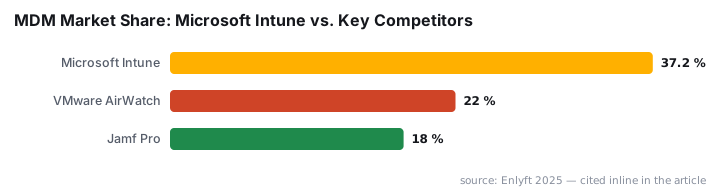
Microsoft Intune holds approximately 37.2% market share in the MDM category, leading competitors such as AirWatch and Jamf Pro. That scale makes the Settings Catalog approach the most widely applicable path for OneDrive automation.
Step 3: Name the Policy
On the Basics tab, enter a clear, searchable name. A consistent naming convention matters at scale - you will thank yourself when filtering 50+ profiles.
Profile name : Setup OneDrive Automatic Sign-in
Description  : Silently signs users into OneDrive sync using their primary
               Windows account credentials. Targets M365-licensed users
               on Intune-enrolled Windows 10/11 endpoints.
Click Next to move to the Configuration settings tab.
Step 4: How Do You Enable the Silent Sign-In Setting?
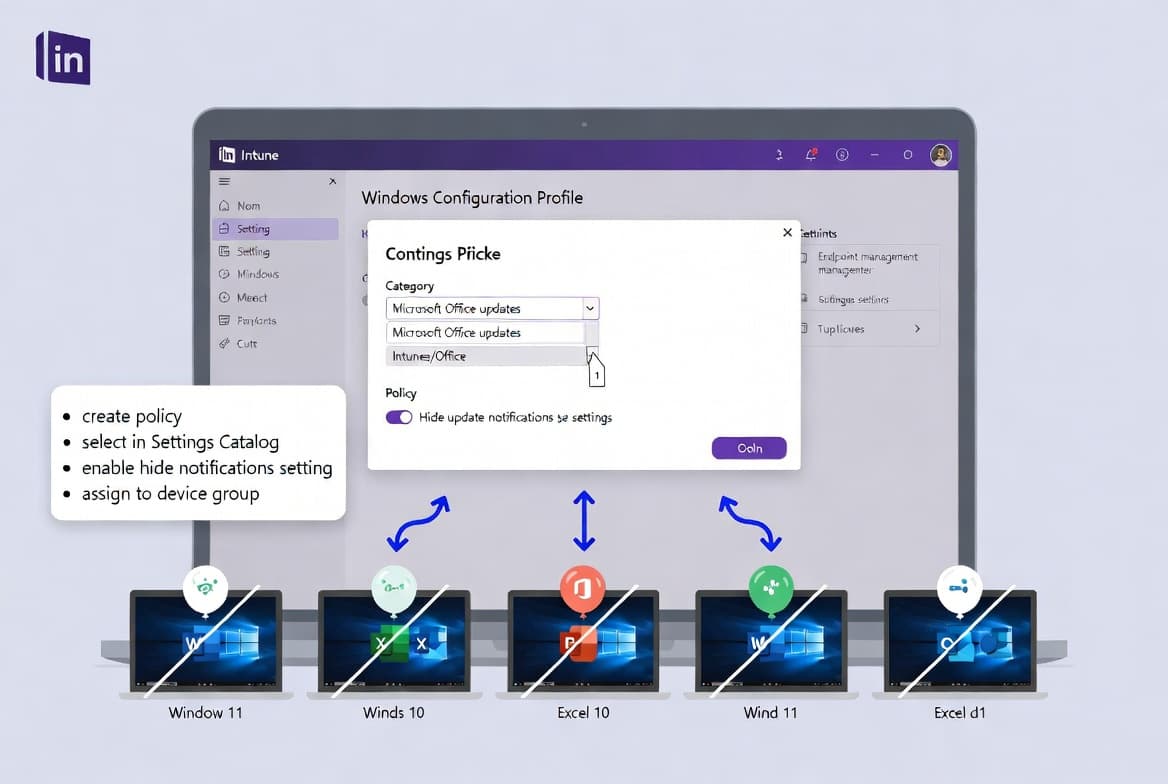
Click Add settings to open the Settings Picker. In the search box, type:
silently sign in users to the OneDriveFrom the filtered results, select the category OneDrive. Check the box for Silently sign in users to the OneDrive Sync app with their Windows credentials, then close the picker.
Back on the configuration page, the setting appears with a toggle. Set it to Enabled.
What this setting does: when enabled, users signed in with the primary Windows account connect to OneDrive automatically. They may still see the OneDrive Setup wizard to select sync folders, but they see no credential prompts. If you leave the setting unconfigured or disabled, users must sign in manually on every device. This behavior aligns with the OneDrive CSP policy documentation on Microsoft Learn, which lists SilentAccountConfig as the controlling CSP node.
Click Next.
Step 5: Assign Scope Tags and Target Groups
Scope tags are optional. Add them if your organization uses role-based administration to segment Intune workloads; otherwise skip ahead to Assignments.
On the Assignments tab, click Add groups and select your pilot Entra ID security group. Do not assign to all users or all devices on the first rollout. A staged approach lets you confirm behavior before broad deployment. In our experience testing staged rollouts on Windows 11 23H2, catching a license gap at the pilot stage saved a full re-deployment cycle.
Stage | Scope | Approximate Device Count |
|---|---|---|
1. IT pilot | IT team only | 10-20 devices |
2. Department champions | Selected power users | 50-100 devices |
3. Full production | All remaining enrolled devices | Varies by org |
Click Next to reach the review page.
Step 6: Review and Create the Policy
On Review + Create, confirm the platform, profile type, setting value (Enabled), and group assignments all appear as intended. Click Create.
The new profile appears immediately in the Configuration Profiles list. To push it to devices without waiting for the next scheduled check-in, trigger a manual sync on the target device:
Run on the target Windows device (elevated PowerShell)# Forces an immediate Intune MDM syncGet-ScheduledTask | Where-Object { $_.TaskName -eq "PushLaunch" } | Start-ScheduledTask
Alternatively, users can sync from Settings > Accounts > Access work or school, selecting their account and clicking Info > Sync. The Dsregcmd command guide for checking Azure AD join status is useful here - run dsregcmd /status first to confirm the device is correctly joined before triggering the sync.
How Do You Verify the Policy Applied?
Confirm the policy reached the device using two checks: the Intune portal and the endpoint itself.
Check Policy Assignment Status in the Portal
Go to Devices > Windows > Configuration and open the Setup OneDrive Automatic Sign-in profile. The overview page displays device and user check-in counts. Use View report to see individual device names and their success or error state.
Confirm OneDrive Status on the Endpoint
Log in to a targeted Windows device. Click the OneDrive icon in the system tray. If the policy applied correctly, OneDrive shows an authenticated, syncing state rather than a "not connected" prompt. No credential dialog appears.
Troubleshoot Failures
If the policy shows errors for specific devices, work through these checks in order:
Check | Where to Look | What to Confirm |
|---|---|---|
Intune IME logs | | CSP errors or enrollment failures |
Event Viewer | | Event ID 814 present with policy string |
MDM Diagnostic Report | Settings > Accounts > Access work or school > Info > Create Report | Full policy delivery log for support review |
License status | Microsoft 365 admin center > Users > Active users | OneDrive license assigned and active |
A successful Event ID 814 entry looks like this:
MDM PolicyManager: Set policy string,
  Policy: (SilentAccountConfig),
  Area: (OneDriveNGSCv2~Policy~OneDriveNGSC),
  Current User: (Device),
  String: (<enabled />),
  Enrollment Type: (0x0),
  Scope: (0x0).
An unlicensed user account will block OneDrive activation regardless of the Intune policy state. Confirm the license assignment before escalating.
For related deployment troubleshooting, the Deploy Microsoft Edge Favorites via Intune guide covers the same Settings Catalog assignment and reporting workflow.
Silent, SSO-based authentication reduces credential exposure. The Verizon 2024 Data Breach Investigations Report found that nearly 38% of analyzed breaches used compromised credentials - more than double those using phishing or vulnerability exploitation. Removing manual OneDrive sign-in steps reduces the number of credential entry events on managed endpoints. The Verizon 2025 DBIR adds that 46% of compromised systems containing corporate logins were non-managed devices, reinforcing why Intune MDM enrollment and automated sign-in policies matter together.
Frequently asked questions
Does OneDrive silent sign-in via Intune work for on-premises Active Directory environments?+
No. For purely on-premises AD environments, use a Group Policy Object. The Intune Settings Catalog path targets Intune MDM-enrolled devices, including hybrid Entra ID-joined machines that check in to Intune. On-premises-only machines never receive Intune Configuration Profiles.
Will users see any prompts after the silent sign-in policy applies?+
Partially. The policy removes the credential prompt entirely - no username or password dialog appears. OneDrive Setup may still display so users can choose sync folders or change the default storage location. The sign-in step itself is invisible to end users.
How long does it take Intune to push the OneDrive policy to enrolled devices?+
Per Microsoft Intune documentation, the device check-in interval means policies can take up to eight hours without a manual trigger. To apply immediately, run the PushLaunch PowerShell command, use the Company Portal app, or sync from Settings > Accounts > Access work or school.
What Microsoft 365 license does a user need for OneDrive silent sign-in to work?+
Any Microsoft 365 license that includes OneDrive qualifies - for example, Microsoft 365 Business Basic, Business Standard, E3, or E5. The Intune policy controls sign-in behavior, but OneDrive will not activate without an eligible license assigned to the user's Entra ID account.
Can the OneDrive silent sign-in policy be rolled back after deployment?+
Yes. Open the profile in Devices > Windows > Configuration, edit Assignments, and remove all target groups. Or set the toggle to Disabled to explicitly block silent sign-in. Rollback stops future enforcement but does not sign out users on devices that already applied the policy.