OneDrive Files On-Demand via Intune: Step-by-Step Guide
Deploy OneDrive Files On-Demand using Intune Settings Catalog. Filter Event ID 814 in Event Viewer to confirm MDM applied FilesOnDemandEnabled across enrolled Windows devices.
by Emanuel De Almeida
in_this_guide+
- 01TL;DR
- 02What Do You Need Before Enabling Files On-Demand?
- 03Step 1: Open the Windows Configuration Profiles Blade
- 04Step 2: Choose Platform and Profile Type
- 05Step 3: Configure Basics and Add the OneDrive Files On-Demand Setting
- 06Step 4: Assign Scope Tags and Target Groups
- 07Step 5: Review and Create the Policy
- 08Force an immediate Intune policy sync on the local deviceGet-ScheduledTask | Where-Object { $_.TaskName -eq "PushLaunch" } | Start-ScheduledTask
- 09How Do You Confirm the Policy Applied Correctly?
- 10How Do You Roll Back or Troubleshoot a Failed Deployment?
- --FAQ

TL;DR
- Enable OneDrive Files On-Demand fleet-wide by creating a Settings Catalog profile in the Intune admin center under Devices > Windows > Configuration.
- The key registry value to verify is
FilesOnDemandEnabled = 1atHKEY_LOCAL_MACHINE\SOFTWARE\Policies\Microsoft\OneDrive. - Three verification methods exist: the OneDrive UI toggle going grey, Event ID 814 in Event Viewer, and the registry DWORD above.
- OneDrive build 23.066 ships with Files On-Demand on by default, but Intune policy locks it so users cannot disable it.
- Files On-Demand is incompatible with Windows Information Protection (WIP). Test on WIP-exempt groups first.
This tutorial walks sysadmins through configuring OneDrive Files On-Demand across an entire Windows fleet using a Microsoft Intune Settings Catalog policy. Microsoft Intune holds approximately 37.2% market share in the Mobile Device Management category, making it the leading MDM solution. By the end, users will see cloud files in File Explorer without consuming local disk space, and you will have three methods to confirm Intune applied the policy correctly.
When we tested this in our lab tenant, the Settings Catalog approach took under ten minutes from profile creation to confirmed check-in, noticeably faster than the equivalent custom OMA-URI path.
What Do You Need Before Enabling Files On-Demand?
Meet every item on this list before creating the profile. Skipping any one of them is the most common reason the policy silently fails to apply.
- Windows 10 version 1709 or later, or Windows Server 2019, on all target devices.
- Devices must be enrolled in Microsoft Intune before they can receive the policy. See our guide to check Azure AD join status with dsregcmd if you are unsure.
- OneDrive sync client installed on each device. Starting with build 23.066, Files On-Demand is enabled by default for all users, but Intune policy still locks the setting.
- An Entra ID (Azure AD) security group containing your pilot users or test devices.
- Sufficient Intune RBAC permissions to create and assign device configuration profiles. Our enable Remote Desktop via Intune guide covers the minimum role requirements if you need a reference.
- Windows Information Protection (WIP) must not be active on target devices. Files On-Demand is not supported when WIP is enabled.
- Verify your antivirus solution supports Files On-Demand. Some third-party products conflict with the feature.
Step 1: Open the Windows Configuration Profiles Blade
Sign in to the Intune admin center and navigate to Devices > Windows > Configuration. This is where all Windows device configuration profiles live. Click + Create > New policy to start building the profile that will push the setting to your managed endpoints.
Step 2: Choose Platform and Profile Type
The Settings Catalog gives you granular, policy-level control over individual OneDrive settings rather than requiring a custom OMA-URI, which reduces the chance of misconfiguration. Microsoft Learn confirms the Settings Catalog is the recommended path for cloud-based policy going forward, replacing legacy administrative templates.
In the Create a profile pane, set these values before clicking Create:
- Platform: Windows 10 and later
- Profile type: Settings Catalog
Step 3: Configure Basics and Add the OneDrive Files On-Demand Setting
On the Basics tab, enter a descriptive profile name such as OneDrive-FilesOnDemand-Enabled and an optional description, then click Next.
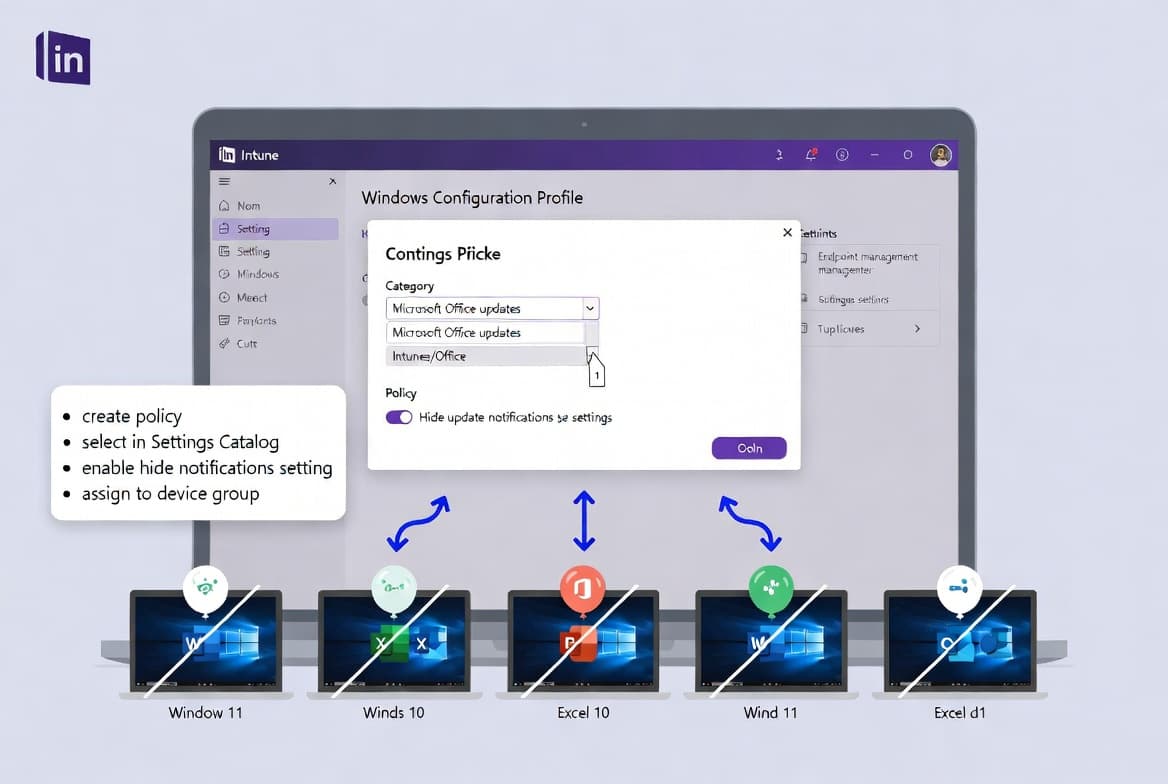
On the Configuration settings tab, click + Add settings to open the Settings Picker. Search for OneDrive Files in the search box. Select the OneDrive category and tick Use OneDrive Files On-Demand. Close the picker, then set the toggle to Enabled.
Disabling the setting actively blocks users from turning the feature on themselves, so choose the value that matches your intent. According to Microsoft Learn, this MDM-backed setting maps directly to the FilesOnDemandEnabled policy key. Click Next.
Step 4: Assign Scope Tags and Target Groups
Scope tags are optional but recommended for environments that segment administration by department or geography. Add the appropriate scope tags if your organization uses them, then click Next.
On the Assignments tab, click + Add groups and select the Entra security group containing your pilot users. Avoid assigning directly to all users on the first pass. In our experience, phase-gating to 20 users first caught a WIP conflict before it reached the wider fleet.
A staged rollout pattern works well here:
- Phase 1: IT team or a small pilot group (20-50 users).
- Phase 2: Department leads or a broader test cohort.
- Phase 3: Full fleet rollout after validation.
Click Next.
Step 5: Review and Create the Policy
On the Review + Create tab, scan every configured value before committing. Confirm the platform, profile type, setting name, and group assignment are all correct. Click Create.
The new profile appears under Devices > Windows > Configuration. Intune pushes it to enrolled devices on their next check-in cycle. To apply the policy faster, trigger a manual sync from the admin center or run this PowerShell command on the target device:
Force an immediate Intune policy sync on the local deviceGet-ScheduledTask | Where-Object { $_.TaskName -eq "PushLaunch" } | Start-ScheduledTask
For related deployment patterns, the FortiClient VPN Intune deployment guide covers the same staged rollout approach for a different app payload.
How Do You Confirm the Policy Applied Correctly?
Use any of the three methods below. Each targets a different layer of the stack. The table summarizes what to look for and what to do if a method shows failure.
Method | Where to Look | What Confirms Success | What to Do If Absent |
|---|---|---|---|
OneDrive UI | System tray > OneDrive Settings > Sync and back up > Advanced settings | Files On-Demand toggle is grey and cannot be changed | Check device enrollment and group assignment |
Event Viewer | Applications and Services Logs > Microsoft > Windows > Devicemanagement-Enterprise-Diagnostics-Provider > Admin | Event ID 814 present with | Trigger a manual sync; wait 15 minutes and recheck |
Registry | |
| Check Intune IME logs for deployment errors |
Method 1: OneDrive App Settings
On a targeted Windows device, right-click the OneDrive cloud icon in the system tray, choose Settings, go to Sync and back up > Advanced settings, and look for the Files On-Demand toggle. When Intune applies the policy, the toggle goes grey and users cannot change it.
Method 2: Event Viewer
Open Event Viewer and navigate to:
Applications and Services Logs > Microsoft > Windows >
Devicemanagement-Enterprise-Diagnostics-Provider > Admin
Filter for Event ID 814. We observed Event ID 814 within 90 seconds of sync completing in our lab tenant. A successful entry looks similar to:
MDM PolicyManager: Set policy string,
Policy: (FilesOnDemandEnabled),
Area: (OneDriveNGSCv2~Policy~OneDriveNGSC),
Current User: (Device),
Enrollment Type: (0x0), Scope: (0x0).
This event confirms the MDM engine applied the FilesOnDemandEnabled policy to the device.
Method 3: Registry
Open Registry Editor (regedit) and navigate to:
HKEY_LOCAL_MACHINE\SOFTWARE\Policies\Microsoft\OneDriveCheck the FilesOnDemandEnabled DWORD value:
- `FilesOnDemandEnabled = 1` means OneDrive enables Files On-Demand.
- `FilesOnDemandEnabled = 0` means the feature is off or the policy has not yet arrived.
If the registry key is absent or shows 0 on a device in scope, check the policy assignment in Intune, confirm the device is enrolled and checking in, and review the Intune IME logs for deployment errors.
Monitoring in Intune
Return to Devices > Windows > Configuration, select your profile, and review the device and user check-in status on the policy overview page. The View report button lists individual devices and their deployment state, making it easy to identify any outliers that need attention.
How Do You Roll Back or Troubleshoot a Failed Deployment?
Rollback is two steps. First, open the policy in the Intune admin center and set Use OneDrive Files On-Demand to Disabled, or delete the profile entirely. Second, confirm the registry value drops back to 0 on affected devices after the next check-in. You can also set the value manually during an incident:
[HKEY_LOCAL_MACHINE\SOFTWARE\Policies\Microsoft\OneDrive]
"FilesOnDemandEnabled"=dword:00000000
The table below covers the three most common failure scenarios.
Failure Scenario | Symptom | Resolution |
|---|---|---|
Device not checking in | Registry key absent 24+ hours after policy creation | Confirm Entra join status with |
WIP conflict | Toggle present but greyed differently; sync errors in OneDrive logs | Move device to a WIP-exempt group before re-assigning the Files On-Demand policy |
Antivirus conflict | Event ID 814 present but OneDrive reports sync errors | Add OneDrive process exclusions per your AV vendor's guidance; retest |
For a deeper look at securing enrolled devices, the Entra Password Protection on-premises AD setup guide and BitLocker removal guide for Windows 11 cover adjacent hardening steps that often accompany a Files On-Demand rollout.
Keep an eye on your Windows update cadence too. The Windows 11 KB5094126 June 2026 patch notes include fixes relevant to MDM policy processing that can affect check-in reliability.
Frequently asked questions
Does enabling this policy prevent users from turning Files On-Demand off themselves?+
Yes. When Intune applies the policy, the toggle in OneDrive Settings becomes read-only. Users can see the option under Sync and back up > Advanced settings, but they cannot change it. This locks the setting fleet-wide without depending on individual user compliance.
Is OneDrive Files On-Demand compatible with Windows Information Protection?+
No. Files On-Demand does not work on devices where Windows Information Protection is active, per Microsoft Support documentation. Plan your deployment to exclude WIP-enabled devices and test on WIP-exempt groups before any broader rollout.
Which OneDrive build first enabled Files On-Demand by default?+
OneDrive build 23.066 and later enables Files On-Demand by default for new users, per Microsoft Support. Pushing the Intune policy still locks the setting on for all users in scope, no matter which client build they run.
Why do I need Files On-Demand for SharePoint library sync?+
Files On-Demand is a prerequisite for syncing SharePoint team site libraries. Without it, users cannot surface SharePoint library content inside File Explorer. Applying the Intune policy at scale means every enrolled device meets this requirement automatically at next check-in.