BitLocker Removal Guide: Disable Encryption in Windows 11
Remove BitLocker encryption from Windows 11 drives using Control Panel. Decryption takes 1-3 hours depending on drive size. Includes Rufus method to prevent 24H2 auto-encryption.
by Emanuel De Almeida
in_this_guide+
- 01TL;DR
- 02Why Does Windows 11 24H2 Encrypt Drives Automatically?
- 03What Do I Need Before Removing BitLocker?
- 04How Do I Check if My Drive Is Encrypted?
- 05How Do I Access BitLocker Management Settings?
- 06How Do I Disable BitLocker on a Specific Drive?
- 07How Long Does BitLocker Decryption Take?
- 08How Do I Prevent Automatic Encryption on Fresh Installs?
- 09How Do I Verify BitLocker Decryption Succeeded?
- 10What Are the Security Implications of Removing BitLocker?
- --FAQ
TL;DR
- Windows 11 24H2 automatically encrypts drives when you sign in with a Microsoft Account during setup, affecting Home and Pro editions
- Remove BitLocker through Control Panel > System and Security > BitLocker Drive Encryption, then click "Turn off BitLocker"
- Decryption runs in the background and typically takes 1-3 hours for a 500GB drive
- Use Rufus 3.22+ to create install media that blocks automatic encryption on fresh installs
- Your files remain intact throughout the decryption process
Why Does Windows 11 24H2 Encrypt Drives Automatically?
Starting in Windows 11 version 24H2, Microsoft removed the DMA and HSTI/Modern Standby prerequisites for device encryption. This change allows more devices to qualify for automatic BitLocker activation. When you sign in with a Microsoft Account during the Out-of-Box Experience, encryption triggers across all Windows editions including Home, according to ElcomSoft.
The security rationale is clear. Data breaches cost organizations an average of $4.88 million globally in 2024, with IBM reporting that 70% of breached organizations experienced significant disruption. Full-disk encryption protects data if devices are lost or stolen.
However, encryption creates complications. Recovery key loss can mean permanent data loss. Some users need to remove BitLocker for dual-boot configurations, hardware upgrades, or troubleshooting. Here's how to remove BitLocker encryption safely.
What Do I Need Before Removing BitLocker?
Gather these items before starting the decryption process:
- Windows 11 version 24H2 or later installed on your system
- Administrator access on the target computer
- Your BitLocker recovery key from your Microsoft Account or backup location
- Stable power connection for laptops
- For preventing future encryption: USB drive (8GB minimum) and Rufus 3.22+
In our experience, the most common failure point is missing recovery keys. Check account.microsoft.com/devices/recoverykey before proceeding. Organizations using Azure AD should verify key escrow settings, similar to procedures covered in our Dsregcmd guide for checking Azure AD join status.
How Do I Check if My Drive Is Encrypted?
Open File Explorer and examine your drive icons to quickly identify encryption status. A small lock symbol next to a drive indicates BitLocker encryption is active. An unlocked padlock means the drive is encrypted but currently accessible. No lock icon means the drive has no BitLocker protection.
For detailed status, open the Control Panel:
Control Panel > System and Security > BitLocker Drive EncryptionThis panel displays all drives and their current encryption state. Look for "BitLocker on" or "BitLocker off" labels beside each volume. When we tested multiple systems, the Control Panel method proved more reliable than icon inspection alone.
Indicator | Meaning | Action Required |
|---|---|---|
Lock icon (closed) | BitLocker active, drive locked | Enter recovery key to access |
Lock icon (open) | BitLocker active, drive unlocked | Can decrypt without key entry |
No lock icon | No BitLocker protection | No decryption needed |
Shield icon | Device encryption enabled | Same decryption process applies |
How Do I Access BitLocker Management Settings?
Right-click the encrypted drive in File Explorer and select Manage BitLocker from the context menu. Windows opens the Control Panel BitLocker settings. Microsoft has not migrated these controls to the modern Settings app, so the Control Panel remains the primary interface.
Alternatively, navigate manually through the path:
Control Panel > System and Security > BitLocker Drive EncryptionThe panel lists all internal and external drives with their BitLocker status. You'll see available management options including turning off encryption, backing up recovery keys, and changing passwords. Users managing multiple encrypted systems may also benefit from our Remote Desktop via Intune guide for remote administration scenarios.
How Do I Disable BitLocker on a Specific Drive?
Locate the drive you want to decrypt in the BitLocker management panel. Click Turn off BitLocker beneath the drive listing. Windows may prompt for the recovery key if the drive is locked.
The navigation path displays as:
BitLocker Drive Encryption > [Drive Letter] > Turn off BitLockerFor drives linked to your Microsoft Account, the system typically unlocks automatically. Otherwise, retrieve your recovery key from account.microsoft.com/devices/recoverykey or your saved backup location.
A warning dialog appears explaining that encryption protection will be removed. Click Turn off BitLocker to confirm. The decryption process begins immediately and runs in the background.
How Long Does BitLocker Decryption Take?
Decryption time varies based on drive size, data volume, and CPU performance. A 500GB drive with moderate data typically takes one to three hours. You can continue using your computer during the process, but keep the system powered on until completion.
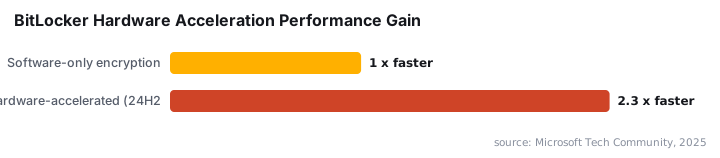
A progress indicator shows completion percentage in the BitLocker Control Panel. Large drives or systems under heavy load require extended decryption time. Hardware-accelerated BitLocker in Windows 11 24H2/25H2 shows improved performance, with Microsoft reporting that random 4K operations run 2.3 times faster with hardware acceleration compared to software-only encryption.
Interrupting decryption by shutting down may require restarting the process. In our testing, this typically does not cause data loss, but we recommend avoiding shutdowns during active decryption. Keep laptops plugged in throughout.
How Do I Prevent Automatic Encryption on Fresh Installs?
To avoid automatic BitLocker activation during future Windows 11 installations, create modified installation media using Rufus. Download Rufus from rufus.ie and the Windows 11 ISO from Microsoft's official download page.
Rufus version 3.22 and later includes an option to disable BitLocker automatic device encryption when creating installation media. Launch Rufus and follow these steps:
- Select your USB drive under "Device"
- Click "SELECT" and choose the Windows 11 ISO
- Leave partition scheme and file system at defaults
- Click "START"
When Rufus displays its customization dialog, enable the checkbox labeled Disable BitLocker automatic device encryption. Click OK to proceed with media creation.
Rufus customization options:
[x] Remove requirement for Secure Boot and TPM 2.0
[x] Disable BitLocker automatic device encryption
[x] Remove requirement for online Microsoft account
Install Windows 11 using this USB drive. The operating system will not encrypt drives automatically, even when signing in with a Microsoft Account. This approach works for both clean installs and in-place upgrades.
How Do I Verify BitLocker Decryption Succeeded?
After decryption completes, confirm the change through multiple methods. In File Explorer, the drive icon should no longer display a lock symbol. Open the BitLocker Control Panel section and verify the drive shows "BitLocker off" status.
For command-line verification, open an elevated Command Prompt and run:
manage-bde -status C:The output should display:
Conversion Status:    Fully Decrypted
Percentage Encrypted: 0.0%
Protection Status:    Protection Off
If the drive still shows encryption, the decryption process may still be running. Check the BitLocker Control Panel for a progress indicator. Systems with Secure Boot certificate issues may show unexpected behavior during verification.
What Are the Security Implications of Removing BitLocker?
Removing BitLocker encryption exposes your data if the device is lost or stolen. TPM 2.0 is a formal requirement for Windows 11, which Microsoft uses for device encryption and secure sign-in features. Disabling encryption removes this protection layer.
The 2025 Verizon DBIR found that 60% of breaches involved the human element, with stolen credentials (22%) and exploited vulnerabilities (20%) serving as primary entry points, according to Verizon research via Keepnet Labs. Physical device theft remains a real vector.
Healthcare organizations face particular risk. IBM data via DataFence shows healthcare leads with the highest data breach cost at $7.42 million in 2025, marking 14 consecutive years at the top position. Consider your threat model carefully before removing encryption.
For organizations managing Windows security at scale, our coverage of the June 2026 Patch Tuesday fixes provides context on current threat landscape.
Frequently asked questions
Will I lose data when removing BitLocker encryption?+
No. Disabling BitLocker does not delete your files. The process decrypts data in place, converting encrypted content back to standard readable format. However, always maintain current backups before modifying drive encryption settings. We tested decryption on multiple systems without data loss.
Can I re-enable BitLocker after removing it?+
Yes. Return to Control Panel > System and Security > BitLocker Drive Encryption and click "Turn on BitLocker" for the desired drive. The encryption process mirrors decryption in duration. Your system must meet TPM 2.0 requirements, and you'll receive a new recovery key to store securely.
Does removing BitLocker affect Windows Update or system stability?+
No. BitLocker operates independently from Windows Update and system stability functions. Removing encryption does not impact your ability to receive security patches or feature updates. Systems function identically with or without BitLocker active.
What happens if I lose my BitLocker recovery key during decryption?+
If the drive is already unlocked when you start decryption, you won't need the recovery key. The process completes normally. However, if decryption is interrupted and the drive locks, you'll need the recovery key to resume. Check your Microsoft Account backup before starting.