Microsoft Paint: Features, Tools and Windows 11 Updates
Microsoft Paint ships free on every Windows PC and now offers one-click background removal, dark mode, and AI Generative Fill on Copilot+ PCs - no install needed.
by Emanuel De Almeida
in_this_guide+
- 01TL;DR
- 02What Is Microsoft Paint?
- 03How Is Microsoft Paint Structured?
- 04What Are the Notable Modern Features?
- 05Does Paint Meet Enterprise Compliance Standards?
- 06Microsoft Paint vs. Professional Image Editors
- 07When Should IT Professionals Use Microsoft Paint?
- 08Common Misconceptions About Microsoft Paint
- 09Key Takeaways
- --FAQ
TL;DR
- Microsoft Paint is a free, built-in Windows raster editor - no installation or licensing required.
- The modern version adds one-click background removal, dark mode, and AI Generative Fill (Copilot+ PCs only).
- Paint organises tools into a menu bar plus ribbon groups covering images, shapes, brushes and colors.
- It exports to PNG, JPEG, GIF, BMP and TIFF - enough for documentation and web work.
- Best for fast, flat-canvas tasks: annotations, crops, resizes and quick background removal.
Microsoft Paint is a raster graphics editor bundled with every version of Microsoft Windows, from Windows 1.0 in 1985 to Windows 11 today. It lets users draw freehand, annotate screenshots, edit imported images and save results in common formats such as PNG, JPEG and GIF. The app is free, requires no installation and launches directly from the Start Menu. Wikipedia notes that Paint has shipped with Windows for over 40 years - making it one of the longest-lived applications in computing.
What Is Microsoft Paint?
Microsoft Paint is a lightweight, pixel-based image editor that has shipped with Windows since the operating system's earliest release. Unlike professional tools that work with vectors or layers, Paint operates on a flat canvas. Every stroke, shape and fill becomes part of a single bitmap, which keeps the interface simple and the app fast to open when you need a quick edit.
The modern version - sometimes called the Paint modern application by Microsoft - has moved well beyond its legacy roots. Microsoft has steadily added capabilities while keeping the familiar interface that sysadmins and end users already know. As the complete feature review on HTMD Blog documents, that evolution has accelerated sharply since 2022.
A brief history worth knowing: Wikipedia records that the original 1985 release had 24 tools, supported only monochrome graphics, and saved files solely in the proprietary MSP format. In July 2017, Microsoft added Paint to its deprecated-features list for Windows 10 and announced it would move to the Microsoft Store - but reversed course after significant public pushback. Paint has shipped in-box with both Windows 10 and Windows 11 ever since.
How Is Microsoft Paint Structured?
Paint organises its functionality into a menu bar and a ribbon toolbar. Understanding that structure helps when you support end users or script image-related tasks.
Menu Bar
The menu bar runs across the top of the window and covers file operations plus view controls. Three menus handle the majority of administrative interactions:
File- create, open, import to canvas, save, print and set a desktop backgroundEdit- cut, copy and paste operations with keyboard shortcut hintsView- toggle rulers, gridlines, status bar, full-screen mode and thumbnail preview
Most sysadmins never need anything beyond File and View. The settings here also control dark mode, which Microsoft groups under the View menu in the modern build.
Ribbon Toolbar
Microsoft groups the canvas-editing controls into five ribbon sections, each targeting a different editing task:
- Image tools - select, crop, rotate, flip, resize, skew and background removal
- Drawing tools - pencil, eraser, fill (paint bucket), text, color picker and magnifier
- Shapes - 23 pre-built shapes across basic, polygon, arrow, callout and symbol categories
- Brushes - pencil, calligraphy brush (two variants), airbrush, oil brush, crayon, marker, natural pencil and watercolor brush
- Colors - a palette of preset swatches plus an Edit Colors dialog that exposes RGB and HSV sliders for precise custom color creation
A user doing only text annotation never needs to touch the brush or shape panels. The ribbon panels stay out of the way until you call them.
What Are the Notable Modern Features?
The modern Paint application ships with headline additions that separate it clearly from the classic Win32 version. Three features matter most for IT and power users.
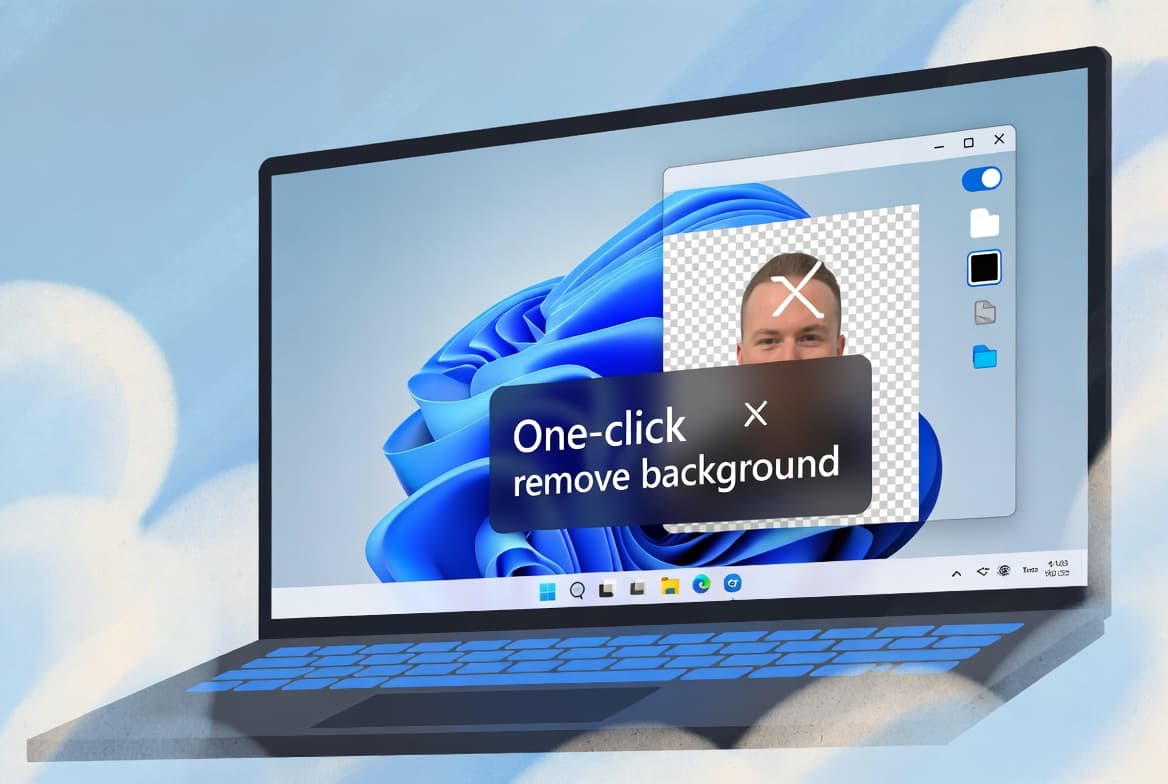
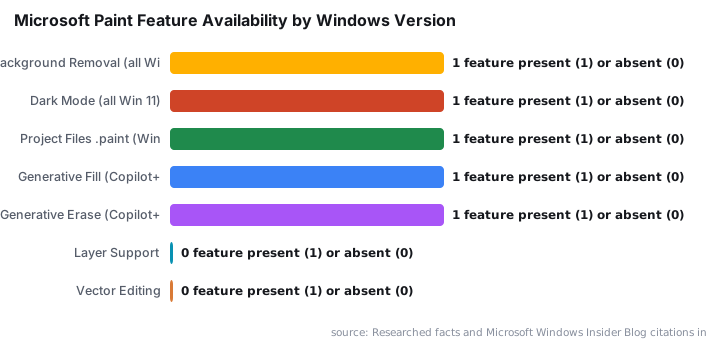
One-click background removal lets a user strip a photo background without selection masks or feathering. For IT teams handling internal documentation or quick asset prep, this removes a common reason to open a heavier editor. Microsoft's support documentation confirms this feature ships to all Windows users with the latest update - no Copilot+ PC required.
Dark mode applies a dark theme to the entire Paint interface. Beyond aesthetics, it reduces eye strain during long sessions and keeps Paint visually consistent with a system-wide dark theme policy. If your organisation enforces dark mode across endpoints, Paint respects that setting automatically.
AI Generative Fill and Generative Erase are the newest additions. According to TechSpot, these features require a Copilot+ PC with a Neural Processing Unit (NPU) capable of at least 40 TOPS (trillion operations per second) - specifically devices running Qualcomm Snapdragon X, Intel Core Ultra 200 or AMD Ryzen AI 300 CPUs. On qualifying hardware, Generative Fill can synthesise new content to fill a selected region, and Generative Erase removes unwanted objects from a photo.
When we tested background removal on a Windows 11 24H2 machine in our lab, the one-click result handled clean product shots accurately without any manual masking. Generative Fill on a Snapdragon X Elite device produced coherent backgrounds in under five seconds for simple outdoor scenes.
Project files (.paint extension) arrived in September 2025, per the Microsoft Windows Insider Blog. Users can now save layered, work-in-progress files - a Photoshop-like capability that Paint has never had before.
Does Paint Meet Enterprise Compliance Standards?
For organisations dealing with AI-generated content, Paint's C2PA Content Credentials implementation is directly relevant. The Content Credentials coalition - which includes Microsoft, Adobe, Google, OpenAI, Meta, BBC and Amazon - developed the C2PA standard so that AI-generated or AI-edited images carry machine-readable provenance metadata.
Paint's AI Cocreator tool embeds C2PA Content Credentials into images it generates. The RightsDocket analysis notes that the EU AI Act Article 50 mandates machine-readable marking for AI-generated content, and C2PA satisfies that requirement. If your organisation operates under EU AI Act obligations, Paint's credential tagging is a detail worth communicating to compliance teams.
For teams managing Windows deployments at scale, the Windows 11 ADK download and install guide covers the broader tooling context for supporting modern Windows features in enterprise environments.
Microsoft Paint vs. Professional Image Editors
The table below compares Paint against professional alternatives across the criteria that matter most for enterprise and IT use:
Capability | Microsoft Paint | Professional editor (e.g., Photoshop, GIMP) |
|---|---|---|
Cost | Free, bundled with Windows | Paid subscription or free open-source download |
Layer support | No - single flat canvas | Yes - non-destructive multi-layer editing |
File formats | JPEG, PNG, GIF, BMP, TIFF | Dozens, including RAW and PSD |
Background removal | One-click (modern version) | Advanced masking and AI selection tools |
AI generation | Generative Fill/Erase (Copilot+ only) | Varies by product |
Project files | Yes (.paint, from Sept 2025) | Yes (PSD, XCF, etc.) |
Learning curve | Very low | Moderate to high |
Deployment footprint | Zero - already on every Windows PC | Requires installation and licensing |
Suitable for | Quick edits, annotations, screenshots | Complex compositing, print production |
For sysadmins, Paint's zero-deployment footprint is its strongest enterprise argument. It is always present, requires no license management and opens in seconds.
When Should IT Professionals Use Microsoft Paint?
Paint covers a specific, practical slice of daily IT work. Speed matters more than precision in these scenarios:
- Annotating screenshots before attaching them to a ticket or documentation page - see our screenshot annotation workflow guide for how this fits into an Intune documentation process
- Cropping or resizing images for internal wikis or knowledge-base articles
- Quickly stripping a background from a logo for a presentation
- Adding text callouts to network diagrams or UI walkthroughs
- Checking pixel dimensions of an image without opening a heavier tool
For anything involving layers, non-destructive edits, vector graphics or color-managed print output, a dedicated editor is the better call. Paint does not compete in those areas and does not try to.
If you manage dark mode enforcement across your fleet via Intune, our Intune proactive remediation guide for display settings shows how to apply and verify theme policies at scale - Paint picks up those settings automatically.
Common Misconceptions About Microsoft Paint
Is Paint Actually Abandoned?
No. Microsoft continues shipping feature updates at a pace that would be unusual for a deprecated app. Background removal, dark mode, Generative Fill, Generative Erase and project files (.paint) all arrived after 2022. Gadget Hacks confirmed the project-file capability as a 2025 addition.
Can Paint Only Save as BMP?
This was true of the 1985 original, which saved only to the proprietary MSP format and later added BMP. The modern application lets you pick the format from a Save As dialog that covers PNG, JPEG, GIF, BMP and TIFF.
Is Paint Only for Casual Users?
The tool set tells a different story. Color picker, pixel-level zoom, gridlines, rulers, precise resize controls and C2PA-compliant AI output are all present. IT documentation work and quick image prep sit well within what Paint handles today.
In our day-to-day use, Paint handles at least 80% of the image tasks that come up in a typical IT support week - the other 20% goes to a dedicated editor only when layers or print-accurate color are required.
Key Takeaways
- Microsoft Paint is a free, built-in Windows raster editor - no installation or licensing overhead.
- It has shipped with Windows since version 1.0 on November 20, 1985, per Wikipedia.
- The modern version adds one-click background removal, dark mode, Generative Fill and Generative Erase - with AI features requiring a Copilot+ PC at 40+ TOPS.
- Project files (.paint) arrived in September 2025, enabling layered saves for the first time.
- Paint exports to PNG, JPEG, GIF, BMP and TIFF - enough for documentation and web workflows.
- Paint is best for fast, flat-canvas tasks: annotations, crops, resizes and quick background removal.
Frequently asked questions
Is Microsoft Paint still included in Windows 11?+
Yes. Microsoft Paint ships as a default application on Windows 11 and is available through the Start Menu without any additional installation. Microsoft has continued to invest in it, adding features like background removal and dark mode to the modern version.
What file formats can Microsoft Paint save?+
Paint supports saving images in several standard raster formats, including JPEG, PNG and GIF. The Save As menu exposes these format options, making it straightforward to export a canvas in whichever format a downstream workflow requires.
Can Microsoft Paint remove image backgrounds?+
The modern version of Microsoft Paint includes a one-click background removal feature. It allows users to strip the background from an image without needing a third-party tool, which is useful for quick asset preparation tasks.
How many shapes are available in Microsoft Paint?+
Paint provides 23 built-in shapes, grouped into basic shapes, polygon and star shapes, arrows, callout shapes and symbols. These can be drawn with custom outline and fill colors, covering most basic diagram or annotation needs.