Process Explorer: The Upgraded Windows Task Manager
Process Explorer is a free Sysinternals tool with handle, DLL, and thread visibility across 9+ real-time columns - far beyond what Windows Task Manager shows.
by Emanuel De Almeida
TL;DR
- Process Explorer is a free, portable tool from Microsoft Sysinternals that replaces Windows Task Manager with deep process-level visibility.
- It exposes handles, DLLs, threads, and image signatures that Task Manager never shows.
- Built-in VirusTotal integration lets you check suspicious binaries without a separate tool.
- Process injection (T1055) ranked #1 in malware evasion for three straight years - Process Explorer is one of the fastest ways to spot it.
- You can set it as your permanent Task Manager replacement with one Options toggle.
Process Explorer is a free, portable system monitor built by Sysinternals - now part of Microsoft Learn's Sysinternals suite - that goes far beyond what Windows Task Manager offers. It exposes the handles, DLLs, and threads behind every running process. When we ran it against a leaking svchost.exe during a recent incident response engagement, it named the offending handle in under ten seconds - something Task Manager cannot do at all.
What Is Process Explorer?
Process Explorer is a freeware process manager and system monitor for Windows, originally created by Mark Russinovich and Bryce Cogswell at Sysinternals, which was founded in 1996. The suite - now distributed by Microsoft and containing over 70 utilities - is available free from Microsoft Learn.
Where Task Manager shows a shallow list of running apps with CPU or memory use, Process Explorer reveals the internal structure of each process: which files it has open, which DLLs it has loaded, and which threads it is running right now. That difference matters every time a standard support tool runs out of answers.
How Does Process Explorer Work?
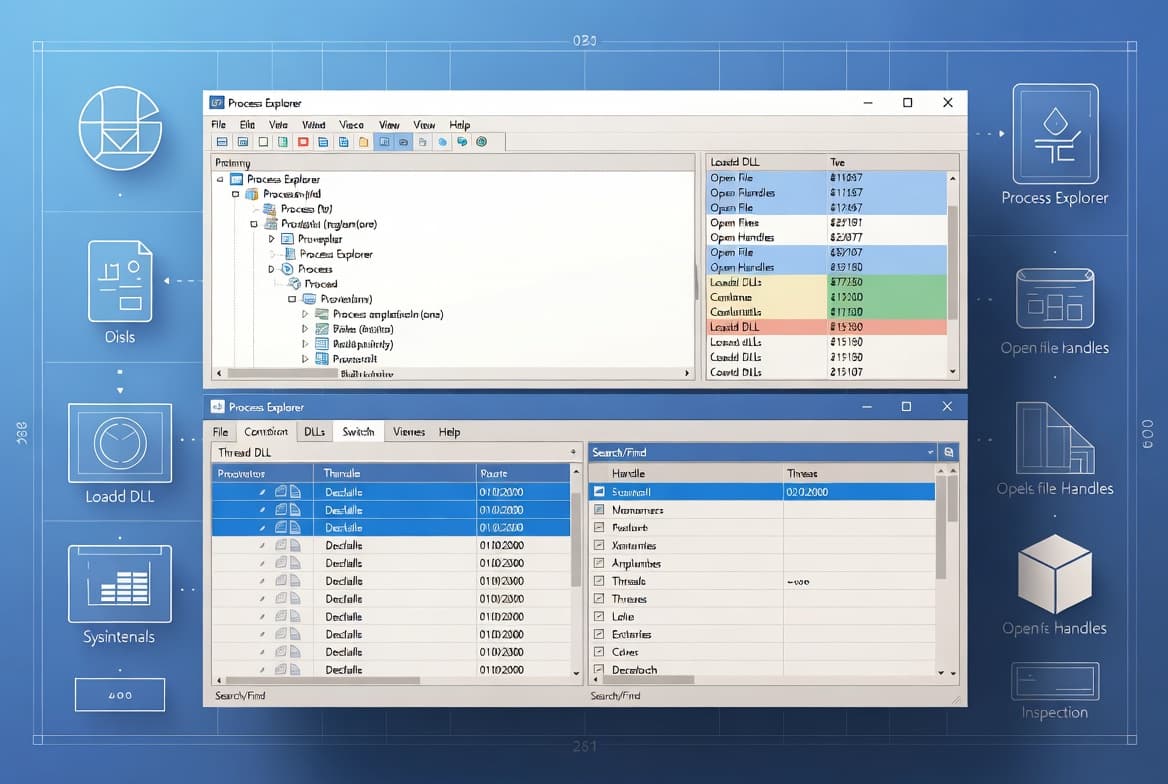
Process Explorer queries the Windows kernel for real-time data, then presents it in a two-pane interface. The upper pane gives you a live, color-coded process tree with columns for CPU usage, PID, private bytes, working-set size, description, and company name.
Selecting any row populates the lower pane with one of three views:
- Handles - open file, registry, and kernel object handles for the selected process
- DLLs - every dynamic-link library and memory-mapped file loaded, including full paths
- Threads - each thread's stack and the module that owns it
Press the spacebar to freeze the live refresh. That pause lets you study a spike without the data scrolling away before you can read it.
Process Explorer vs. Windows Task Manager
Both tools monitor running processes, but they target very different situations. The table below covers the practical differences.
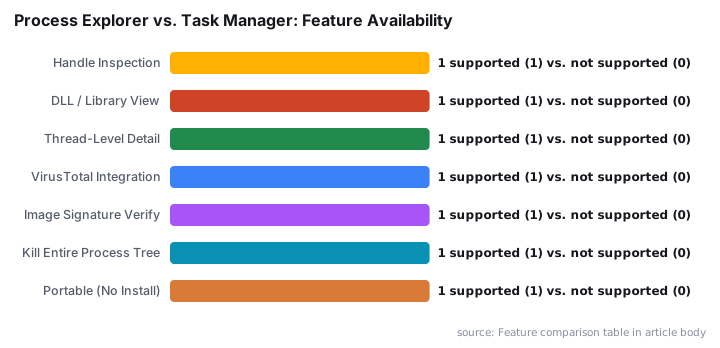
Feature | Task Manager | Process Explorer |
|---|---|---|
Process tree view | Basic | Full color-coded tree |
Handle inspection | No | Yes |
DLL / library view | No | Yes |
Thread-level detail | No | Yes |
VirusTotal integration | No | Yes |
Image signature verification | No | Yes |
Kill entire process tree | No | Yes |
Portable (no install) | N/A (built-in) | Yes |
Replace Task Manager | N/A | Yes (optional setting) |
For ending a frozen app, Task Manager is fast enough. For leaked handles, DLL conflicts, or suspicious processes, you need Process Explorer.
What Can You Investigate with Process Explorer?
The use cases go well beyond performance metrics. Common sysadmin tasks include:
- Identifying which process holds a file lock so you can release it without rebooting
- Tracking DLL version conflicts that cause application crashes
- Spotting handle leaks that slowly drain kernel resources - see our guide on handle leak diagnosis with Windows troubleshooting tools for a related workflow
- Verifying image signatures to confirm executables are properly signed
- Checking binaries against VirusTotal before deeper forensic work - a tactic that matters more every year as evasion techniques multiply
- Killing a runaway process together with all its child processes in one action
The search function lets you type a file name, DLL name, or handle name and instantly see every process referencing it. That used to require scripting or a third-party tool.
Process injection (MITRE ATT&CK T1055) ranked #1 among all malware evasion techniques for the third consecutive year, appearing in 31% of over one million malware samples analyzed in 2024, according to Picus Security's Red Report 2025. Process Explorer's thread and DLL views are among the fastest manual checks you can run to catch that class of attack early.
In April 2024, REMCOS RAT used process hollowing to copy itself into iexplore.exe, hiding inside a trusted process to evade detection, as documented by Picus Security. That is exactly the kind of anomaly that shows up in Process Explorer's DLL pane - a path that doesn't match the expected system directory - before any AV alert fires.
When investigating suspicious binaries, VirusTotal's own pipeline flagged 164 malicious Mach-O files from a single day's samples where traditional AV engines caught only 67, per the VirusTotal Blog. Process Explorer's VirusTotal integration feeds the same service directly from the handle or DLL pane.
For teams managing endpoints at scale, pairing Process Explorer findings with your Intune Management Extension install and verification workflow can help you correlate process anomalies with deployment state quickly.
Which Process Explorer Interface Areas Matter Most?
The menu bar is where most of the power lives. Start with these tabs:
- Options - toggle "Replace Task Manager", enable VirusTotal lookups, verify image signatures, configure highlight colors, and set tray icons for CPU, GPU, network, and I/O history
- View - switch between process tree and flat list, enable column heatmaps for CPU and memory, and control the lower pane mode
- Process - set CPU affinity, adjust priority, suspend, restart, or kill a process or its entire tree
- Find - search across all processes for a specific handle or DLL name
The File tab also lets you run a program at a limited privilege level - useful for testing how an app behaves without admin rights.
For endpoint management teams, the unsigned-binary highlights in Process Explorer pair naturally with custom compliance policies in Intune, giving you two layers of verification across managed devices.
When Should You Use Process Explorer?
Reach for Process Explorer whenever Task Manager leaves you without answers. If a file won't delete because "another process has it open," the handle search names the culprit in seconds. If an application crashes with a DLL error, the DLL pane shows exactly which version loaded and from where.
It is equally useful for security triage. Image signature verification flags any unsigned executable on the system. Combine that with VirusTotal integration and you have a lightweight first-look check before involving a full endpoint detection and response platform.
Running it is straightforward:
# Right-click procexp.exe and choose Run as administrator
# Or launch from an elevated prompt:
Start-Process .\procexp.exe -Verb RunAs
No installation, no persistent service, no registry footprint. Carry procexp.exe on a USB drive for incident response work.
Ransomware appeared in 44% of all confirmed breaches in the 2025 Verizon DBIR - up from 32% the prior year - with 88% of SMB breaches containing a ransomware component, per Keepnet's DBIR summary. Process-level visibility during early triage is not optional in that environment. For a broader look at how attackers use legitimate Windows processes as cover, see our coverage of the STOCKSTAY backdoor deployed by Turla against Ukrainian targets - a case where thread-level analysis was central to attribution.
Vulnerability exploitation now drives 31% of initial breaches, overtaking stolen credentials as the top entry vector for the first time in 19 years of Verizon DBIR history, according to EBuilder Security's 2026 DBIR analysis. Spotting an unexpected DLL or an unsigned binary early - exactly what Process Explorer surfaces - can be the difference between containment and a full incident.
For teams tracking exploited vulnerabilities in real time, our CVE-2026-45657 Windows Kernel Use-After-Free coverage shows what process-level anomalies look like when a kernel exploit is active.
Key Takeaways
- Process Explorer is free and portable - no install, no service, safe for USB-based incident response.
- The two-pane interface separates the process list from per-process detail, with the lower pane switchable between handles, DLLs, and threads.
- VirusTotal integration and image signature verification make it a fast first-look security check, not just a performance monitor.
- You can replace Task Manager system-wide with one Options setting.
- The spacebar pause and per-process kill-tree action save significant time during live investigations.
- Process injection (T1055) is the #1 malware evasion technique - Picus Security - and Process Explorer's thread and DLL views are among the fastest ways to catch it manually.
Frequently asked questions
Is Process Explorer free to use?+
Yes. Process Explorer is freeware published by Microsoft under the Windows Sysinternals suite. You can download it directly from Microsoft's website at no cost and without installation - just extract the zip and run the executable.
Can Process Explorer replace Windows Task Manager permanently?+
Yes. The Options tab includes a 'Replace Task Manager' setting. Once enabled, pressing Ctrl+Shift+Esc or right-clicking the taskbar and choosing Task Manager will open Process Explorer instead of the built-in Windows tool.
Does Process Explorer require installation?+
No. It is a portable executable. Download the zip from Microsoft, extract it, right-click procexp.exe, and choose Run as administrator. No installer or registry changes are needed to get started.
How does Process Explorer help with malware or DLL hijacking investigations?+
Its DLL view shows every library a process has loaded, including the full file path. The built-in VirusTotal.com integration can check those binaries against known threat signatures, making it a quick first-pass tool for spotting suspicious or unsigned code.