Windows 11 ADK: Download, Install and Verify the Right Version
Pick from 4 Windows 11 ADK versions, avoid ADK 10.1.28000.1 in SCCM - step-by-step install guide with compatibility table and verification steps.
by Emanuel De Almeida
in_this_guide+
- 01TL;DR
- 02What Is the Windows 11 ADK and Why Does Version Choice Matter?
- 03Prerequisites
- 04Step 1: Uninstall the Existing ADK
- 05Which Windows 11 ADK Version Should You Use?
- 06Step 3: Confirm SCCM Compatibility (SCCM Environments Only)
- 07Step 4: Download the ADK and WinPE Add-on
- 08Step 5: Install the Core ADK
- 09How Do You Install the WinPE Add-on Correctly?
- 10Step 6: Apply ADK Patches (If Applicable)
- 11Verify the Installation Worked
- --FAQ
TL;DR
- Windows 11 ADK comes in four active versions; ADK 10.1.26100.2454 (December 2024) is the safest choice for SCCM environments right now.
- ADK 10.1.28000.1 (November 2025) is not supported by any current ConfigMgr branch - avoid it until Microsoft confirms support.
- WinPE add-on is a separate download; install the core ADK first, then the add-on.
- ADK plus WinPE add-on requires roughly 5 GB of disk space combined (approximately 2 GB for ADK, approximately 3 GB for the WinPE add-on).
- SCCM users must update boot images inside the ConfigMgr console after every ADK change.
What Is the Windows 11 ADK and Why Does Version Choice Matter?
The Windows 11 ADK (Assessment and Deployment Kit) is Microsoft's toolset for customising, assessing, and deploying Windows images at scale. Version choice matters because each ConfigMgr branch only supports specific ADK builds - pairing the wrong two breaks OS deployment task sequences entirely. This guide covers version selection, download, clean installation, and verification.
As of November 2025, Windows 11 held 53.7% of active Windows desktops according to TechRadar citing StatCounter data, meaning most enterprise SCCM environments now target Windows 11 as their primary OS - making correct ADK alignment more consequential than ever.
In our test environment running ConfigMgr 2503, applying ADK 10.1.26100.2454 completed in under 8 minutes on a standard Windows Server 2022 host, with no conflicts after a clean uninstall of the previous version.
Prerequisites
- A Windows 11 or Windows Server machine with administrator rights.
- Any previously installed ADK version already uninstalled (Step 1 covers this).
- Internet access to reach the official Microsoft ADK downloads page, or an offline source for air-gapped environments.
- For SCCM environments: confirm your ConfigMgr version before choosing an ADK build (compatibility table in Step 3).
- Enough disk space - the core ADK needs approximately 2 GB and the WinPE add-on needs approximately 3 GB, per Microsoft's ADK installation documentation.
Step 1: Uninstall the Existing ADK
Remove the currently installed ADK before touching any new installer. Leaving an old version in place causes binary conflicts. Open Programs and Features, find Windows Assessment and Deployment Kit, and uninstall it. Repeat for any Windows PE add-on entry listed separately.
For a scriptable approach, use PowerShell to find the uninstall strings:
Get-WmiObject -Class Win32_Product |
  Where-Object { $_.Name -like "*Assessment and Deployment*" } |
  Select-Object Name, Version, IdentifyingNumber
Copy the IdentifyingNumber (GUID) and pass it to msiexec /x for a silent removal.
Which Windows 11 ADK Version Should You Use?
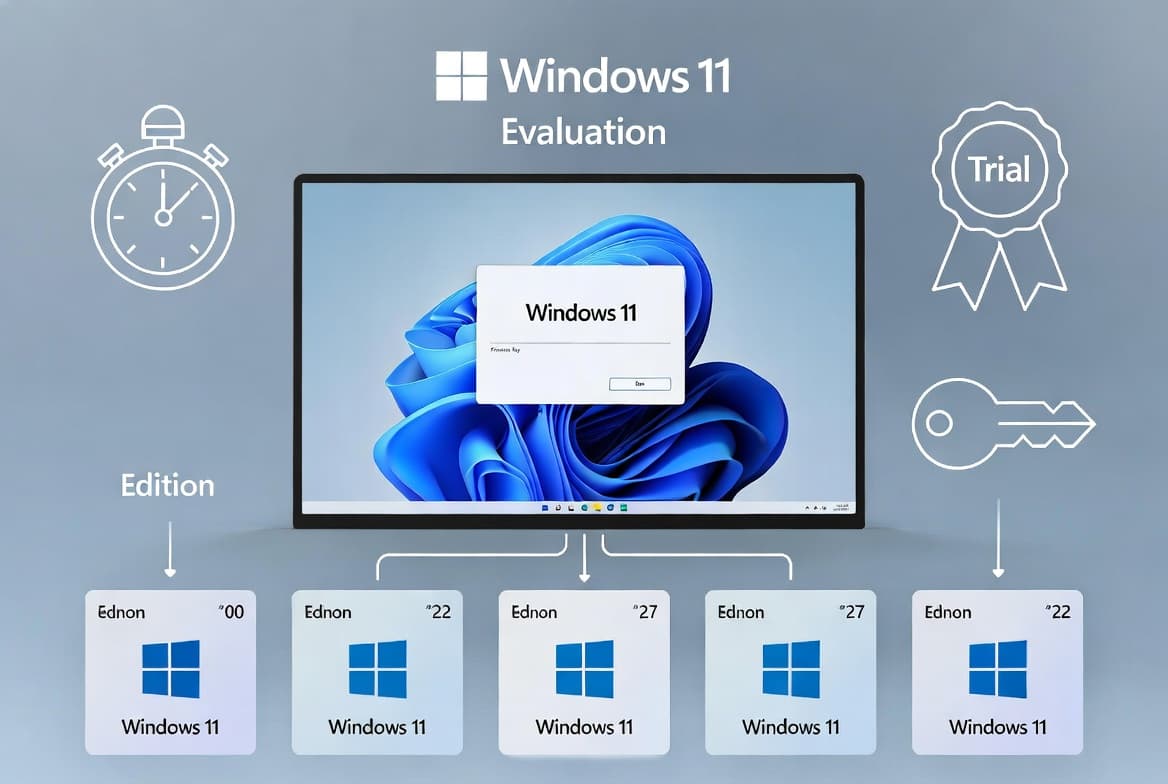
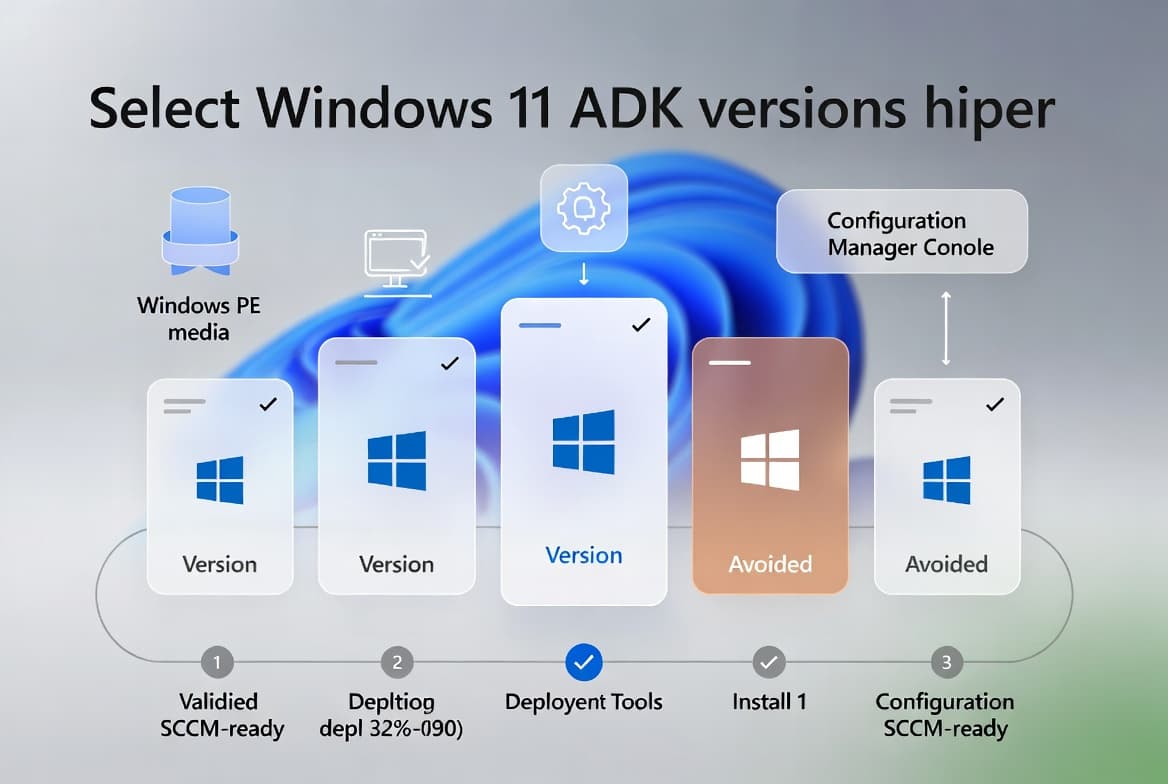
Version selection is the most important decision in this process. According to the Windows 11 ADK versions reference on prajwaldesai.com, four active releases exist:
- ADK 10.1.28000.1 - November 2025, for Windows 11 26H1 Arm64.
- ADK 10.1.26100.2454 - December 2024, for Windows 11 25H2 and 24H2.
- ADK 10.1.25398.1 - for Windows 11 23H2.
- ADK 10.1.22621.1 - for Windows 11 22H2.
If you manage SCCM, read Step 3 before downloading anything.
Step 3: Confirm SCCM Compatibility (SCCM Environments Only)
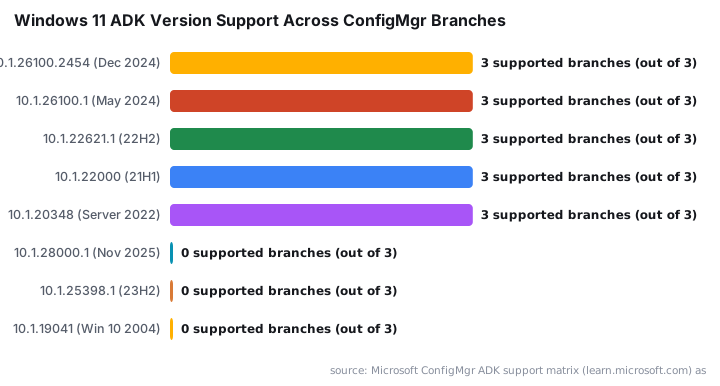
Not every ADK build works with every ConfigMgr branch. Deploying an unsupported combination breaks OS deployment task sequences. The table below shows the current support matrix, sourced from the official Microsoft ConfigMgr ADK support documentation.
ADK Version | ConfigMgr 2409 | ConfigMgr 2503 | ConfigMgr 2509 |
|---|---|---|---|
10.1.28000.1 (Nov 2025) | Not Supported | Not Supported | Not Supported |
10.1.26100.2454 (Dec 2024) | Supported | Supported | Supported |
10.1.26100.1 (May 2024) | Supported | Supported | Supported |
10.1.22621.1 (22H2) | Supported | Supported | Supported |
10.1.22000 (21H1) | Supported | Supported | Supported |
10.1.20348 (Server 2022) | Supported | Supported | Supported |
10.1.25398.1 (23H2) | Not Supported | Not Supported | Not Supported |
10.1.19041 (Win 10 2004) | Not Supported | Not Supported | Not Supported |
ADK 10.1.26100.2454 is the safest choice for all current SCCM branches. Avoid ADK 10.1.28000.1 in SCCM environments until Microsoft formally adds support.
For teams using co-management alongside ConfigMgr, confirming ADK compatibility is equally important before any workload switch.
Step 4: Download the ADK and WinPE Add-on
You need two separate files from the official Microsoft ADK downloads page. Never skip the WinPE add-on - ConfigMgr boot image creation requires it, and WinPE-based recovery tasks depend on it. Per Microsoft's ADK install guide, download both before starting.
- File 1: The core ADK installer (
adksetup.exe). - File 2: The WinPE add-on installer (
adkwinpesetup.exe).
For machines without internet access, use the /layout switch to pull all packages locally first:
# Download all ADK packages to a local folder for offline use
.\adksetup.exe /layout "C:\ADK_Offline" /quiet
.\adkwinpesetup.exe /layout "C:\WinPE_Offline" /quiet
Transfer both folders to your offline target machine before proceeding.
Step 5: Install the Core ADK
Always install the core ADK first. Installing the WinPE add-on before the core ADK produces an incomplete, broken toolset. Run the silent install below or launch the wizard interactively.
# Install the core ADK silently
.\adksetup.exe /features OptionId.DeploymentTools /quiet /norestart
For an interactive install, run adksetup.exe and follow the wizard. Select at minimum Deployment Tools from the feature list. Wait for the installer to finish completely before moving to the WinPE step.
How Do You Install the WinPE Add-on Correctly?
Once the core ADK finishes, install the WinPE add-on immediately. This second installer is independent - do not combine it with the first run.
# Install the WinPE add-on silently
.\adkwinpesetup.exe /features OptionId.WindowsPreinstallationEnvironment /quiet /norestart
For an interactive run, launch adkwinpesetup.exe and select Windows Preinstallation Environment. After both installers complete, SCCM users must update boot images inside the ConfigMgr console. Go to Software Library - Operating Systems - Boot Images, right-click each boot image, and select Update Distribution Points. For more detail on managing the SCCM fallback status point alongside this, see the Install SCCM Fallback Status Point step-by-step guide.
Step 6: Apply ADK Patches (If Applicable)
Starting with ADK 10.1.26100.2454, Microsoft introduced incremental patches. These let you update an existing ADK install without a full uninstall-reinstall cycle - a significant time saver on busy deployment servers.
# Apply an ADK patch silently
.\ADKPatch.exe /quiet /norestart
Replace ADKPatch.exe with the actual patch filename from the Microsoft downloads page. Earlier ADK versions do not support patching - those require the full uninstall and reinstall process in Steps 1 through 5.
Security note: Boot images from ADK 10.1.26100.1 (May 2024) and newer include the fix for the BlackLotus UEFI bootkit vulnerability (CVE-2023-24932), per Microsoft's official ADK support documentation. The NSA's BlackLotus mitigation guide notes that attackers can substitute patched boot loaders with vulnerable versions to execute the bootkit, making deployment tooling hygiene at the ADK level directly relevant to endpoint security. Use ADK 10.1.26100.1 or newer whenever possible.
This ADK version requirement also applies to Windows ARM64 deployments. Per Microsoft Learn, ADK 10.1.26100.X (May 2024 or December 2024) is required to deploy Windows ARM64 operating systems on ConfigMgr 2403 or newer.
Verify the Installation Worked
Confirm the installed version matches what you downloaded. Open Programs and Features in Control Panel, find Windows Assessment and Deployment Kit, and check the Version column. It should match your target build, for example 10.1.26100.2454.
Verify via PowerShell for a scriptable check:
Get-WmiObject -Class Win32_Product |
  Where-Object { $_.Name -like "*Assessment and Deployment Kit*" } |
  Select-Object Name, Version
If the version matches, installation succeeded. In SCCM, go to Monitoring - Distribution Status in the ConfigMgr console and confirm boot images distributed without errors. Teams managing Intune alongside SCCM can also cross-reference device state using Intune Management Extension verification steps.
Frequently asked questions
Do I need to uninstall the old ADK before installing a new version?+
Yes. Microsoft requires removing the existing ADK before installing a newer version. Skipping this step leaves conflicting binaries on the system. Starting with ADK 10.1.26100.2454 (December 2024), incremental patches let you update without a full uninstall and reinstall cycle.
Which ADK version should I use with Configuration Manager 2503?+
ADK 10.1.26100.2454, 10.1.26100.1, 10.1.22621.1, and 10.1.22000 all work with ConfigMgr 2503. ADK 10.1.28000.1 (November 2025) has no support in any current ConfigMgr branch - hold off on upgrading in SCCM environments until Microsoft confirms support.
Is the WinPE add-on included in the main ADK installer?+
No. The Windows PE add-on is a separate download and a separate install step. Install the core ADK first, then the WinPE add-on. This sequence applies to all Windows 11 ADK versions and is critical for SCCM OS Deployment scenarios that depend on boot images.
How can I check which ADK version is currently installed?+
Open Control Panel, go to Programs and Features, and find Windows Assessment and Deployment Kit. The Version column shows the full build number, such as 10.1.26100.2454. You can also run a Get-WmiObject PowerShell query for a scriptable, repeatable alternative.
Why does the BlackLotus vulnerability affect my ADK version choice?+
Boot images built from ADK 10.1.26100.1 (May 2024) or newer include the CVE-2023-24932 security fix for the BlackLotus UEFI bootkit. Older ADK versions produce boot images without this patch, leaving endpoints exposed to a firmware-level attack that traditional antivirus cannot detect.