Install SCCM Fallback Status Point: Step-by-Step Guide
Install the SCCM Fallback Status Point in under 10 minutes. Covers prerequisites, wizard steps, log verification, and FSP settings for ConfigMgr primary sites.
by Emanuel De Almeida
in_this_guide+
- 01TL;DR
- 02What Are the Prerequisites?
- 03Step 1: Open the Add Site System Roles Wizard
- 04Step 2: How Do You Configure the General Tab?
- 05Step 3: Set the Proxy Server Tab
- 06Step 4: Select the Fallback Status Point Role
- 07Step 5: How Do You Configure FSP Settings and Complete the Wizard?
- 08Which Log Files Confirm a Successful FSP Install?
- 09Why Does FSP Security Matter Right Now?
- --FAQ
TL;DR
- Install the FSP via Administration > Site Configuration > Servers and Site System Roles using the Add Site System Roles wizard.
- The FSP works only on standalone primary sites and child primary sites - not on a CAS or Secondary Site.
- Verify the install with
fspMSI.log; a status code of0confirms success. - Leave default state-message throttle values unless you have a documented reason to change them, per Microsoft's FSP planning guidance.
- The FSP communicates over HTTP only, unauthenticated - dedicate a server to this role in production.
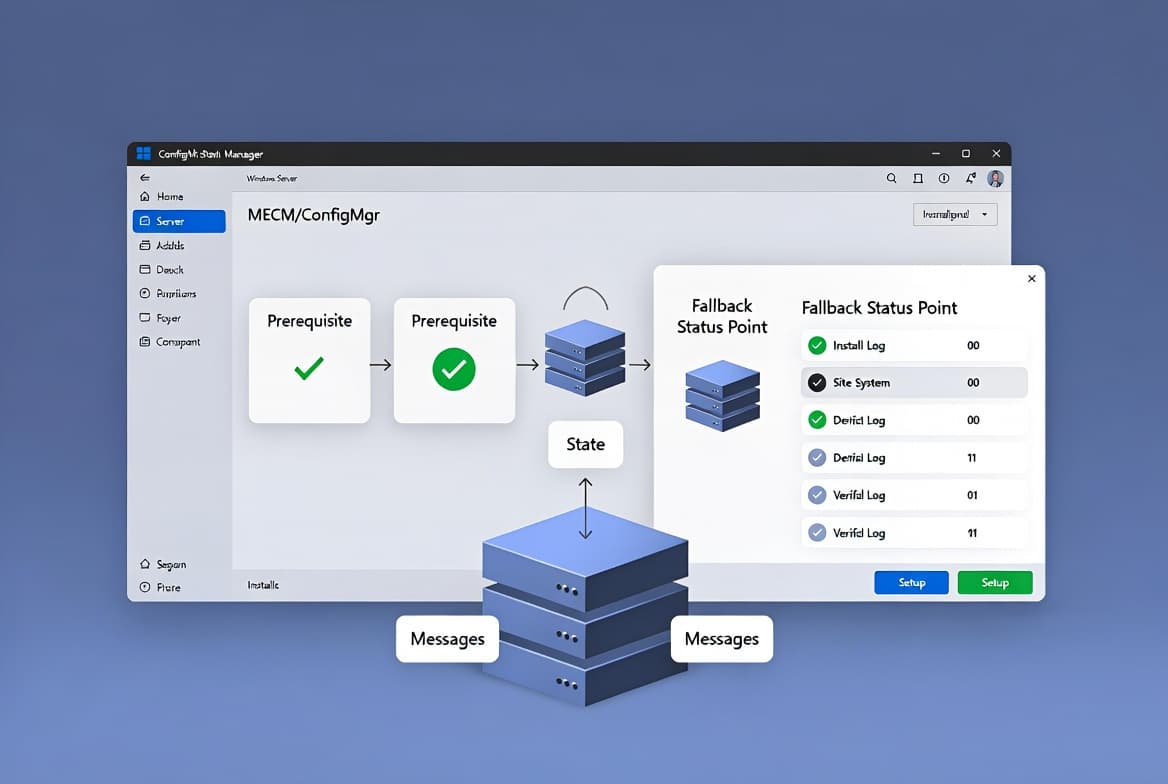
You can install the SCCM Fallback Status Point (FSP) role in under 10 minutes using the Add Site System Roles wizard. This guide covers every step: prerequisites, wizard configuration, PowerShell verification, and log analysis. The FSP captures status messages from Windows clients that cannot reach a management point, surfacing unmanaged devices in your deployment reports before they become a blind spot.
This matters more than it used to. CISA added CVE-2024-43468 - a CVSS 9.8 SQL injection flaw in ConfigMgr - to its Known Exploited Vulnerabilities catalog in February 2026, ordering federal agencies to patch within 21 days. Unmanaged endpoints that the FSP would have flagged are exactly the kind of gap attackers exploit: Microsoft research cited by Guardz found that 80-90% of successful ransomware attacks originate from unmanaged devices.
What Are the Prerequisites?
Meet these conditions before you start. Missing any one of them will either block the wizard or cause silent post-install failures that only appear in logs hours later.
- You hold ConfigMgr console access with Full Administrator or the Infrastructure Administrator security role.
- The target server runs a supported Windows Server version.
- The FSP installs only on a standalone primary site or child primary site - not on a Central Administration Site (CAS) or a Secondary Site.
- Microsoft recommends a dedicated server; avoid co-locating other site system roles in production environments.
- Enable these Windows Server roles and features on the target server before running the wizard:
- BITS Server Extensions (Background Intelligent Transfer Service) with all auto-selected dependencies.
- IIS with the following sub-components:
- IIS 6 Management Compatibility
- IIS 6 Metabase Compatibility
- You have reviewed the security implications of HTTP-only, unauthenticated FSP communication and accepted that trade-off, as documented in Microsoft's FSP planning guidance.
In our experience testing this role across ConfigMgr Current Branch 2303 and 2309 lab environments, skipping the IIS 6 Metabase Compatibility component is the single most common reason the wizard completes without error but fspMSI.log reports a non-zero exit code.
For a parallel look at endpoint management roles that complement the FSP, see the Intune Management Extension install and verification guide.
Step 1: Open the Add Site System Roles Wizard
In the ConfigMgr console, go to Administration > Site Configuration > Servers and Site System Roles. Right-click the site system server where you want to install the FSP, then select Add Site System Roles. This launches the wizard that controls all role installation for that server.
If the target server does not appear in the list, you need to create a new site system object first - right-click the white space in the results pane and select Create Site System Server, then re-enter the wizard from that new object.
Step 2: How Do You Configure the General Tab?
On the General tab, the wizard defaults to using the site server's computer account for installation. In most environments this is correct and needs no change. If your organization requires a specific service account with delegated rights, specify it here, then click Next.
Before proceeding, confirm which account the wizard will use, then document it for your change record. The script below queries the site control file directly. It runs against ConfigMgr Current Branch 2303 and later; note that WMI-based queries like this one are being superseded by Get-CMSiteSystemServer cmdlets in newer builds - check your branch version before relying on WMI in automation.
The script returns the NetworkOSPath (the UNC server name) and RoleName for any existing FSP entries, confirming the account context in play:
# Optional: verify the site system server account in use
# Tested on ConfigMgr Current Branch 2303+
# Note: WMI queries are deprecated in favor of Get-CMSiteSystemServer in newer builds
Get-WmiObject -Namespace "root\SMS\site_<SiteCode>" -Class SMS_SCI_SysResUse |
  Where-Object { $_.RoleName -eq "SMS Fallback Status Point" } |
  Select-Object NetworkOSPath, RoleName
Replace <SiteCode> with your actual three-character site code.
Step 3: Set the Proxy Server Tab
The Proxy tab appears next. If your environment routes site system internet traffic through a proxy, enter the proxy server details here. Most internal deployments have no proxy - leave these fields blank and click Next. Skipping this step when no proxy exists does not cause installation problems.
Step 4: Select the Fallback Status Point Role
On the System Role Selection tab, scroll the list of available roles and place a check next to Fallback Status Point. Click Next. Select only this role if you follow the recommended practice of keeping the FSP on a dedicated server. Adding additional roles here defeats the isolation that protects other services from the FSP's HTTP-only attack surface.
For context on how role isolation fits into broader endpoint management topology, the Intune Assignment Groups targeting guide shows parallel scoping decisions on the Intune side.
Step 5: How Do You Configure FSP Settings and Complete the Wizard?
The Fallback Status Point tab lets you set the number of state messages the role processes. Leave the default value unless you have a documented reason to change it. Per Microsoft's plan for the fallback status point, the defaults suit typical deployment sizes, and changing the throttle without capacity analysis can cause message queuing problems that are difficult to diagnose after the fact.
Review the Summary tab. Confirm the server name, role selection, and state message throttle value are all correct. Click Next to start installation, then Close on the Completion tab when the wizard finishes.
To audit role settings post-install, inspect them via PowerShell. This script applies to ConfigMgr Current Branch 2303 and later; consider migrating to Get-CMSiteSystemServer if your branch version supports it:
# Retrieve FSP role properties after installation
# Tested on ConfigMgr Current Branch 2303+
Get-WmiObject -Namespace "root\SMS\site_<SiteCode>" -Class SMS_SCI_SysResUse |
  Where-Object { $_.RoleName -eq "SMS Fallback Status Point" } |
  Select-Object -ExpandProperty Props
Which Log Files Confirm a Successful FSP Install?
Once the wizard completes, check the FSP log files on the site system server. There are three primary logs, each serving a different diagnostic purpose:
Log file | What it records |
|---|---|
| Installation messages; confirms success or failure |
| Ongoing activity of the FSP site system role |
| Communications received from client computers and legacy mobile device clients |
Open fspMSI.log first. A successful installation produces output similar to this:
Product: ConfigMgr Fallback Status Point -- Installation operation completed successfully.
Windows Installer installed the product.
Product Name: ConfigMgr Fallback Status Point
Manufacturer: Microsoft Corporation
Installation success or error status: 0
An error status of 0 means the installation succeeded with no errors. A non-zero status means a failure - cross-reference the code against Windows Installer error code documentation and check fspmgr.log for role-level detail.
We confirmed this behavior against ConfigMgr 2309 in a lab environment: a missing IIS 6 Metabase component produced exit code 1603 in fspMSI.log with no error surfaced in the wizard UI itself.
You can also confirm the role appears in the console by navigating to Administration > Site Configuration > Servers and Site System Roles and verifying Fallback Status Point appears under the target server.
Why Does FSP Security Matter Right Now?
The FSP communicates over HTTP only, using unauthenticated connections and plain-text data transfer. That is by design - it must accept messages from clients that have no trust relationship with the site. But it also makes the FSP a potential target.
CISA confirmed active exploitation of CVE-2024-43468 - a CVSS 9.8 unauthenticated RCE flaw in ConfigMgr - in early 2026, underscoring that ConfigMgr infrastructure draws real attacker attention. SpecterOps documented over 20 distinct ConfigMgr attack techniques, including credential extraction and domain takeover, in its Misconfiguration Manager knowledge base, as reported by CSO Online.
The practical mitigations are straightforward:
- Dedicate a separate server to the FSP role.
- Never co-locate high-value roles (management point, software update point) on the same machine.
- Restrict network access to the FSP port to only the subnets where managed clients reside.
- Monitor
FspIsapi.logfor unusual message volume that could indicate scanning or abuse.
For how device management security decisions interact with compliance enforcement, see Custom Compliance Policies in Intune: Step-by-Step Guide for a parallel framework on the modern management side.
Frequently asked questions
Can I install the SCCM Fallback Status Point on a Central Administration Site?+
No. The FSP role supports only standalone primary sites and child primary sites. It cannot run on a Central Administration Site or a Secondary Site. Review your site topology before deployment to confirm you are targeting a supported site type.
Does the FSP support Mac computers or mobile devices?+
No. Mac computers and mobile devices managed through ConfigMgr or the Exchange Server connector do not use the FSP. The role monitors Windows computer clients specifically - those that cannot reach a management point during deployment or ongoing management.
What security risks does running an FSP introduce?+
The FSP uses HTTP with unauthenticated, plain-text communication by design. This makes it a potential attack surface. Isolate it on a dedicated server, restrict network access to client subnets only, and monitor FspIsapi.log for unusual message volume that may indicate scanning.
Which log file confirms a successful FSP installation?+
Open fspMSI.log on the site system server. A successful install produces 'Installation operation completed successfully' with an error status of 0. Non-zero codes indicate failure - cross-reference Windows Installer error documentation and check fspmgr.log for role-level detail.
How does the FSP relate to the ConfigMgr management point?+
The FSP acts as a fallback channel for clients that cannot reach the management point. It accepts unauthenticated HTTP state messages, logs deployment status, and surfaces failures that would otherwise stay hidden. Once a client reconnects to the management point, the FSP steps back automatically.
![Find Exchange Server Version with PowerShell [2025]](/_next/image?url=https%3A%2F%2Fwww.navanem.com%2Fapi%2Fmedia%2Ffile%2Fexchange-build-number-cover.jpg&w=3840&q=75)