Install SCCM Console on Windows 10: 3 Methods
Install the SCCM console on Windows 10 three ways: wizard, ConsoleSetup folder, and /q silent install. Includes exact log paths for CB 1902+ and verification steps.
by Emanuel De Almeida
in_this_guide+
- 01TL;DR
- 02What Do You Need Before You Install the SCCM Console?
- 03Where Do You Find the SCCM Console Source Files?
- 04How Do You Install the SCCM Console Using the Setup Wizard?
- 05How Do You Install the SCCM Console from the ConsoleSetup Folder?
- 06How Do You Install the SCCM Console via Command Line?
- 07Where Are the SCCM Console Log Files?
- 08How Do You Verify the SCCM Console Installation Succeeded?
- 09A Note on Console Security and Credential Risk
- --FAQ
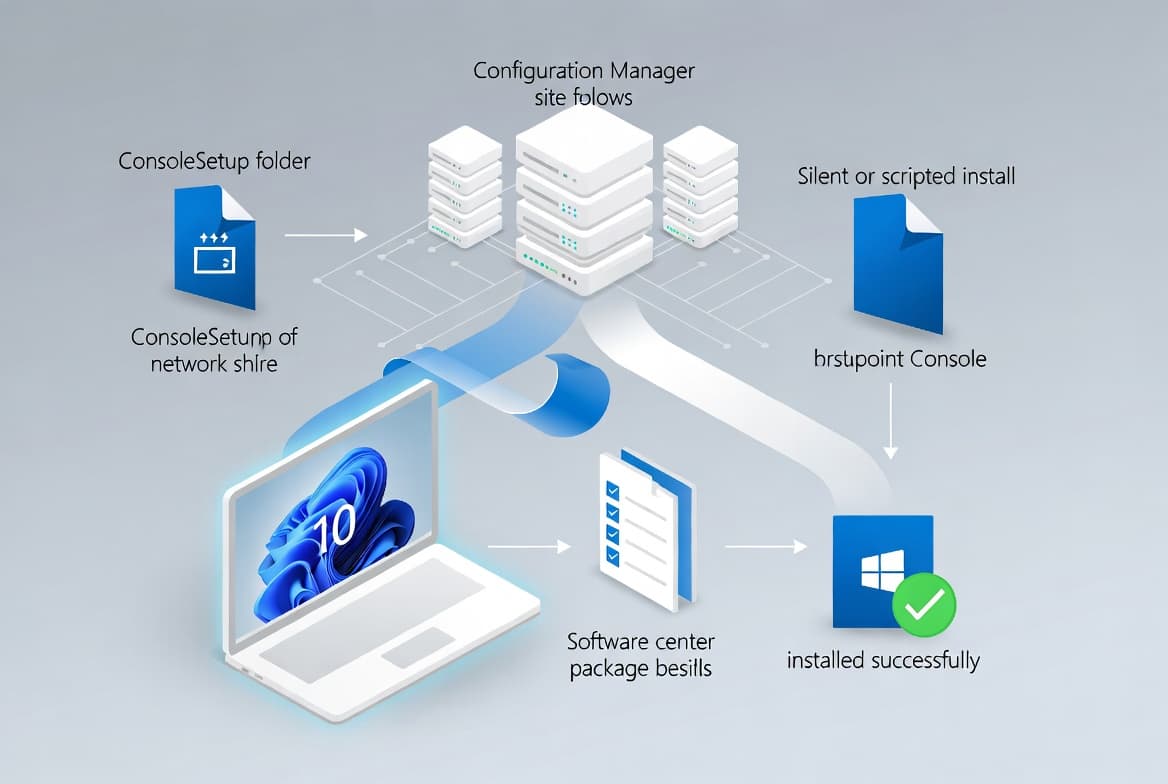
TL;DR
- Use Method A (wizard) for a first-time, one-machine setup where installation media is already mounted.
- Use Method B (ConsoleSetup folder) when media is unavailable but a pre-staged file share is accessible.
- Use Method C (silent `/q`) for scripted, remote, or packaged deployments across multiple workstations.
- All three methods require the same four files from CB 1902 onward and produce identical log output.
What Do You Need Before You Install the SCCM Console?
Gather these items before starting. Missing any one of them will stop the install mid-way.
- Windows 10 workstation with local administrator rights.
- Network access to the SCCM site server or a local copy of installation media.
- SCCM current branch 1902 or later (the four-file requirement applies from this version onward).
- All four required files in the same folder:
ConsoleSetup.exe,AdminConsole.msi,ConfigMgr.AC_Extension.i386.cab,ConfigMgr.AC_Extension.amd64.cab. - The fully qualified domain name (FQDN) of your primary site server.
- A user account with an assigned SCCM role-based access control (RBAC) security role.
CISA's 2026 endpoint management advisory explicitly recommends applying least privilege when designing administrative roles and using RBAC to assign only minimum permissions necessary. Verify your account's RBAC role before connecting the console for the first time. For a deeper look at configuring co-management roles alongside the console, see the ConfigMgr Device Configuration Workload Switch Guide.
Where Do You Find the SCCM Console Source Files?
Two canonical locations hold the source files. Pick based on what is reachable from the target machine.
From the site server share (preferred when the environment is already live):
\\<SiteServer>\<ShareName>\Tools\ConsoleSetupFrom SCCM installation media (use this when the site server share is unreachable):
\SMSSETUP\BIN\I386Copy the entire ConsoleSetup folder to a local path before you run anything. Partial copies, especially those missing the .cab files, produce a broken install. In our lab environment running CB 2309, omitting the .cab files caused exit code 1603 in ConfigMgrAdminUISetup.log every time, with no other warning during the wizard itself.
How Do You Install the SCCM Console Using the Setup Wizard?
Method A works best for one-off installs or when configuring a new admin workstation for the first time. No command-line interaction is needed.
- On the Windows 10 machine, browse to the root of the SCCM installation media.
- Launch
splash.htato open the Configuration Manager splash screen. - Under Tools and Standalone Components, click Install Configuration Manager Console.
- The setup wizard opens. Click Next.
- Enter the FQDN of your primary site server and click Next.
- Accept or change the default installation directory, then click Next.
- Click Install to begin, then Finish when complete.
This method guides you through every option visually. It is the slowest of the three, but also the least likely to produce a misconfigured install for admins who are new to the product.
How Do You Install the SCCM Console from the ConsoleSetup Folder?
Method B skips the splash screen entirely. It works best for IT teams who maintain a file share pre-staged with the console source files.
All four files must be present in the same folder before you begin.
- Copy the entire
ConsoleSetupfolder to the local machine, for exampleC:\Temp\ConsoleSetup. - Right-click
ConsoleSetup.exeand select Run as administrator. - On the Configuration Manager Console Setup window, click Install.
- Click Finish when the wizard reports success.
This saves time for teams that pre-stage shares centrally, because there is no need to mount or distribute full installation media. The Microsoft Learn console installation reference documents the exact folder structure expected at this path.
How Do You Install the SCCM Console via Command Line?
Method C gives you the most control and is the right choice for scripted deployments, remote installs, or software packaging. The /q switch runs the install with zero UI.
Open an elevated command prompt and change to the directory holding the console source files.
Basic silent install:
ConsoleSetup.exe /q TargetDir="%ProgramFiles%\ConfigMgr Console" DefaultSiteServerName=MyServer.Contoso.comReplace MyServer.Contoso.com with your actual site server FQDN.
Silent install with language packs:
The console defaults to English. To add language packs, include the LangPackDir parameter pointing at the folder that holds the language files:
ConsoleSetup.exe /q TargetDir="C:\Program Files\ConfigMgr Console" DefaultSiteServerName=MyServer.Contoso.com LangPackDir=C:\Downloads\ConfigMgrBecause the install runs unattended, there is no on-screen confirmation. Check the log files in the next section to confirm a clean exit code.
Where Are the SCCM Console Log Files?
Log files are your first stop when an installation fails or the console misbehaves after launch. Three files matter.
Log File | What It Records | Location |
|---|---|---|
| Console installation events and errors | Console machine |
| Runtime console operation and errors | Console machine |
| SMS Provider activity triggered by console actions | Site server or site system server |
Open these with CMTrace or any text editor. Filter for lines tagged ERROR or WARNING and cross-reference the timestamp with when the failure occurred. The Install SCCM Fallback Status Point guide covers CMTrace usage in more detail if you are not familiar with the tool.
How Do You Verify the SCCM Console Installation Succeeded?
Run through these checks after any of the three methods before handing off the workstation.
- Open the Start Menu and search for Configuration Manager Console. It should appear as an installed application.
- Launch the console and confirm it connects to your site server without a certificate or authentication error.
- Go to Administration > Site Configuration > Sites and confirm the site name and code are visible.
- Review
ConfigMgrAdminUISetup.logfor a clean completion entry with no error codes.
If the console opens but cannot connect, verify the site server FQDN entered during setup. Also confirm the user account has an assigned SCCM security role. Missing RBAC assignments are a common cause of a successful install that still cannot reach the site.
A Note on Console Security and Credential Risk
The SCCM console is a high-value target. CISA warned that Configuration Manager "typically runs with elevated privileges and maintains deep integration with enterprise systems," making it capable of enabling malware deployment, credential harvesting, or silent manipulation of entire device fleets when compromised.
The 2025 Verizon Data Breach Investigations Report found that stolen credentials were the initial access vector in 22% of all breaches. That same report found that 46% of compromised enterprise systems with corporate logins in stolen credential data were unmanaged devices hosting both personal and business credentials. Installing the SCCM console on unmanaged or personal workstations puts admin credentials directly in that risk category.
Install the console only on managed, domain-joined workstations with endpoint protection in place. For Intune-managed environments, the Intune Assignment Groups targeting guide covers how to scope admin tools to specific device groups so personal machines are excluded automatically.
Frequently asked questions
Can I connect an SCCM console to a secondary site?+
No. The Configuration Manager console connects only to a central administration site or a primary site. Connecting directly to a secondary site is not supported. Always point the console at your primary site server FQDN during setup, regardless of which installation method you use.
Which files are required to install the SCCM console from CB 1902 onward?+
You need four files in the same folder: ConsoleSetup.exe, AdminConsole.msi, ConfigMgr.AC_Extension.i386.cab, and ConfigMgr.AC_Extension.amd64.cab. Copying only ConsoleSetup.exe will fail or produce an incomplete console, as confirmed by Microsoft Learn's console installation reference.
Where are the SCCM console log files stored?+
ConfigMgrAdminUISetup.log and SmsAdminUI.log are stored on the machine running the console. Smsprov.log lives on the site server or site system server. Check all three whenever an install fails or the console behaves unexpectedly after launch.
Should admins run the SCCM console directly on the site server?+
No. Microsoft recommends against it. Install the console on each admin's managed workstation so the site server is not burdened by console activity and so per-user access can be controlled independently through RBAC role assignments. CISA's 2026 guidance reinforces least-privilege access for all endpoint management tools.
What does exit code 1603 mean in ConfigMgrAdminUISetup.log?+
Exit code 1603 is a generic Windows Installer fatal error. In the SCCM console context it most often means the .cab files were missing from the source folder. Confirm all four required files are present in the same directory and re-run the install.