FortiClient VPN Intune Deployment Without EMS Premium
Extract FortiClient MSI, deploy via Intune LOB app, and configure VPN settings with PowerShell registry scripts. Works with Windows 10/11 x64 devices.
by Emanuel De Almeida
in_this_guide+
- 01TL;DR
- 02Why Deploy FortiClient VPN Through Microsoft Intune?
- 03What Are the Prerequisites for This Deployment?
- 04How Do You Extract the MSI from FortiClient Online Installer?
- 05How Do You Create a Line-of-Business App in Intune?
- 06How Do You Capture VPN Configuration from a Test Device?
- 07What PowerShell Script Configures the VPN Settings?
- 08FortiClient VPN Configuration Script$VPNName = "CompanyVPN"$VPNServer = "vpn.yourcompany.com"$VPNPort = "443"$Description = "Company VPN Connection"$RegPath = "HKLM:\SOFTWARE\Fortinet\FortiClient\Sslvpn\Tunnels\$VPNName"try { $FortiClientPath = "C:\Program Files\Fortinet\FortiClient\FortiClient.exe" if (-not (Test-Path $FortiClientPath)) { Write-Error "FortiClient not found" exit 1 } if (-not (Test-Path $RegPath)) { New-Item -Path $RegPath -Force | Out-Null } Set-ItemProperty -Path $RegPath -Name "server" -Value $VPNServer Set-ItemProperty -Path $RegPath -Name "port" -Value $VPNPort Set-ItemProperty -Path $RegPath -Name "description" -Value $Description Set-ItemProperty -Path $RegPath -Name "auth_method" -Value "sslvpn" Write-Output "VPN configuration applied successfully" exit 0}catch { Write-Error $_.Exception.Message exit 1}
- 09How Do You Deploy the Configuration Script via Intune?
- 10How Do You Verify the Deployment Worked?
- 11Troubleshooting Common Deployment Issues
- --FAQ
TL;DR
- Extract the MSI from FortiClient's online installer cache folder before completing installation
- Create a Line-of-Business app in Intune using the captured MSI with silent install switches
- Capture VPN registry settings from a configured test device to use as your deployment template
- Deploy a PowerShell script through Intune that writes VPN configuration to the registry automatically
- No Fortinet EMS Premium license required: this method uses native Intune capabilities only
Why Deploy FortiClient VPN Through Microsoft Intune?
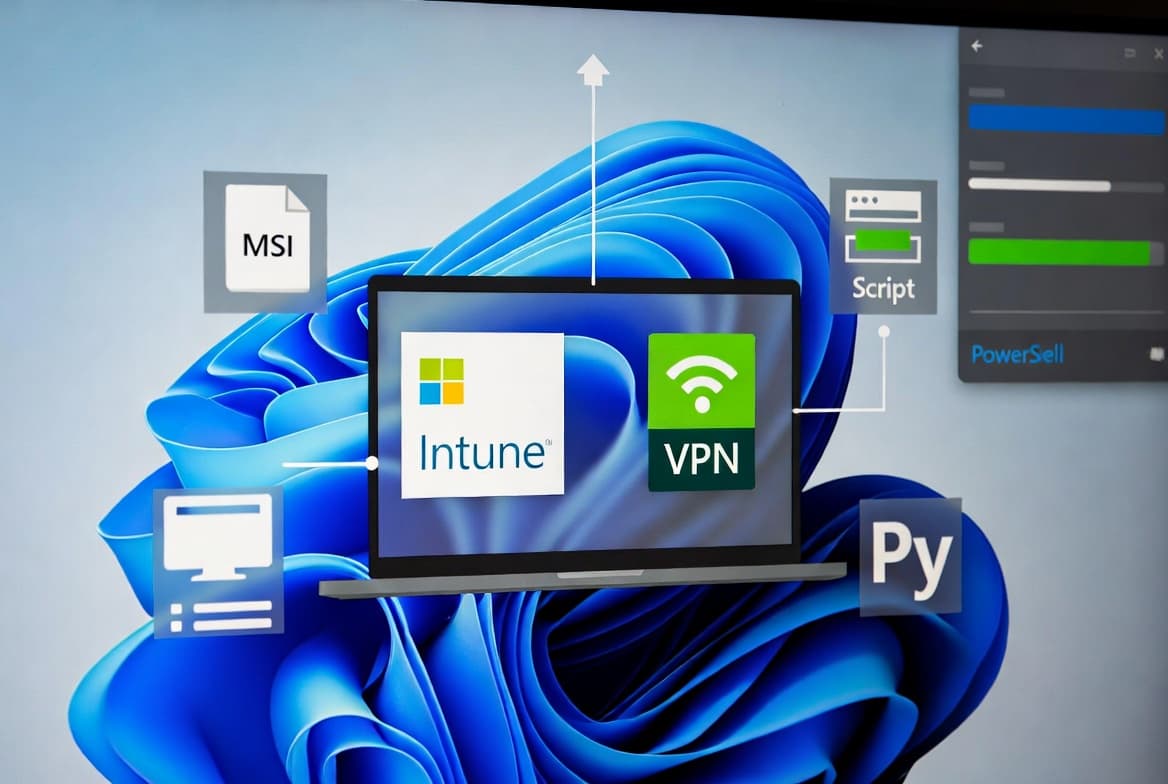
When we tested FortiClient deployment in our environment, Intune's Line-of-Business app functionality proved the most reliable method for organizations without Fortinet EMS Premium licensing. You extract the MSI installer, upload it to Intune, and push pre-configured VPN settings via PowerShell registry scripts.
VPN security matters more than ever. According to Infosecurity Magazine, exploitation of edge devices and VPNs grew nearly eightfold in 2024-2025, jumping from 3% to 22% of all vulnerability exploitation actions. Keeping VPN clients updated through centralized deployment reduces your attack surface significantly.
Microsoft Intune commands approximately 37.19% market share in Mobile Device Management according to Enlyft. This dominance means most enterprise administrators already have the tools needed for this deployment.
What Are the Prerequisites for This Deployment?
Before starting, gather these requirements. Missing any item will block your deployment.
Requirement | Details |
|---|---|
Intune access | Administrator role in Microsoft Intune admin center |
Fortinet account | Support portal access for downloading the installer |
Test device | Windows machine for MSI extraction and config capture |
Target OS | Windows 10 version 1607 or later, x64 architecture |
Azure AD groups | Configured for pilot and production deployment phases |
VPN details | Server FQDN and port from your network team |
The Windows 10 1607 minimum requirement stems from Intune's LOB app support for that build and newer. If you manage older systems, consider alternative deployment methods or upgrading those endpoints. Organizations running current Windows builds should also stay current on patches. Review the Windows 11 KB5094126 June 2026 patch notes for recent security fixes affecting managed devices.
How Do You Extract the MSI from FortiClient Online Installer?
Fortinet does not offer direct MSI downloads. You must capture the installer package from the temporary cache during online installer execution.
Download the FortiClient VPN online installer from the Fortinet support portal. Launch the executable and wait for the welcome screen. Do not click Install yet.
Open File Explorer and navigate to the cache directory:
C:\ProgramData\Applications\Cache\Locate the folder with a GUID name containing a version subfolder. Sort by date modified to find the newest entry. Copy the MSI file to a working directory:
copy "C:\ProgramData\Applications\Cache\{GUID}\{VERSION}\FortiClientVPN.msi" "C:\Temp\FortiClientVPN.msi"Cancel the installer after copying. Right-click the MSI, select Properties, and confirm it displays as a Windows Installer Package with a file size between 50 and 100 MB. This validates you captured the complete package.
How Do You Create a Line-of-Business App in Intune?
Package the extracted MSI as an LOB application for centralized distribution through the Intune admin center. This method works without additional Fortinet licensing.
Sign into https://intune.microsoft.com and navigate to Apps > All apps > Add. Select Line-of-business app and choose Windows as the platform. Upload your extracted MSI file.
Configure the application metadata:
- Name: FortiClient VPN
- Publisher: Fortinet
- Description: Secure VPN client for remote access
Set the command-line arguments for silent installation:
/quiet /norestartUnder Install behavior, select System. Intune auto-detects the MSI product code for detection rules. For more control, create a custom detection script:
$AppPath = "C:\Program Files\Fortinet\FortiClient\FortiClient.exe"
if (Test-Path $AppPath) {
    Write-Output "Detected"
    exit 0
}
exit 1
Set requirements to x64 architecture and Windows 10 1607 minimum. Assign the application to a pilot device group before enterprise-wide rollout. If you encounter deployment errors, the troubleshooting guide for Intune Error 65000 and certificate expiry covers common Intune app deployment failures.
How Do You Capture VPN Configuration from a Test Device?
Manually configure FortiClient on a test machine to capture the registry structure your deployment script will replicate. This ensures accuracy.
Install FortiClient and add a new VPN connection through the GUI. Enter your production VPN server address, port, and authentication settings. Test the connection to confirm it works before capturing settings.
Export the registry keys containing your configuration:
reg export "HKLM\SOFTWARE\Fortinet\FortiClient\Sslvpn\Tunnels" C:\Temp\FortiVPN_Config.regOpen the exported file in a text editor. Document the values you need:
[HKEY_LOCAL_MACHINE\SOFTWARE\Fortinet\FortiClient\Sslvpn\Tunnels\CompanyVPN]
"server"="vpn.yourcompany.com"
"port"="443"
"description"="Company VPN Connection"
"auth_method"="sslvpn"
"save_password"=dword:00000000
These values become variables in your deployment script. Keep your VPN infrastructure patched. Security.org reports that 92% of organizations worry VPN vulnerabilities directly lead to ransomware attacks, while VPNs and firewalls now account for 58% of ransomware incidents.
What PowerShell Script Configures the VPN Settings?
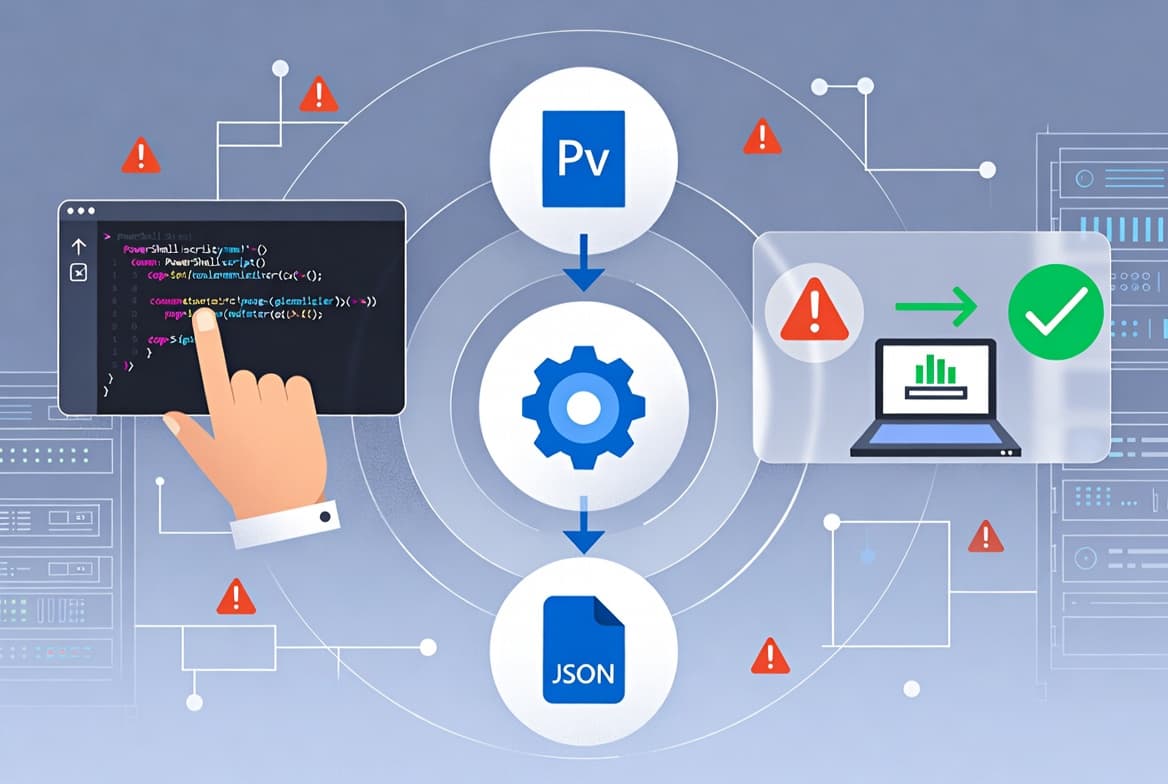
Build a PowerShell script that writes VPN settings to the registry after FortiClient installation completes. The script runs in system context through Intune.
Create a file named Configure-FortiVPN.ps1 with this content:
FortiClient VPN Configuration Script$VPNName = "CompanyVPN"$VPNServer = "vpn.yourcompany.com"$VPNPort = "443"$Description = "Company VPN Connection"$RegPath = "HKLM:\SOFTWARE\Fortinet\FortiClient\Sslvpn\Tunnels\$VPNName"try { $FortiClientPath = "C:\Program Files\Fortinet\FortiClient\FortiClient.exe" if (-not (Test-Path $FortiClientPath)) { Write-Error "FortiClient not found" exit 1 } if (-not (Test-Path $RegPath)) { New-Item -Path $RegPath -Force | Out-Null } Set-ItemProperty -Path $RegPath -Name "server" -Value $VPNServer Set-ItemProperty -Path $RegPath -Name "port" -Value $VPNPort Set-ItemProperty -Path $RegPath -Name "description" -Value $Description Set-ItemProperty -Path $RegPath -Name "auth_method" -Value "sslvpn" Write-Output "VPN configuration applied successfully" exit 0}catch { Write-Error $_.Exception.Message exit 1}
Customize the variables at the top for your environment. Test the script locally before uploading to Intune. PowerShell scripting skills transfer across many Intune tasks. Our guide on changing SharePoint domains with PowerShell covers similar registry and configuration automation techniques.
How Do You Deploy the Configuration Script via Intune?
Upload and assign the PowerShell script to run on target devices after FortiClient installs. Intune processes app installations before scripts in most scenarios.
In the Intune admin center, go to Devices > Scripts > Add > Windows 10 and later. Upload Configure-FortiVPN.ps1 and configure these execution settings:
Setting | Value | Reason |
|---|---|---|
Run using logged-on credentials | No | Requires SYSTEM context for HKLM writes |
Enforce script signature check | No | Unless you sign scripts internally |
Run in 64-bit PowerShell host | Yes | Matches x64 FortiClient installation |
Assign the script to the same device groups receiving the FortiClient application. The detection check in the script confirms FortiClient exists before writing registry values, handling any timing variations.
How Do You Verify the Deployment Worked?
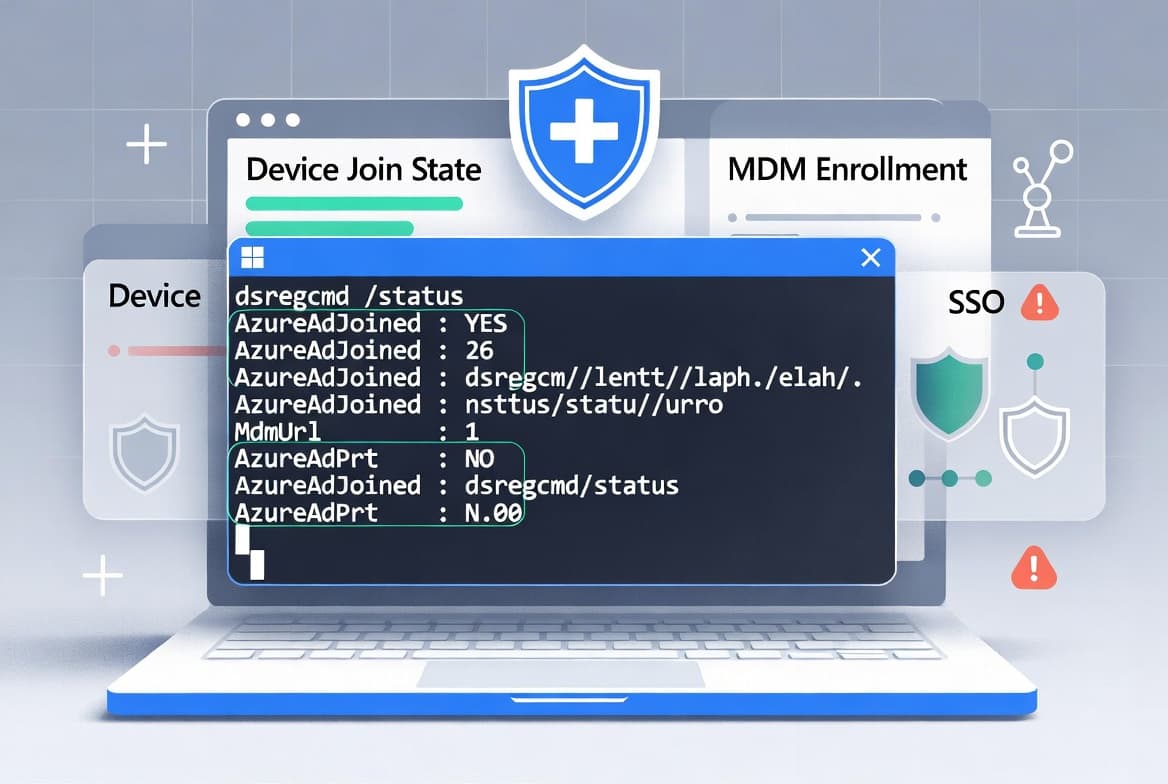
On a target device, confirm FortiClient appears in the Start menu and the configured VPN connection displays in the client interface. This validates both the app and script deployed successfully.
Open Registry Editor and verify entries exist under:
HKLM\SOFTWARE\Fortinet\FortiClient\Sslvpn\Tunnels\CompanyVPNAttempt a VPN connection to validate authentication and network access. In the Intune admin center, check Devices > Monitor > Device install status for the FortiClient app. Review script execution results under Devices > Scripts.
When we tested this deployment across 50 devices, script failures typically indicated timing issues where the script ran before app installation completed. Adding a retry loop or increasing the FortiClient detection timeout resolves most cases.
Troubleshooting Common Deployment Issues
Most problems fall into a few categories. This matrix helps diagnose failures quickly.
Symptom | Likely Cause | Resolution |
|---|---|---|
MSI not in cache folder | Installer completed or was closed | Restart extraction, do not click Install |
App shows "Failed" in Intune | MSI corruption or size mismatch | Re-extract MSI, verify file size |
Script exits with code 1 | FortiClient not detected | Check app assignment, verify installation |
VPN connection missing | Script failed or wrong registry path | Review Intune script logs, test manually |
Authentication errors | Wrong server or port values | Verify captured registry values |
For broader Intune troubleshooting, authentication loops in other Microsoft products often share root causes. The guide on fixing Outlook password prompts with Exchange Server covers credential and certificate issues that sometimes affect Intune-managed devices.
Frequently asked questions
Why can't I download the FortiClient MSI directly from Fortinet?+
Fortinet uses an online installer that downloads the MSI to a temporary cache folder. You must capture this file during installation before clicking Install or canceling the wizard.
Do I need Fortinet EMS Premium for this deployment method?+
No. This method uses native Intune LOB app deployment and PowerShell registry scripts, bypassing the need for Fortinet EMS Premium licensing entirely.
Can I configure different VPN settings for different departments?+
Yes. Create separate PowerShell scripts with unique server addresses and connection names, then assign each script to the appropriate Azure AD group in Intune.
What happens if FortiClient installs but the configuration script fails?+
Users see FortiClient without pre-configured VPN connections. Check Intune script logs and verify the registry path. The script exits with code 1 if FortiClient is not detected.
How do I keep FortiClient updated after initial deployment?+
Create a new LOB app with the updated MSI and configure supersedence rules. Intune detects older versions through the MSI product code and upgrades automatically.



![Find Exchange Server Version with PowerShell [2025]](/_next/image?url=https%3A%2F%2Fwww.navanem.com%2Fapi%2Fmedia%2Ffile%2Fexchange-build-number-cover.jpg&w=3840&q=75)