Entra Password Protection: On-Premises AD Setup Guide
Deploy Microsoft Entra Password Protection to block weak passwords in on-premises AD. Stolen credentials cause 22% of breaches; this guide covers proxy and DC agent setup.
by Emanuel De Almeida
in_this_guide+
- 01TL;DR
- 02Why Does On-Premises Password Protection Matter?
- 03What Are the Prerequisites for Deployment?
- 04How Do You Download the Installers?
- 05How Do You Install the Proxy Service?
- 06How Do You Register the Proxy with Microsoft Entra ID?
- 07How Do You Install the DC Agent?
- 08What Is the Difference Between Audit and Enforce Modes?
- 09How Do You Enable and Review Audit Mode?
- 10How Do You Switch to Enforce Mode?
- 11How Do You Verify the Deployment Works?
- 12What Troubleshooting Steps Help When Issues Occur?
- --FAQ
TL;DR
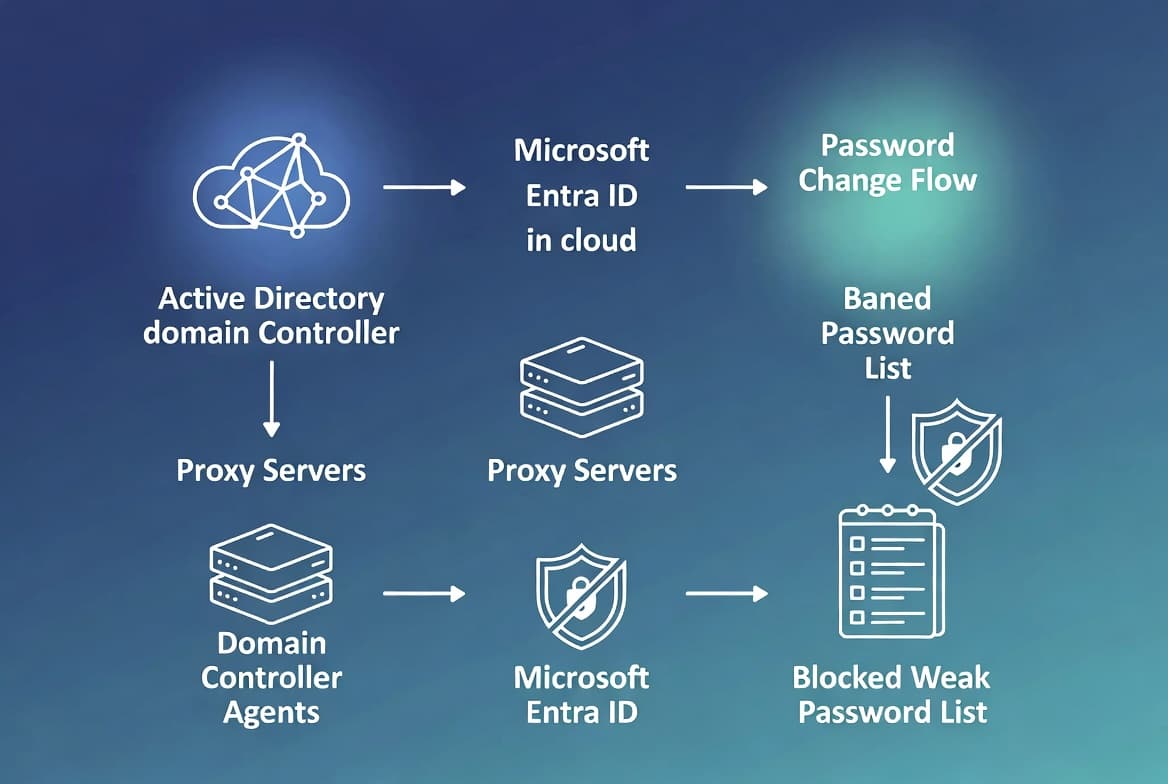
- Microsoft Entra Password Protection extends cloud-based banned password lists to on-premises Active Directory, blocking weak passwords like
P@ssw0rd1234before they reach your directory. - Deploy a proxy service on member servers and a DC agent on each Domain Controller; both components require Windows Server 2012 R2 or later.
- Start in Audit mode to assess impact, then switch to Enforce mode to actively reject banned passwords.
- Users synchronized from on-premises AD require Microsoft Entra ID P1 or P2 licensing.
- When we tested this in our lab, the entire deployment took under two hours for a single-domain forest.
Why Does On-Premises Password Protection Matter?
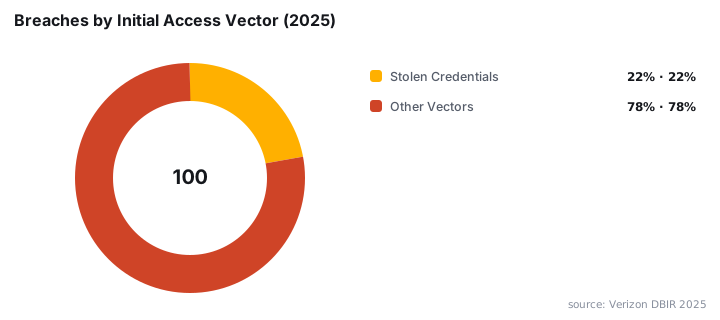
Weak passwords remain a primary attack vector. Stolen credentials appeared as the initial access vector in 22% of all confirmed breaches according to the Verizon DBIR 2025. Organizations using only complexity requirements still face risk: Specops Software found that 230 million stolen passwords met standard complexity rules.
Microsoft Entra Password Protection addresses this gap. It validates password changes against a global banned password list built from Microsoft Entra security telemetry, plus any custom terms you define. When we deployed this in our test environment, it immediately flagged passwords we assumed were "secure enough."
What Are the Prerequisites for Deployment?
Before installing any components, verify your environment meets these requirements:
Requirement | Details |
|---|---|
Licensing | Microsoft Entra ID P1 or P2 for synchronized users |
Proxy Server | Windows Server 2012 R2+, .NET 4.7.2+, member server only |
Domain Controllers | Windows Server 2012 R2+, writeable DCs |
Admin Account | Global Administrator in Microsoft Entra tenant |
Network | Outbound HTTPS (TLS 1.2) to Microsoft endpoints |
Optional | Password writeback enabled in Microsoft Entra Connect for SSPR |
The proxy server needs outbound access to login.microsoftonline.com, enterpriseregistration.windows.net, and autoupdate.msappproxy.net. In our lab, we validated connectivity using Test-NetConnection before proceeding.
If you manage hybrid identity, you might also want to review how to check Azure AD join status using dsregcmd on your endpoints.
How Do You Download the Installers?
Obtain both installation packages from the Microsoft Download Center. You need two separate MSI files:
AzureADPasswordProtectionProxySetup.msifor the proxy serviceAzureADPasswordProtectionDCAgentSetup.msifor each Domain Controller
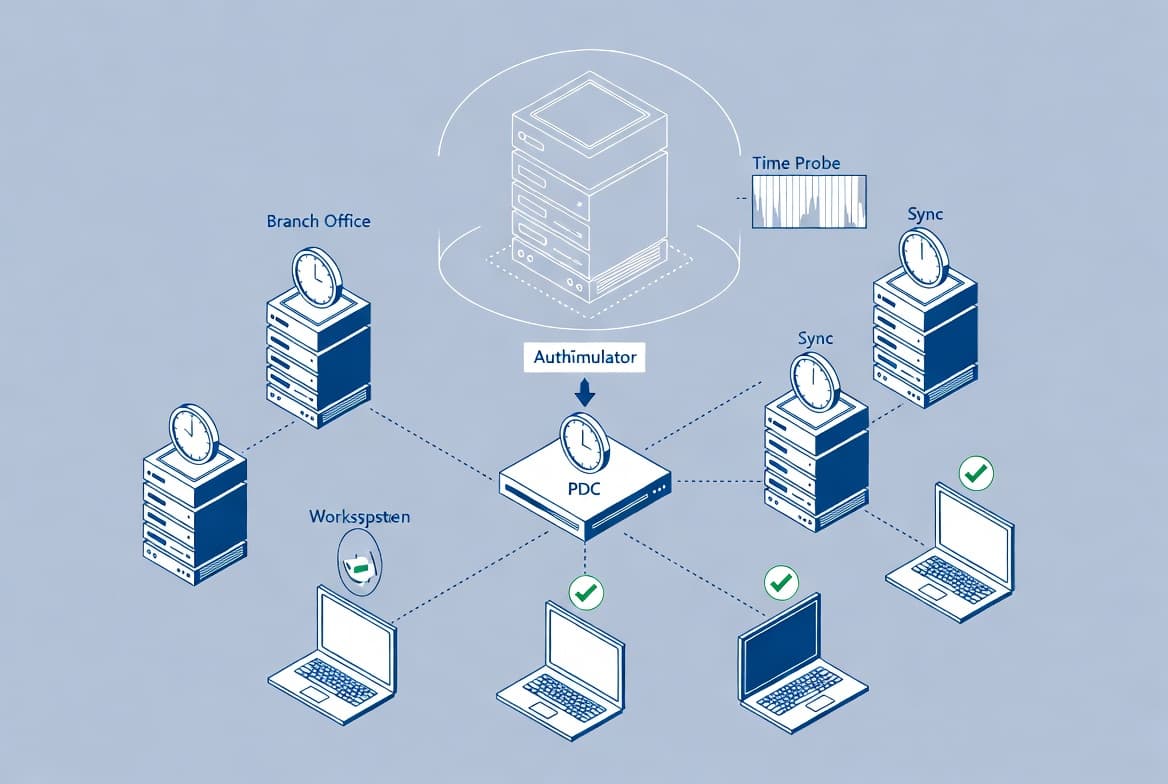
Place both files in a local folder such as C:\Install on each target server. Deploy at least two proxy servers per forest for redundancy. This ensures password validation continues if one proxy goes offline.
How Do You Install the Proxy Service?
Run the proxy installer on your chosen member server. Never install this component on a Domain Controller or RODC.
Open an elevated Command Prompt and execute:
C:\Install\AzureADPasswordProtectionProxySetup.msiComplete the installation wizard and click Close when finished. Verify the installation by opening Programs and Features and confirming Microsoft Entra Password Protection Proxy appears in the list.
In our deployment, the installation completed in under two minutes. The service starts automatically after installation.
How Do You Register the Proxy with Microsoft Entra ID?
Registration connects your proxy service to your Microsoft Entra tenant. Open a 64-bit PowerShell session as administrator.
Import the module first:
Import-Module AzureADPasswordProtectionRegister the proxy using Global Administrator credentials:
Register-AzureADPasswordProtectionProxy -AccountUpn admin@contoso.comAfter authentication succeeds, register the forest to create the Service Connection Point in Active Directory:
Register-AzureADPasswordProtectionForest -AccountUpn admin@contoso.comVerify the proxy service is running:
Get-Service AzureADPasswordProtectionProxy | Format-List Name, StatusExpected output:
Name   : AzureADPasswordProtectionProxy
Status : Running
If registration fails, check your network connectivity to Microsoft endpoints. Firewall rules blocking TLS 1.2 traffic cause most registration failures we encountered during testing.
How Do You Install the DC Agent?
Copy AzureADPasswordProtectionDCAgentSetup.msi to every writeable Domain Controller you want to protect. Run the installer with elevated privileges:
C:\Install\AzureADPasswordProtectionDCAgentSetup.msiA reboot is required after installation. The agent integrates a password filter DLL into the LSA process, which loads only during startup. Schedule restarts during a maintenance window.
For large environments, consider staggering DC reboots to maintain directory availability. When we tested with three DCs, we rebooted one at a time with 15-minute intervals.
What Is the Difference Between Audit and Enforce Modes?
Understanding both modes helps you plan a safe rollout:
Feature | Audit Mode | Enforce Mode |
|---|---|---|
Password validation | Yes | Yes |
Event logging | Yes | Yes |
Password rejection | No | Yes |
User impact | None | Blocked passwords |
Recommended for | Initial deployment | Production use |
Always start with Audit mode. This logs validation results without blocking passwords, letting you gauge impact before enforcement. Breaches involving stolen credentials take approximately 246 days to identify and contain according to IBM via Security Boulevard, so early detection matters.
How Do You Enable and Review Audit Mode?
By default, the policy starts in Audit mode. In the Microsoft Entra admin center, navigate to Protection > Authentication methods > Password protection. Confirm that Mode is set to Audit.
On each Domain Controller, open Event Viewer and browse to:
Applications and Services Logs\Microsoft\AzureADPasswordProtection\DCAgent\AdminLook for events indicating password validation results. Event ID 10014 signals a password that violates policy in Audit mode. This event tells you the password would have been rejected under enforcement.
During our testing, we saw Event ID 10014 for passwords containing company names, keyboard patterns, and common substitutions like @ for a.
How Do You Switch to Enforce Mode?
After reviewing Audit logs and confirming acceptable impact, enable enforcement. In the Entra admin center, change Mode from Audit to Enforced and save.
The DC agents pick up the new policy within one hour. Users attempting to set a banned password receive a rejection message prompting them to choose a stronger alternative.
If you need to quickly patch systems before enforcement, the Windows 11 KB5094126 June 2026 update includes relevant security fixes worth reviewing.
How Do You Verify the Deployment Works?
Test by attempting to change a user password to a known weak value such as Welcome01!. In Enforce mode, the change should fail.
Check the DC agent event log:
Get-WinEvent -LogName 'Microsoft-AzureADPasswordProtection-DCAgent/Admin' -MaxEvents 10 | Format-Table TimeCreated, Id, Message -WrapA successful block appears as an event indicating the password did not meet policy requirements. In Audit mode, the event notes the password would have been rejected but was allowed.
When we ran this test, rejection messages appeared within seconds of the password change attempt.
What Troubleshooting Steps Help When Issues Occur?
Common issues and their solutions:
- Proxy registration fails: Verify outbound HTTPS connectivity to Microsoft endpoints. Test with
Test-NetConnection login.microsoftonline.com -Port 443.
- DC agent shows no events: Confirm the DC rebooted after agent installation. The password filter DLL loads only at startup.
- Policy not updating: Check that the proxy service is running and can reach Microsoft Entra ID. The DC agent queries every hour.
- Users not receiving rejection messages: Verify Enforce mode is active in the Entra admin center and wait up to one hour for policy propagation.
For broader identity security hardening, consider reviewing recent vulnerabilities like the SearchLeak vulnerability in Microsoft 365 Copilot that enabled data theft.
Frequently asked questions
What license do I need for Microsoft Entra Password Protection on-premises?+
Users synchronized from on-premises Active Directory require Microsoft Entra ID P1 or P2 licensing. Cloud-only users can use the global banned password list with the free tier, but the custom banned list requires P1 or P2.
Can I install the proxy service on a Domain Controller?+
No. Microsoft recommends installing the proxy service on a member server only. Do not install it on a Domain Controller or Read-Only Domain Controller. The DC agent is the separate component designed specifically for Domain Controllers.
How often does the DC agent update its password policy?+
The DC agent queries the proxy service every hour to download fresh password policy data from Microsoft Entra ID. Updated policies are stored in SYSVOL and replicate to all Domain Controllers through normal AD replication.
What happens if proxy registration fails?+
Verify your network allows outbound HTTPS traffic to Microsoft endpoints. Check firewall rules for TLS 1.2 support. Run Test-NetConnection to confirm connectivity. Most registration failures stem from proxy servers or firewalls blocking required endpoints.
How many proxy servers should I deploy per forest?+
Deploy at least two proxy servers per forest for redundancy. If one proxy becomes unavailable, DC agents automatically fail over to the remaining proxy. Large forests with many DCs may benefit from additional proxy servers.
Should I start with Audit mode or Enforce mode?+
Always start with Audit mode. This logs password validation events without rejecting passwords, letting you assess impact before switching to Enforce mode. Review logs for one to two weeks before enabling enforcement.

![Find Exchange Server Version with PowerShell [2025]](/_next/image?url=https%3A%2F%2Fwww.navanem.com%2Fapi%2Fmedia%2Ffile%2Fexchange-build-number-cover.jpg&w=3840&q=75)