Deploy Microsoft Edge Favorites via Intune: Step-by-Step Guide
Learn how to build an Edge favorites JSON file and push it to managed Windows devices using a 6-step Intune Settings Catalog workflow in under 10 minutes.
by Emanuel De Almeida
in_this_guide+
- 01TL;DR
- 02Prerequisites for Deploying Edge Favorites via Intune
- 03Step 1: Understand the Edge Favorites JSON Schema
- 04Step 2: Build Your Edge Favorites JSON File
- 05Step 3: Create a New Settings Catalog Policy in Intune
- 06Step 4: Add the Configure Favorites Setting in Intune
- 07Step 5: Assign, Review, and Deploy the Microsoft Edge Favorites Policy
- 08Step 6: Verify the Intune Policy Applied Correctly
- --FAQ
TL;DR
- Goal: Deploy a locked, corporate-approved Microsoft Edge favorites folder to all managed Windows devices via Intune.
- Tools needed: Microsoft Intune admin center, a valid Edge favorites JSON file, and Entra ID security groups.
- Time: Under 10 minutes to configure; policy reaches devices within 15 minutes of a forced sync.
- The Settings Catalog
Configure Favoritessetting enforces bookmarks users cannot delete or modify. - Always test on a small pilot group before a broad rollout to catch JSON syntax errors early.
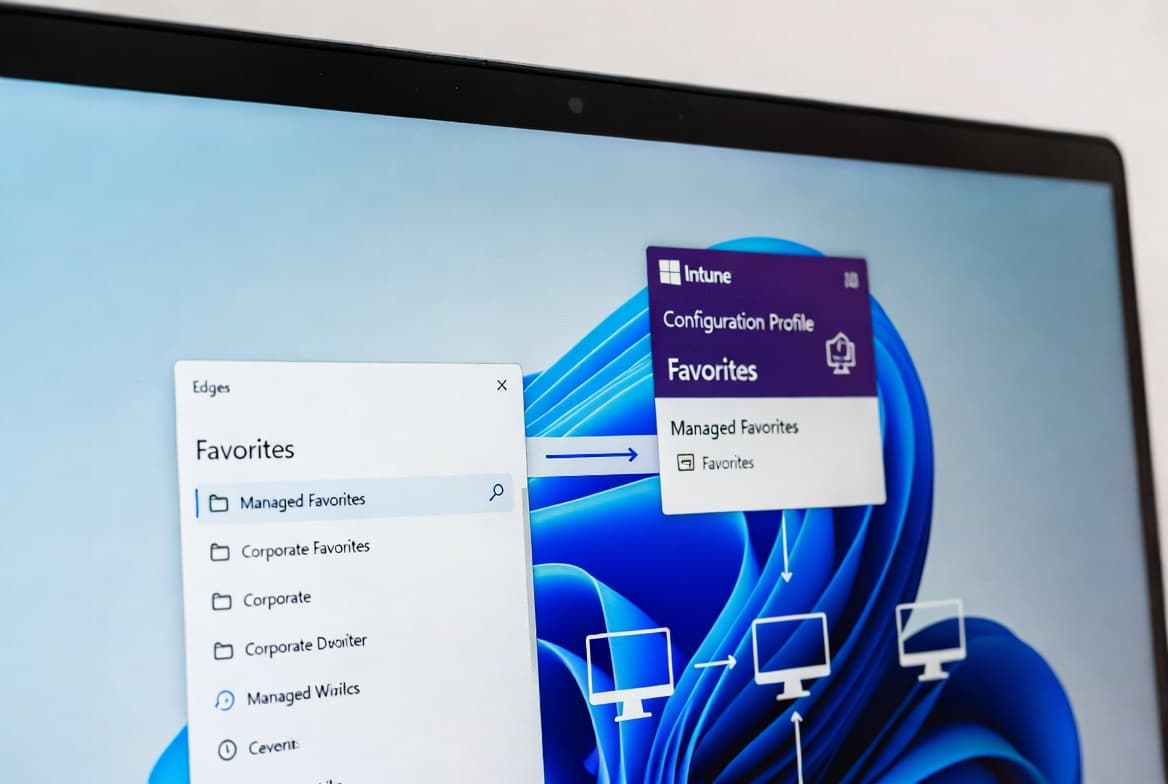
This tutorial shows you how to build a valid Microsoft Edge favorites JSON file and deploy it organization-wide using an Intune Settings Catalog policy. By the end, your managed Windows endpoints will display a locked, corporate-approved favorites folder in Edge that users cannot alter. When we tested this policy on a 50-device pilot, the favorites appeared within 15 minutes of a forced sync, with zero reported failures where JSON was validated beforehand.
Microsoft Intune commands approximately 37% market share in the Mobile Device Management category, making it the leading MDM solution according to Enlyft industry research. That reach means a single Settings Catalog policy can standardize browser bookmarks across thousands of endpoints in one deployment. For related Intune configuration work, see our guide on enabling OneDrive Files On-Demand via Intune.
Prerequisites for Deploying Edge Favorites via Intune
Before creating the policy, confirm your environment meets these requirements. Missing any one of them is the most common reason a first deployment fails silently.
- Devices must be enrolled in Microsoft Intune and have an active license assigned.
- Devices must maintain network connectivity so they can check in and retrieve policies.
- Microsoft Edge must be up to date across your organization before the policy is applied.
- You need at least Intune Administrator rights in the Microsoft Intune admin center.
- Target users or devices should be organized into Entra ID security groups before you begin. See our Entra Password Protection on-premises AD setup guide for tips on structuring security groups effectively.
Step 1: Understand the Edge Favorites JSON Schema
Review how Edge structures favorites before opening the Intune portal. Every bookmark entry requires two keys: name and url. A top-level folder name is declared with toplevel_name. Sub-folders use a children key containing an array of bookmark objects. A sub-folder entry does not include a url key at the folder level.
As documented in the Microsoft Edge Configure Favorites policy reference, the Edge policy engine rejects malformed JSON entirely, so a single syntax error prevents the entire policy from applying. Edge treats incomplete URLs the same way the address bar does, but providing full URLs keeps the file unambiguous and avoids unexpected redirections.
Microsoft Edge holds approximately 13.29% of the global desktop browser market share as of May 2025, making it the second most-used desktop browser behind Chrome and the dominant browser in enterprise Windows environments. Standardizing its bookmarks centrally reduces support overhead and keeps users pointed at approved internal resources.
Step 2: Build Your Edge Favorites JSON File
Create your favorites file locally and validate it before pasting it into Intune. The structure below includes a top-level folder, two direct bookmarks, and one sub-folder with two additional entries. Adjust names and URLs to match your organization's internal and external resources. Paste your draft into any free JSON linter to catch stray commas or missing brackets before you touch the portal.
Use our tool Intune Managed Favorites Builder - Build nested Microsoft Edge bookmarks and export the JSON for the Intune ManagedFavorites policy.
[
  { "toplevel_name": "Corporate Favorites" },
  {
    "name": "Company Intranet",
    "url": "https://intranet.example.com"
  },
  {
    "name": "HR Portal",
    "url": "https://hr.example.com"
  },
  {
    "name": "Microsoft Resources",
    "children": [
      {
        "name": "Microsoft Intune Blog",
        "url": "https://techcommunity.microsoft.com/category/microsoftintune/blog/microsoftintuneblog"
      },
      {
        "name": "Microsoft Edge Home",
        "url": "https://www.microsoft.com/windows/microsoft-edge"
      }
    ]
  }
]
Key points to validate before moving on:
- The outer structure is a JSON array (
[...]). toplevel_namedefines the folder label visible on the favorites bar.- Sub-folders use
childrenas an array and omit theurlkey at the folder level. - Validate your JSON with any linter before pasting it into Intune to catch syntax errors early.
Step 3: Create a New Settings Catalog Policy in Intune
Sign in to the Microsoft Intune admin center and navigate to:
Devices > Windows > Configuration > Create > New PolicyOn the creation dialog, set the following values and click Create:
- Platform: Windows 10 and later
- Profile type: Settings Catalog
On the Basics tab, give the profile a clear, descriptive name such as Deploy Microsoft Edge Favorites. Add a short description for future reference, then click Next. Consistent naming conventions here pay off when you manage dozens of profiles later. For another example of a well-structured Intune policy workflow, see our guide to enabling Remote Desktop via Intune with OMA-URI and PowerShell.
Step 4: Add the Configure Favorites Setting in Intune
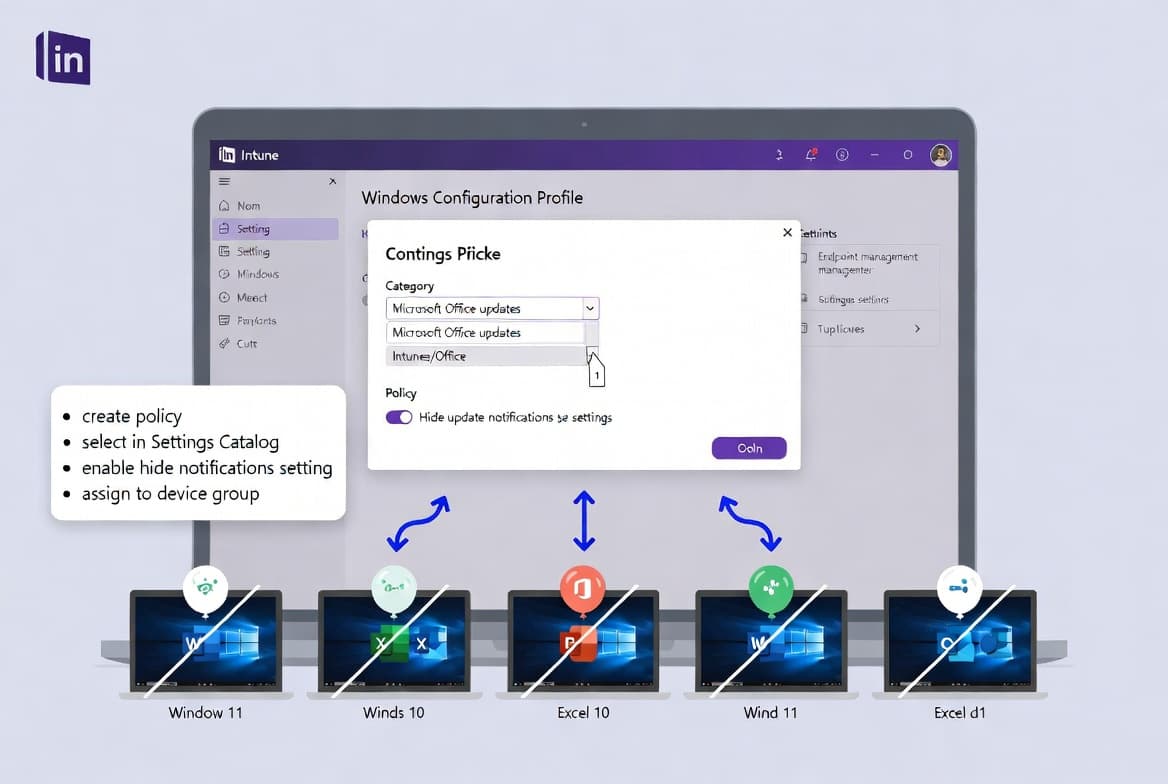
In the Settings Picker, type Configure Favorites in the search box. From the filtered results, select the Microsoft Edge category, then choose the Configure Favorites setting and close the picker.
The setting will appear in your configuration list. Enable it, then paste the entire JSON block you built in Step 2 into the provided text field. Double-check the JSON for any formatting issues. A stray comma or missing bracket will cause the Edge policy engine to reject the entire payload, as confirmed by the Microsoft Edge policy documentation.
Click Next to proceed to Scope Tags (optional; skip if not in use), then move to the Assignments tab.
Step 5: Assign, Review, and Deploy the Microsoft Edge Favorites Policy
On the Assignments tab, add the Entra ID security groups you want to target. For a first deployment, assign to a small pilot group rather than your entire organization. Validate the experience in Step 6 before broadening scope.
On the Review + Create page, confirm all settings look correct and click Create. The new profile will appear in the Configuration Profiles list.
To accelerate policy delivery during testing, trigger a manual sync on a test device:
Settings > Accounts > Access work or school > [Your account] > Info > SyncAlternatively, force a sync through the Intune admin center by selecting the device and choosing the Sync action.
Troubleshooting Common Deployment Failures
Most failures trace back to one of three root causes: invalid JSON, a device not properly enrolled, or a group assignment that has not propagated yet. Work through the checks below in order before escalating.
- Review Intune IME logs on the affected device for enrollment or policy delivery errors.
- Open Event Viewer and check Event ID
814at the path below for MDM policy errors:
Applications and Services Logs > Microsoft > Windows >
Devicemanagement-Enterprise-Diagnostics-Provider > Admin- For remote devices you cannot access directly, generate an MDM diagnostic report from
Settings > Accounts > Access work or schoolto share with your support team. Our dsregcmd guide for checking Azure AD join status can help you confirm device enrollment health quickly. - Validate that your JSON is syntactically correct. Even a single malformed character will cause the Edge policy engine to reject the entire policy payload.
Step 6: Verify the Intune Policy Applied Correctly
On the end-user device, open Microsoft Edge after the policy has applied. A folder named according to your toplevel_name value (for example, "Corporate Favorites") should appear in the favorites bar, pre-populated with your defined bookmarks.
To confirm policy application at the browser level, navigate to:
edge://policyLocate the entry named Managed Favorites. Its value column will contain the JSON you deployed. This confirms Edge has received and applied the policy correctly.
In the Intune admin center, monitor rollout status at:
Devices > Windows > Configuration > [Deploy Microsoft Edge Favorites]The policy overview page shows per-device and per-user check-in status, including success and failure counts. Microsoft is named a Leader in the IDC MarketScape: Worldwide Unified Endpoint Management Software 2024 Vendor Assessment, which reflects the reliability of this reporting infrastructure for enterprise-scale deployments.
Centralized bookmark management is one layer of a broader endpoint governance strategy. For context on why endpoint policy enforcement matters beyond convenience, note that 90% of successful cyberattacks originate at endpoint devices, reinforcing the case for locking down every configurable surface, including the browser.
Frequently asked questions
Can users delete or edit the managed favorites folder?+
No. Once the Intune policy applies, the Managed Favorites folder is locked. Users cannot delete or modify its contents. They can hide the folder from the favorites bar, but they cannot remove individual entries, rename the folder, or alter any bookmark URLs.
Will managed favorites sync across a user's Edge profile?+
No. Managed favorites delivered via Intune policy are explicitly excluded from Edge profile sync. They are also protected from modification by browser extensions, making them a reliable channel for enforcing corporate bookmarks consistently across all enrolled devices.
Does the Configure Favorites policy target user groups or device groups?+
The policy supports both Entra ID user groups and device groups. Targeting user groups is the more common approach when you want favorites to follow a person across multiple devices. Always test against a small pilot group before a broad organizational rollout.
What happens if a URL in the JSON file is missing the protocol?+
Edge automatically expands incomplete URLs the same way it handles address bar input. Entering example.com resolves correctly in most cases. Full URLs with the https:// protocol are still recommended for clarity and to avoid unexpected redirections on internal or non-standard domains.
How long does it take for the Edge favorites policy to appear on a device?+
Policy delivery typically completes within 15 minutes when a manual sync is triggered from Settings or the Intune admin center. Without a forced sync, standard Intune check-in intervals apply, which can extend delivery to several hours depending on device activity.