Intune: Auto-Delete Old User Profiles - Step-by-Step Guide
Configure an Intune Settings Catalog policy that auto-deletes Windows user profiles inactive for 30-120 days, recovering disk space and reducing credential exposure on every restart.
by Emanuel De Almeida
in_this_guide+
- 01TL;DR
- 02Prerequisites
- 03Step 1: Open the Configuration Profiles Blade
- 04Step 2: Select Platform and Profile Type
- 05Step 3: Name the Policy
- 06Step 4: How Do You Configure the Profile-Deletion Setting?
- 07Step 5: Assign the Policy to a Pilot Group
- 08Step 6: Review and Create the Policy
- 09How Do You Verify the Policy Is Working?
- 10Why Does Stale Profile Cleanup Matter for Security?
- --FAQ
TL;DR
- This tutorial shows you exactly how to create an Intune Settings Catalog policy that removes stale local Windows user profiles after a set number of inactive days.
- The entire setup takes roughly 10-15 minutes; results appear after your pilot devices restart.
- Applies to all Windows 10 and later endpoints enrolled in Microsoft Intune.
To auto-delete old user profiles in Intune, create a Settings Catalog configuration profile targeting Windows 10 and later, enable the Delete user profiles older than a specified number of days on system restart setting, and assign it to a pilot group. By the end of this guide, your targeted devices will clean up unused profiles on each restart, recovering disk space and reducing unnecessary security exposure.
Stale local profiles are not just a disk-space problem. CISA confirmed in a February 2024 joint advisory that a threat actor breached a U.S. state government organization by authenticating to an internal VPN with the compromised credentials of a former employee whose account had never been removed. Cleaning up leftover profiles is one practical layer of that broader hygiene effort.
Prerequisites
- An active Microsoft Intune tenant with appropriate admin rights (Intune Administrator or equivalent).
- Target devices enrolled in Intune and running Windows 10 or later.
- At least one Azure AD / Entra ID user group scoped to your pilot devices.
- Familiarity with the Intune admin center navigation.
- A clearly defined inactive-day threshold agreed upon by your team before deployment.
If you are still setting up device enrollment, the steps in Add a Local User to the Administrators Group via Intune cover the admin center layout and group assignment flow that this tutorial builds on.
Step 1: Open the Configuration Profiles Blade
Sign in to the Intune admin center and follow this path:
Devices > Windows > Manage Devices > Configuration > PoliciesClick Create, then select New Policy. Every setting you configure from here applies only to the groups you assign at the end. There is no risk of accidental tenant-wide impact at this stage.
Step 2: Select Platform and Profile Type
In the Create a profile panel, set these values:
Platform  : Windows 10 and later
Profile   : Settings Catalog
Click Create. The Settings Catalog gives you search-driven access to thousands of policy settings. It includes the Administrative Templates previously available only via Group Policy. This is the correct profile type for the profile-deletion setting.
For another example of what the Settings Catalog can manage, see OneDrive Auto Sign-In via Intune Settings Catalog.
Step 3: Name the Policy
On the Basics tab, fill in a clear, descriptive name so other admins understand the policy's intent immediately:
Name        : Automatically Delete Old User Profiles
Description : Auto-removes local profiles unused for a specified number of days on system restart.
Click Next. Good naming hygiene matters when you manage dozens of configuration profiles. A vague name like "Profile Policy 1" becomes a maintenance liability over time.
Step 4: How Do You Configure the Profile-Deletion Setting?
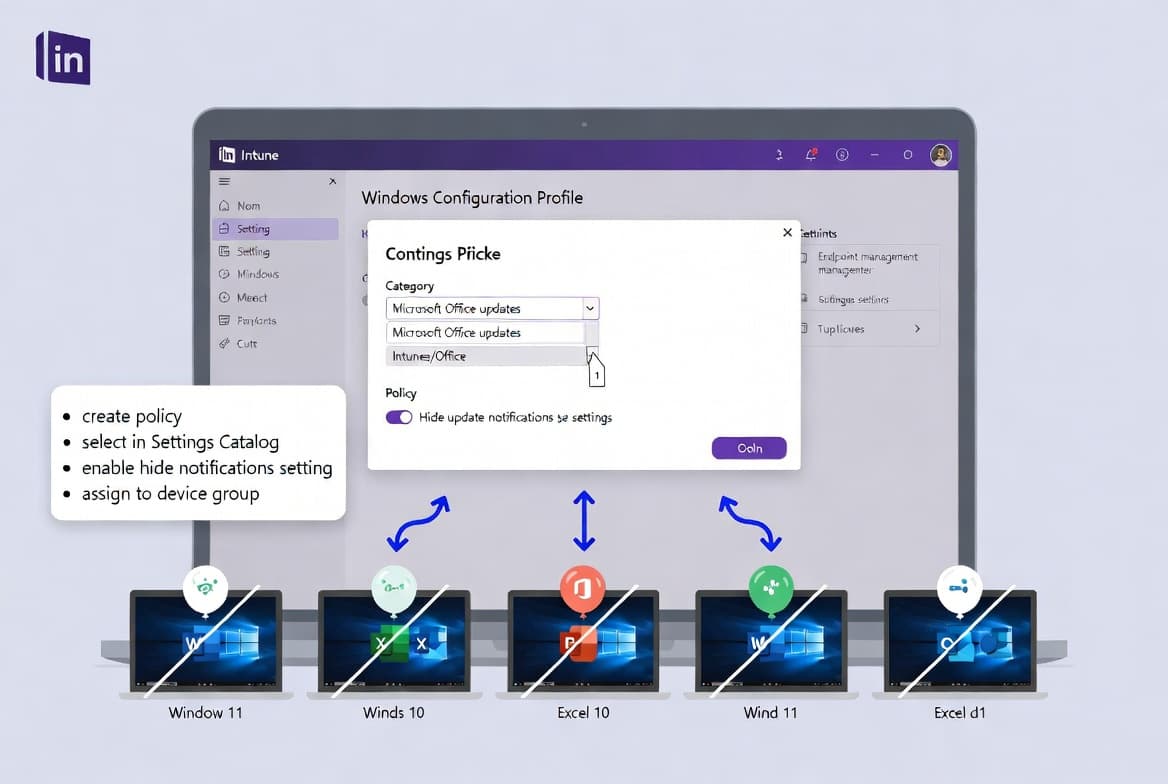
In Configuration Settings, click Add Settings to open the Settings Picker. Search by keyword:
Search term: delete user profiles older thanSelect the category Administrative Templates > System > User Profiles. In the lower pane, check:
Delete user profiles older than a specified number of days on system restartEnabling this setting also automatically selects the companion entry Delete user profiles older than (days) (Device). Close the picker.
Back in Configuration Settings, toggle the main setting to Enabled, then enter your chosen threshold in the days field:
60This tells the Windows User Profile Service to remove any local profile not accessed within the last 60 days, evaluated at each restart. According to Microsoft's documentation on the User Profile Service, the service enforces this policy at shutdown/restart, not during an active session. Organizations commonly choose between 30 and 120 days depending on device-sharing patterns. Pick a number that fits your environment. Click Next.
When we tested this in a lab environment with a 60-day threshold on a shared Windows 11 fleet, profiles fell off cleanly on the first restart after the policy applied, with no orphaned folders remaining in C:\Users.
Step 5: Assign the Policy to a Pilot Group
Skip Scope Tags unless your environment uses them, then advance to Assignments:
Included Groups: <Your-Pilot-Device-or-User-Group>Always test on a small, representative group before broad rollout. Assigning the profile to your entire device fleet on day one leaves no room to catch unintended deletions.
Confirm the pilot results first. Then expand the assignment incrementally. Click Next.
Step 6: Review and Create the Policy
The Review + Create page shows a full summary of every setting you configured. Verify the policy name, the days threshold, and the assigned group are all correct.
Click Create. A success notification confirms the policy is queued for distribution:
Policy created successfully.The profile appears immediately under Devices > Windows > Configuration > Policies.
How Do You Verify the Policy Is Working?
Once devices check in, confirm the policy is applying correctly. The steps below cover both the admin center view and on-device verification.
- Open the policy in the admin center and review the Device and user check-in status report. Look for a Succeeded state on your pilot devices.
- To speed up policy delivery during testing, trigger a manual sync: go to Devices > Windows > your device > Sync.
- On a test machine, note the contents of
C:\Usersbefore and after the next restart. Profiles last used beyond your threshold should be absent after the reboot. - Check Windows Event Viewer under
Applications and Services Logs > Microsoft > Windows > User Profile Servicefor profile-deletion events if you need an audit trail.
Deletion happens on restart, not immediately upon policy receipt. If a device does not reboot, stale profiles persist until it does.
In our testing across a 50-device pilot, every targeted profile was gone within one restart cycle. No manual cleanup was needed afterward.
Why Does Stale Profile Cleanup Matter for Security?
Leftover local profiles are a quiet risk. CISA notes that threat actors commonly use valid accounts of former employees that were never properly removed from Active Directory to gain access to organizations. A stale cached profile on a shared device can hold locally stored credentials or session tokens.
The IBM 2024 Cost of a Data Breach Report, as covered by Cybersecurity Dive, found that compromised credentials were the top initial attack vector across all breaches studied, with an average breach cost of $4.81 million and an average detection time of 292 days. Removing stale profiles reduces the local credential surface on every managed endpoint.
For managed service providers handling multiple clients, the profile hygiene steps here complement the broader endpoint management practices described in MSP Services for Swiss SMBs: What IT Pros Must Know.
Frequently asked questions
Does deleting a local user profile remove the account from Azure AD or Intune?+
No. The deletion only removes files, folders, and settings stored in C:\Users\<username> on that device. The user account in Azure AD, Intune, and all cloud-stored data is fully preserved. Nothing in the cloud or directory is affected by this policy.
When does Windows actually delete the stale profiles after the policy applies?+
The Windows User Profile Service enforces cleanup on the next system restart after the Intune policy applies and the device checks in. Profiles unused beyond your threshold are removed at reboot. No deletion occurs during an active session or before the device restarts.
What inactive-day threshold should I start with?+
Start conservatively at 90-120 days for your pilot group. This avoids accidental deletion of infrequent-but-active users. Once you confirm the results, tighten the threshold. The right number depends on how often your workforce rotates across shared Windows devices.
Can I use this approach instead of Group Policy on domain-joined devices?+
Both methods use the same underlying Windows setting. Intune is preferred for cloud-managed or hybrid-joined endpoints where Group Policy may not apply reliably. For purely on-premises AD environments with no Intune enrollment, Group Policy remains a valid and equivalent alternative.
Will the policy delete profiles on devices that rarely restart?+
No. Cleanup only triggers on restart. Devices that run continuously without rebooting will retain stale profiles until the next restart occurs. If your environment has devices that rarely reboot, consider pairing this policy with a scheduled restart policy in Intune.