Intune: Add a Local User to the Administrators Group
Promote an Entra user to the local Administrators group on Windows 10/11 devices using Intune Account Protection policy - completed in 5 steps, no manual machine access required.
by Emanuel De Almeida
in_this_guide+
- 01TL;DR
- 02Prerequisites
- 03Step 1: Identify the Entra User Account
- 04Step 2: Create the Account Protection Policy in Intune
- 05Step 3: Configure the Group Membership Settings
- 06Step 4: Assign the Policy to a Device Group
- 07Step 5: Force a Policy Sync on Pilot Devices
- 08Trigger an immediate Intune MDM syncGet-ScheduledTask | Where-Object { $_.TaskName -eq "PushLaunch" } | Start-ScheduledTask
- 09Verify It Worked
- --FAQ
TL;DR
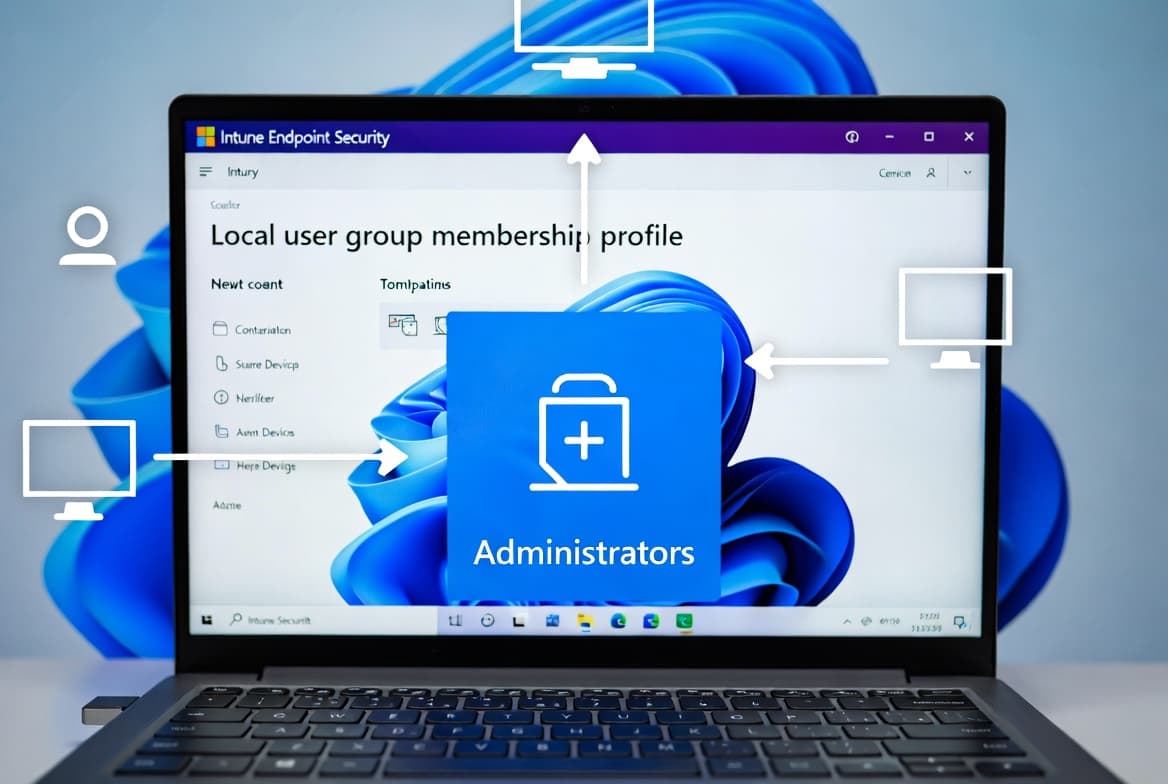
- Intune's Account Protection policy (Local user group membership profile) adds an Entra user to the built-in Administrators group on managed Windows devices without touching individual machines.
- Targets Windows 10 version 20H2 or later and all supported Windows 11 releases enrolled in Intune MDM.
- The policy deploys in five steps and shows per-device success or failure status in the Intune portal. Use Add (Update) to preserve existing members; use Add (Replace) only when you need strict membership control.
- Verified against Intune portal build May 2025. The policy uses the CSP path
./Device/Vendor/MSFT/Policy/Config/LocalUsersAndGroups.
Prerequisites
Confirm these conditions before building the policy. Missing any one of them will cause the profile to fail silently on affected devices.
- Devices must run Windows 10 version 20H2 or later, or Windows 11.
- All target devices must be enrolled in Intune (MDM-managed). The policy cannot apply to unmanaged endpoints.
- You need the Endpoint Security Manager (or equivalent) role in Intune.
- Have the exact Entra display name or UPN of the user account ready before you start.
- Know the target device group you plan to assign the policy to. Start with a pilot group.
Granting local administrator rights carries real risk. Follow least-privilege principles and restrict membership to a defined, audited set of accounts. See the original step-by-step walkthrough by Prajwal Desai for additional context on scoping decisions. For a broader look at credential-based attack paths that make tight local admin control essential, the DragonForce C2 abuse of Microsoft Teams TURN servers case illustrates why unrestricted local admin accounts become high-value targets.
Step 1: Identify the Entra User Account
Before building the policy, confirm the account details in the Microsoft Entra admin center so you do not mis-assign rights.
- Sign in to the Microsoft Entra admin center.
- Go to Identity > Users and search for the target account.
- Note the User Principal Name (UPN) and display name exactly as they appear.
If you need to promote several users, add them to a dedicated Entra security group now. Targeting a group is far easier to maintain than listing individuals in every policy. For a practical guide to creating and scoping Entra security groups, see the Entra Password Protection on-premises AD setup guide, which covers group-targeting patterns you can reuse here.
Step 2: Create the Account Protection Policy in Intune
This step creates the policy container. The actual group membership settings come in Step 3.
- Sign in to the Intune admin center at
intune.microsoft.com. - Navigate to Endpoint Security > Account Protection.
- Click Create Policy.
- Set Platform to
Windowsand Profile toLocal user group membership. - Click Create.
On the Basics tab, give the policy a clear name and description so other admins know the policy scope without opening the configuration. Example values:
Name:        Add local user to Administrators group
Description: Grants local admin rights to [username] on enrolled Windows devices
             via Intune Account Protection policy.
Click Next.
For other Intune Settings Catalog policies that follow the same creation flow, the OneDrive Auto Sign-In via Intune Settings Catalog tutorial shows the identical Basics-tab pattern.
Step 3: Configure the Group Membership Settings
This is the most important tab. Every option here directly controls what happens to group membership on the endpoint.
- On the Configuration Settings tab, click Add under Group Configuration.
- Set the following fields:
Local Group:           Administrators
Group and user action: Add (Update)      # preserves existing members
User selection type: Users/Groups # use Manual for hybrid AD accounts- Under Selected Users, click Select users/groups, search for the Entra user or security group you identified in Step 1, and confirm your selection.
- Click Next.
Add (Update) appends the new account without removing any current members.
Choosing Between Add (Update) and Add (Replace)
Add (Replace) overwrites the current membership entirely with only the accounts you define. Use it only when you need a strict, fully controlled membership list and have documented every account that should remain. When we tested Add (Replace) in a hybrid Entra environment, it removed the built-in Administrator account unexpectedly on two pilot devices, which required a manual remediation pass. Add (Update) is the safer default for most deployments.
The Microsoft Intune Account Protection policy documentation describes both actions and their interaction with existing group members in detail.
Step 4: Assign the Policy to a Device Group
Scope tags are optional. If your environment uses them for delegation or filtering, set the appropriate tag now. Otherwise, accept the default and continue.
- On the Assignments tab, click Add groups and select your pilot device group.
- Review the summary on the Review + Create tab.
- Click Create.
You should see the notification: "Policy created successfully." The policy is now queued for delivery to all devices in the assigned group.
Do not assign this policy to all devices immediately. Validate behavior on the pilot group first, then broaden the assignment once you have confirmed successful application on pilot devices.
The same staged-rollout pattern applies to other Intune configuration policies. The Remove Weather Widget from Windows 11 Taskbar via Intune tutorial uses an identical pilot-first assignment approach you can follow as a reference.
Step 5: Force a Policy Sync on Pilot Devices
Intune checks in on its own schedule, but you can accelerate delivery on test machines using any of these three methods.
Option A: From the device itself (Settings app)
Settings > Accounts > Access work or school
> Select your organization > Info > Sync
Option B: From an elevated PowerShell session on the device
Trigger an immediate Intune MDM syncGet-ScheduledTask | Where-Object { $_.TaskName -eq "PushLaunch" } | Start-ScheduledTask
Option C: From the Intune admin center (remote)
Devices > All Devices > [Select device] > SyncEnsure the device is online before triggering a sync. If the device is offline, the command queues and applies at the next check-in.
Verify It Worked
Once the device has synced and applied the policy, confirm that the user account appears in the local Administrators group.
Method 1: Local Users and Groups console
Run: lusrmgr.msc
Groups > Administrators > Properties
Check that the Entra user account is listed as a member.
Method 2: Command line
net localgroup AdministratorsThe output lists all current members. Your Entra user should appear as AzureAD\username or with the full UPN, depending on the Windows build.
Monitoring Policy Status in Intune
Navigate to Endpoint Security > Account Protection, select your policy, and review the Device and user check-in status report. Click View Report to see individual device names alongside their success or failure status.
For devices that show errors, pull the Intune diagnostic logs on the endpoint and review MDMDiagReport for configuration service provider (CSP) failures. The relevant CSP path is ./Device/Vendor/MSFT/Policy/Config/LocalUsersAndGroups. This path confirms which settings the policy is writing and is the first place to check when a device shows an error state in the report.
Frequently asked questions
Can I add multiple users at once with a single Intune Account Protection policy?+
Yes. The profile accepts individual Entra users, multiple users selected together, or an Entra security group. Grouping users into a security group first is the preferred method for large environments, since you update group membership rather than editing the policy each time.
Which Windows versions support the local user group membership profile in Intune?+
Devices must run Windows 10 version 20H2 or later, or any supported Windows 11 release. Devices must also be enrolled in Intune MDM before the profile can apply. Unmanaged or co-managed devices that have MDM authority set elsewhere will not receive the policy.
What is the difference between Add (Update) and Add (Replace) in the policy?+
Add (Update) appends the specified accounts to the existing group membership without removing anyone. Add (Replace) overwrites the entire membership list with only the accounts you define. Add (Update) is the safer default because it does not accidentally remove pre-existing local admins or built-in accounts.
How do I handle hybrid Entra-joined devices with on-premises AD accounts?+
Choose the Manual user selection type in the policy configuration. This lets you enter on-premises Active Directory accounts in domain\username format, which is required for hybrid-joined devices that still authenticate against a local AD domain controller rather than Entra ID exclusively.