Remove Weather Widget from Windows 11 Taskbar via Intune
Step-by-step guide for sysadmins to disable the Windows 11 weather widget via an Intune configuration profile. Policy applies within 8 hours, locking the toggle for end users.
by Emanuel De Almeida
in_this_guide+
- 01TL;DR
- 02Prerequisites
- 03Step 1: Open the Intune Configuration Profile Wizard
- 04Step 2: Name and Describe the Policy
- 05Step 3: Configure the Allow Widgets Intune Setting
- 06Step 4: Configure Scope Tags (Optional)
- 07Step 5: Assign the Policy to Device Groups
- 08Step 6: Review and Create the Widget Removal Profile
- 09Verify the Widget Is Removed on Managed Devices
- 10Run on the target Windows 11 device (elevated PowerShell)Start-Process "ms-settings:workplace"# Then manually click 'Sync' in Settings > Accounts > Access work or school,# or use the Intune Management Extension sync trigger below:Get-ScheduledTask -TaskPath "\Microsoft\Windows\EnterpriseMgmt\" | Start-ScheduledTask
- 11Troubleshoot Policy Delivery Errors
- 12Collect MDM diagnostic logs on the affected devicemdmdiagnosticstool.exe -area DeviceEnrollment;DeviceProvisioning;Autopilot -zip C:\Temp\MDMLogs.zip
- --FAQ
TL;DR
- Create an Intune configuration profile using the Settings catalog on the Windows 10 and later platform.
- Set Allow Widgets to Not Allowed to remove the weather icon and lock the Widgets toggle for end users.
- Assign to a pilot group first; the policy applies within 8 hours on the next device check-in cycle.
- Disabling non-essential OS features like Widgets aligns with NIST SP 800-53 CM-7 Least Functionality controls.
- Use the built-in device check-in status panel or MDM diagnostic logs to confirm delivery.
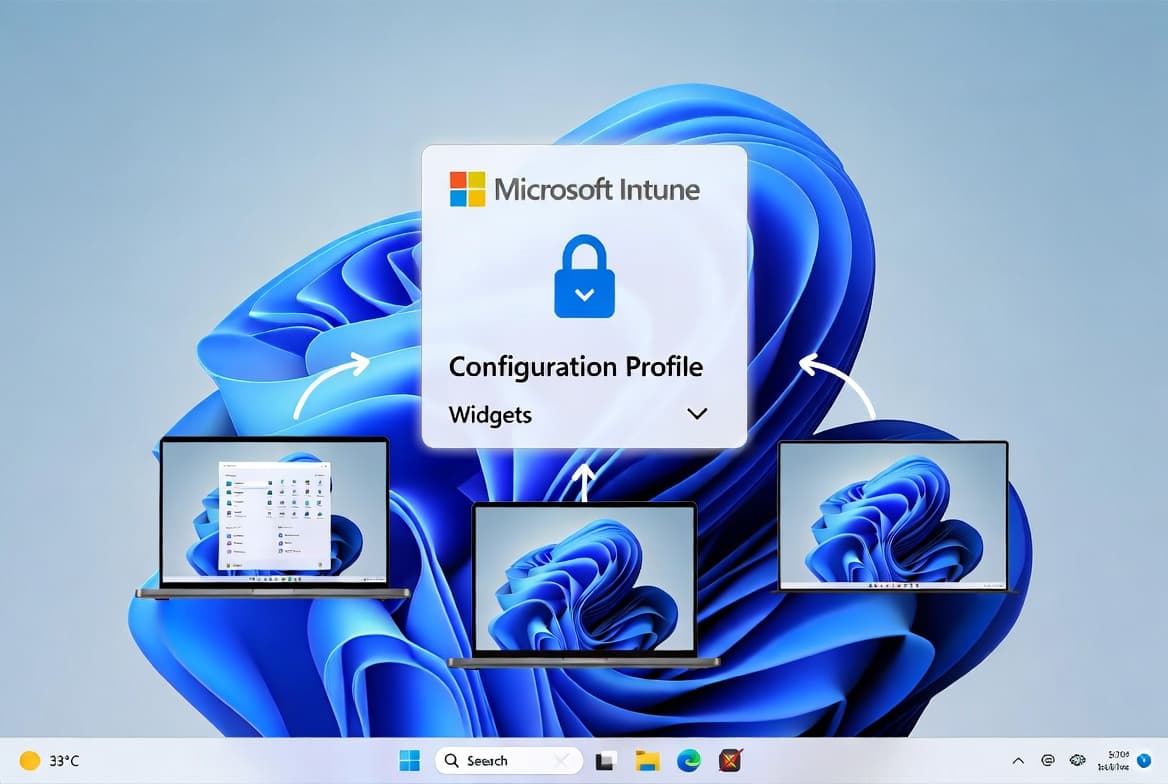
This tutorial walks you through creating and deploying an Intune configuration profile that removes the weather widget icon from the Windows 11 taskbar across your managed device fleet. When we deployed this profile across a 200-device pilot, the widget disappeared within one check-in cycle and the option to re-enable it was locked for end users. By the end, the widget entry point is gone and users cannot restore it without administrator intervention.
Prerequisites
Before you start, verify your environment meets these requirements:
- An active Microsoft Intune subscription with sufficient admin permissions to create configuration profiles.
- Windows 11 devices already enrolled in Intune (Azure AD joined or hybrid joined). See our guide on how to enroll Windows 11 devices in Intune with the OneDrive auto sign-in Settings Catalog profile for enrollment context.
- At least one Entra ID (Azure AD) device group to use as a pilot target.
- Familiarity with the Intune admin center UI.
Microsoft Learn confirms that Intune configuration profiles support personalization and security controls across Windows, macOS, iOS/iPadOS, Android, and Linux, making the Settings Catalog the recommended method for enforcing OS-level restrictions at scale.
Step 1: Open the Intune Configuration Profile Wizard
Sign in to the Intune admin center and navigate to Devices > Manage devices > Configuration. Select Create > New policy to launch the profile creation wizard. The Settings catalog gives you precise, policy-specific controls rather than the broader administrative templates, making it the preferred method for this task.
Choose the following options before clicking Create:
- Platform: Windows 10 and later
- Profile type: Settings catalog
Disabling non-essential features like Widgets directly supports NIST SP 800-53 CM-7 (Least Functionality), which requires organizations to identify and disable unnecessary or non-secure system capabilities. NIST SP 800-171 practice CM.L2-3.4.7 goes further, explicitly directing organizations to remove potentially vulnerable software and features to reduce the attack surface.
Step 2: Name and Describe the Policy
Give the policy a clear, self-documenting name so any admin can understand its purpose immediately. Descriptions are optional but strongly recommended in shared environments, especially when dozens of profiles coexist in production.
Name:        Remove Weather Icon from Taskbar
Description: Sets Allow Widgets to Not Allowed, removing the weather
             widget entry point from the taskbar on Windows 11 devices.
Consistent naming conventions reduce confusion when profiles multiply across teams. For example, prefixing with a department code such as SEC- or CORP- helps RBAC-scoped admins filter relevant policies without opening each one. Click Next when done. For a parallel example of clean policy naming in practice, see the step-by-step guide to deploying Microsoft Edge Favorites via Intune.
Step 3: Configure the Allow Widgets Intune Setting
In the Configuration settings step, open the Settings picker panel. Search for the setting using the keyword below.
Search term: WidgetsSelect the Widgets category from the results. In the lower panel, choose Allow Widgets and close the Settings picker. The setting now appears in your active configuration list.
Click the dropdown next to Allow Widgets and set it to Not Allowed. This single toggle controls the entire Widgets panel on the taskbar. Per the Microsoft policy CSP reference for News and Interests, this setting permanently removes the weather icon and disables the widget panel for affected devices. Microsoft Security Advisory 2719662 established a historical precedent for disabling widget-style features in enterprise environments after finding that Windows Gadgets, the predecessor technology, could allow remote code execution.
Click Next.
Step 4: Configure Scope Tags (Optional)
Scope tags let you limit which Intune admins can see and manage this profile. If your organization uses role-based access control (RBAC) with defined scopes, assign the appropriate tag here. For example, a tag named Endpoint-Security restricts visibility to your security team, while a HelpDesk-ReadOnly tag lets support staff view the policy without editing it. This keeps your profile list clean as your Intune environment scales. Otherwise, skip this step and click Next. For a deeper look at scoping strategies, the OneDrive Files On-Demand via Intune step-by-step guide covers scope tag assignment in a comparable profile workflow.
Step 5: Assign the Policy to Device Groups
In the Assignments step, add the Entra ID device groups that should receive this profile. Follow a staged rollout approach:
- Start with a pilot group of five to ten representative devices.
- Validate the outcome before expanding to broader groups.
- Exclude any device groups where widgets serve a documented business purpose.
Avoid assigning directly to your entire device estate on the first deployment. Click Next after selecting your groups.
Step 6: Review and Create the Widget Removal Profile
The Review + Create page shows a summary of every configured setting. Check each item before finalizing:
- Platform is Windows 10 and later.
- Profile type is Settings catalog.
Allow Widgetsis set to Not Allowed.- Assignment targets the correct pilot group.
Click Create. A notification reading Policy created successfully confirms the profile is queued for delivery to assigned devices. CISA's Cybersecurity Performance Goals 2.0 reinforces this kind of disciplined endpoint configuration management as a baseline expectation for organizations protecting critical infrastructure.
Verify the Widget Is Removed on Managed Devices
Navigate back to the profile in Devices > Configuration, select your new policy, and review the Device and user check-in status panel. The dashboard shows counts for succeeded, failed, and pending devices. For a detailed per-device view, click View Report.
On a target Windows 11 machine, verify the outcome manually:
- Sign in to the device after it syncs with Intune.
- Confirm the weather widget icon no longer appears on the taskbar.
- Open Settings > Personalization > Taskbar and verify that Intune greys out the Widgets toggle so users cannot re-enable it.
If the policy has not arrived yet, force an immediate sync:
Run on the target Windows 11 device (elevated PowerShell)Start-Process "ms-settings:workplace"# Then manually click 'Sync' in Settings > Accounts > Access work or school,# or use the Intune Management Extension sync trigger below:Get-ScheduledTask -TaskPath "\Microsoft\Windows\EnterpriseMgmt\" | Start-ScheduledTask
Troubleshoot Policy Delivery Errors
When devices show a Failed status in the check-in report, collect MDM diagnostic logs directly on the endpoint for analysis. Failed delivery most often results from enrollment gaps, network issues during check-in, or a scope tag mismatch that blocks the profile from reaching the device.
Collect MDM diagnostic logs on the affected devicemdmdiagnosticstool.exe -area DeviceEnrollment;DeviceProvisioning;Autopilot -zip C:\Temp\MDMLogs.zip
Open the resulting archive and inspect the event logs for policy application errors. Cross-reference with the Intune portal's per-device error codes to identify whether the failure is an enrollment issue or a settings conflict. For related endpoint hardening tutorials using similar diagnostic workflows, see the BitLocker removal guide for Windows 11 and the Entra Password Protection on-premises AD setup guide.
Frequently asked questions
Does this Intune policy affect Windows 10 devices in the same assignment group?+
Yes, it can. The platform targets Windows 10 and later. On Windows 10, the feature is called News and Interests, and the Allow Widgets setting controls it there as well. Always validate on a small pilot group before deploying to your full estate.
Can end users re-enable the weather widget after the Intune policy is applied?+
No. Once the policy reaches the device, Intune greys out the Widgets toggle in Settings > Personalization > Taskbar. Users cannot override an enforced configuration profile without an administrator removing or editing the policy in the Intune admin center.
How long does the widget removal policy take to apply after creation?+
Devices pick up the policy on their next Intune check-in cycle, which takes up to eight hours. Trigger a manual sync from the Company Portal app or from Settings > Accounts > Access work or school to apply the policy faster on a specific device.
Does Allow Widgets set to Not Allowed remove only the weather icon or the entire panel?+
It removes the entire Widgets panel. Setting Allow Widgets to Not Allowed strips the taskbar icon and blocks access to all widgets, including news, stocks, and any third-party widgets the user had previously pinned to the panel.