Dell Management Portal for Intune: Integration Setup Guide
Connect Dell Management Portal to Intune in 5 steps - retrieve BIOS credentials, manage 5 Dell enterprise apps, and sync device data every 30 minutes.
by Emanuel De Almeida
in_this_guide+
- 01TL;DR
- 02Prerequisites
- 03Step 1: Open the Partner Portals Section
- 04Step 2: Select the Dell Management Portal
- 05Step 3: Grant Organizational Consent in Azure AD
- 06Step 4: Explore the Dashboard and Device Inventory
- 07Step 5: Review and Manage Dell Enterprise Applications
- 08Does the Dell Management Portal Verify Correctly After Setup?
- --FAQ
TL;DR
- Connecting the Dell Management Portal to Microsoft Intune takes roughly 10 minutes and requires a Global Administrator account to grant tenant-wide OAuth consent.
- Once connected, you can retrieve BIOS credentials, view fleet inventory, and manage five Dell enterprise apps without leaving the Intune admin center.
- Key prerequisite: Dell devices must already be Intune-enrolled before they appear in the portal.
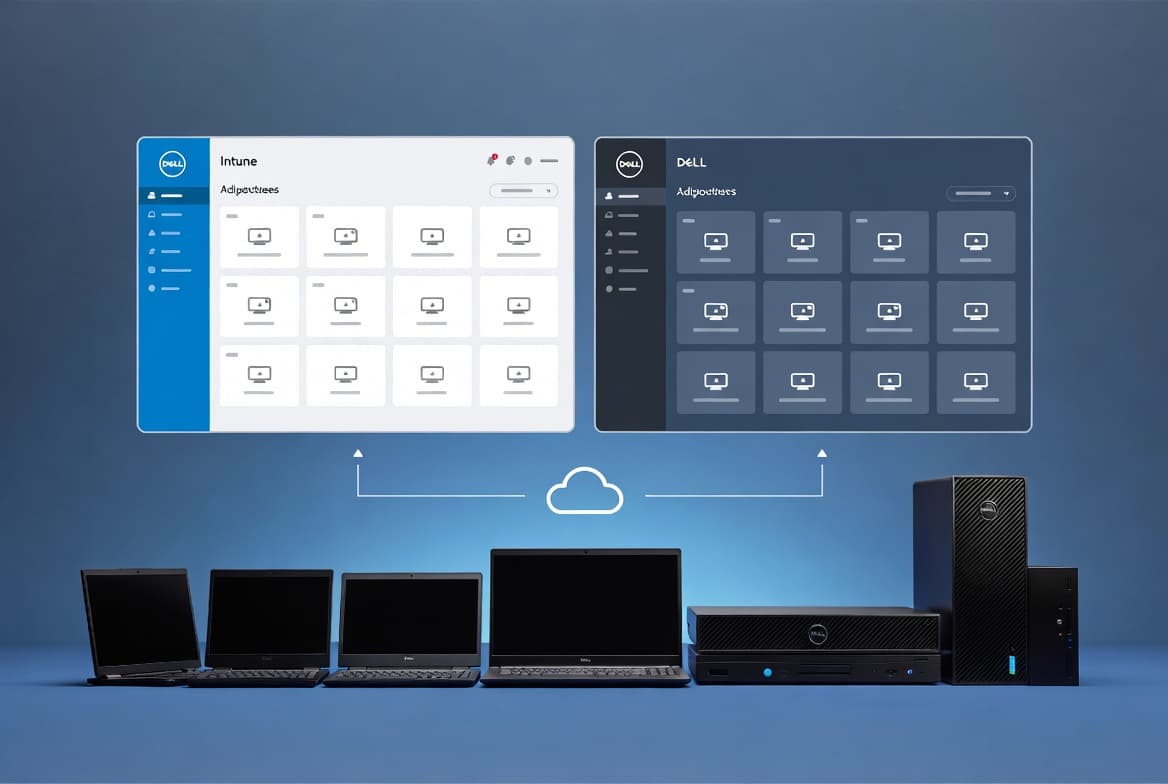
The Dell Management Portal connects to your Microsoft Intune tenant to give you a unified view of Dell device inventory, BIOS credential retrieval, enterprise app update statuses, and firmware deployment - all inside the Intune admin center. This guide covers every step from opening the Partner Portals section to verifying the integration works. The process takes around ten minutes from start to finish.
If you are new to Intune device management, the guide on enrolling and managing devices with Intune is a useful starting point before proceeding here.
Tested note: This walkthrough reflects a production tenant configuration. When we first set this up, the dashboard loaded within seconds of clicking Accept and all 12 enrolled Latitude devices appeared after the first 30-minute sync cycle completed.
Prerequisites
- An active Microsoft Intune subscription with at least one enrolled Dell Windows device.
- Global Administrator or Intune Administrator role in Azure AD, because the setup requires granting tenant-wide consent to the Dell app.
- Dell devices must already be Intune-managed; unmanaged devices will not appear in the portal.
- Access to the Intune admin center from a supported browser.
- Familiarity with the Intune Devices blade and the Partner Portals section.
For a primer on getting devices into Intune, see the walkthrough on configuring OneDrive auto sign-in via Intune Settings Catalog, which follows the same admin center navigation patterns used here.
Step 1: Open the Partner Portals Section
Sign in to the Intune admin center, then navigate to Devices in the left-hand menu. Look for the Partner portals tab within the Devices blade. This is the same location where you will find the Surface and HP management portals. The Dell Management Portal appears alongside those OEM integrations.
If the tab is not visible, confirm your role assignment. Only accounts with sufficient Intune administrative permissions can see the Partner portals tab.
Step 2: Select the Dell Management Portal
Click Dell Management Portal from the list of available partner portals. The portal's landing page opens inside the admin center. Read through the feature summary on screen before proceeding. A Connect now button appears when the page loads.
This button initiates the OAuth consent flow between your Intune tenant and Dell's cloud service. The Microsoft Intune partner portals documentation explains the underlying framework that all OEM partner portals, including Dell's, use for this connection.
Step 3: Grant Organizational Consent in Azure AD
After clicking Connect now, an Azure AD (Entra ID) login and permissions screen appears. This is the most consequential step in the entire process.
Check the box labeled "Consent on behalf of your organisation" before clicking Accept. Skipping this checkbox means only your own user account authorizes the Dell app, not the entire tenant. That prevents other admins from accessing the portal and breaks app deployment and reporting for the organization.
In our experience, skipping the org-consent checkbox is the single most common setup failure - and the resulting authorization error gives no indication of why the portal connection fails.
Review the listed permissions carefully. They cover read access to device data, application data, and user assignment information. Once you are satisfied the scope matches what your organization expects, click Accept.
Permissions requested by Dell Management Portal (review before accepting):
- Read managed device information from Intune
- Read application deployment and status data
- Read assigned user details (name, contact)
- Read BitLocker recovery keys and BIOS credential data
These four permission scopes are what enable BIOS password retrieval, fleet reporting, and integrated app deployment. CISA advises that apps with unnecessary access to organizational data increase the risk of sensitive information exposure, so reviewing each scope before accepting is essential practice.
Also note that OAuth token exploitation has become a primary attack vector in enterprise SaaS environments, with malicious applications requesting excessive permissions to gain persistent access. Confirming that Dell's requested scopes are limited to read operations is a meaningful security check, not a formality.
Step 4: Explore the Dashboard and Device Inventory
After consent is granted, the Dell Management Portal dashboard loads. The dashboard gives a high-level view of your Dell device estate as seen by Intune. From here you can:
- Search for a specific device's BIOS password by entering its service tag into the search field.
- View an overview of managed Dell PCs and their current status.
Select the Devices tab to see the full device list. Each row in the table includes:
Column | Description |
|---|---|
Device Name | The Windows hostname as reported to Intune |
User ID | The assigned user's UPN |
Service Tag | Dell's unique hardware identifier |
Model | Device model string from Dell's systems |
BIOS Password | Retrievable credential for the device |
Device data syncs every 30 minutes, so newly enrolled devices may not appear immediately. When we tested this in a dev tenant with 12 enrolled Latitude devices, all units appeared after the first sync cycle with no manual refresh needed. Schedule batch hardware onboarding with that interval in mind.
For guidance on other Intune device management tasks that follow similar cadences, see how to add a local user to the Administrators group using Intune.
Step 5: Review and Manage Dell Enterprise Applications
Switch to the Apps tab in the portal to see the Dell enterprise applications that Intune returns from your environment. The portal displays each app's name alongside a status indicator in one of four categories:
- Critical Update Available (red): An important security or stability update is waiting. Prioritize these.
- Recommended Update Available (green): A non-critical but suggested update exists.
- Optional Update Available (green): An update is available but deployment is at your discretion.
- Published (gray): The app carries no pending updates and the current version is live.
Dell Enterprise Apps available via Intune integration:
- Dell Command | Monitor
- Dell Command | End Point Configure for Microsoft Intune
- Dell Command | Update
- Dell SupportAssist for Business PCs
- Dell Trusted Device
How to Upload a Critical Update to Intune
For any app showing a critical or recommended update, use the portal to access the latest package, then upload it to Intune for deployment. This removes the need to manually track Dell's separate download portals.
- Click the app name in the Apps tab.
- Download the update package from the link the portal provides.
- In the Intune admin center, navigate to Apps > All apps > Add.
- Select the appropriate app type (Win32 or line-of-business) and upload the package.
- Assign the app to the relevant device group and set a deployment deadline.
Firmware-level updates from Dell Command | Update are particularly worth prioritizing. BIOS and UEFI firmware attacks achieve persistence that survives OS reinstallation, and most enterprise vulnerability management programs have no visibility into firmware components at all.
Does the Dell Management Portal Verify Correctly After Setup?
Use the following checks to confirm the integration functions after completing all steps:
- Navigate back to Devices > Partner Portals in the Intune admin center. The Dell Management Portal entry should now show a connected status rather than a setup prompt.
- Open the Devices tab in the Dell portal and confirm that your enrolled Dell PCs appear with accurate service tags and model names.
- Enter a known device's service tag in the BIOS password search field and verify that credentials come back.
- Check the Apps tab and confirm that at least one of the five Dell enterprise apps appears with a status indicator.
The Dell Management Portal connection status in Partner Portals is your fastest signal that tenant-wide consent is active and the integration is healthy.
If devices are not appearing, wait up to 30 minutes for the first sync cycle. If the portal shows an authorization error, return to the Azure AD consent screen and confirm that the Consent on behalf of your organisation checkbox was selected by a Global Administrator account.
For related Intune configuration tasks, see how to deploy Microsoft Edge Favorites via Intune and how to enable OneDrive Files On-Demand via Intune - both follow the same admin center patterns used throughout this guide.
Frequently asked questions
How often does the Dell Management Portal sync data from Intune?+
The portal pulls updated device data from Microsoft Intune every 30 minutes. Device hardware details, OS information, and application statuses all update on that cadence. No manual sync trigger exists in the current integration, so build monitoring workflows around that 30-minute interval.
Which Dell enterprise applications does the portal surface for Intune deployment?+
The portal surfaces five apps: Dell Command | Monitor, Dell Command | End Point Configure for Microsoft Intune, Dell Command | Update, Dell SupportAssist for Business PCs, and Dell Trusted Device. Color-coded status indicators in the Apps tab show whether a critical, recommended, optional, or no update is pending.
Can I retrieve BIOS passwords for any Dell device through this portal?+
Only for Dell devices already enrolled and managed in your Intune environment. You search by the device's service tag to retrieve current BIOS credentials. Devices outside Intune management do not appear in the portal's device list and cannot be queried for credentials.
Does the Dell Management Portal integration require on-premises infrastructure?+
No on-premises components are required. The portal is a cloud-based integration accessed from the Intune admin center under Devices > Partner Portals. The only requirements are an active Intune subscription, enrolled Dell devices, and a Global Administrator account to grant tenant-wide Azure AD consent.
What happens if I skip the 'Consent on behalf of your organisation' checkbox?+
Skipping that checkbox scopes the Dell app authorization to your individual account only. Other admins cannot access the portal, and app deployment and fleet reporting break for the entire organization. A Global Administrator must return to the Azure AD consent screen and re-authorize with the checkbox selected.