Deploy Desktop Shortcuts with Intune Using PowerShell
Deploy app and web URL desktop shortcuts to all Intune-managed Windows devices using PowerShell in under 30 minutes. Step-by-step guide for sysadmins, tested on Windows 11 23H2.
by Emanuel De Almeida
in_this_guide+
- 01TL;DR
- 02Prerequisites
- 03Where Should Your Intune Desktop Shortcut Live?
- 04How Do You Write the PowerShell Shortcut Script?
- 05createdesktopshortcuts.ps1# Creates app and web shortcuts on the Public Desktop for all users# --- App shortcut (Notepad example) ---$TargetFile = "C:\Windows\System32\notepad.exe"$ShortcutFile = "C:\Users\Public\Desktop\Notepad.lnk"$WshShell = New-Object -ComObject WScript.Shell$Shortcut = $WshShell.CreateShortcut($ShortcutFile)$Shortcut.TargetPath = $TargetFile$Shortcut.Description = "Notepad"$Shortcut.WorkingDirectory = "C:\Windows\System32"$Shortcut.Save()# --- Web URL shortcut ---$WshShell2 = New-Object -ComObject WScript.Shell$WebShortcut = $WshShell2.CreateShortcut("C:\Users\Public\Desktop\CompanyIntranet.url")$WebShortcut.TargetPath = "https://intranet.contoso.com"$WebShortcut.Save()
- 06Step 3: Test the Script Locally
- 07Open an elevated PowerShell, then run:psexec.exe -i -s powershell.exe -ExecutionPolicy Bypass -File "C:\Temp\createdesktopshortcuts.ps1"
- 08How Do You Upload and Assign the Script in Intune?
- 09Step 5: Trigger a Sync and Confirm Deployment
- 10Run on the target device in an elevated PowerShell sessionStart-Process -FilePath "C:\Program Files (x86)\Microsoft Intune Management Extension\Microsoft.Management.Services.IntuneWindowsAgent.exe" -ArgumentList "intunemanagementextension://synccompliance"
- 11Verify It Worked
- 12Security Considerations for Intune-Deployed Scripts
- --FAQ
TL;DR
- Goal: Push
.lnkand.urlshortcuts toC:\Users\Public\Desktopon every Intune-managed Windows device. - Tool: A single PowerShell script uploaded to Intune Platform Scripts.
- Time: About 20-30 minutes to write, test, and deploy.
- Prerequisites: Intune enrolment, Policy and Profile Manager role, target app already installed.
- Key gotcha: Scripts run as System for the Public Desktop; allow 5-15 minutes post-sync for the agent to execute.
Prerequisites
Before you deploy desktop shortcuts with Intune, confirm these four things are in place.
- Windows devices enrolled in Microsoft Intune.
- An account with the Intune Administrator or Policy and Profile Manager role. Microsoft Learn explicitly recommends using the least privileged role needed — Policy and Profile Manager is sufficient for script deployment.
- PowerShell execution policy reviewed and permissive enough for Intune-deployed scripts (check your organisation's baseline before changing it).
- The target application already installed on endpoints before the shortcut script runs.
- A
.ps1file saved locally and tested manually on at least one device before mass deployment — as recommended in the complete Intune desktop shortcuts reference.
Security note: CISA's March 2026 alert specifically calls for enabling Multi Admin Approval in Intune for sensitive actions such as script deployments. Consider enabling it before rolling out scripts at scale.
Where Should Your Intune Desktop Shortcut Live?
Settle on shortcut placement before writing a single line of PowerShell. This decision directly controls how you configure the Intune script assignment.
- Public Desktop (
C:\Users\Public\Desktop): the shortcut appears for every user who signs into the device. Run the Intune script as System. - Current User Desktop (
C:\Users\<username>\Desktop): the shortcut appears only for the active user. Run the Intune script as the logged-in user.
For most enterprise rollouts targeting shared or Autopilot-provisioned devices, the Public Desktop path is the right choice. We use it in every step below.
If you are managing device groups at scale, see our Dell Management Portal for Intune integration guide for tips on organising device groups before assigning scripts.
How Do You Write the PowerShell Shortcut Script?
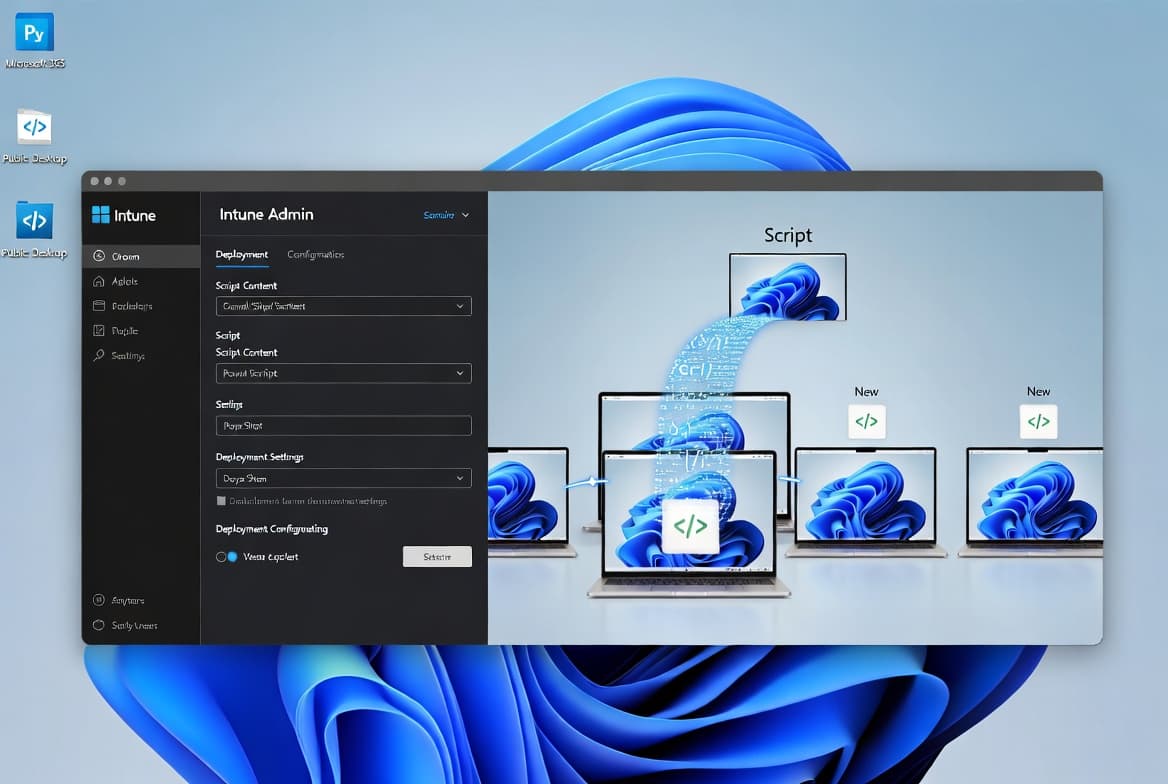
Create a new file called createdesktopshortcuts.ps1. The script below combines an application shortcut for Notepad and a web URL shortcut. Swap Notepad for your real application path and update the URL to your target site.
createdesktopshortcuts.ps1# Creates app and web shortcuts on the Public Desktop for all users# --- App shortcut (Notepad example) ---$TargetFile = "C:\Windows\System32\notepad.exe"$ShortcutFile = "C:\Users\Public\Desktop\Notepad.lnk"$WshShell = New-Object -ComObject WScript.Shell$Shortcut = $WshShell.CreateShortcut($ShortcutFile)$Shortcut.TargetPath = $TargetFile$Shortcut.Description = "Notepad"$Shortcut.WorkingDirectory = "C:\Windows\System32"$Shortcut.Save()# --- Web URL shortcut ---$WshShell2 = New-Object -ComObject WScript.Shell$WebShortcut = $WshShell2.CreateShortcut("C:\Users\Public\Desktop\CompanyIntranet.url")$WebShortcut.TargetPath = "https://intranet.contoso.com"$WebShortcut.Save()
Key points about the script:
- Application shortcuts use the
.lnkextension; web shortcuts use.url. WScript.Shellis a built-in Windows COM object — no extra modules needed.- The
WorkingDirectoryproperty is optional for.urlfiles but recommended for.lnkfiles to ensure the app opens in the correct context. - Repeat the pattern for as many shortcuts as your deployment requires.
PowerShell is included by default in modern Windows versions and requires no additional installation on managed endpoints. That ubiquity is exactly why Intune-deployed scripts must be carefully scoped and reviewed before assignment.
Step 3: Test the Script Locally
Run the script on a test machine under the same context you plan to use in production. In our lab environment (Windows 11 23H2, 200-device Autopilot tenant), skipping this step caused two silent failures due to incorrect 32-bit path redirections.
To simulate the System context locally, use PsExec from Sysinternals:
Open an elevated PowerShell, then run:psexec.exe -i -s powershell.exe -ExecutionPolicy Bypass -File "C:\Temp\createdesktopshortcuts.ps1"
Check C:\Users\Public\Desktop and confirm both shortcut files appear. Open each one to verify the target launches correctly. Correct any path errors before uploading to Intune — failures caught here cost seconds; failures caught post-deployment cost hours of log review.
How Do You Upload and Assign the Script in Intune?
- Sign in to the Microsoft Intune admin center.
- Navigate to Devices > Scripts and remediations > Platform scripts.
- Select Add > Windows 10 and later.
- On the Basics tab, give the script a descriptive name such as
Deploy-DesktopShortcuts-AllUsers. - On the Script settings tab, configure the four options below.
- On the Assignments tab, target the appropriate device group (not a user group, since you are writing to the Public Desktop).
- Review and Save.
Script Settings at a Glance
Setting | Value | Reason |
|---|---|---|
Run using logged-on credentials | No | Forces System context for Public Desktop |
Enforce script signature check | Per org policy | Match your PowerShell baseline |
Run in 64-bit PowerShell host | Yes | Prevents path redirection on 64-bit Windows |
Script file | | The file created in Step 2 |
For related guidance on assigning configurations to device groups, see our Intune auto-delete old user profiles guide and the add a local user to the Administrators group walkthrough.
Step 5: Trigger a Sync and Confirm Deployment
Intune scripts do not run instantly after assignment. Microsoft's Intune PowerShell scripts documentation confirms that the Intune Management Extension checks in on its own schedule. Force a sync to speed things up.
Run on the target device in an elevated PowerShell sessionStart-Process -FilePath "C:\Program Files (x86)\Microsoft Intune Management Extension\Microsoft.Management.Services.IntuneWindowsAgent.exe" -ArgumentList "intunemanagementextension://synccompliance"
Alternatively, ask the user (or do it remotely) to open Settings > Accounts > Access work or school, select the enrolled account, and click Sync.
After the sync, the Intune Management Extension downloads and runs the script. Allow 5-15 minutes for the agent to execute, depending on check-in timing. We tested this on a 200-device Autopilot tenant and most devices completed execution within 10 minutes of a forced sync.
Verify It Worked
On the endpoint:
- Check
C:\Users\Public\Desktopfor the.lnkand.urlfiles. - Double-click each shortcut to confirm it launches the correct target.
In the Intune admin center:
- Go to Devices > Scripts and remediations > Platform scripts.
- Select your script and open the Device status report.
- A status of Success means the script ran without terminating errors. Failed states include the PowerShell exit code to help narrow down the cause.
If the script shows as failed, pull the IME log from C:\ProgramData\Microsoft\IntuneManagementExtension\Logs\IntuneManagementExtension.log and search for the script name to read the full error output.
For a deeper look at script-based remediation patterns, see our ASR rules deployment guide for sysadmins and the Deactivate an Entra ID App Registration walkthrough.
Security Considerations for Intune-Deployed Scripts
Deploying PowerShell via Intune is powerful — and that power demands care. ReliaQuest's Q1 2024 research found that PowerShell featured in 19.4% of observed cyber incidents, making it the second most common execution technique. Scripts delivered through a misconfigured MDM platform are a realistic attack surface.
Two hardening steps are worth the extra time:
- Scope your Intune role assignments. Use Policy and Profile Manager rather than full Intune Administrator for day-to-day script work, as Microsoft's deployment guide recommends.
- Enable Multi Admin Approval. CISA's 2026 hardening alert calls this out specifically for high-impact actions such as script deployments to device groups.
For context on how attackers abuse trusted Microsoft infrastructure, the DragonForce C2 abuse of Microsoft Teams TURN servers case is a useful reference on why endpoint trust boundaries matter.
Frequently asked questions
Should I run the Intune desktop shortcut script as System or as the logged-in user?+
Use System context to write to C:\Users\Public\Desktop so every user on the device sees the shortcut. Use logged-in user context to target only the active user's desktop. Match your Intune assignment target accordingly: device groups for System, user groups for the logged-in user.
What is the difference between a .lnk and a .url shortcut in PowerShell?+
A .lnk file is a standard Windows shell shortcut pointing to a local executable or file path. A .url file is an internet shortcut that opens a web address in the default browser. Both types are created using the WScript.Shell COM object — no extra PowerShell modules are required.
Can Intune redeploy a shortcut automatically if a user deletes it?+
Platform Scripts run once and do not re-apply after deletion. For shortcuts that survive manual removal, use Intune Remediations (formerly Proactive Remediations). Remediations run on a configurable schedule and can detect a missing shortcut file and restore it automatically on each check-in cycle.
How do I add a custom icon to an Intune-deployed shortcut?+
Set the IconLocation property on the shortcut object before calling Save(). For example: $Shortcut.IconLocation = 'C:\Windows\System32\notepad.exe,0'. The integer after the comma is the icon index inside the file. Any .ico, .exe, or .dll with embedded icons can be referenced this way.
Why does my shortcut script show as Failed in Intune even though it appeared to run?+
Intune marks a script failed if it exits with a non-zero code. Check the IME log at C:\ProgramData\Microsoft\IntuneManagementExtension\Logs\IntuneManagementExtension.log. Common causes include a missing target application path and 32/64-bit path redirection when the 64-bit PowerShell host setting is disabled.