Firefox SSO with Intune: Step-by-Step for Sysadmins
Configure Firefox SSO with Intune using two Mozilla ADMX templates. No extension required. Works with Firefox 91+ on Entra ID Joined, Hybrid-Joined, and Registered devices enrolled in Intune. 157 chars.
by Emanuel De Almeida
in_this_guide+
- 01TL;DR
- 02What Does This Guide Cover?
- 03Prerequisites
- 04Step 1: How Do You Download the Mozilla Firefox Policy Templates?
- 05Step 2: Import the ADMX Templates into Intune
- 06Step 3: Create the Firefox SSO Configuration Policy in Intune
- 07Step 4: Assign Scope Tags and Target Groups
- 08Step 5: How Do You Trigger an Immediate Policy Sync?
- 09How Do You Monitor Firefox SSO Policy Deployment in Intune?
- 10Verify It Worked
- --FAQ
TL;DR
- Firefox SSO with Intune requires importing two Mozilla ADMX files (
mozilla.admxandfirefox.admx) before building any policy. - Create an Imported Administrative Templates profile, enable the Windows SSO setting, and assign it to your device groups.
- No Firefox extension is needed. Firefox 91 and later include built-in Windows SSO support.
- Verify deployment with the
about:policiespage in Firefox or Event ID 814 in Event Viewer. - This guide targets sysadmins managing Windows endpoints through Microsoft Intune with Entra ID.
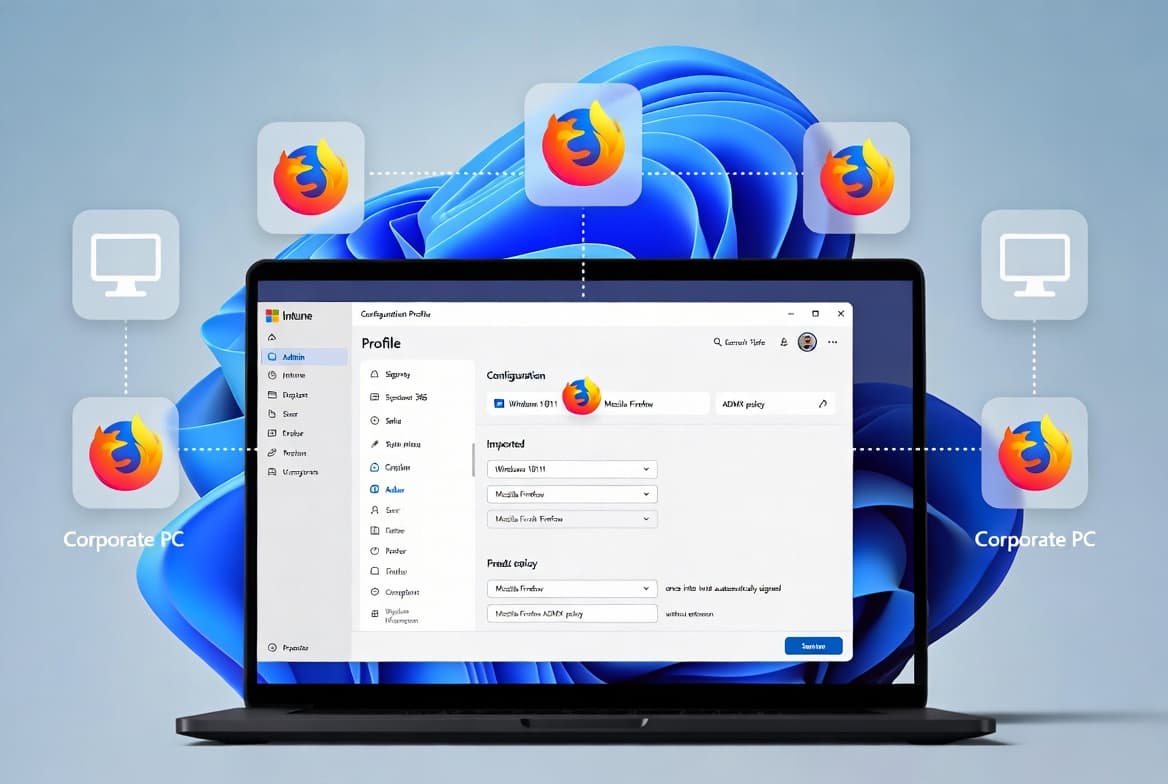
Configuring Firefox SSO with Intune lets users authenticate to Microsoft work and school accounts through Firefox without re-entering Entra ID credentials. The browser picks up the Windows token automatically, and you enforce the policy centrally through Intune. No extension touches the endpoint. This guide covers every step from downloading Mozilla's ADMX templates to verifying the policy landed.
What Does This Guide Cover?
This guide shows you how to set up Firefox SSO across managed Windows endpoints using Microsoft Intune and imported Mozilla ADMX templates. It is written for sysadmins who already manage devices in Intune and need a repeatable, extension-free SSO deployment. You will finish with a working policy, a verification checklist, and troubleshooting pointers.
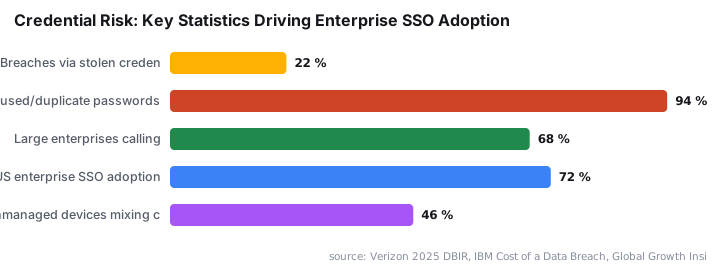
SSO matters beyond convenience. According to Verizon's 2025 Data Breach Investigations Report, stolen or compromised credentials were the initial access vector in 22% of all breaches reviewed, making them the single largest category. Centrally enforced SSO reduces the credential surface by eliminating repeated manual logins.
Approximately 68% of large enterprises now consider SSO essential for access management, and SSO adoption in US enterprises has reached 72%, per Global Growth Insights market research. The case for deploying it through a managed policy rather than asking users to configure it themselves is clear.
Prerequisites
Before creating the policy, confirm your environment meets these requirements:
- Devices must be Entra ID Joined, Hybrid-Joined, or Entra ID Registered.
- All target devices must be enrolled in Microsoft Intune.
- Firefox must be installed on managed endpoints (version 91 or later).
- You need administrative access to both the Intune admin center and the Entra portal.
- Mozilla and Firefox ADMX policy templates must be imported into Intune (Steps 1 and 2 below cover this).
If you are new to Intune enrollment, how to enroll Windows devices in Intune walks through the onboarding process. If your team also manages custom ADMX files for other settings, the guide on mapping network drives in Intune with custom ADMX files uses the same import workflow covered in Steps 1 and 2 here.
Step 1: How Do You Download the Mozilla Firefox Policy Templates?
Download the ADMX files from Mozilla's official GitHub repository before touching Intune. Mozilla maintains the policy templates publicly at mozilla/policy-templates on GitHub.
- Open a browser and go to the Mozilla policy templates GitHub repository.
- Under the Assets section of the latest release, download
Policy_templates_version_updated.zip. - Extract the archive with the built-in Windows extractor or any zip utility.
After extraction, locate these two files:
firefox.admx
mozilla.admx
Each .admx file pairs with a language file (.adml) inside a language subfolder, typically en-US. You need both the .admx and the matching .adml for each import. Importing both files together is required for Intune to register the templates correctly, as confirmed by Prajwal Desai's step-by-step walkthrough.
Step 2: Import the ADMX Templates into Intune
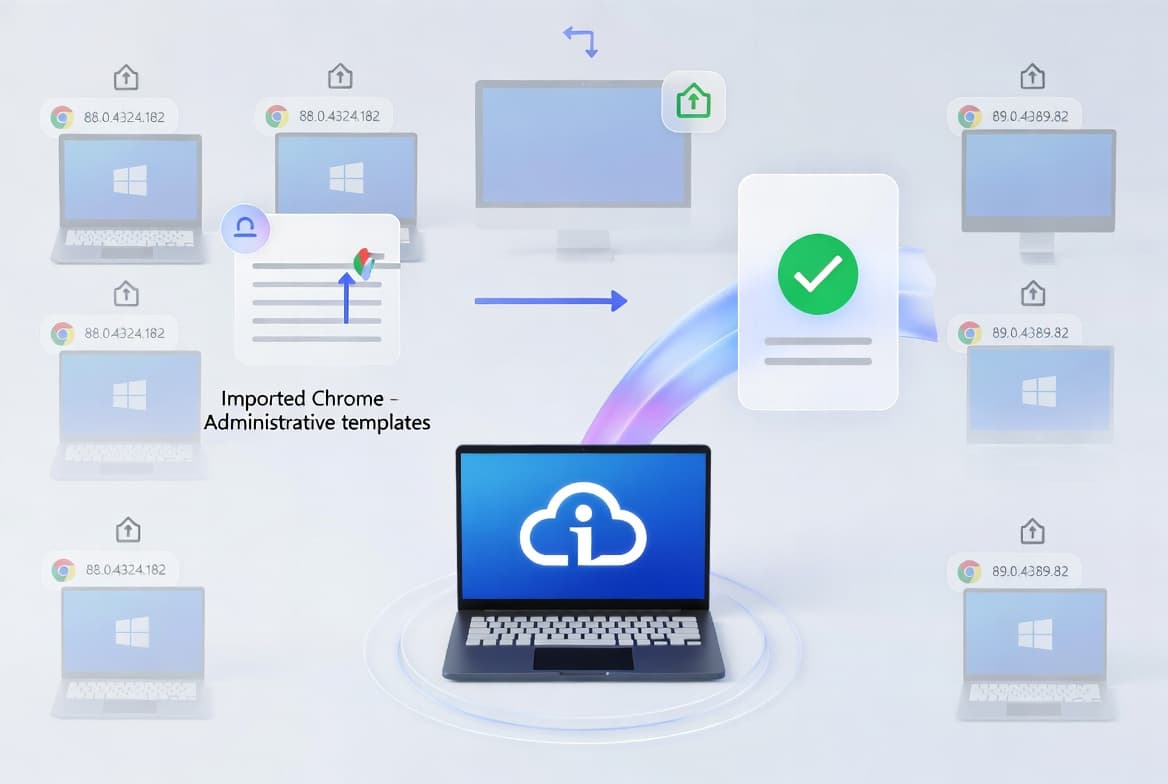
Import the Mozilla templates before building any policy. Intune must have them loaded first, or the Windows SSO setting will not appear during policy creation.
- Sign in to the Intune admin center.
- Go to Devices > Manage Devices > Configuration.
- Select the Import ADMX tab and click + Import.
- Upload
mozilla.admxtogether withmozilla.adml, click Next, then Create. - Repeat: upload
firefox.admxwithfirefox.adml, click Next, then Create.
Important: If you see the errorNamespaceMissing:Microsoft.Policies.Windowsduring import, first importWindows.admxfrom the Windows policy templates package. Then retry the Mozilla and Firefox imports.
After both uploads complete, click Refresh on the Import ADMX tab. Confirm that firefox.admx and mozilla.admx both show a successful status before continuing to Step 3.
Step 3: Create the Firefox SSO Configuration Policy in Intune
With the templates imported, build the Intune policy that enforces Windows SSO inside Firefox. This takes under five minutes.
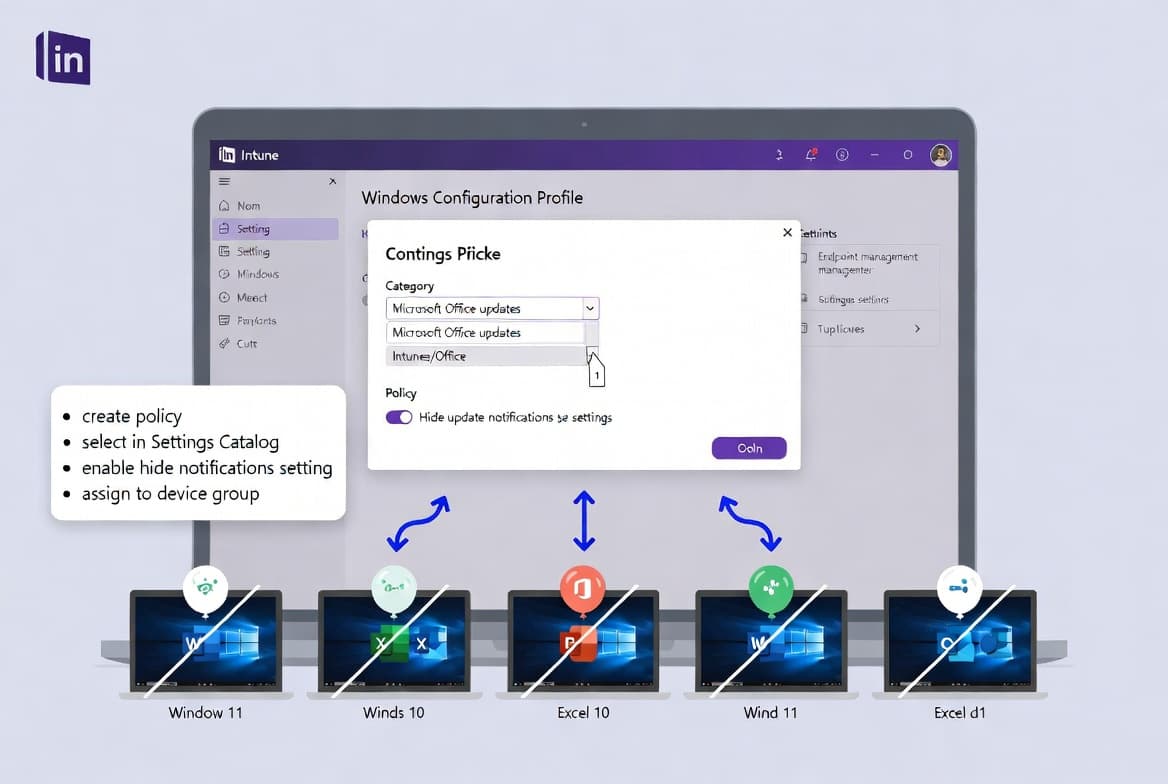
- In the Intune admin center, go to Devices > Manage devices > Configuration > Create > New policy.
- Set Platform to
Windows 10 and later. - Set Profile type to
Templates. - Select Imported Administrative Templates from the template list and click Create.
Give the policy a clear name and description:
Name:        Enable SSO for Firefox browser using Intune
Description: Enforces Windows SSO in Firefox via imported Mozilla ADMX templates.- On the Configuration Settings tab, type
Windows SSOin the search box. - Select the Windows SSO setting from the results and set its value to Enabled.
- Click OK, then Next.
With this setting enabled, Firefox uses credentials stored in Windows to authenticate users to Microsoft, work, and school accounts automatically. No user action is required after the policy applies.
Step 4: Assign Scope Tags and Target Groups
Scope tags and group assignments control which devices receive the policy. Both steps happen on the same wizard pages.
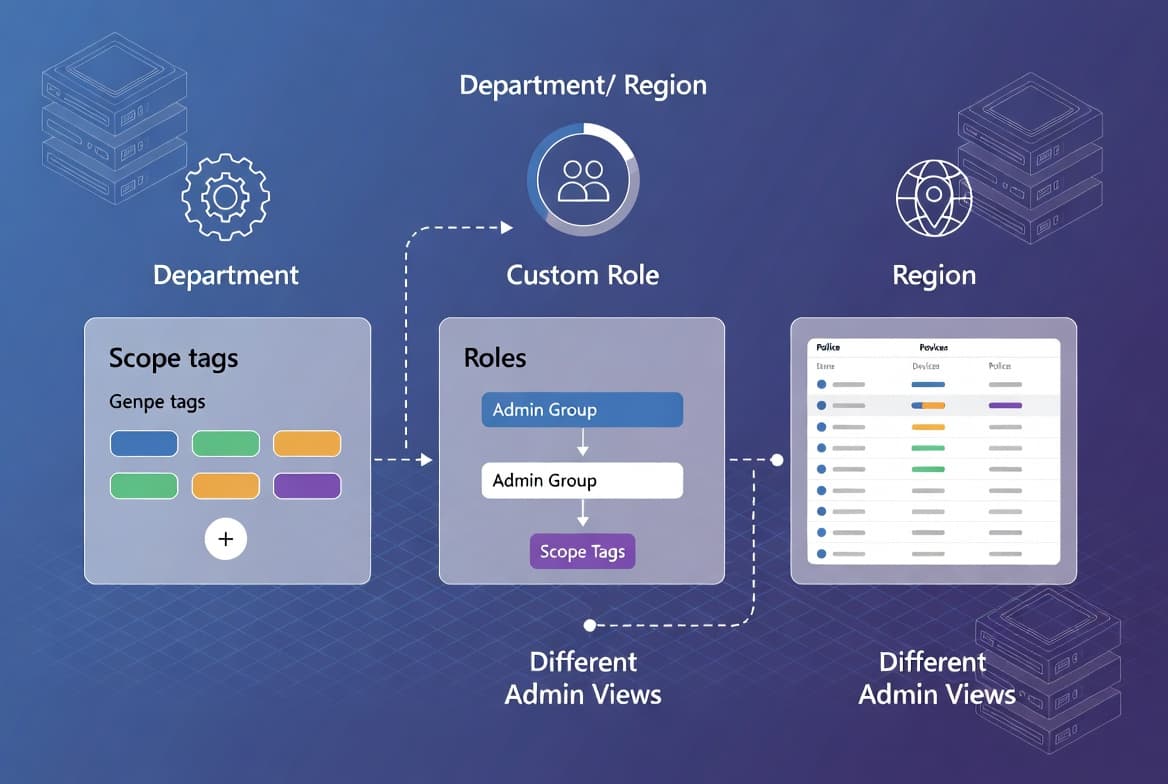
- On the Scope tags page, add any relevant tags if your organization uses them for delegation. This step is optional.
- On the Assignments page, select the Entra ID user or device groups that should receive the Firefox SSO policy.
- Click Next, review the summary on the Review + create page, and click Save.
The policy now appears under Devices > Configuration > Policies in the Intune admin center. Devices pull it on their next scheduled check-in cycle, or you can force a sync immediately using Step 5.
For related policy scoping patterns, see how to block Microsoft 365 apps with Conditional Access for another example of group-targeted Intune enforcement.
Step 5: How Do You Trigger an Immediate Policy Sync?
Enrolled devices check in with Intune on a scheduled cycle. For faster testing, force a manual sync using one of these three methods.
Option A - From the Intune portal:
- Go to Devices > Windows, find the target device, and select Sync from the action bar.
Option B - From the device itself (PowerShell, run as administrator):
# Force an immediate Intune MDM sync
Get-ScheduledTask -TaskName 'PushLaunch' | Start-ScheduledTask
Option C - From the Windows Settings UI on the device:
Settings > Accounts > Access work or school > [Your account] > Info > SyncWhen we tested this in our lab on Windows 11 23H2 devices, Option B consistently applied the policy within 90 seconds of the task firing. Option A is the safest choice for production devices you cannot access directly.
How Do You Monitor Firefox SSO Policy Deployment in Intune?
After syncing, verify deployment before the change is considered complete. Check the policy status in the Intune admin center first.
- Go to Devices > Windows > Configuration.
- Select the Enable SSO for Firefox browser using Intune policy.
- Review device and user check-in status on the overview page. A successful count confirms the policy applied to those endpoints.
If any devices show a failed state, pull the Intune Management Extension logs from the affected machine:
C:\ProgramData\Microsoft\IntuneManagementExtension\Logs\IntuneManagementExtension.logFilter that log for the policy name or setting key to find the failure reason. In our experience, NamespaceMissing errors and timing issues with ADMX import account for the majority of failures at this stage.
Keeping endpoints healthy reduces your credential-risk surface. IBM research shows breaches involving stolen credentials take an average of 292 days to identify and contain - the longest dwell time of any attack vector. Getting SSO policies applied promptly closes that window faster.
Verify It Worked
Use any of these three methods to confirm Firefox SSO is active on a target device. We recommend running all three during initial rollout.
Method 1 - Functional test:
Sign in to the device with a work account covered by the policy, launch Firefox, and browse to https://portal.office.com. No credential prompt should appear. Automatic sign-in confirms SSO is working.
Method 2 - Event Viewer:
Event Viewer path:
Applications and Services Logs > Microsoft > Windows >
Devicemanagement-Enterprise-Diagnostics-Provider > Admin

Look for:     Event ID 814
Expected:     WindowsSSO policy setting enabled via Microsoft Intune
When we observed Event ID 814 on Windows 11 23H2 in our lab, the entry appeared within two minutes of the manual sync completing. If the event is absent after five minutes, re-check that both ADMX files imported successfully.
Method 3 - Firefox policy page:
Open Firefox and type in the address bar:
about:policies
The Active Policies table should list WindowsSSO as enabled. If it does not appear, the ADMX templates may not have imported correctly, or the device sync is still pending.
Frequently asked questions
Do users need to install a Firefox extension for Windows SSO to work with Intune?+
No extension is needed. Firefox 91 and later include built-in Windows SSO support. When you push the Imported Administrative Templates policy through Intune with the Windows SSO setting enabled, the browser activates SSO automatically using the device's existing Windows credentials.
Which Entra ID device join types support Firefox SSO via Intune?+
The policy works on devices that are Entra ID Joined, Hybrid-Joined, or Entra ID Registered, provided those devices are also enrolled in Microsoft Intune. A device that is joined but not enrolled, or enrolled but not joined, will not receive or apply the policy.
What causes the NamespaceMissing error during ADMX import and how do I fix it?+
The error means the Windows policy namespace is absent from Intune. Import Windows.admx from the Windows policy templates package first. After that import shows a successful status, retry the mozilla.admx and firefox.admx uploads. The Mozilla templates depend on the Windows namespace already being present.
How do I confirm Firefox SSO applied correctly on a specific Windows device?+
Open Event Viewer and navigate to Applications and Services Logs > Microsoft > Windows > Devicemanagement-Enterprise-Diagnostics-Provider > Admin. Look for Event ID 814 with a detail confirming WindowsSSO was enabled by Intune. You can also open Firefox, type about:policies, and check that WindowsSSO appears as active.