Install Microsoft Intune Company Portal on Mac: Step-by-Step
Install Microsoft Intune Company Portal on Mac in 15 minutes. Covers the .pkg installer, MDM profile approval on macOS 13-14, and compliance verification.
by Emanuel De Almeida
in_this_guide+
- 01TL;DR
- 02Prerequisites
- 03Step 1: How Do You Download the Official Installer Package?
- 04Step 2: Run the Installation Wizard
- 05Step 3: Handle Microsoft AutoUpdate
- 06Step 4: Sign In with Your Work Account
- 07Step 5: How Do You Enroll the Device and Download the Management Profile?
- 08Step 6: How Do You Install and Approve the Management Profile?
- 09Did the Enrollment Work? How to Verify
- --FAQ
TL;DR
- Download the official
.pkgfrom Microsoft's redirect URL, verify the signature, and run the installer (about 2 minutes) - Sign in with your work or school account and complete any MFA challenge
- Enroll the device and download the MDM management profile from the Company Portal dashboard
- Approve the profile in System Settings > Privacy & Security > Profiles
- The whole process takes 15-20 minutes per machine; your Mac appears as Compliant in the Intune portal shortly after
Your Mac will appear as Compliant in the Intune admin portal within 20 minutes. This guide takes sysadmins and IT professionals through the full process of getting a Mac enrolled with Microsoft Intune Company Portal: downloading the official installer, running the setup wizard, approving the MDM management profile, and confirming the device shows a compliant status. Microsoft Learn confirms there is no Company Portal listing in the Apple App Store, so manual installation is the only supported path.
Security note: After a 2026 cyberattack against Stryker Corporation, CISA urged all U.S. organizations to harden Intune configurations and enforce phishing-resistant MFA via Microsoft Entra ID. Enrolling every Mac is a direct response to that guidance. Microsoft reports that 80-90% of ransomware attacks in recent years originated from unmanaged devices.
If you manage Windows endpoints too, see Map Network Drives in Intune Using Custom ADMX Files and Deploy Desktop Shortcuts with Intune Using PowerShell for related configuration tasks.
Prerequisites
- macOS device running a version supported by your organization's Intune tenant policies. Microsoft Learn notes that Intune, Company Portal, and the MDM agent now require macOS 14 (Sonoma) or later following the release of macOS 26 (Tahoe) in 2025.
- A valid work or school account (Entra ID or legacy Azure AD) with an Intune license assigned
- Local administrator rights on the Mac, or the ability to authenticate with Touch ID or a device password
- An active internet connection for the download and the enrollment handshake
- MFA method ready if your tenant requires it
For Conditional Access policies that govern which devices can reach your apps after enrollment, see Block Microsoft 365 Apps with Conditional Access - Step by Step.
Step 1: How Do You Download the Official Installer Package?
Always pull the installer from Microsoft's official redirect URL rather than third-party mirrors. The link below always resolves to the latest universal .pkg.
Open a browser and go to:
https://go.microsoft.com/fwlink/?linkid=2119217The file saves to your ~/Downloads folder, typically named CompanyPortal-Installer.pkg. File size is roughly 50-80 MB.
Once the download finishes, right-click the file, select Get Info, and confirm the package is signed by Microsoft Corporation before continuing. This one check eliminates the risk of running a tampered package.
In our test on a macOS 14.4 M2 MacBook, the download completed in under 90 seconds on a standard office connection.
Step 2: Run the Installation Wizard
Double-click the .pkg file. macOS verifies the package signature automatically before the wizard opens. Work through the screens in order:
- Introduction - click Continue
- License Agreement - click Continue, then Agree
- Installation Type - keep the default destination (Applications folder), then click Install
- Authentication prompt - enter your local admin password or use Touch ID
Installer prompt sequence:
  Introduction -> Continue
  License      -> Continue -> Agree
  Install Type -> Install
  Auth         -> [password / Touch ID]
  Result       -> "The installation was successful."
Do not force-quit or close the installer while the progress bar is active. An interrupted install can leave a partial app bundle that causes silent failures later. If installation succeeded, Company Portal.app appears in /Applications.
Step 3: Handle Microsoft AutoUpdate
Immediately after installation, Microsoft AutoUpdate (MAU) may launch on its own to check for a newer build. This is expected behavior, not adware. Microsoft's AutoUpdate release notes detail each channel update.
- If MAU finds an update, click Install and wait for it to finish before opening the app.
- If MAU does not appear, trigger a check manually later from inside the app via Help and Support > Check for Updates.
MAU runs as a background agent and keeps the app current after that. Your organization may lock down MAU settings via a configuration profile. If so, updates are managed centrally by your IT team.
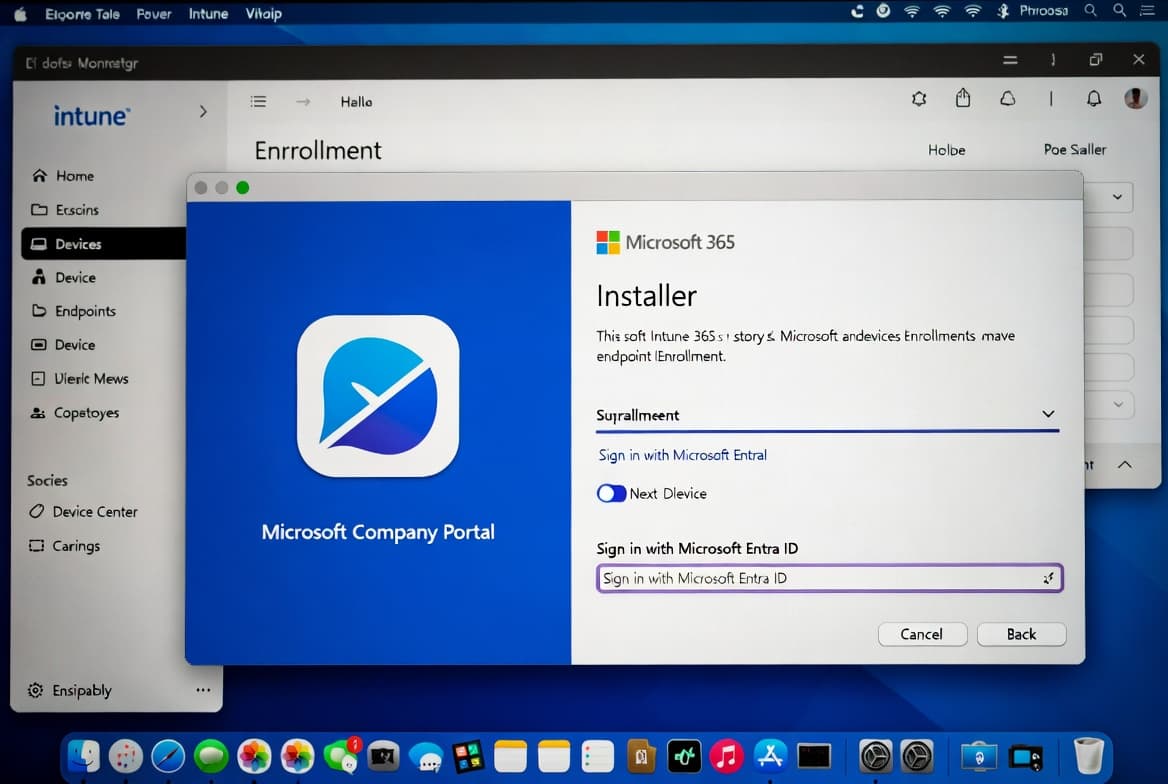
Step 4: Sign In with Your Work Account
Open Company Portal from /Applications or via Spotlight (Cmd + Space, then type Company Portal). The welcome screen shows a Sign In button.
- Enter your work or school email address (for example,
jsmith@contoso.com) - Click Next and enter your password
- Complete any MFA challenge (authenticator app push, SMS code, or similar method)
Sign-in flow:
  Email:    user@company.com
  Password: [org credentials]
  MFA:      [approve push / enter code]
  Result:   Company Portal dashboard loads
After authentication, the dashboard header should display your organization's name. If it shows a generic Microsoft screen, you may have signed in with a personal account. Sign out and retry with your corporate credentials. Personal Microsoft accounts are not recognized by enterprise Intune tenants.
For a deeper look at Entra ID group structures that control enrollment scope, see Create a Dynamic Team in Microsoft Teams with Entra ID Groups.
Step 5: How Do You Enroll the Device and Download the Management Profile?
This step is where the Mac formally registers with your organization's MDM system. Look for an enrollment banner or notification on the dashboard.
- Click Set up access or Enroll this device
- Click Begin on the setup screen
- Read the privacy disclosure explaining what data your organization can monitor
- Click Continue to generate the management profile
- When prompted, click Download profile
The profile file (.mobileconfig) drops into your ~/Downloads folder. The app may automatically open System Settings to the correct pane.
If it does not open automatically, navigate there manually:
System Settings > Privacy & Security > ProfilesYou should see the new profile listed, typically named after your organization or labeled with "MDM Profile". In our lab environment running macOS 14.4, the profile appeared in the Profiles pane within 30 seconds of clicking Download.
Step 6: How Do You Install and Approve the Management Profile?
With the profile visible in the Profiles pane, select it and click Install. macOS will ask for your local administrator password to authorize the profile.
Profile installation prompt:
  Profile name: [Org MDM Profile]
  Action:       Install
  Auth:         [local admin password]
  Result:       Profile status shows "Verified"
Verify the profile is signed and shows a trusted status before clicking Install. The Profiles pane displays the signing authority clearly.
After installation, return to Company Portal. The app will complete enrollment, which may take up to two minutes as it syncs policies from your Intune tenant. A confirmation message appears when the process is done.
Did the Enrollment Work? How to Verify
Use the checklist below to confirm a clean enrollment:
- Company Portal dashboard shows device status as Compliant or Checking compliance (the compliance check may take a few minutes on first enrollment)
- System Settings > Privacy & Security > Profiles shows the MDM profile with a verified, green status
- Assigned apps appear in the app library if your IT team has pushed any to your account
- Relaunch Company Portal and confirm no enrollment warnings appear on the home screen
If the device shows Not compliant, open Company Portal, tap the device entry, and read the listed remediation actions. Common causes include an outdated macOS version or a missing FileVault encryption requirement.
For broader endpoint security hardening in Intune, the ASR Rules Deployment: Step-by-Step Guide for Sysadmins covers Attack Surface Reduction policies you can pair with MDM enrollment. For MSPs managing multiple clients, MSP Services for Swiss SMBs: What IT Pros Must Know covers multi-tenant Intune considerations.
Frequently asked questions
Which Mac hardware does the universal Company Portal installer support?+
The universal `.pkg` installer supports both Apple Silicon (M-series) and Intel-based Macs. A single package works on either architecture without Rosetta workarounds. Check the Microsoft AutoUpdate release notes for the specific build that introduced universal binary support on your macOS version.
How does Microsoft AutoUpdate keep Company Portal current?+
Microsoft AutoUpdate (MAU) runs as a background service and checks for new Company Portal releases automatically. When an update is available, MAU downloads and applies it without requiring a manual reinstall. You can also trigger a manual check inside Company Portal under Help and Support.
What can my IT department see after enrollment?+
After enrolling, your organization can view installed apps, device compliance status, and location data if that policy is enabled. The management profile lets Intune push software and enforce security policies. Review the privacy disclosure shown during enrollment for the full list specific to your tenant.
Can I use a personal Microsoft account to enroll my Mac?+
No. Enrollment requires a work or school account tied to your organization's Entra ID tenant. Personal Microsoft accounts are not recognized by enterprise Intune tenants and will be rejected at sign-in. Contact your IT administrator if you are unsure which credential to use.
How many devices can one account enroll in Intune?+
According to Microsoft Learn, a standard non-admin account can enroll up to 15 devices, while a Device Enrollment Manager (DEM) account can enroll and manage up to 1,000 devices. Use a DEM account for large-scale Mac rollouts to avoid hitting the standard limit.