Deploy a Trusted Root Certificate with Intune: Step-by-Step
Export your Enterprise CA root certificate and push it to Windows devices using an Intune Trusted Certificate profile. Full walkthrough for sysadmins.
by Emanuel De Almeida
in_this_guide+
- 01TL;DR
- 02Prerequisites
- 03Step 1: Export the Root CA Certificate from Your Enterprise CA
- 04Step 2: Create a Trusted Certificate Profile in Intune
- 05Step 3: Upload the Certificate - Which Destination Store Should You Use?
- 06Step 4: Assign the Intune Trusted Certificate Profile to a Pilot Group
- 07Step 5: Force a Sync and Monitor Your Intune Root Certificate Deployment
- 08Verify the Intune Root Certificate Is Installed
- --FAQ
TL;DR
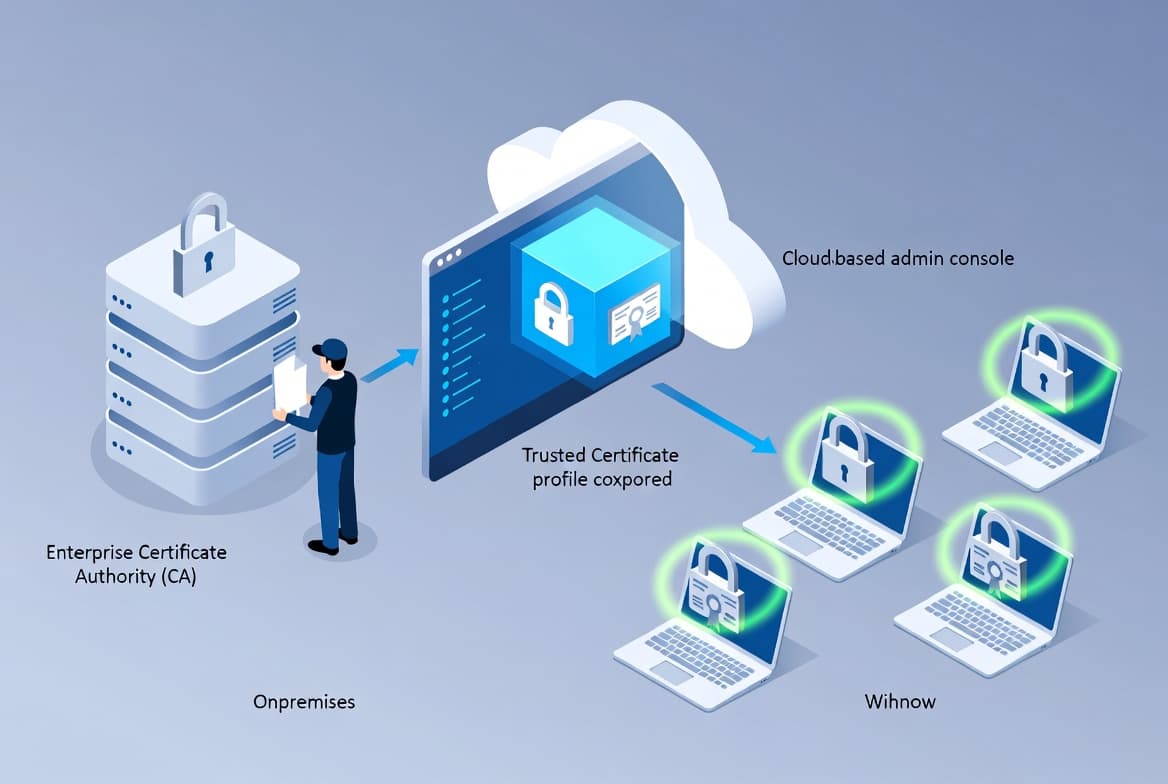
- Export your root CA certificate using
certutilon the CA server, keeping the.cerextension. - Create an Intune Trusted Certificate profile and upload the file to the Computer certificate store - Root.
- Assign to a pilot group first, sync manually, then verify in
certlm.msc. - This Intune trusted certificate deployment is a hard prerequisite for any SCEP or PKCS profile.
- Full process takes under 30 minutes; prerequisites listed below.
Prerequisites
Before you start, confirm you have everything in place. Missing any one item will stall the deployment partway through.
- An active Microsoft Intune subscription with at least Device Configuration - Read/Write permissions.
- An internal Enterprise Certificate Authority that issues certificates to your Windows endpoints.
- Administrator access to the Root CA server.
- At least one Azure AD (Entra ID) device group to use as a pilot target.
- Windows 10 or later enrolled devices managed by Intune.
- The
.cerfile extension must be kept throughout - do not rename or re-encode the exported file.
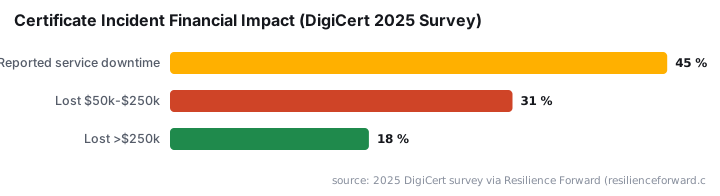
Certificate management failures carry real costs. According to a 2025 DigiCert survey via Resilience Forward, nearly half of organizations (45%) reported service downtime from certificate-related incidents in the last year, with 31% losing between $50,000 and $250,000 per incident. Getting your Intune trusted certificate baseline right from the start avoids those failure modes.
Step 1: Export the Root CA Certificate from Your Enterprise CA
Log in to the Root Certification Authority server with a local or domain administrator account. Open an elevated Command Prompt and run certutil with the -ca.cert flag. The exported file must end with `.cer` - Intune rejects any other extension.
To export to the current directory:
certutil -ca.cert ca_name.cerTo export directly to C:\ for easy access:
certutil -ca.cert C:\RootCertificate.cerAfter the command completes, navigate to the output path and confirm the file exists. Right-click the .cer file, select Open, and review the General tab. Note the issuer name, subject, and validity dates - you will cross-check these values on the endpoint after deployment.
When we tested this step on Windows Server 2022 with a two-tier PKI lab, certutil completed in under two seconds. The one failure we hit was a permissions error when running from a non-elevated prompt - always use Run as Administrator.
Step 2: Create a Trusted Certificate Profile in Intune
Sign in to the Microsoft Intune admin center. Navigate to Devices > Windows > Manage Devices > Configuration, then select Create > New Policy.
On the Create a profile page, set the following values:
- Platform: Windows 10 and later
- Profile type: Templates
- Template name: Trusted Certificate
Click Create to open the profile wizard.
On the Basics tab, give the profile a clear, descriptive name and a short description so other admins can identify it in the policy list without opening it. Example values:
- Name:
Deploy-Internal-Root-CA-Certificate - Description:
Installs the internal Enterprise Root CA certificate into the Trusted Root store. Required for SCEP and PKCS certificate trust.
If your team already manages scope-based delegation, see Intune Scope Tags: Step-by-Step Setup for Sysadmins for how to restrict who can edit this profile.
Step 3: Upload the Certificate - Which Destination Store Should You Use?
On the Configuration settings tab, click the upload icon and select the .cer file you exported in Step 1.
Select 'Computer certificate store - Root' for a root CA certificate. This writes the certificate to Certificates > Trusted Root Certification Authorities > Certificates under the local computer context. Every user account and system process on that machine can then trust certificates the CA issued - not just the currently logged-in user.
Here is a comparison of all three destination store options Intune offers:
Store | Scope | When to Use |
|---|---|---|
Computer certificate store - Root | Machine-wide, all users | Deploying a root CA certificate (this guide) |
Computer certificate store - Intermediate | Machine-wide, all users | Deploying a subordinate/intermediate CA certificate |
User certificate store - Intermediate | Current user only | Deploying an intermediate CA cert for a specific user context |
Click Next to proceed to Assignments.
Microsoft Learn confirms that deploying the trusted root certificate to devices must happen before any SCEP or PKCS profile - the trust anchor has to exist before the identity certificate arrives.
Step 4: Assign the Intune Trusted Certificate Profile to a Pilot Group
In the Assignments tab, add the Azure AD device group you want to target. Start with a small pilot group - five to ten devices keeps the blast radius small if something needs adjusting.
Avoid assigning directly to an "All Devices" group until you have confirmed the profile applies correctly on the pilot set.
The Applicability Rules tab lets you scope the profile by OS edition or OS version. For most environments with a uniform Windows 10/11 fleet, skip it and click Next.
On the Review + Create tab, verify every setting, then click Create. A notification confirming "Policy created successfully" appears in the admin center. The profile then shows up under the Configuration Profiles list.
For a related example of scoping Intune configuration profiles carefully, the walkthrough on how to disable Office update notifications in Intune uses the same assignment pattern.
Step 5: Force a Sync and Monitor Your Intune Root Certificate Deployment
For pilot devices, trigger a manual Intune sync to avoid waiting for the scheduled check-in cycle. On the test endpoint, open Settings > Accounts > Access work or school, select the enrolled account, and click Info > Sync. The Company Portal app works too - select Sync from the main screen.
To monitor rollout progress, open the profile in the Intune admin center and select it. Under Device and user check-in status you see counts for:
- Succeeded
- Failed
- Pending
- Not applicable
Click View Report to see a per-device breakdown with device names and last check-in timestamps.
In our lab on Windows 11 23H2, the certificate appeared in certlm.msc within 90 seconds of the manual sync completing. If failures appear in the report, collect Intune diagnostic logs from the affected endpoint for troubleshooting - find them at C:\ProgramData\Microsoft\IntuneManagementExtension\Logs.
Verify the Intune Root Certificate Is Installed
Sign in to one of the target Windows devices. Open the Run dialog (Win + R), type certlm.msc, and press Enter to open the local machine certificate store.
Expand the following path in the left pane:
Certificates (Local Computer)
  └── Trusted Root Certification Authorities
        └── Certificates
Locate the certificate by its common name - typically the name of your internal CA, for example CORP-ROOT-CA. Double-click it and confirm:
- Issued to and Issued by match your Enterprise CA name.
- Valid from / Valid to dates match what you recorded during the export in Step 1.
- The certificate shows as valid with no error icons.
If the certificate is present and valid, the profile works correctly. If it is absent, check that the device is in the assigned group, that the sync completed, and review the Intune event logs at the path above.
With this root certificate in place, your next step is typically deploying SCEP or PKCS identity certificates. Managing those alongside Azure AD Password Writeback and phishing-resistant MFA controls gives you a complete certificate-based authentication baseline. The NSA and CISA jointly recommend PKI-based MFA as a phishing-resistant alternative to passwords, noting that client certificates must be properly managed with secure key storage and periodic rotation (NSA and CISA, 2024).
Certificate lifespans are also shrinking fast. The CA/Browser Forum approved Ballot SC-081v3 on April 11, 2025, reducing maximum public TLS certificate lifespans to 47 days by March 2029, with a phased reduction to 200 days starting March 2026 (Business Wire). Automated deployment pipelines like this Intune workflow become essential as manual renewal cycles grow unsustainable.
Keeping your Entra ID access controls tight matters here too - a recent incident showed how broken Entra access controls exposed FIFA World Cup streams to takeover, a reminder that certificate trust and identity controls work together.
Frequently asked questions
Which certificate store should I target in the Intune profile?+
Select 'Computer certificate store - Root' for a root CA certificate. This places it under Trusted Root Certification Authorities for the local machine, making it available to all users and system processes. Choose an Intermediate store only when distributing a subordinate CA certificate separately.
Does the root certificate need a specific file format?+
Yes. The file must use the `.cer` extension. Intune's Trusted Certificate profile accepts only this format. Do not rename or convert the file after exporting with certutil - that can corrupt the encoding and cause the profile to fail on upload.
How long does it take for devices to receive the certificate after assignment?+
Devices check in on a scheduled cycle that can run up to eight hours, per the Microsoft Intune device check-in documentation at learn.microsoft.com. For faster results, trigger a manual sync from the Company Portal app or Settings > Accounts > Access work or school on the endpoint.
Can I use this profile as a prerequisite for SCEP or PKCS certificate deployment?+
Yes, and it is effectively required. Both SCEP and PKCS profiles depend on the endpoint already trusting the issuing CA chain. Deploying and confirming the trusted root profile first prevents authentication failures when the device later receives its identity certificate.