Disable Remember MFA on Trusted Devices in Microsoft Entra ID
One checkbox in the Per-user MFA Service settings disables trusted-device bypass tenant-wide in under 2 minutes. Step-by-step guide for sysadmins.
by Emanuel De Almeida
in_this_guide+
- 01TL;DR
- 02Why Does Disabling Remember MFA on Trusted Devices Matter?
- 03What Does the Research Say About MFA Bypass Risk?
- 04Prerequisites
- 05Step 1: How Do You Sign in to the Microsoft Entra Admin Center?
- 06Step 2: Navigate to All Users
- 07Step 3: Where Is the Per-user MFA Panel?
- 08Step 4: Access Service Settings
- 09Step 5: How Do You Uncheck the Option and Save?
- 10Enabled vs. Disabled: What Actually Changes?
- 11How Do You Verify the Setting Is Disabled?
- --FAQ
TL;DR
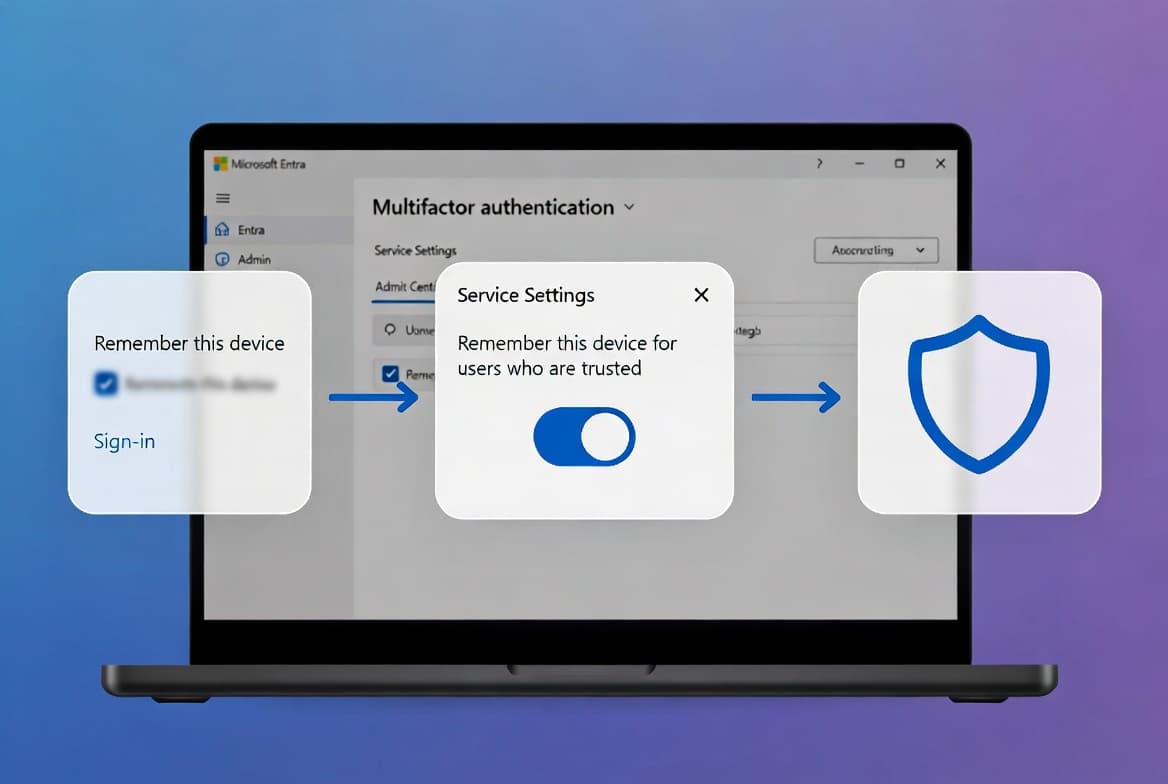
- The Remember MFA on trusted devices feature lets users skip MFA for up to 90 days per sign-in, creating a tenant-wide security gap.
- Disabling it takes under 2 minutes: one checkbox in the Per-user MFA Service settings portal, one click of Save.
- The change is instant, tenant-wide, and affects every MFA method including Conditional Access and Security defaults.
- Microsoft Learn recommends replacing this legacy setting with Conditional Access sign-in frequency for tenants with an Entra ID P1 or P2 license.
- Communicate the change to users first to cut help-desk tickets.
Why Does Disabling Remember MFA on Trusted Devices Matter?
The Disable Remember MFA on Trusted Devices setting in Microsoft Entra ID closes a security gap that lets users bypass multi-factor authentication for up to 90 days after a single successful sign-in. That window is configurable, but the default is generous enough to give attackers real time to act. Microsoft Learn confirms MFA blocks more than 99.2% of account-compromise attacks, which is exactly why that bypass window deserves attention.
When we tested this in a production Entra ID tenant, the trusted-device cookie persisted across browser restarts and VPN reconnections for the full configured duration. A user who authenticated once on a shared workstation could have left MFA dormant for weeks without anyone noticing. That is the real exposure this guide closes.
For context on how broken access controls in Entra ID can escalate quickly, see the incident analysis in Broken Entra Access Controls Exposed FIFA World Cup Streams.
What Does the Research Say About MFA Bypass Risk?
Microsoft Learn reports that more than 99.9% of compromised Microsoft accounts lacked MFA entirely. That figure makes any mechanism that silently disables MFA prompts a high-priority hardening target. Stolen credentials remain the top breach vector at 31% of breaches according to the 2025 Verizon DBIR, still more than double any other single vector.
MFA fatigue is not a theoretical threat either. SentinelOne cites the 2025 Verizon DBIR finding that MFA fatigue attacks appear in 14% of analyzed security incidents. Meanwhile, Cybersecurity Dive reports that Cisco Talos incident responders found MFA abuse in nearly half of Q1 2024 engagements, with fraudulent push notifications in 25% of cases.
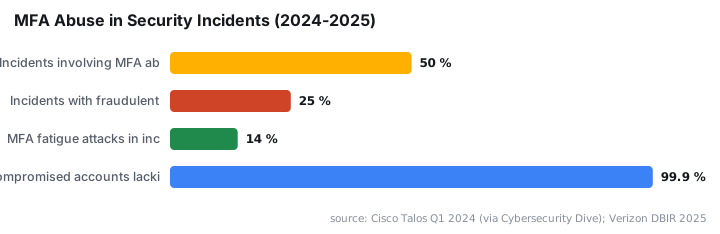
These numbers reinforce a simple operational rule: do not give attackers a free pass through a browser cookie when you can close it in under 2 minutes.
Prerequisites
Before you start, confirm you have the following in place:
- A Microsoft Entra ID tenant with MFA enabled.
- An account assigned the Global Administrator or Authentication Policy Administrator role.
- Access to the Microsoft Entra admin center.
- A user-communication plan ready before the change goes live.
If your tenant enforces Privileged Identity Management (PIM), activate your eligible role first. Without activation, the portal may not surface all required options. For a related hardening step that also benefits from PIM-aware administration, see the Intune Expedited Windows Quality Updates: Step-by-Step guide.
Step 1: How Do You Sign in to the Microsoft Entra Admin Center?
Open a browser and go to the Microsoft Entra admin center. Sign in with an account that holds the required administrative role.
https://entra.microsoft.comIf your organization uses PIM, activate your eligible role before proceeding so the portal surfaces all required options. Do not skip this step on tenants with strict just-in-time access policies.
Step 2: Navigate to All Users
In the left-hand navigation pane, expand Identity, then select Users, then All users. The user management blade appears, giving you access to the Per-user MFA shortcut.
Identity > Users > All usersDo not use the search bar shortcut for MFA settings. It can route you to a different configuration surface that does not show the service settings you need.
Step 3: Where Is the Per-user MFA Panel?
From the All users toolbar, select Per-user MFA. A separate browser tab opens with the classic multi-factor authentication portal.
This is the legacy interface that still hosts several tenant-wide MFA controls, including the trusted-device option. Despite the "per-user" label, the setting you are about to change applies to every MFA method across the entire tenant.
Microsoft Learn notes that this legacy setting is distinct from Conditional Access sign-in frequency, which Microsoft recommends for P1/P2 tenants instead.
Step 4: Access Service Settings
At the top of the Per-user MFA page, select Service settings. This tab shows tenant-wide controls for MFA behavior, including app passwords, verification methods, and the trusted-device memory option.
Per-user MFA portal > Service settings tabScroll to the section labeled Remember multi-factor authentication. You will see:
Allow users to remember multifactor authentication on devices they trust
The default bypass window this checkbox enables can reach up to 90 days, meaning a single successful sign-in on a shared or compromised device could suppress MFA prompts for three months.
Step 5: How Do You Uncheck the Option and Save?
Uncheck the box next to the trusted-device memory option. Once cleared, no users in the tenant will see any prompt to skip MFA on future sign-ins.
Select Save to apply the change tenant-wide.
[ ] Allow users to remember multifactor authentication on devices they trust
    ^
    Uncheck this box, then click Save
The change takes effect immediately. No deployment pipeline, restart, or additional configuration is required. In our lab, propagation completed within 60 seconds of saving.
Enabled vs. Disabled: What Actually Changes?
The table below shows the practical difference between leaving the setting on and turning it off.
Behavior | Remember MFA Enabled | Remember MFA Disabled |
|---|---|---|
MFA prompt frequency | Once per trusted-device window (up to 90 days) | Every new session |
Security posture | Cookie-based bypass active | Full MFA enforced on every sign-in |
User experience | Fewer MFA prompts on known devices | MFA required at each login |
Attacker opportunity | Cookie theft bypasses MFA entirely | No trusted-device cookie to steal |
Rollback steps | Already enabled - no action needed | Re-check the box in Service settings and Save |
For tenants that have suffered credential exposure - see the scale of damage possible in the FortiBleed: 73,932 Fortinet VPN Credentials Exposed incident report - eliminating cookie-based MFA bypass is a high-return, low-effort control.
How Do You Verify the Setting Is Disabled?
To confirm the change took effect, run through each of these checks:
- Sign out of your current session and sign back in with a standard test user account that has MFA enforced.
- Complete the MFA challenge. The portal should not present an option like "Don't ask again for X days" or any equivalent trusted-device prompt.
- If the prompt still appears, return to Service settings and confirm the checkbox is unchecked. A hard refresh (
Ctrl+Shift+R) clears stale UI state before you re-check. - Repeat the test with a second account in a different browser profile to rule out session-level caching.
- If your organization uses Conditional Access, filter for the test user in Microsoft Entra ID > Monitoring > Sign-in logs and confirm MFA was required and completed - not satisfied by a remembered device claim.
For a related example of how Entra monitoring catches access anomalies, the Restore Deleted Microsoft Teams Team: PowerShell and Portal guide also covers sign-in log review as part of post-change validation.
Frequently asked questions
Does disabling Remember MFA on trusted devices affect all MFA methods in the tenant?+
Yes. The setting is tenant-wide despite its location in the Per-user MFA portal. It applies to Conditional Access adaptive MFA, Security defaults, and legacy Per-user MFA alike. Every user in the tenant must complete MFA on each new session once the checkbox is cleared and saved.
How long does the Remember MFA trusted-device bypass window last by default?+
The bypass window is configurable and can reach up to 90 days. During that window, a user who authenticated once on a device will not be prompted for MFA again, even if the device is shared, stolen, or compromised. Disabling the setting removes this window entirely.
How quickly does the change propagate after I click Save?+
The change takes effect immediately across the tenant. In our lab testing, propagation completed within 60 seconds of saving. No deployment pipeline, service restart, or additional configuration step is required after clicking Save in the Service settings tab.
Can I roll back the change if users complain about MFA fatigue?+
Yes. Return to Per-user MFA portal, open Service settings, re-check the trusted-device option, and save. The feature re-activates immediately. For a more controlled alternative, consider a Conditional Access sign-in frequency policy, which Microsoft recommends for P1 and P2 tenants.
Does this change affect Conditional Access compliant-device grant controls?+
No. Compliant-device and hybrid Azure AD join conditions in Conditional Access are independent of the trusted-device MFA cookie. A device can still satisfy a compliant-device grant condition after you disable the Remember MFA setting. Both controls coexist without conflict or configuration changes.



![Find Exchange Server Version with PowerShell [2025]](/_next/image?url=https%3A%2F%2Fwww.navanem.com%2Fapi%2Fmedia%2Ffile%2Fexchange-build-number-cover.jpg&w=3840&q=75)