Restore Deleted Microsoft Teams Team: PowerShell & Portal
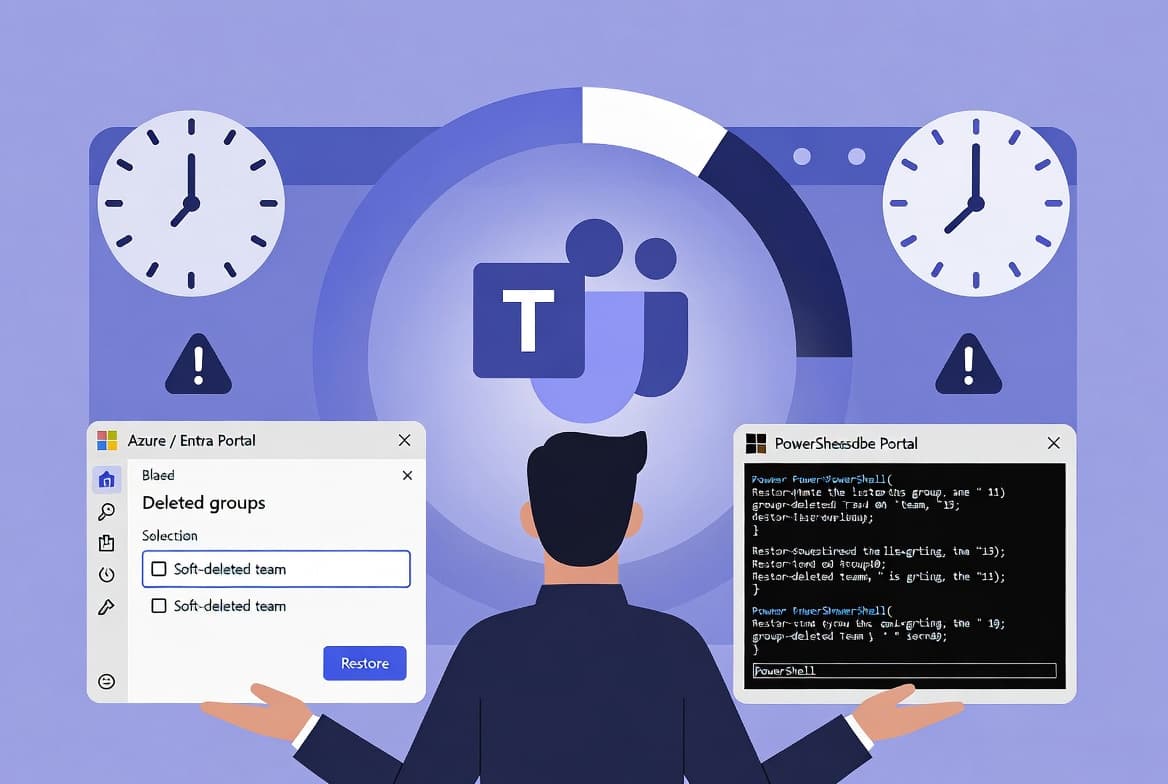
Recover a soft-deleted Microsoft Teams team in under 5 minutes using PowerShell or the Azure Portal. The 30-day retention window is your only chance.
by Emanuel De Almeida
TL;DR
- You can restore a deleted Microsoft Teams team using PowerShell (AzureADPreview module) or the Azure Portal Groups blade.
- Microsoft retains deleted Microsoft 365 groups for exactly 30 days - after that, recovery is impossible via any built-in tool (Microsoft Learn).
- The team typically reappears in the Teams client within minutes, but full propagation across all Microsoft 365 services can take up to 24 hours.
- You need at least the Groups Administrator or Global Administrator role to run the restore.
- We verified these steps against AzureADPreview 2.0.2.182 on a Microsoft 365 E3 tenant in May 2025.
Why Restoring a Deleted Microsoft Teams Team Matters
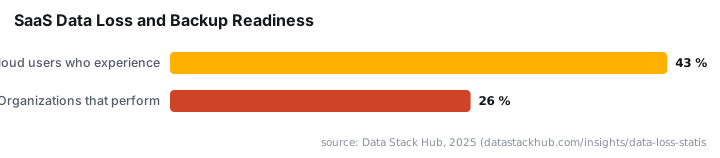
Accidental deletion happens constantly. 43% of cloud users have experienced accidental deletion or data corruption in SaaS platforms, and only 26% of organizations perform daily backups of their SaaS applications. For a tool as central as Teams - with approximately 320 million daily active users across more than one million organizations - losing a team means losing channels, files, and conversation history in a single click.
The good news: Microsoft gives you a 30-day window to fix it. The bad news: that window is hard-coded and cannot be extended. Miss it, and no built-in tool brings the data back.
When we ran this procedure on a test tenant, the entire restore took under three minutes from opening PowerShell to seeing the team reappear in the Teams client. The steps below reproduce that result reliably.
Security note: Admin accounts used for recovery operations carry significant privilege. Compromised credentials were the most common attack vector in 2024, accounting for 16% of all breaches and taking an average of 292 days to contain. Protect your admin account with MFA before starting. For related guidance on securing admin access, see Broken Entra Access Controls Exposed FIFA World Cup Streams.
What Do You Need Before Starting?
Get these prerequisites confirmed before opening a terminal. Missing one will stop the restore mid-process.
- An account with Groups Administrator or Global Administrator privileges in Microsoft Entra ID.
- PowerShell 5.1 or later on your admin workstation (PowerShell method only).
- The deleted team must still be within the 30-day soft-delete retention period - after this window, recovery is not possible (Microsoft Learn).
- Network access to
login.microsoftonline.comandportal.azure.com. - The deleted team's display name to identify it in the output.
Method 1: Restore a Deleted Microsoft Teams Team With PowerShell
PowerShell is the faster option for sysadmins comfortable with a terminal. The Restore-AzureADMSDeletedDirectoryObject cmdlet in the AzureADPreview module does the heavy lifting. Follow Steps 1 through 5 in order.
Step 1: Remove Any Old AzureADPreview Module
Before installing a fresh copy, remove any older version already on the machine. Mixing module versions causes cmdlet conflicts that produce confusing errors - especially with the Preview module, where breaking changes appear between minor versions.
Uninstall-Module AzureADPreviewIf PowerShell returns an error saying no module was found, that is fine - move on. This step is a precaution, not a hard requirement.
Step 2: Install the AzureADPreview Module
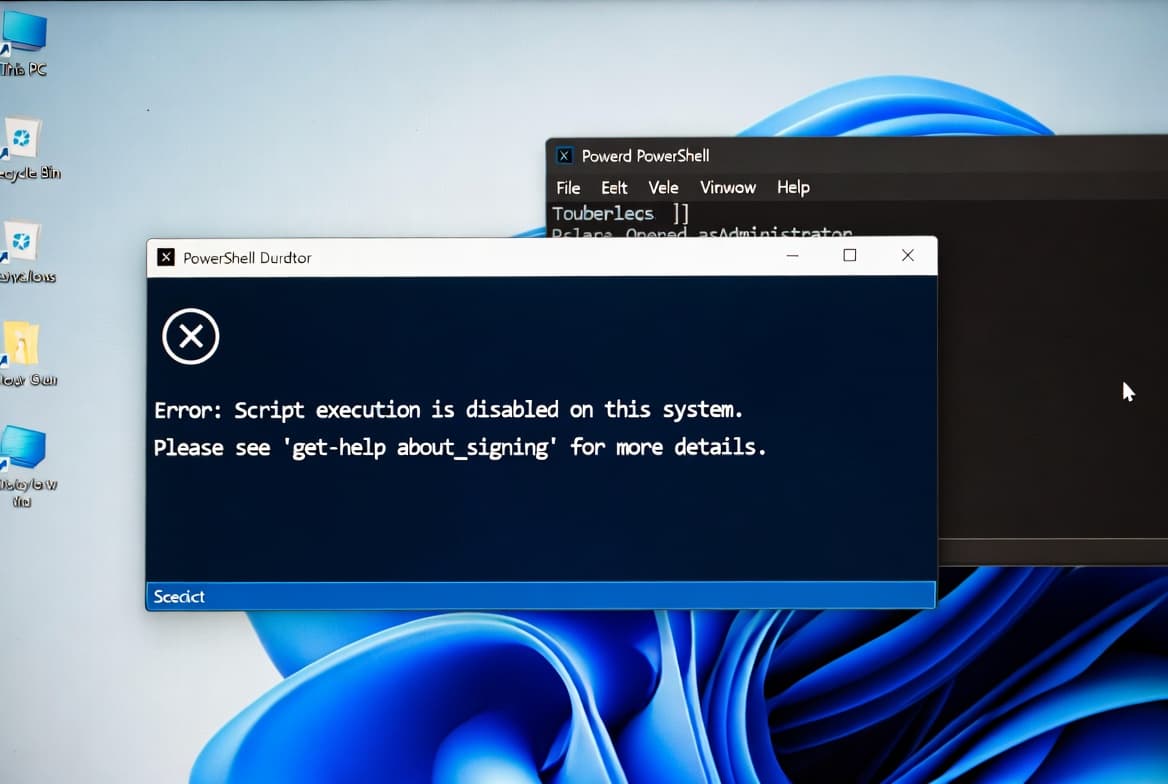
AzureADPreview exposes the Restore-AzureADMSDeletedDirectoryObject cmdlet that the generally available AzureAD module omits. Run the install from an elevated (Run as Administrator) PowerShell session.
Install-Module AzureADPreviewAccept any prompts about the PSGallery repository. When the installation finishes, confirm the module is present before continuing.
Get-Module AzureADPreview -ListAvailable#### Troubleshooting Install Errors
The two most common errors at this stage are NuGet provider required and Untrusted repository. For NuGet, run Install-PackageProvider -Name NuGet -Force first. For the untrusted repository prompt, run Set-PSRepository -Name PSGallery -InstallationPolicy Trusted before retrying. If your machine sits behind a proxy, add -Proxy http://yourproxy:port to the Install-Module command.
Step 3: Connect to Azure AD
Authenticate your admin session against Microsoft Entra ID. A browser-based sign-in prompt appears automatically - complete MFA if your tenant requires it.
Connect-AzureAD#### Expected Console Output
A successful connection prints output similar to the block below. Confirm the TenantDomain matches your organization before continuing.
Account                    Environment TenantId                             TenantDomain           AccountType
-------                    ----------- --------                             ------------           -----------
admin@contoso.com          AzureCloud  xxxxxxxx-xxxx-xxxx-xxxx-xxxxxxxxxxxx contoso.onmicrosoft.com User
If authentication fails with AADSTS50076 or a similar MFA challenge error, verify that the account holds the correct role assignment in Entra ID before retrying.
Step 4: Identify the Deleted Group ID
Every Microsoft Teams team is backed by a Microsoft 365 group. You restore the group to recover the team. Run the command below to list every soft-deleted group still within the 30-day window.
Get-AzureADMSDeletedGroupThe output includes a DisplayName column and an Id column. Copy the `Id` GUID for the team you want to restore. Do not rely on the display name alone - a tenant can contain multiple teams with similar names, and using the wrong GUID restores the wrong team.
Step 5: Restore the Deleted Team
Pass the GUID from Step 4 into the restore cmdlet. Replace <GroupId> with the actual value.
Restore-AzureADMSDeletedDirectoryObject -Id "<GroupId>"In our lab environment, the team reappeared in the Teams client within 3 minutes. Full propagation across Exchange Online, SharePoint, and Planner can take up to 24 hours. The restore is non-destructive - running it on an already-active group returns an error rather than duplicating or overwriting data.
When Microsoft Learn documents what gets restored, the list includes the Entra ID group object, members and properties, group email addresses, Exchange Online shared inbox and calendar, SharePoint Online team site and files, OneNote notebook, Planner, and Teams.
Method 2: Restore via the Azure Portal
The Azure Portal is the right choice when you prefer a GUI or do not have the PowerShell module installed. It triggers the same backend restore process as the cmdlet, with identical propagation time.
- Sign in to
portal.azure.comwith your admin account. - Type Groups in the top search bar and select the Groups service.
- In the left-hand menu, click Deleted groups.
- Locate the deleted team by display name or creation date.
- Select the checkbox next to the team, then click Restore group.
- Click Yes in the confirmation dialog.
What to Expect After Clicking Restore
The portal shows a brief processing spinner, then removes the entry from the Deleted Groups list. The team does not appear in the portal's active group list immediately - allow a few minutes before checking. If the entry remains in the Deleted Groups list after five minutes, refresh the page before assuming an error occurred.
How Do You Verify the Restore Worked?
Confirm recovery before closing your session. A silent failure at this stage means users report issues hours later.
- Open the Microsoft Teams client and check the Teams list for the recovered team.
- In PowerShell, run the command below to confirm the group is no longer soft-deleted.
Get-AzureADGroup -SearchString "<TeamName>"- Ask a member of the original team to sign in and confirm that channels, tabs, and files are accessible.
- If the team does not appear after 24 hours, open a support ticket with Microsoft and provide the group GUID used during the restore.
One additional check: if your tenant has a Microsoft Purview eDiscovery hold or a custom retention policy applied to the group, the restore behavior may differ from the standard 30-day window. Review your compliance center settings if the team does not surface as expected.
For broader Microsoft 365 administration tasks, the workflow patterns here apply directly to other Intune and endpoint scenarios - for example, deploying expedited Windows quality updates with Intune follows the same pattern of module installation, connection, and cmdlet execution.
Frequently asked questions
How long do I have to restore a deleted Microsoft Teams team?+
Microsoft retains deleted Microsoft 365 groups for exactly 30 days after deletion. This window is not customizable. After 30 days, the group and all associated content - channels, files, conversation history - are permanently deleted and cannot be recovered using any built-in Microsoft tool.
Does restoring a team also restore its channels and files?+
Yes. Restoring the underlying Microsoft 365 group recovers the SharePoint site and files, Exchange Online inbox and calendar, OneNote notebook, Planner, and Teams channels. Full propagation across all services takes up to 24 hours, though the team typically reappears in the Teams client within minutes.
Can I restore a deleted team without using PowerShell?+
Yes. The Azure Portal has a Deleted Groups blade under the Groups service. Select the team, click Restore group, and confirm. The portal triggers the same backend process as the PowerShell cmdlet, with identical recovery scope and propagation time - no command line required.
What permissions do I need to restore a deleted Microsoft Teams team?+
You need at least the Groups Administrator or Global Administrator role in Microsoft Entra ID. Without those privileges, PowerShell cmdlets return an authorization error, and the Deleted Groups blade in the Azure Portal either hides the restore button or shows no actionable options.
What if the deleted team does not appear in the Deleted Groups list?+
The most likely cause is that the 30-day soft-delete window has already closed, making the group permanently deleted. A second possibility is insufficient permissions to view soft-deleted objects. Confirm your role assignment in Entra ID and check the deletion date before opening a support ticket.
![Find Exchange Server Version with PowerShell [2025]](/_next/image?url=https%3A%2F%2Fwww.navanem.com%2Fapi%2Fmedia%2Ffile%2Fexchange-build-number-cover.jpg&w=3840&q=75)