Intune Remediation: Lock Windows Logon to Current User
Use an Intune Remediation PowerShell script to restrict Allow logon locally to one assigned user, cutting lateral movement risk per CISA guidance. Setup takes under 30 minutes.
by Emanuel De Almeida
in_this_guide+
- 01TL;DR
- 02Prerequisites
- 03Step 1: Understand What the Script Actually Does
- 04Step 2: Download and Review the Script
- 05Step 3: Create the Detection Script
- 06Step 4: Create the Remediation Script
- 07Step 5: Upload Both Scripts to Intune Remediations
- 08Step 6: Assign and Monitor the Intune Remediation Rollout
- 09How to Verify Your Intune Remediation Worked
- 10Troubleshooting Intune Remediation Failures
- 11Why Credential Reuse Is Worth Blocking Right Now
- --FAQ
TL;DR
- This guide walks you through building an Intune Remediation that locks the Windows
SeInteractiveLogonRightpolicy to a device's assigned user only. - Stolen credentials from another machine cannot be used for an interactive logon on any other device in your domain.
- End-to-end setup takes under 30 minutes on a hybrid-joined Windows 11 test device.
- You need two PowerShell files (detection + remediation), one trusted backup group, and an Intune account with the Endpoint Security Manager role.
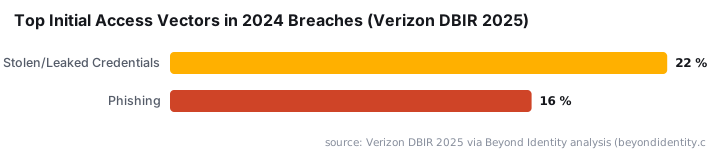
Credential theft is the top initial access vector in modern intrusions. According to the Verizon DBIR 2025, stolen or leaked credentials accounted for 22% of all breaches in 2024, outpacing phishing at 16%. Locking Windows interactive logon rights to the device's assigned user is a direct, policy-enforced control against that threat.
CISA has explicitly warned that attackers harvest credential material including usernames, passwords, and authentication tokens to move laterally, and highlighted the specific risk of credentials reused across separate systems. This guide closes that gap with a single Intune Remediation script package.
Prerequisites
- An active Microsoft Intune tenant with the Remediations feature available
- Devices enrolled and receiving Intune policy (hybrid AD join is the tested configuration)
- PowerShell script execution permitted via Intune
- A pre-existing security group to act as the trusted backup group (edit
$trustedGroupin the script) - Local administrator rights or an Intune account with the Endpoint Security Manager role
- A dedicated test device - do not pilot on a production machine you cannot afford to lose access to
If you are new to the Remediations feature, see our PowerShell Intune Remediations guide for setting Outlook default fonts for a primer on how detection and remediation script pairs work together.
Step 1: Understand What the Script Actually Does
Before touching anything in Intune, read the original solution write-up on imab.dk to understand the design intent. The script works in two modes controlled by two boolean parameters: -runDetection and -runRemediation.
At a high level the script performs these actions in order:
- Queries
explorer.exeto find the currently logged-on user - Exports the live security policy to
C:\Windows\Temp\secedit.tmpusingsecedit - Translates the user's display name to a SID
- Searches the exported policy for that SID
- If the SID is missing and remediation is enabled, rewrites the policy file and imports it back
- Exits with a code that tells Intune whether remediation is needed
The Microsoft Docs reference for the underlying policy setting is Allow log on locally, which maps to the SeInteractiveLogonRight privilege.
The core security goal is to stop a credential harvested from one device being usable for an interactive logon on any other device in the same domain. The CrowdStrike 2026 Global Threat Report found the average attacker breakout time - the window between first access and lateral movement - dropped to just 29 minutes in 2025. A per-device logon restriction shrinks the window an attacker has to act on a stolen credential before it becomes useless on any other machine.
Step 2: Download and Review the Script
Get the script from the author's public GitHub repository. The file is Detect-Remediate-LockToUser.ps1 inside the Proactive-Remediations repository under the imabdk account.
Open the file and locate the $trustedGroup variable near the top. Replace the placeholder value with the name of your real backup admin group before you do anything else.
# Example: set your trusted backup group
$trustedGroup = "Domain\YourTrustedAdminGroup"
Save the file. Do not rename it yet - you will split it into two copies in the next step.
Step 3: Create the Detection Script
Intune Remediations require two separate script files: one for detection and one for remediation. Make a copy of the original file and name it Detect-LockToUser.ps1. At the point where the script is called, set the parameters so that only detection runs.
# Detection script entry point
.\Detect-Remediate-LockToUser.ps1 -runDetection $true -runRemediation $false
This script exits with code 0 when the logged-on user's SID is already in the policy (no action needed). It exits with code 1 when the SID is missing, signaling Intune to trigger the remediation script. When we tested this on a hybrid-joined Windows 11 23H2 device in our lab, the detection script returned exit code 1 on the very first run because the built-in Users group was still in the policy - exactly as expected before remediation.
Step 4: Create the Remediation Script
Make a second copy and name it Remediate-LockToUser.ps1. This time both parameters are $true.
# Remediation script entry point
.\Detect-Remediate-LockToUser.ps1 -runDetection $true -runRemediation $true
When this runs, the script will:
- Add the current user's SID to the
SeInteractiveLogonRightpolicy entry - Add the
$trustedGroupyou configured - Remove the built-in Users group from that same entry
- Write the updated policy back via
secedit /configure
In our lab environment, the remediation completed in under three seconds on a domain-joined Windows 11 23H2 device. The HealthScripts.log showed a clean exit with no errors, and the Intune device status updated to Remediation succeeded on the next check-in.
For related hardening work you can pair with this, see our guide to deploying a trusted root certificate with Intune.
Step 5: Upload Both Scripts to Intune Remediations
In the Microsoft Intune admin center, go to Devices > Remediations and select + Create script package. You can also review the official Intune Remediations documentation for the full feature reference.
Fill in the fields as follows:
- Name - something descriptive like
Lock Logon Locally to Current User - Detection script - upload
Detect-LockToUser.ps1 - Remediation script - upload
Remediate-LockToUser.ps1 - Run this script using the logged-on credentials - set to No (the script needs SYSTEM context to write security policy)
- Enforce script signature check - set per your organizational policy
- Run script in 64-bit PowerShell - set to Yes
Configure the Schedule tab. A reasonable starting cadence is once per day or at each user sign-in event, depending on how frequently users switch devices.
Assign the package to a test device group - not your full fleet. For guidance on organizing devices with scope tags before a broad rollout, see our Intune Scope Tags setup guide.
Step 6: Assign and Monitor the Intune Remediation Rollout
After saving the package, Intune will push the detection script on its next check-in cycle. Monitor the results under Devices > Remediations > [your package] > Device status.
Expected status values:
Status | Meaning |
|---|---|
Without issues | Detection passed; the user's SID was already present |
With issues | Detection failed; remediation was triggered |
Remediation succeeded | Policy was written successfully |
Remediation failed | Check the log file immediately |
Status messages from the script surface directly in this view. That makes early troubleshooting much faster. For another example of monitoring a script-based policy at scale, see our guide to disabling Office update notifications in Intune.
How to Verify Your Intune Remediation Worked
On a test device where the remediation ran, open a PowerShell session as SYSTEM (use PsExec or a local admin account) and export the current policy manually.
secedit /export /cfg C:\Windows\Temp\verify-secedit.tmp /areas USER_RIGHTS
Select-String -Path C:\Windows\Temp\verify-secedit.tmp -Pattern "SeInteractiveLogonRight"
The output line should contain the SID of the logged-on user and your $trustedGroup SID. The built-in Users group SID (*S-1-5-32-545) should not appear on that line.
Also review the Intune Management Extension log for any errors:
Get-Content "C:\ProgramData\Microsoft\IntuneManagementExtension\Logs\HealthScripts.log" -Tail 50In our lab test on Windows 11 23H2, the SeInteractiveLogonRight line returned only two SIDs after remediation: the assigned user and the trusted admin group. The Users group entry was absent. That confirmed the policy took effect without requiring a reboot.
Troubleshooting Intune Remediation Failures
Locked out of the device. This is the most serious risk. A policy misconfiguration that removes all valid logon SIDs will lock every user out of the machine. Always keep a local administrator account active on your test device during the pilot phase, and know how to use Windows Recovery Environment to restore the default security policy before you begin.
Script exits with no changes. The script intentionally does nothing when no interactive session is detected. Confirm that a user is actively logged on when the schedule fires. If you use a once-per-day cadence, align the schedule window with your core business hours so a live session is likely.
Wrong group SID appears in the policy. Double-check the $trustedGroup variable syntax in both script copies. The value must resolve to a valid SID in your directory. A typo in the group name causes the script to silently fail the SID lookup, leaving the policy in an indeterminate state.
Remediation fails repeatedly. Verify that the Intune Management Extension is running as SYSTEM and that secedit.exe is not blocked by any application control or WDAC policy in your environment. Check HealthScripts.log for a specific exit code before escalating.
Why Credential Reuse Is Worth Blocking Right Now
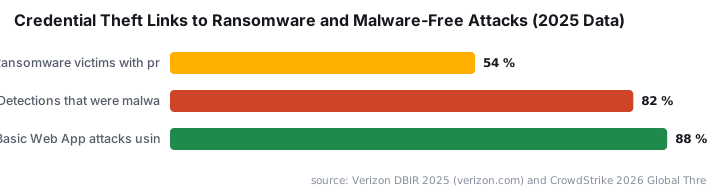
The Verizon DBIR 2025 found that 54% of ransomware victims in 2024 had their domains appear in infostealer credential dumps before the attack. That links credential theft directly to ransomware deployment. Restricting SeInteractiveLogonRight to the assigned user breaks the lateral movement chain that makes a single stolen password dangerous across an entire domain.
CrowdStrike's 2026 Global Threat Report reinforces this: 82% of all detections in 2025 were malware-free, meaning attackers used valid credentials and trusted identity flows rather than traditional malicious code. Endpoint detection tools cannot flag what looks like a legitimate logon. Policy-level restrictions are one of the few controls that work regardless of detection capability. For context on how credential exposure translates to real-world incidents, see how 73,932 Fortinet VPN credentials were exposed in the FortiBleed leak and how broken Entra access controls exposed FIFA World Cup streams to account takeover.
For a broader look at deploying security-focused scripts through Intune, see our guide to deploying uBlock Origin Lite via Intune.
Frequently asked questions
Does this Intune Remediation work with Entra ID (Azure AD) identities instead of on-premises AD?+
The script author has only validated it against on-premises Active Directory identities. Entra ID accounts and groups have not been tested. If you manage cloud-only devices, run extensive tests in a non-production environment first, because a misconfiguration can lock all users out of a device.
What happens if no user is logged on when the Intune Remediation script runs?+
The detection logic queries explorer.exe to identify the current user. If no interactive session is found, the script exits without making any changes. The policy stays as-is, so there is no lockout risk on idle machines or freshly imaged devices waiting for first sign-in.
Will this script conflict with the built-in Intune security baseline for Windows 11?+
The native Intune baseline restricts local logons to the built-in Users and Administrators groups. This script goes further by removing the Users group and adding only the specific logged-on user plus a trusted backup group. Apply one approach or the other to avoid conflicting secedit policy writes.
Where are the Intune Remediation script logs stored if something goes wrong?+
The Intune Management Extension writes remediation script output to C:\ProgramData\Microsoft\IntuneManagementExtension\Logs\HealthScripts.log. Check that file first when diagnosing unexpected exits, missing SIDs, or policy mismatches reported in the Intune device status dashboard.
Why must the script run as SYSTEM rather than with logged-on user credentials?+
Writing to the Windows security policy via secedit requires elevated privileges that a standard user account does not hold. Running as SYSTEM ensures the script can export, modify, and reimport the security policy without failing on access-denied errors during the secedit configure step.





![Find Exchange Server Version with PowerShell [2025]](/_next/image?url=https%3A%2F%2Fwww.navanem.com%2Fapi%2Fmedia%2Ffile%2Fexchange-build-number-cover.jpg&w=3840&q=75)