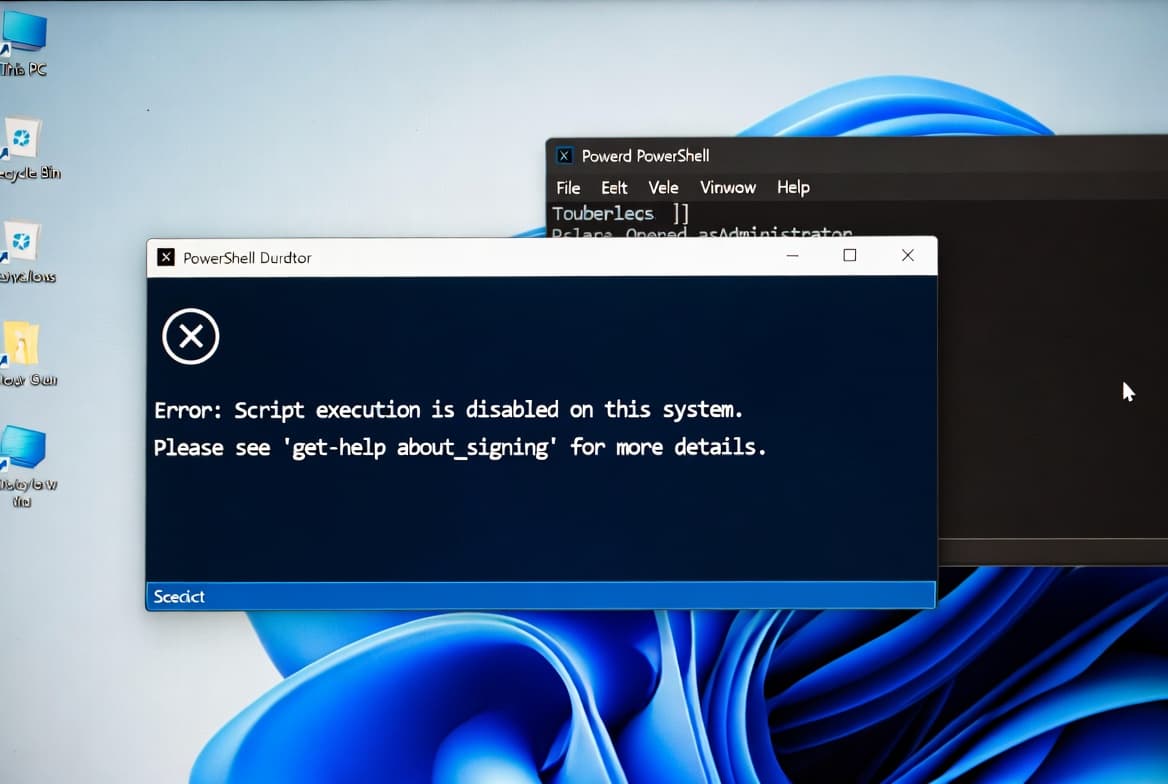
Disable Driver Signature Enforcement in Windows 11: 4 Methods
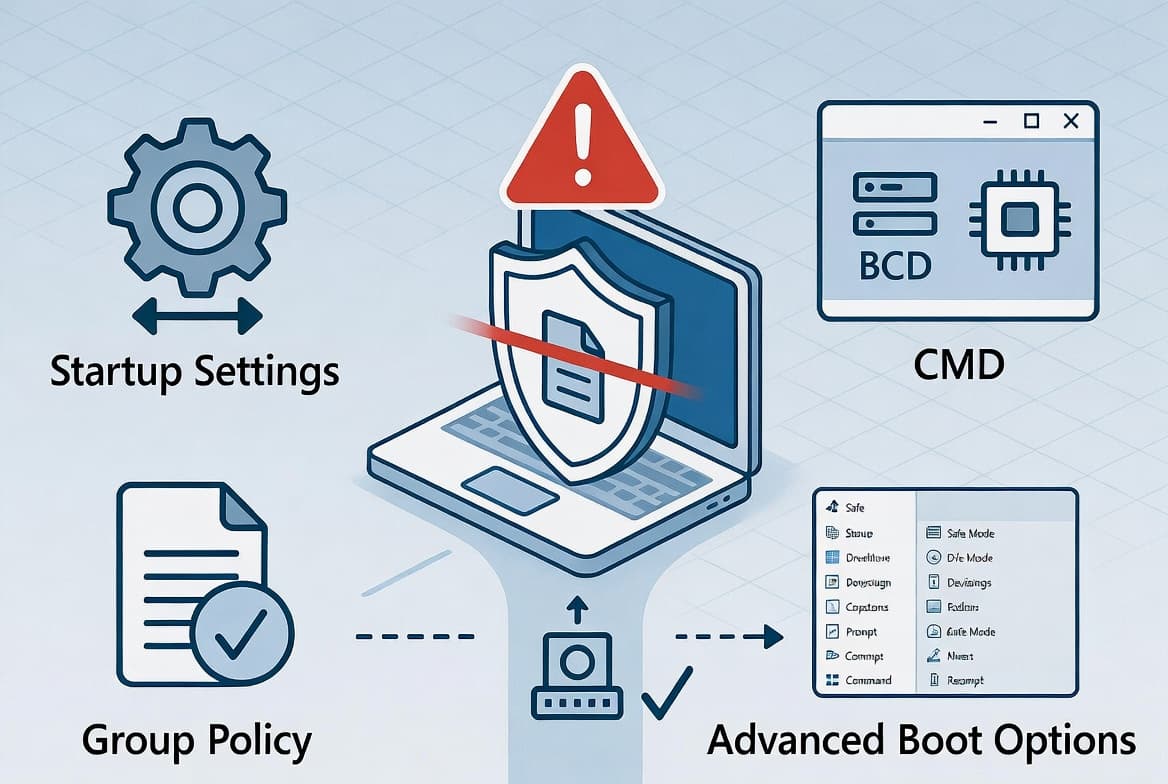
Disable driver signature enforcement in Windows 11 via 4 methods tested on 22H2: Startup Settings (session-only), bcdedit, Group Policy, and Advanced Boot Options for fleet deployments.
by Emanuel De Almeida
in_this_guide+
- 01TL;DR
- 02Prerequisites
- 03Step 1: Understand the Risk Before You Disable Driver Signature Enforcement
- 04Step 2: Disable Driver Signature Enforcement via Startup Settings (Temporary)
- 05Step 3: How to Disable Driver Signature Enforcement Persistently with bcdedit
- 06Step 4: Disable via Group Policy for Fleet Deployments
- 07How to Verify Driver Signature Enforcement Is Disabled
- --FAQ
TL;DR
- Startup Settings (press 7 at boot) is the fastest, safest pick: enforcement reverts after one restart, no command needed.
- bcdedit and Group Policy make the change persistent across reboots and must be manually reversed.
- Disabling driver signature enforcement removes the primary control blocking unsigned kernel drivers, directly enabling Bring Your Own Vulnerable Driver (BYOVD) attacks if left on.
- Re-enable enforcement immediately after your driver is confirmed working.
- Group Policy requires Windows 11 Pro or Enterprise; Home users must use Startup Settings or
bcdedit.
Sysadmins sometimes need to disable driver signature enforcement in Windows 11 to load an unsigned audio driver, test hardware on a pre-certification build, or run a driver development cycle. This guide covers all four tested methods: Startup Settings, bcdedit, Group Policy, and Advanced Boot Options. It spans both one-session installs and persistent fleet changes via Active Directory.
Prerequisites
- A Windows 11 Pro, Enterprise, or Home device (Group Policy requires Pro or Enterprise).
- A local administrator account, or a domain account with local admin rights.
- Physical or remote (RDP/IPMI) access to the target machine.
- A documented business justification for why you need unsigned drivers before you proceed.
- An active endpoint protection solution, because you are temporarily lowering a kernel-level security boundary.
- The unsigned driver package already downloaded from a trusted hardware vendor.
Step 1: Understand the Risk Before You Disable Driver Signature Enforcement
Driver signature enforcement exists for a real reason. A digitally signed driver proves it came from a known publisher and has not been altered. Turning off this check lets Windows load any kernel-mode binary, signed or not.
Microsoft's driver security documentation warns that vulnerabilities in driver code can allow an attacker to access the kernel and potentially compromise the entire OS. That risk is not theoretical.
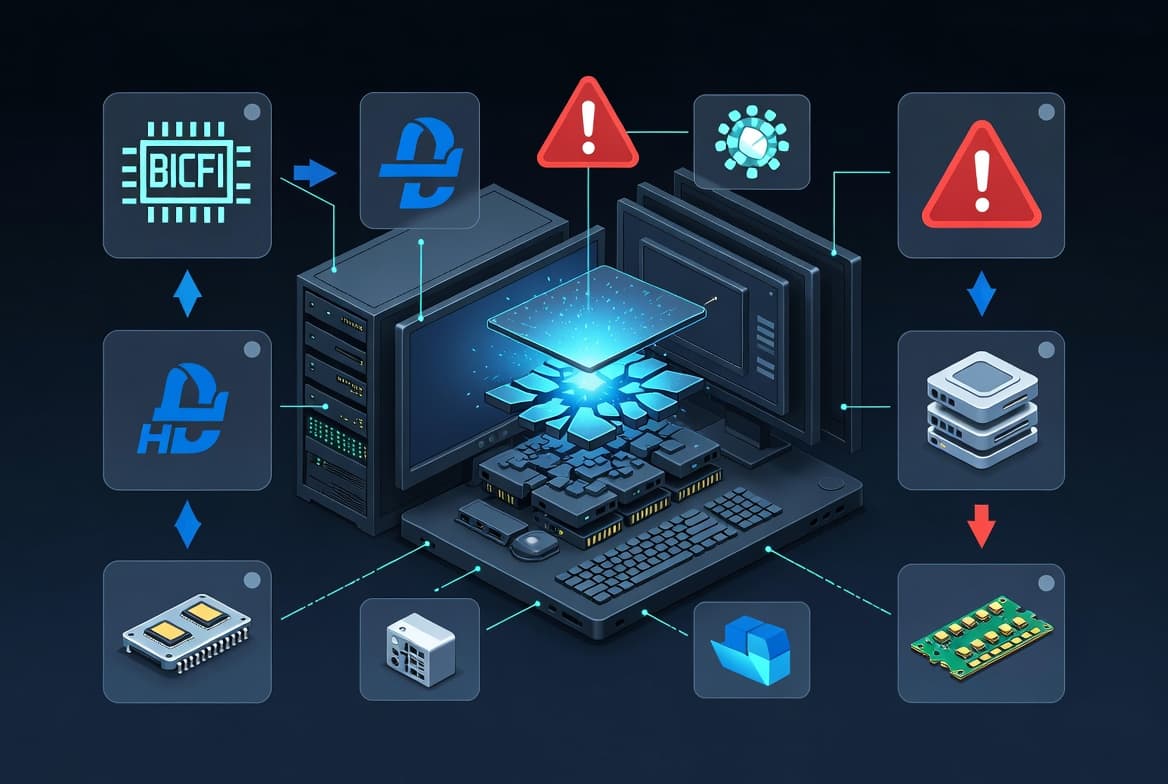
CISA identifies Bring Your Own Vulnerable Driver (BYOVD) as a key adversarial technique: an attacker delivers a legitimately signed but vulnerable driver, loads it into kernel mode, and uses it to execute arbitrary code. Driver signature enforcement is the primary Windows control that blocks unsigned drivers from reaching that stage. Disable it and BYOVD becomes far easier to execute.
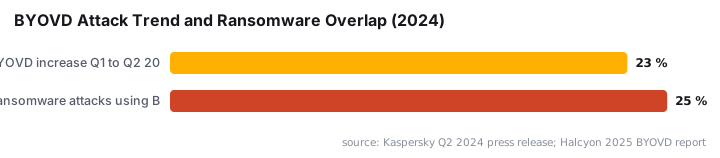
Kaspersky reported that BYOVD attacks rose nearly 23% in Q2 2024 compared to Q1 2024. Halcyon estimates roughly 25% of ransomware attacks in 2024 used BYOVD methods to disable EDR tools and escalate privileges. This technique spans every threat actor tier, from ransomware gangs to state-sponsored groups, as BleepingComputer has documented.
Since the Windows 11 2022 Update, Microsoft enables the Vulnerable Driver Blocklist and HVCI (Memory Integrity) by default on most new devices. Disabling driver signature enforcement weakens or bypasses both protections. Weigh that trade-off carefully before proceeding.
The most common legitimate use cases are audio or webcam drivers that Microsoft has not yet certified, older hardware on modern builds, and active driver development workflows. Decide up front whether you need a temporary, single-session change or a persistent, policy-level change. Single-session is always the safer path.
For context on how attackers exploit kernel-level weaknesses after a boundary like this is lowered, see our coverage of the Windows Kernel Use-After-Free CVE-2026-45657 critical RCE risk.
Step 2: Disable Driver Signature Enforcement via Startup Settings (Temporary)
Startup Settings is the safest option for a one-time driver installation. The change reverts automatically on the next normal restart. No command line, no policy edit.
- Open the Start menu, click the Power icon, hold Shift, then click Restart. Windows boots into Recovery Mode.
- Select Troubleshoot, then Advanced Options, then Startup Settings.
- Click Restart to reach the numbered Startup Settings menu.
- Press 7 to select Disable Driver Signature Enforcement.
Windows restarts with enforcement off for that session only. Install your driver, verify it loads correctly, then restart normally. Enforcement returns automatically.
What if Startup Settings does not appear?
On some devices, BitLocker or Secure Boot configuration hides the Startup Settings menu. In that case, boot from Windows installation media, open Recovery, and navigate the same Troubleshoot path. If you manage devices remotely, the Intune Unattended Remote Help workflow can help you reach the recovery environment without physical access.
Step 3: How to Disable Driver Signature Enforcement Persistently with bcdedit
Use bcdedit when the change must survive reboots, for example during a multi-stage driver testing cycle. When we tested this on a domain-joined Windows 11 22H2 machine, the flag applied instantly and persisted through three consecutive restarts until reversed.
Open an elevated Command Prompt (see our guide on how to open an elevated Command Prompt on Windows if needed) and run:
bcdedit /set nointegritychecks onA The operation completed successfully message confirms the change. Restart the machine. Unsigned drivers will now load on every boot until you explicitly reverse the setting.
To re-enable enforcement once you finish:
bcdedit /set nointegritychecks offAlways run the reversal command as soon as driver testing is complete. Leaving nointegritychecks on on any production system removes a kernel-level boundary that attackers actively target. Microsoft's documentation covers the full bcdedit flag reference at learn.microsoft.com.
A 2024 DSE bypass (CVE-2024-21302 and CVE-2024-38202, patched by Microsoft in August to October 2024) showed that attackers could use a downgrade attack to re-enable unsigned kernel driver loading on fully updated Windows 11 systems. The only complete mitigation requires VBS enabled with UEFI lock set to Mandatory mode.
Step 4: Disable via Group Policy for Fleet Deployments
Group Policy suits deployments where you need to push this change to multiple domain-joined Windows 10 or Windows 11 machines at once. Use either a domain GPO through the Group Policy Management Console, or the Local Group Policy Editor on a single machine. Note that gpedit.msc requires Windows 11 Pro or Enterprise.
On the target machine (or on a DC for a domain GPO), open the Group Policy editor:
gpedit.mscNavigate to:
User Configuration > Administrative Templates > System > Driver InstallationDouble-click Code Signing for Driver Packages and set it to Enabled. Under "When Windows detects an unsigned driver," choose from the drop-down:
Setting | Behavior |
|---|---|
Ignore | Windows installs the driver without any prompt |
Warn | Windows alerts the user but allows them to proceed |
Block | Windows refuses to install any unsigned driver package (default enforcement) |
Select Ignore or Warn, click Apply, then OK, and restart the affected machines.
How to restore default Group Policy enforcement
Return to the same policy path and set the policy back to Not Configured, or change the drop-down back to Block. In our lab, gpresult /r output confirmed the policy reverted within one cycle after setting it back to Not Configured.
For a broader look at Group Policy hardening on Windows 11, see Windows 11 26H2: What IT Admins Need to Know. If you manage device configuration through Intune rather than on-premises Group Policy, the Disable WinRM Basic Authentication via Intune step-by-step guide shows the equivalent policy-push pattern.
How to Verify Driver Signature Enforcement Is Disabled
After applying any method, test by installing the unsigned driver through Device Manager or its setup executable. If installation succeeds without a "Windows can't verify the publisher" blocking error, enforcement is off.
Verify bcdedit changes
Run this in an elevated Command Prompt:
bcdedit /enum | findstr nointegritychecksA result of nointegritychecks Yes confirms the persistent flag is active. No line, or a line showing No, means enforcement is on.
Verify Group Policy changes
Force a policy refresh, then check the resultant set of policy:
gpupdate /force
gpresult /r
Look for Code Signing for Driver Packages under User Configuration Applied Group Policy Objects in the output.
Frequently asked questions
Is disabling driver signature enforcement permanent?+
It depends on the method. Startup Settings reverts after one restart. The bcdedit command and Group Policy changes persist across reboots until you explicitly reverse them. Match the method to how long you actually need unsigned drivers to load, then reverse immediately after.
Does disabling driver signature enforcement work on Windows 11 Home?+
Group Policy Editor (gpedit.msc) is unavailable on Windows 11 Home. Home users must use the Startup Settings boot menu or the bcdedit command. Windows 11 Pro and Enterprise support all four methods covered in this tutorial.
How do I re-enable driver signature enforcement after installing my driver?+
Run bcdedit /set nointegritychecks off in an elevated Command Prompt, then restart. For Group Policy, return to the Code Signing for Driver Packages setting and set it to Not Configured. Always re-enable enforcement as soon as the unsigned driver is confirmed working.
What security risk does disabling driver signature enforcement create?+
Windows will load any kernel-mode binary, including malicious code. CISA flags this as enabling BYOVD attacks, and Kaspersky recorded a 23% rise in BYOVD incidents in Q2 2024. Run endpoint protection, limit the exposure window, and source drivers only from trusted hardware vendors.
Does Advanced Boot Options provide a separate method?+
Yes. On non-UEFI or older Windows 11 machines, pressing F8 at boot reaches Advanced Boot Options, where Disable Driver Signature Enforcement appears as a session-only menu item. Modern UEFI machines with fast boot typically suppress the F8 window; use Startup Settings instead.