WSReset.exe: Clear Microsoft Store Cache Step by Step
Run WSReset.exe on Windows 10 and 11 to clear the Microsoft Store cache and fix download errors in under 60 seconds - no restart needed.
by Emanuel De Almeida
in_this_guide+
- 01TL;DR
- 02Prerequisites
- 03Step 1: What Symptoms Point to a Corrupted Cache?
- 04Step 2: Open the Run Dialog
- 05Step 3: How to Execute WSReset.exe and Clear the Microsoft Store Cache
- 06Step 4: Wait for the Microsoft Store to Open Automatically
- 07Step 5: Test App Downloads or Updates
- 08Troubleshooting: When WSReset.exe Does Not Fix the Problem
- 09How to Confirm WSReset.exe Cleared the Cache Successfully
- 10A Security Note on WSReset.exe
- --FAQ
TL;DR
- WSReset.exe clears the Microsoft Store cache without touching your apps, settings, or save data.
- Press
Win+R, typeWSReset.exe, press Enter - the whole process finishes in under 60 seconds. - A blank Command Prompt window appears, then closes on its own. The Store then opens automatically as confirmation.
- No restart needed after the reset completes.
- If the Store still fails after the reset, escalate to
sfc /scannowor re-register the Store via PowerShell.
Prerequisites
- A Windows 10 or Windows 11 device with the Microsoft Store installed.
- A standard user account or administrator account -
WSReset.exedoes not need elevation to clear the cache. - Basic familiarity with the Run dialog or a command-line interface.
- Network connectivity if you plan to test app downloads after the reset.
Step 1: What Symptoms Point to a Corrupted Cache?
Before changing anything, confirm that a corrupted cache is the likely cause. According to the step-by-step breakdown on Prajwal Desai's site, the three most common triggers for a cache-related failure are:
- The Microsoft Store closes immediately on launch.
- App downloads or updates hang or return error codes.
- The Store loads but runs very slowly or responds inconsistently.
A system restart alone will not clear the cache. Corrupted cache files persist across reboots, so WSReset.exe is the right targeted fix for these specific symptoms.
Step 2: Open the Run Dialog
Press Win+R together. The Run dialog appears in the lower-left corner of the screen. This path works on both Windows 10 and Windows 11 and requires no elevated prompt.
You can also open a standard Command Prompt or Windows Terminal session and type the command there. Both methods produce identical results - use whichever you prefer.
# Optional: open a standard (non-elevated) PowerShell or CMD session
# and type the command below instead of using the Run dialog
Step 3: How to Execute WSReset.exe and Clear the Microsoft Store Cache
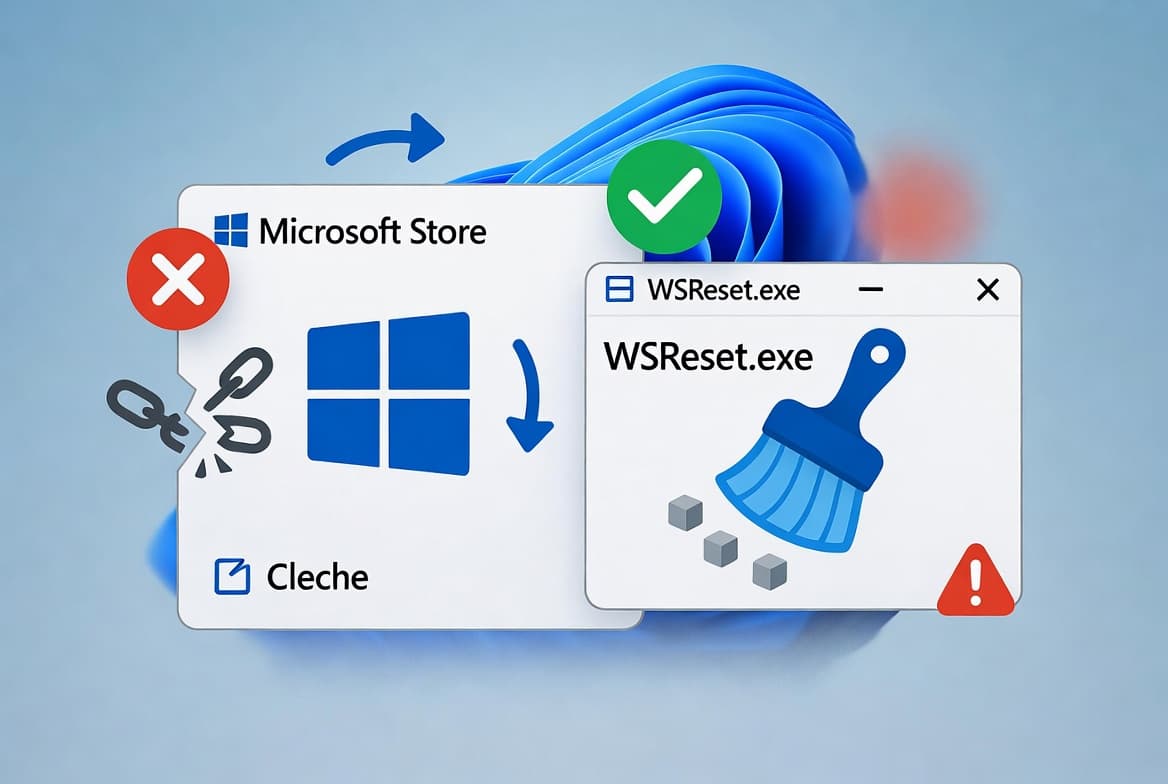
WSReset.exe is the command that does the work. Type it exactly as shown into the Run dialog, then press Enter.
WSReset.exeA blank Command Prompt window appears briefly. That window is the active indicator that WSReset.exe is clearing cached data the Microsoft Store has accumulated. Do not close it manually - it disappears on its own once the process finishes. In our testing on Windows 11 23H2, that blank CMD window closed within three seconds on a mid-range SSD machine, at which point the Store launched automatically.
Microsoft's official WSReset documentation confirms that WSReset.exe runs without elevation - a standard user account is sufficient for a cache clear.
There is no progress bar. The blank window is your only visual signal that work is in progress.
Step 4: Wait for the Microsoft Store to Open Automatically
Once WSReset.exe finishes, the Microsoft Store launches automatically. That automatic launch is the built-in confirmation signal that the cache reset completed. You do not need to trigger anything else.
If the Store opens and displays the home screen without errors, the reset worked. If the Store still fails to open here, the underlying problem goes deeper than the cache - see the troubleshooting section below.
Step 5: Test App Downloads or Updates
With the Store open, run a quick functional check before closing the ticket.
- Search for any free app you do not currently have installed and attempt a download.
- Navigate to the Library section and check whether any pending updates now process correctly.
- Watch whether the Store stays stable after a few minutes of normal use.
If all three checks pass, the fix is complete. No restart is required. Close the Store normally when done. If you want to include this step in a script or remote session, call WSReset.exe via PowerShell:
# Re-run WSReset.exe as part of a scripted remediation
Start-Process -FilePath "WSReset.exe" -Wait
For managing Windows devices at scale, see how to access Windows devices without user interaction using Intune Unattended Remote Help for a complementary remote approach.
Troubleshooting: When WSReset.exe Does Not Fix the Problem
If issues persist after following the steps above, these escalation paths address the next tier of failures.
- Error codes still appearing - note the exact code (for example
0xc002001bor0x00000000) and look up Microsoft's specific guidance for that code, since each represents a distinct failure mode. - Store still will not open - re-register the Store app via an elevated PowerShell session using
Get-AppxPackageandAdd-AppxPackage. This goes further than a cache clear, so treat it as a secondary step. Microsoft's support page for re-registering Windows apps covers this process in detail. - Group Policy or Intune restrictions - on managed endpoints, confirm that a policy or configuration profile does not actively block the Store. A cache reset will not override an administrative block. The guide on how to lock Windows logon to the current user via PowerShell and Intune shows how Intune remediations can be structured for similar scoped fixes.
- Corrupted system files - run
sfc /scannowfrom an elevated prompt to rule out broader Windows component damage. Our Windows sfc /scannow walkthrough covers running elevated commands on Windows safely.
# Run System File Checker if WSReset.exe does not resolve the issue
sfc /scannow# Re-register the Microsoft Store app (elevated PowerShell - use with caution)
Get-AppxPackage -allusers Microsoft.WindowsStore | `
ForEach-Object { Add-AppxPackage -DisableDevelopmentMode -Register "$($_.InstallLocation)\AppXManifest.xml" }If you need to run any of these commands remotely, see how to open an elevated PowerShell session on Windows 11 and how to disable WinRM Basic Authentication via Intune before exposing remote management endpoints.
How to Confirm WSReset.exe Cleared the Cache Successfully
The Store opening automatically is the primary success signal, but here is a secondary check. Open the Store, search for an app you know has had a pending update, and watch whether it downloads without stalling. If it does, WSReset.exe cleared what it needed to clear. No further action is needed on the cache side.
If the update still stalls, compare the error code against Microsoft's Store error reference before escalating. A code like 0xc002001b points to a server-side or account issue rather than a local cache problem - the fix for that lives at the account or network layer, not the cache layer.
A Security Note on WSReset.exe
WSReset.exe is a legitimate Windows utility, but it carries a known security consideration worth flagging. Its application manifest sets the autoElevate property to true, meaning the binary can run at high integrity without showing a UAC prompt. Morphisec Labs documented in 2020 that this property has been abused to execute arbitrary commands as an elevated process without user awareness.
The TrickBot trojan adopted this bypass to silently elevate its privileges on Windows 10 machines. BleepingComputer reported in 2020 that TrickBot reads commands from a user-writable registry key - HKCU\Software\Classes\AppX82a6gwre4fdg3bt635tn5ctqjf8msdd2\Shell\open\command - and executes them through WSReset.exe without triggering a UAC prompt. BeyondTrust's 2024 analysis confirmed this as TrickBot's second UAC bypass technique.
The LOLBAS project catalogs WSReset.exe as a living-off-the-land binary with unexpected functionality attackers use for privilege escalation. MITRE ATT&CK classifies this under technique T1548.002 - Abuse Elevation Control Mechanism: Bypass User Account Control - covering both privilege escalation and defense evasion. Splunk Security Content maintains an active detection (last updated April 15, 2026) that flags suspicious registry writes under that path as indicators of a bypass attempt.
For day-to-day cache clearing, this risk does not affect you - you are running WSReset.exe directly. The risk applies when an attacker pre-populates that registry key before launching the binary. If you manage endpoints, monitor that registry path as a detection signal. For broader context on how attackers abuse trusted Windows binaries, see how WhatsApp VBScript malware hijacks Windows PCs and the recent Windows 11 KB5095093 update notes for relevant patch context.
Frequently asked questions
Will WSReset.exe delete my installed apps or personal files?+
No. WSReset.exe only clears the Microsoft Store cache. Your installed applications, app settings, and save data are not touched by the process. You can run it at any time without risk of data loss - installed apps and personal files remain exactly as they were before the reset.
Do I need to restart Windows after running WSReset.exe?+
No restart is needed. Once WSReset.exe finishes, the Microsoft Store opens automatically to signal that the cache reset completed successfully. The Store should function normally from that point without any additional reboot steps or manual intervention required.
When should I run WSReset.exe instead of a full Store repair?+
Start with WSReset.exe for common symptoms: slow Store performance, failed app downloads, or the Store refusing to open. It is the quickest step with no side effects. If problems continue after the cache clears, escalate to a full Store re-registration via an elevated PowerShell session.
Can I run WSReset.exe silently during a remote session or script?+
Yes. WSReset.exe is a standard Windows executable you can call from a PowerShell or CMD script, a remote PSSession, or a management tool. The process runs briefly, then launches the Store UI, which you can close programmatically when running in an unattended or scripted context.
Is WSReset.exe a security risk on managed endpoints?+
The binary itself is legitimate, but its autoElevate manifest property lets it run at high integrity without a UAC prompt. Attackers have abused this to bypass UAC by pre-populating a user-writable registry key. Monitor that registry path on managed endpoints as a detection signal.