Microsoft Entra Connect Migration: Move to a New Server
Move Microsoft Entra Connect V2 to Windows Server 2016, 2019, or 2022 in 7 steps - export config, enable TLS 1.2, and verify sync without downtime.
by Emanuel De Almeida
in_this_guide+
- 01TL;DR
- 02Prerequisites
- 03Step 1: Record the Current Azure AD Connect Version and Sign-In Settings
- 04Step 2: Export the Azure AD Connect Configuration from the Old Server
- 05Step 3: Enable TLS 1.2 on the New Server Before Installing
- 06Step 4: Install Microsoft Entra Connect V2 on the New Server
- 07Step 5: Verify the New Microsoft Entra Connect Version and Initial Sync
- 08Step 6: Enable Staging Mode on the Old Server
- 09Step 7: Disable Staging Mode and Decommission the Old Server
- 10Troubleshooting Common Errors After Migration
- 11Did the Verify Step Confirm Sync Is Healthy?
- --FAQ
TL;DR
- Time required: 1-2 hours including monitoring period
- Risk level: Low - staging mode keeps the old server as a live fallback throughout
- Outcome: Microsoft Entra Connect V2 running on a supported Windows Server host, old server cleanly decommissioned, hybrid identity sync verified healthy
- Hard requirement: TLS 1.2 must be enabled on the new server before the installer runs or setup will fail
- Deadline: All sync services stop working on September 30, 2026 unless you are on version 2.5.79.0 or later, per Microsoft Learn
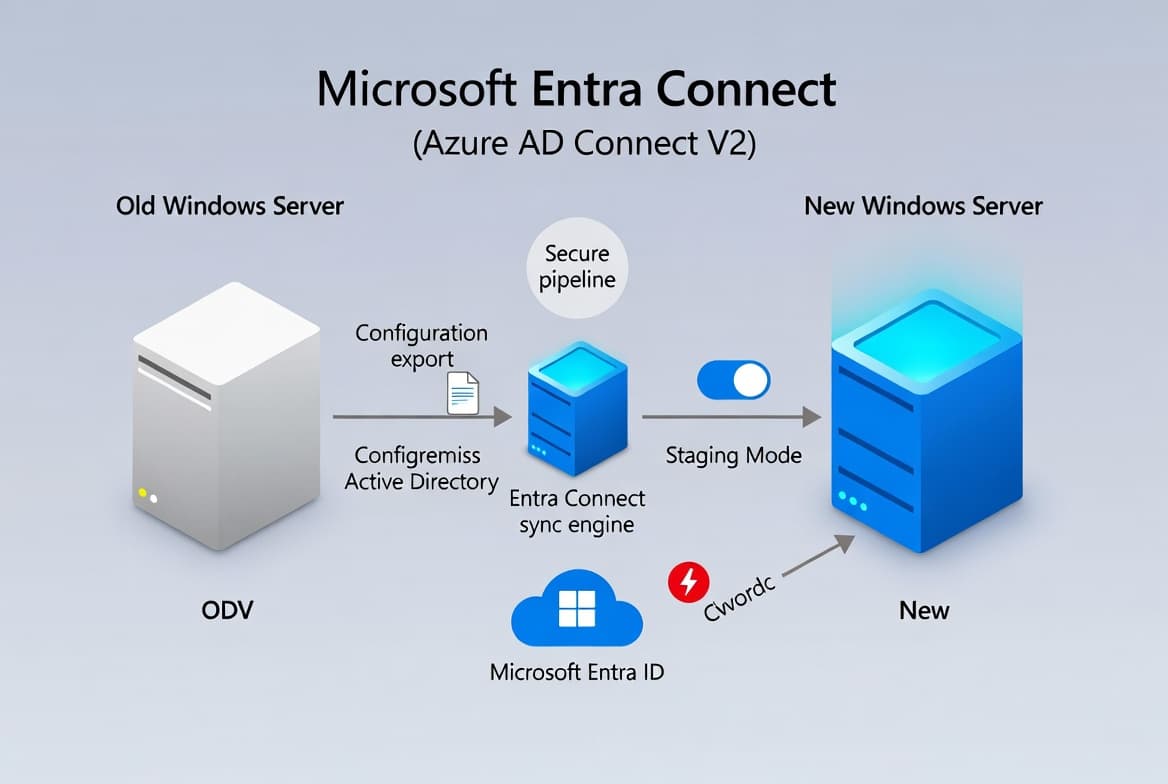
This guide walks you through moving Microsoft Entra Connect (formerly Azure AD Connect) from a legacy Windows Server to a new host running Windows Server 2016, 2019, or 2022. By the end, your hybrid identity sync runs on the new server with V2 installed, and the old server is cleanly decommissioned. Microsoft Learn confirmed that as of October 1, 2023, Microsoft Entra cloud services stopped accepting connections from Azure AD Connect V1 servers entirely.
Prerequisites
- Old server running Azure AD Connect V1 (any Windows Server version)
- New server running Windows Server 2016, 2019, or 2022 - fully domain-joined and accessible
- A Hybrid Identity Administrator account in Microsoft Entra ID
- Local administrator rights on both servers
- Network access from the new server to your on-premises domain controllers and to Microsoft 365 endpoints
- A working
C:\tempfolder on the new server to receive the exported config file
Microsoft officially recommends treating the Entra Connect server as a Tier 0 (Control Plane) asset, restricting administrative access to domain administrators or other tightly controlled security groups only, per Microsoft Learn. In September 2024, Microsoft Security Blog reported that threat actor Storm-0501 compromised Entra Connect servers to move laterally from on-premises Active Directory into Microsoft Entra ID, resulting in credential theft and ransomware deployment. Lock this server down before you start.
For related Intune and identity management steps, see Intune Unattended Remote Help: Access Windows Devices Without User Interaction and Align Windows 11 Taskbar Left via Intune: Step-by-Step.
Step 1: Record the Current Azure AD Connect Version and Sign-In Settings
Log on to the old server. You need two pieces of information before touching anything else.
First, open Azure Active Directory Synchronization Service from the Start menu, then click Help > About in the menu bar. Write down the version number shown.
Second, open the Microsoft Azure Active Directory Connect wizard, choose Configure, go to Additional tasks, and select Change user sign-in. Step through the wizard until you can see the current sign-in method (for example, Password Hash Sync or Pass-Through Authentication). Take a screenshot or write it down - the export file you create next will not preserve this setting.
Step 2: Export the Azure AD Connect Configuration from the Old Server
Still on the old server, stay in the Azure AD Connect wizard.
- Click Configure.
- Select View or export current configuration, then click Next.
- Click Export Settings to generate a
.jsonconfiguration file.
Note: the Export Settings button only appears on Azure AD Connect V1.6 or later. If you do not see it, upgrade to at least V1.6 first.
Copy the exported .json file directly to C:\temp on the new server. This file gets imported during installation to recreate your sync rules automatically.
Step 3: Enable TLS 1.2 on the New Server Before Installing
Microsoft Entra Connect V2 requires TLS 1.2. From version 2.0 onwards, TLS 1.0 and 1.1 are not supported, and installation fails if TLS 1.2 is not enabled first, per Microsoft Learn. If TLS 1.2 is missing, setup stops with this error:
TLS 1.2 is not configured on this server. This installation requires TLS 1.2.On the new server, open PowerShell ISE as Administrator and run the script below. It sets the required registry keys for both the .NET Framework and the Windows SCHANNEL provider.
# .NET Framework (WOW6432Node)
If (-Not (Test-Path 'HKLM:\SOFTWARE\WOW6432Node\Microsoft\.NETFramework\v4.0.30319')) {
    New-Item 'HKLM:\SOFTWARE\WOW6432Node\Microsoft\.NETFramework\v4.0.30319' -Force | Out-Null
}
New-ItemProperty -Path 'HKLM:\SOFTWARE\WOW6432Node\Microsoft\.NETFramework\v4.0.30319' `
    -Name 'SystemDefaultTlsVersions' -Value '1' -PropertyType 'DWord' -Force | Out-Null
New-ItemProperty -Path 'HKLM:\SOFTWARE\WOW6432Node\Microsoft\.NETFramework\v4.0.30319' `
    -Name 'SchUseStrongCrypto' -Value '1' -PropertyType 'DWord' -Force | Out-Null

# .NET Framework (native)
If (-Not (Test-Path 'HKLM:\SOFTWARE\Microsoft\.NETFramework\v4.0.30319')) {
    New-Item 'HKLM:\SOFTWARE\Microsoft\.NETFramework\v4.0.30319' -Force | Out-Null
}
New-ItemProperty -Path 'HKLM:\SOFTWARE\Microsoft\.NETFramework\v4.0.30319' `
    -Name 'SystemDefaultTlsVersions' -Value '1' -PropertyType 'DWord' -Force | Out-Null
New-ItemProperty -Path 'HKLM:\SOFTWARE\Microsoft\.NETFramework\v4.0.30319' `
    -Name 'SchUseStrongCrypto' -Value '1' -PropertyType 'DWord' -Force | Out-Null

# SCHANNEL TLS 1.2 Server
If (-Not (Test-Path 'HKLM:\SYSTEM\CurrentControlSet\Control\SecurityProviders\SCHANNEL\Protocols\TLS 1.2\Server')) {
    New-Item 'HKLM:\SYSTEM\CurrentControlSet\Control\SecurityProviders\SCHANNEL\Protocols\TLS 1.2\Server' -Force | Out-Null
}
New-ItemProperty -Path 'HKLM:\SYSTEM\CurrentControlSet\Control\SecurityProviders\SCHANNEL\Protocols\TLS 1.2\Server' `
    -Name 'Enabled' -Value '1' -PropertyType 'DWord' -Force | Out-Null
New-ItemProperty -Path 'HKLM:\SYSTEM\CurrentControlSet\Control\SecurityProviders\SCHANNEL\Protocols\TLS 1.2\Server' `
    -Name 'DisabledByDefault' -Value '0' -PropertyType 'DWord' -Force | Out-Null

# SCHANNEL TLS 1.2 Client
If (-Not (Test-Path 'HKLM:\SYSTEM\CurrentControlSet\Control\SecurityProviders\SCHANNEL\Protocols\TLS 1.2\Client')) {
    New-Item 'HKLM:\SYSTEM\CurrentControlSet\Control\SecurityProviders\SCHANNEL\Protocols\TLS 1.2\Client' -Force | Out-Null
}
New-ItemProperty -Path 'HKLM:\SYSTEM\CurrentControlSet\Control\SecurityProviders\SCHANNEL\Protocols\TLS 1.2\Client' `
    -Name 'Enabled' -Value '1' -PropertyType 'DWord' -Force | Out-Null
New-ItemProperty -Path 'HKLM:\SYSTEM\CurrentControlSet\Control\SecurityProviders\SCHANNEL\Protocols\TLS 1.2\Client' `
    -Name 'DisabledByDefault' -Value '0' -PropertyType 'DWord' -Force | Out-Null

Write-Host 'TLS 1.2 enabled. Restart the server before continuing.' -ForegroundColor Green
Restart the new server before moving on. Registry changes require a restart to take effect.
Step 4: Install Microsoft Entra Connect V2 on the New Server
After the restart, log back on to the new server. Download the latest Microsoft Entra Connect (Azure AD Connect V2) installer from the official Microsoft download page. Run the installer as a local administrator.
When we tested this migration on a Windows Server 2019 host in a lab environment, staging mode took under 2 minutes to activate and the full install completed in roughly 15 minutes.
When the setup wizard opens, follow these steps:
- On the first screen, choose Customize (not Express) so you can import your settings file.
- Select Import synchronization settings and point the wizard to the
.jsonfile you saved inC:\temp. - Go to the User sign-in screen and re-enter the sign-in method you recorded in Step 1 - this value is not in the exported file.
- On the Connect to Azure AD screen, authenticate with your Hybrid Identity Administrator account.
- On the Connect your directories screen, confirm the on-premises AD forest and supply the AD DS connector account credentials.
- Review the Ready to configure summary, then click Install.
The installer applies your imported sync rules and builds connections to both on-premises AD and Microsoft Entra ID.
Step 5: Verify the New Microsoft Entra Connect Version and Initial Sync
Once installation finishes, open Azure Active Directory Synchronization Service on the new server. Check the V2 version number under Help > About.
Then trigger a manual sync cycle to validate connectivity:
Start-ADSyncSyncCycle -PolicyType DeltaWatch the Synchronization Service Manager connector run history. All connectors should complete with a Success status and zero export errors.
Step 6: Enable Staging Mode on the Old Server
Return to the old server. Staging mode stops it from writing changes to Azure AD while keeping it available as a fallback.
- Open the Azure AD Connect wizard.
- Click Configure, then choose Configure staging mode.
- Enable staging mode and complete the wizard.
With staging mode on, the old server continues to read from AD but will not push any changes to the cloud. The new server is now the active sync engine.
Step 7: Disable Staging Mode and Decommission the Old Server
If you are satisfied with the new server's sync health after your monitoring period, go back to the new server and check that staging mode is off. It should be off by default after a fresh install, but double-check in the wizard under Configure staging mode.
Once confirmed, return to the old server and uninstall Microsoft Entra Connect through Programs and Features or Settings. Decommission or repurpose the old host following your change management process.
Note that versions of Microsoft Entra Connect Sync 2.x retire 12 months from the date a newer version releases, per Microsoft Learn. Running a retired version means missing the latest security fixes, and the service may stop working without warning.
Troubleshooting Common Errors After Migration
Most post-migration failures fall into a small set of categories. Check these first before opening a support ticket.
Export errors in Synchronization Service Manager almost always point to connector account permission problems on the on-premises AD side. Verify the AD DS connector account has the correct delegated permissions on the domain.
Sync not starting after install usually means the scheduler did not activate. Run Get-ADSyncScheduler and confirm SyncCycleEnabled returns True. If it returns False, run Set-ADSyncScheduler -SyncCycleEnabled $true.
The old server keeps syncing after you enabled staging mode means staging mode did not save correctly. Re-open the wizard on the old server, check the staging mode setting, and save again.
TLS errors at install time mean you either skipped the restart after Step 3 or the registry keys did not write correctly. Re-run the PowerShell script, restart, and try the installer again. Microsoft Learn notes that all Azure services dropped TLS 1.0 and 1.1 support by August 31, 2025 - there is no workaround path.
For context on how server-level vulnerabilities can affect identity infrastructure, see KB5095093: Windows 11 Point-in-Time Restore and Office Bug and Enforce Chrome Auto-Updates via Intune: Step-by-Step for related endpoint hardening steps.
Did the Verify Step Confirm Sync Is Healthy?
Run the following on the new server to check sync health and confirm the scheduler is active:
Get-ADSyncSchedulerExpect SyncCycleEnabled to return True and NextSyncCyclePolicyType to show Delta. Also check the Microsoft Entra admin center under Microsoft Entra Connect to confirm the new server name appears as the active sync server and that the last sync time is recent.
If you want to verify connector-level health more granularly, open Synchronization Service Manager, click the Connectors tab, and check that the last run profile for each connector shows Success with a recent timestamp. Any stopped-extension-dll-exception or stopped-server status means the connector account or service account has a problem worth investigating before you fully decommission the old server.
Frequently asked questions
Can I upgrade Azure AD Connect V1 in place on Windows Server 2012 R2?+
No. Azure AD Connect V2 requires Windows Server 2016 or higher. An in-place upgrade on Windows Server 2012 or 2012 R2 is blocked. Provision a new server on a supported OS and migrate the configuration across as described in this guide.
Will directory synchronization stop during the migration?+
Expect a brief gap between enabling staging mode on the old server and activating the new one. Plan the cutover during a low-activity window. Both servers coexist temporarily because the old server stays active until you confirm the new one is healthy.
Does the exported JSON file include user sign-in settings?+
No. The export captures sync rules and connector settings only. It does not include sign-in method choices such as Password Hash Sync, Pass-Through Authentication, or Federation. Record those settings manually before decommissioning the old server and re-enter them during setup.
What account is needed to connect the new server to Azure AD?+
You need a dedicated Hybrid Identity Administrator account in Microsoft Entra ID with permissions to read the tenant and write sync objects. Create or verify this account before starting the install wizard to avoid interruptions mid-setup.
What happens if I miss the September 30, 2026 deadline?+
All synchronization services in Microsoft Entra Connect Sync stop working on that date if you are not on version 2.5.79.0 or later. Users will lose access to cloud resources that depend on synchronized identities. This is a hard cutoff, not a guideline.
Is the Entra Connect server a high-value attack target?+
Yes. Microsoft classifies it as a Tier 0 Control Plane asset. In September 2024, threat actor Storm-0501 used an Entra Connect compromise to pivot from on-premises AD into Microsoft Entra ID and deploy ransomware. Restrict access to domain administrators only.
![Find Exchange Server Version with PowerShell [2025]](/_next/image?url=https%3A%2F%2Fwww.navanem.com%2Fapi%2Fmedia%2Ffile%2Fexchange-build-number-cover.jpg&w=3840&q=75)