GPO Block Websites in Microsoft Edge: Step-by-Step Guide
Block websites in Microsoft Edge via GPO across your Windows domain in under 30 minutes - no third-party tools needed. Full step-by-step guide with ADMX setup.
by Emanuel De Almeida
in_this_guide+
- 01TL;DR
- 02Prerequisites
- 03Step 1: Download the Microsoft Edge ADMX Templates
- 04Step 2: Copy ADMX Files to PolicyDefinitions
- 05Step 3: Copy ADML Language Files
- 06Step 4: Create a New GPO for Edge URL Blocking
- 07Step 5: How Do You Configure the Edge URL Block List in a GPO?
- 08Step 6: Link the GPO to the Target OU
- 09How Do You Verify the Edge GPO Block List Is Working?
- --FAQ
TL;DR
- You can block any URL or domain in Microsoft Edge across your entire Windows domain using a single Group Policy Object - no third-party software required.
- The process covers four phases: download Edge ADMX templates, copy them to PolicyDefinitions, configure the URL block list, and link the GPO to the target OU.
- Expect up to 20 minutes for AD replication; force an immediate refresh on any client with
gpupdate /force. - Wildcard syntax (for example,
[*.]example.com) lets you block all subdomains of a site in one entry.
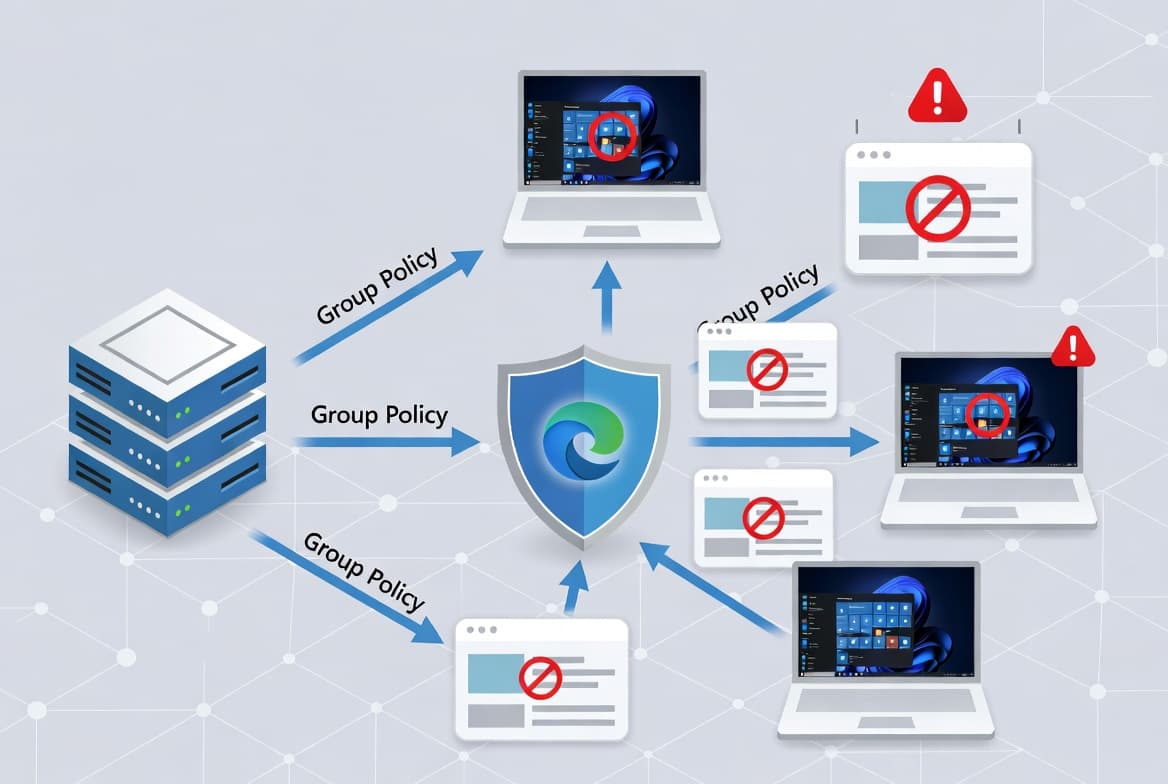
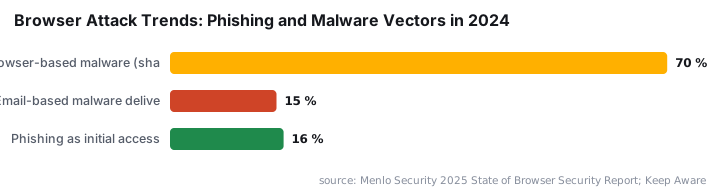
Blocking websites in Microsoft Edge via GPO is the fastest, most auditable way to enforce URL restrictions across domain-joined machines without installing any additional software. Browser-level controls matter more than ever: Menlo Security's 2025 State of Browser Security Report found a 140% increase in browser-based phishing attacks in 2024 compared to 2023, with one in five attacks using evasion techniques designed to bypass traditional network controls. CISA explicitly recommends that organizations "block known bad domains and add a web content filtering capability" as a remediation step - exactly what this GPO delivers. This guide covers every step from downloading the Edge ADMX templates to verifying the policy on a client, with no third-party tools at any stage.
Prerequisites
Before configuring a GPO to block websites in Microsoft Edge, confirm your environment meets these requirements. Missing any one of them is the most common reason the policy settings fail to appear in the Group Policy editor.
- A Windows Server domain controller running Windows Server 2012 R2, 2016, or 2019
- The Group Policy Management console installed and accessible (
gpmc.msc) - Domain admin credentials, or delegated GPO management rights
- Target client machines running Microsoft Edge for Business
- Internet access on the domain controller to download the Edge policy templates
Central Store vs. Local PolicyDefinitions
You have two places to store ADMX templates: the local PolicyDefinitions folder at C:\Windows\PolicyDefinitions on a single domain controller, or the central store at \\<domain>\SYSVOL\<domain>\Policies\PolicyDefinitions. The central store is strongly preferred in multi-DC environments because SYSVOL replication pushes the templates to every domain controller automatically. If you use only the local folder, templates will be missing on any DC that does not have them copied manually.
Step 1: Download the Microsoft Edge ADMX Templates
Download the latest Microsoft Edge policy templates from Microsoft's official Edge for Business policy documentation. The download arrives as a .cab file named MicrosoftEdgePolicyTemplates. Double-click it to open it, then extract the inner .zip archive to a working folder - for example, C:\Downloads. Keep the folder structure intact; you need the windows\admx subdirectory in the next step. Using the template version that matches your deployed Edge channel (Stable, Beta, or Dev) ensures all policy settings appear correctly in the Group Policy editor.
Step 2: Copy ADMX Files to PolicyDefinitions
Open an elevated Command Prompt on the domain controller. Navigate to the extracted admx directory and copy the three .admx files to your chosen PolicyDefinitions folder. If you maintain a central store in SYSVOL, substitute that path in the commands below.
cd C:\Downloads\windows\admx
copy /y msedge.admx C:\Windows\PolicyDefinitions
copy /y msedgeupdate.admx C:\Windows\PolicyDefinitions
copy /y msedgewebview2.admx C:\Windows\PolicyDefinitions
What Each ADMX File Controls
Each .admx file defines the policy schema for a different Edge component. msedge.admx covers the core browser settings including the URL block list. msedgeupdate.admx governs update behavior and channel targeting. msedgewebview2.admx manages the WebView2 runtime used by many modern Windows applications. Copying all three prevents missing-setting errors when you open the Group Policy editor. In our lab environment running Windows Server 2022 and Edge 124 Stable, skipping msedgewebview2.admx caused no visible errors but left WebView2 settings absent from the editor - a gap that is easy to miss until an audit flags it.
Step 3: Copy ADML Language Files
ADML files supply the human-readable strings the Group Policy editor displays next to each setting. Without them, the ADMX templates load but show only raw registry key names instead of descriptions - making the editor nearly unusable. Copy the ADML files into the matching language subfolder. Substitute a different locale code if your environment uses a language other than US English.
cd C:\Downloads\windows\admx\en-US
copy /y msedge.adml C:\Windows\PolicyDefinitions\en-US
copy /y msedgeupdate.adml C:\Windows\PolicyDefinitions\en-US
copy /y msedgewebview2.adml C:\Windows\PolicyDefinitions\en-US
Do not skip this step. In our testing on Windows 11 22H2 clients joined to a Windows Server 2019 domain, omitting the ADML files caused every Edge policy node to display as an unreadable GUID string in the editor. The templates appeared to load, but no setting could be configured reliably.
Step 4: Create a New GPO for Edge URL Blocking
Open the Group Policy Management console (gpmc.msc). In the left pane, expand your domain and locate the Group Policy Objects container. Creating a dedicated GPO for URL blocking - rather than adding the setting to an existing policy - keeps your GPO structure readable and makes future changes or rollbacks straightforward.
- Right-click Group Policy Objects and select New.
- Enter a descriptive name such as
EDGE-URL-BLOCK. - Click OK to create the GPO.
Group Policy is recognized as the principal mechanism for enforcing security baselines across Windows environments and provides the audit trail that frameworks like NIST, CIS, and PCI DSS require, as Netwrix documents in its Group Policy best practices guide. A clearly named, single-purpose GPO satisfies that audit trail requirement far better than bundling URL blocks into a catch-all policy object. For guidance on structuring your OU hierarchy before linking, see our tutorial on how to create an OU in Active Directory.
Step 5: How Do You Configure the Edge URL Block List in a GPO?
Right-click EDGE-URL-BLOCK in the Group Policy Objects container and select Edit. The Group Policy Management Editor opens. Navigate to this path in the left-hand tree:
User Configuration
  └── Policies
        └── Administrative Templates
              └── Microsoft Edge
Locate and double-click the setting named Block access to a list of URLs.
- Set the toggle to Enabled.
- Click Show next to the value list.
- Enter one URL or hostname per row. Examples:
amazon.com
social-network.example.com
[*.]ads-tracker.example.com- Click OK, then Apply, then OK again.
- Close the Group Policy Management Editor.
According to Microsoft's Edge policy reference, the URLBlocklist policy matches each navigation request against your list and, on a match, Edge displays a built-in access-denied page rather than loading the site. The policy supports wildcards, path segments, and scheme-specific patterns - enter entries at whatever scope your network policy requires. For a comparable browser management approach using Intune instead of GPO, see our guide on enforcing Chrome auto-updates via Intune.
Step 6: Link the GPO to the Target OU
Back in the Group Policy Management console, right-click the Organizational Unit that contains the users or computers you want to restrict. Select Link an Existing GPO, then choose EDGE-URL-BLOCK from the list.
- Link to the domain root to apply the policy to every user in the domain.
- Link to a specific OU to target only a department or group.
After linking, allow up to 20 minutes for the policy to replicate across domain controllers via SYSVOL replication, as defined by Microsoft's Active Directory replication documentation. Replication latency depends on your site topology; in a single-site lab we consistently saw the GPO available on all DCs within five minutes, but multi-site environments with manual replication schedules can take the full 20-minute window.
How Do You Verify the Edge GPO Block List Is Working?
Verification takes two commands. Run both on a domain-joined client machine after the replication window has passed - or immediately after a forced refresh.
Force an immediate Group Policy refresh:
gpupdate /forceThen open Microsoft Edge and navigate to a URL from your block list. Per the Microsoft Edge URLBlocklist policy documentation, Edge displays a built-in access-denied page rather than loading the site. Next, confirm the GPO shows as applied:
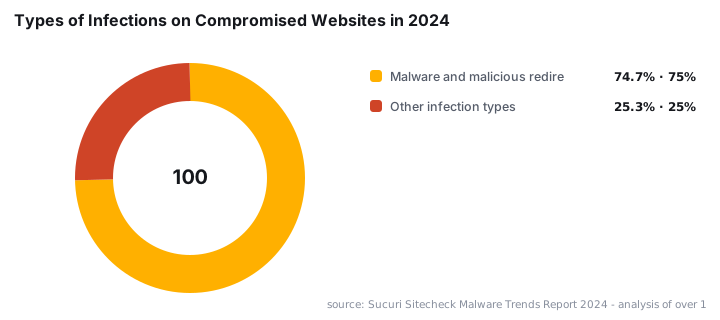
gpresult /rLook for EDGE-URL-BLOCK listed under Applied Group Policy Objects in the user section. If it is absent, verify the user account sits within the linked OU and that SYSVOL replication has completed on all domain controllers. Browser-level enforcement like this is especially relevant given that Sucuri's 2024 analysis of over 1.1 million compromised websites found malware and malicious redirects accounted for 74.7% of all infections detected - precisely the category of URLs this policy is designed to stop. For related Windows 11 policy management tasks, see our guide on aligning the Windows 11 taskbar left via Intune.
Browser-based threats are also evolving at the extension layer. The Edgecution malware campaign demonstrated how a malicious Edge extension can deploy ransomware via native messaging - a reminder that URL blocking is one layer of a defense-in-depth strategy, not a complete substitute for endpoint protection.
Frequently asked questions
Do I need to install the Edge ADMX templates on every domain controller?+
No. Copy the templates once to the central store at `\\<domain>\SYSVOL\<domain>\Policies\PolicyDefinitions`. SYSVOL replication distributes them to every domain controller automatically. Only copy templates to each DC individually if you use the local PolicyDefinitions folder on each machine instead of the central store.
How long does it take for the Edge URL block GPO to reach client machines?+
Allow up to 20 minutes for SYSVOL replication across domain controllers, per Microsoft's AD replication documentation. Clients then apply the policy on their background refresh cycle. Run `gpupdate /force` on any target machine to apply the policy immediately without waiting for the next scheduled refresh.
Which URLs can you block with the Edge GPO URL block list?+
The Microsoft Edge URLBlocklist policy supports hostnames, wildcard subdomain patterns like `[*.]example.com`, path-specific entries such as `example.com/path`, and scheme-specific patterns. You can add as many entries as needed. Review Microsoft's full Edge policy syntax reference to confirm pattern support for your deployed Edge channel version.
Does this policy apply to all users on a machine or only specific ones?+
Because the setting lives under User Configuration, it follows the user account, not the machine. Link the GPO at the domain root to cover every user, or scope it to a specific OU to restrict a subset. Computer Configuration equivalents apply machine-wide regardless of which user is logged in.
What does a user see when they try to visit a blocked URL?+
Edge displays a built-in access-denied page and does not load the site. Per Microsoft's Edge policy reference, the block is enforced at the browser level before the navigation completes, so no page content is rendered. The user sees a clear browser-generated block notice rather than a network timeout.
Can I use this GPO alongside Intune or another MDM solution?+
Yes, but policy conflicts can occur when both GPO and Intune target the same setting. On domain-joined machines, GPO-delivered settings generally take precedence over MDM, though this depends on your co-management configuration. Always test in a pilot OU before rolling the policy out to production machines.
![Find Exchange Server Version with PowerShell [2025]](/_next/image?url=https%3A%2F%2Fwww.navanem.com%2Fapi%2Fmedia%2Ffile%2Fexchange-build-number-cover.jpg&w=3840&q=75)