KB5058499 (OS Build 26100.4202) Preview - Windows 11 24H2, May 28 2025
Optional preview update for Windows 11 version 24H2, releasing OS build 26100.4202 with new AI features, accessibility improvements, and bug fixes.
Summary
This is an optional, non-security preview update for Windows 11 version 24H2, released on May 28, 2025, producing OS build 26100.4202. It delivers new AI-powered features for Copilot+ PCs, expands Click to Do and Copilot capabilities, improves accessibility, and resolves a range of bugs across audio, display, input, printing, and more. Source: Microsoft Support
Highlights
- Click to Do (preview): A new Ask Copilot action lets users highlight text or an image and send it directly to Microsoft Copilot. Intelligent text actions - Summarize, Create a bulleted list, and Rewrite - are now available on AMD and Intel-powered Copilot+ PCs using WIN + mouse-click or WIN + Q. Click to Do is now available in the European Economic Area (EEA) with English, Spanish, and French support. Pen shortcut buttons can now open Click to Do, and it can be added to the pen menu.
- Copilot: Win + C now opens Copilot on Windows. Holding the Copilot key - or Win + C - for two seconds starts Press to talk. Alt + Spacebar lets users speak with Copilot while continuing other tasks.
- Cross device resume: Users can resume editing OneDrive files from iOS or Android phones on their Windows 11 PC with a single click, triggered by a notification when unlocking the PC within five minutes of mobile activity.
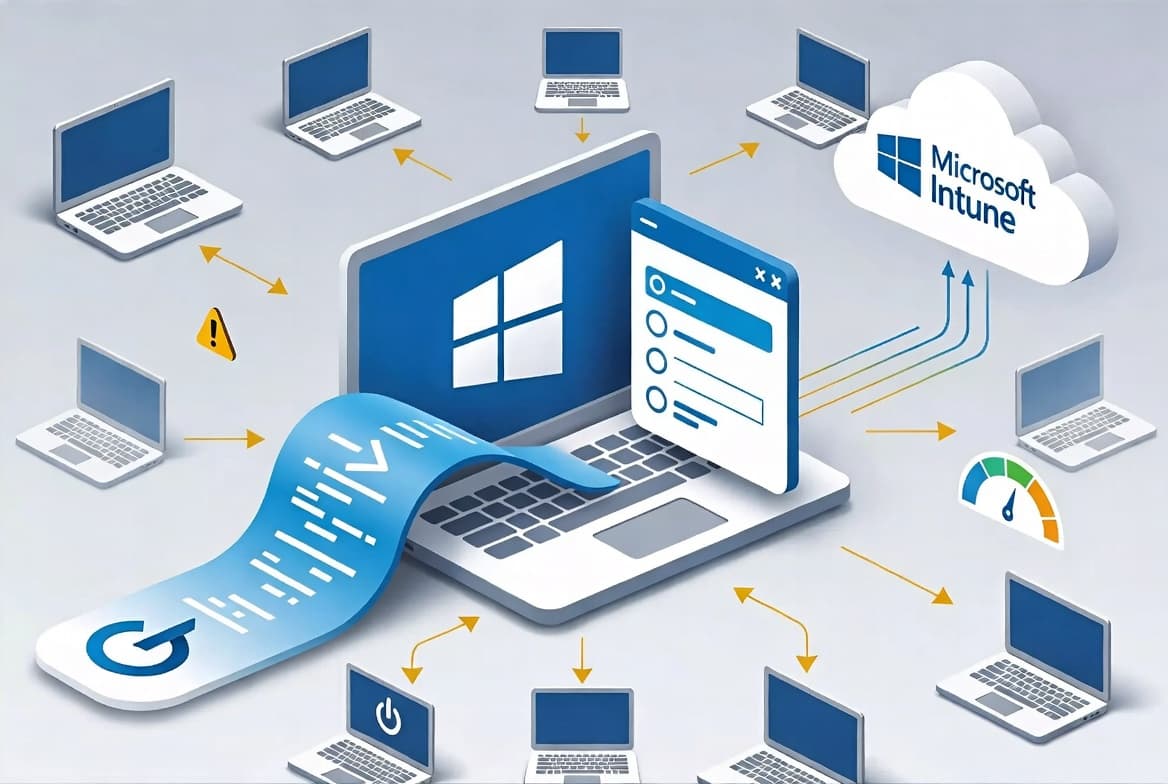
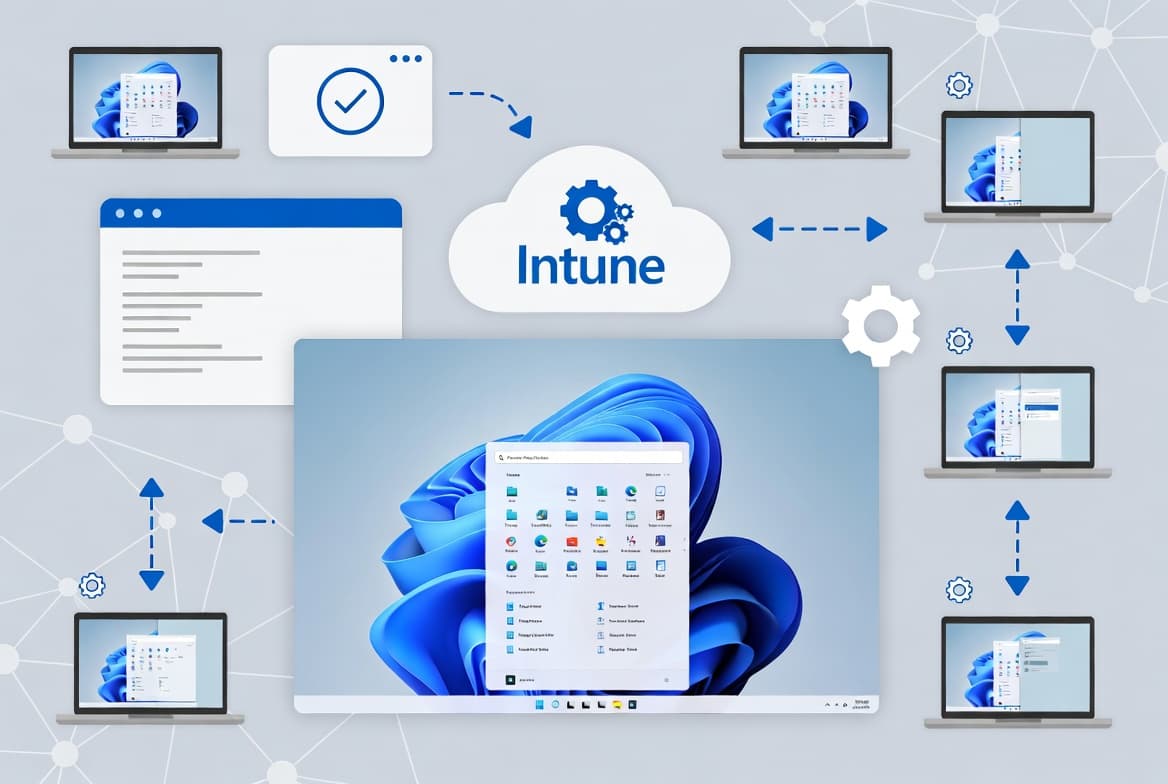
- Energy Saver: IT admins can now manage Energy Saver settings via group policy and MDM through Microsoft Intune, with options to limit background activity and dim the screen to extend battery life.
- Graphics: HDR settings under Settings > System > Display include a clearer label for "Use HDR," the ability to stream HDR video when HDR is off, and - on Dolby Vision PCs - an independent Dolby Vision toggle.
- Narrator: AI-powered image descriptions for blind and low-vision users are now available on Copilot+ PCs, covering images, charts, and graphs.
- Improved Windows Search: On Copilot+ PCs, natural-language queries can now locate settings without needing exact names. In the EEA, cloud photo search using descriptive phrases is rolling out to Snapdragon-powered Copilot+ PCs first.
- Search on Taskbar: Improved support for web search providers in the EEA, with increased discoverability.
- Settings: A new FAQs section appears under Settings > System > About. The printer rename dialog now matches the Windows 11 look. Mouse settings are consolidated under Settings > Accessibility > Mouse, removing the need to open Control Panel.
- Taskbar: Admins can use a new PinGeneration option to let users unpin specific apps without them being repinned at the next policy refresh. Two keyboard focus and widget bugs on the taskbar are fixed.
- Voice Access: A new in-product highlight reel surfaces new features. Voice access is now accessible from Accessibility in Quick Settings. A bug causing Voice Access to stop responding with "working on it" during dictation is fixed.
- Voice Typing: A new profanity filter toggle, accessible from the Voice Typing settings icon (Win + H), masks profanity with asterisks when enabled.
- Windows Share: Users can crop, rotate, and add filters to images before sharing. A drag tray appears when dragging local files, and apps that support sharing can be added directly to the right-click context menu in File Explorer.
Improvements and fixes
- BitLocker: A blue screen error that could occur on devices with BitLocker enabled on removable drives after resuming from sleep or hybrid-boot is resolved.
- Boot menu screens: Early boot screens - including BitLocker PIN, BitLocker Recovery Key, and boot menu screens - no longer render slowly.
- Graphics kernel: Some game titles that became unresponsive after upgrading to 24H2 are now fixed.
- Memory leak: An Input Service memory leak that increased memory usage in multi-user, multi-lingual, and remote desktop environments is corrected.
- Multimedia: Windows Hello Face Enrollment failing to work or showing a bad camera preview when multi-app mode or basic camera mode is turned on in advanced camera settings is fixed.
- Network: Windows Server 2025 incorrectly showing the network as "public" on new domain controllers is addressed; the fix ensures proper LDAP binding by checking for a domain controller name before using loopback addresses.
- Audio: The startup sound failing to play on boot despite being enabled is fixed.
- Bluetooth: Settings stopping to respond when loading Bluetooth device information is fixed.
- Camera: Settings crashing when interacting with content under Settings > Bluetooth & Devices > Cameras is fixed.
- Display: Unexpected screen size and window position changes after waking from sleep are resolved for affected devices.
- File Explorer: Disconnected network drives blocking searches from Home and leaving users stuck on the Home view is fixed.
- Input: Voice typing failing to start from the touch keyboard in the Chinese (Simplified) narrow layout is fixed. A bug where switching pages in the Symbols section of the touch keyboard could insert a character into password fields is fixed. Typing stopping in some apps after disconnecting from a remote desktop session is fixed.
- JPG: Pixels being unexpectedly inverted in certain CopyPixels operations are corrected.
- Microsoft Management Console (MMC): Colors for selected items in MMC are improved, including in high contrast modes.
- Print: Non-admin users are now able to uninstall printers they themselves added.
- UHF Tuning: A tuning scan that returned only VHF channels instead of UHF channels is fixed.
- USB: Certain USB devices becoming disconnected after sleep until a reboot is fixed.
- Windows Hello: The camera unexpectedly stopping after wake from sleep and blocking facial recognition login is fixed.
Known issues
Blurry CJK text in Chromium-based browsers
Symptom: CJK (Chinese, Japanese, Korean) text may appear blurry or unclear when displayed at 96 DPI (100% scaling) in Chromium-based browsers such as Microsoft Edge and Google Chrome. The March 2025 Preview Update introduced Noto fonts as CJK fallbacks; limited pixel density at 96 DPI reduces character clarity and alignment.
Workaround: Microsoft has shared its findings and potential solutions with Google for further discussion. Increasing display scaling improves clarity. Users can also report issues through the official Google Noto Fonts GitHub repository.
Print to PDF may stop working
Symptom: After installing KB5055627, the Microsoft Print to PDF printer may no longer appear under Settings > Bluetooth & devices > Printers & scanners. Enabling the Printing-PrintToPDFServices-Feature may return error code 0x800f0922, preventing installation of the printer driver from C:\Windows\System32\DriverStore\FileRepository.
Workaround: Try re-enabling the feature using one of two options. Option 1: Press Windows + R, type "optional features," and enable Microsoft Print to PDF in the Windows Features dialog. Option 2: Open PowerShell as Administrator and run Disable-WindowsOptionalFeature -Online -FeatureName Printing-PrintToPDFServices-Features followed by Enable-WindowsOptionalFeature -Online -FeatureName Printing-PrintToPDFServices-Features. Note that the final command may still return error code 0x800f0922.
How to get this update
This update is available through Windows Update as an optional preview update. It is also available via the Microsoft Update Catalog and Windows Server Update Services (WSUS). Because this is a preview release distributed via gradual rollout, it may not be immediately available to all devices.
Before applying this update, install the Windows 11 servicing stack update KB5059502 (servicing stack build 26100.4193), which improves the reliability of the component that installs Windows updates.
If earlier updates are already installed, only the new changes in this package are downloaded and installed.
Frequently asked questions
Is KB5058499 a security update?
No. KB5058499 is a non-security optional preview update. It delivers quality improvements, bug fixes, and new features ahead of the next monthly cumulative update. Security fixes are not included. If your organization deploys only security updates on a monthly cadence, this update is not mandatory.
Which devices receive the new Click to Do and Copilot features?
Most new Click to Do intelligent text actions - such as Summarize and Rewrite - require a Copilot+ PC with an AMD, Intel, or Snapdragon processor. Some features, including EEA availability and Spanish and French language support, are rolling out gradually and may not appear immediately on all qualifying hardware.
Do admins need to take any action before deploying this update?
Yes. Microsoft requires that the servicing stack update KB5059502 (build 26100.4193) be installed first. Admins managing Energy Saver or taskbar pinning policies should also review the new group policy options introduced in this release under Computer Configuration > Administrative Templates before broader deployment.
What should IT admins know about the Print to PDF known issue?
Enterprise customers who previously installed KB5055627 may find that the Microsoft Print to PDF printer disappears after applying this update. The documented workaround involves toggling the Printing-PrintToPDFServices-Feature off and on via the Windows Features dialog or PowerShell. The PowerShell re-enable command may still return error 0x800f0922; admins should test in a controlled environment before wide rollout.