KB5060842: Windows 11 24H2 Security Update - OS Build 26100.4349 (June 10, 2025)
KB5060842 is the June 10, 2025 cumulative security update for Windows 11 version 24H2, bringing OS build to 26100.4349 with security fixes and key improvements.
Summary
KB5060842 is the June 10, 2025 cumulative security update for Windows 11 version 24H2, raising the OS build to 26100.4349. It is a monthly security-class update that addresses vulnerabilities in the Windows operating system and includes improvements previously shipped in KB5058499 (released May 28, 2025). Source: Microsoft Support
Highlights
- This update addresses security issues for the Windows operating system.
Improvements and fixes
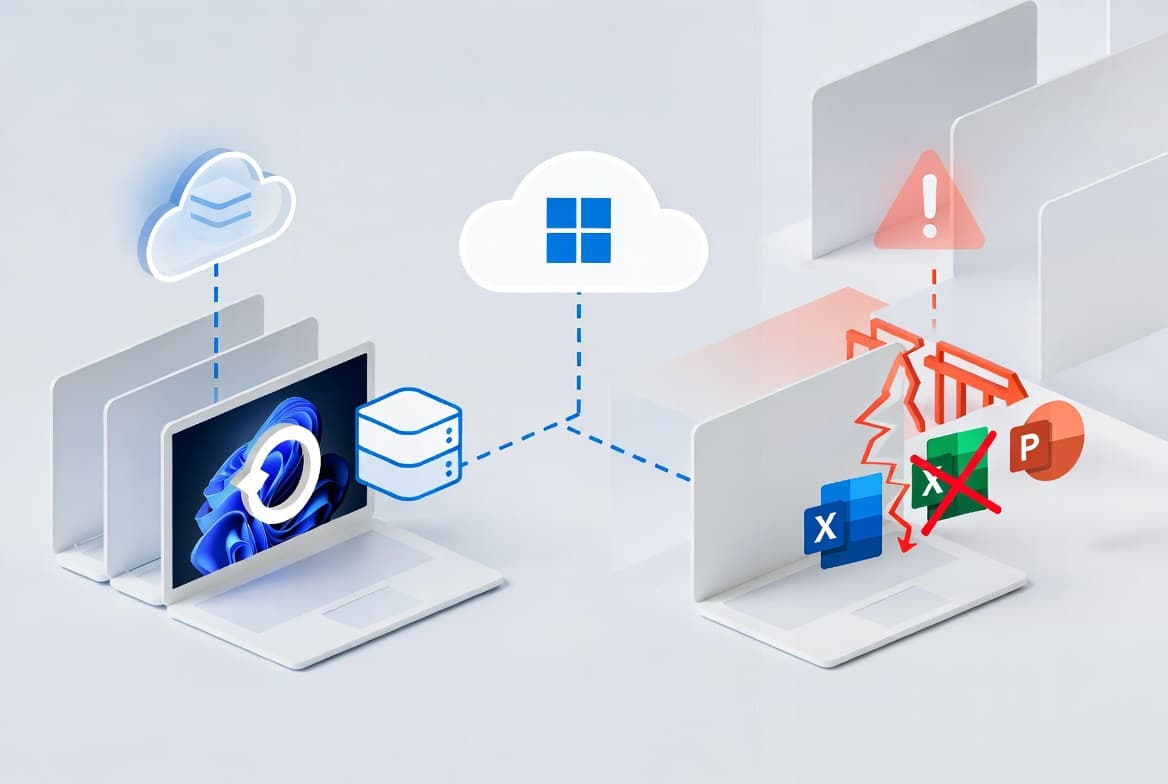
- System Restore retention extended to 60 days: After installing the June 2025 security update, Windows 11 version 24H2 will keep system restore points for up to 60 days. Restore points older than 60 days will not be available for selection. This 60-day limit applies to current and future versions of Windows 11 version 24H2.
- Windows Hello for Business sign-in fix: A bug that blocked users from signing in with self-signed certificates when using Windows Hello for Business with the Key Trust model has been resolved.
- AI component updates: This release updates three AI components - Image Search, Content Extraction, and Semantic Analysis - all to version 1.2505.838.0. These components apply only to Windows Copilot+ PCs and will not install on standard Windows PCs or Windows Server.
- Servicing stack update included: Windows 11 servicing stack update KB5059502 (version 26100.4193) is bundled with this release to improve the reliability of the component responsible for installing Windows updates.
Known issues
Blurry CJK text in Chromium-based browsers (Noto fonts)
Symptom: Users may see blurry or unclear CJK (Chinese, Japanese, Korean) text when displayed at 96 DPI (100% scaling) in Chromium-based browsers such as Microsoft Edge and Google Chrome. The March 2025 Preview Update introduced Noto fonts in collaboration with Google as CJK fallback fonts to improve text rendering. The blurriness is caused by limited pixel density at 96 DPI, which reduces the clarity and alignment of CJK characters. Increasing display scaling improves clarity.
Workaround: Microsoft has shared its findings and potential solutions with Google for further discussion. Users can report issues with Noto CJK fonts through the official Google Noto Fonts GitHub repository.
Update delivery delays with quality update deferral policies
Symptom: Some devices in environments where IT admins use quality update (QU) deferral policies may experience delays receiving the June 2025 Windows security update. Although the update released on June 10, 2025, its update metadata timestamp reflects a date of June 20, 2025. This discrepancy may cause devices with configured deferral periods to receive the update later than expected.
Workaround: Admins can take one of the following actions to accelerate deployment: (1) Create an expedite policy to bypass deferral settings and deliver the update immediately if the organization uses Windows Autopatch. (2) Adjust deployment rings or deferral configurations to reduce the delay window for affected devices. Microsoft has confirmed it will not change the metadata value from June 20, 2025, and this workaround is the final resolution provided for this issue.
Microsoft Print to PDF not working
Symptom: Applies to enterprise customers and IT admins. After installing KB5055627, the Microsoft Print to PDF printer may no longer appear under Settings > Bluetooth & devices > Printers & scanners. Attempting to enable the Printing-PrintToPDFServices-Feature may return error code 0x800f0922, blocking installation of the Microsoft Print to PDF printer driver from C:\Windows\System32\DriverStore\FileRepository.
Workaround: This issue is addressed in KB5060829.
How to get this update
Microsoft combines the latest servicing stack update (SSU) with the latest cumulative update (LCU) into a single package, so no separate SSU installation is required beforehand.
- Windows Update / Microsoft Update: The update downloads and installs automatically.
- Windows Update for Business: Deploys automatically in accordance with configured policies.
- Microsoft Update Catalog: The standalone package for KB5060842 is available for manual download. The catalog entry contains more than one MSU file that must be installed in a specific order, or installed together using DISM with all files placed in the same folder.
- Windows Server Update Services (WSUS): The update syncs automatically when Products is set to Windows 11 and Classification is set to Security Updates.
To remove the LCU after installation, use DISM /online /remove-package with the LCU package name. Running wusa.exe /uninstall on the combined package will not work because the SSU is embedded and cannot be removed after installation.
Frequently asked questions
Does this update include all previous fixes, or do I need earlier updates installed first?
Yes, if earlier updates are already installed on a device, Windows downloads and installs only the new content in this package. The update also incorporates improvements from KB5058499, released May 28, 2025, so devices missing that update will receive those fixes automatically as part of KB5060842.
Why are some devices with deferral policies not receiving this update on time?
The update metadata timestamp is set to June 20, 2025, even though the release date is June 10, 2025. This discrepancy delays delivery for devices with QU deferral policies. Admins can use an expedite policy via Windows Autopatch or adjust deferral ring configurations to reduce the gap. Microsoft will not change the metadata date; the workaround is the final resolution.
Do the AI component updates in this release apply to all Windows 11 devices?
No. The AI component updates for Image Search, Content Extraction, and Semantic Analysis (all version 1.2505.838.0) are included in the update package but install only on Windows Copilot+ PCs. They will not install on standard Windows PCs or Windows Server devices.
How do I fix Microsoft Print to PDF if it stopped working after a recent update?
This problem stems from KB5055627 and is fully resolved by installing KB5060829. Before that fix is applied, admins can attempt to re-enable the Printing-PrintToPDFServices-Feature via the Windows Features dialog or by running Disable followed by Enable commands in an elevated PowerShell session, though the enable step may still return error 0x800f0922.