Windows 11 24H2 KB5064081 (OS Build 26100.5074) Preview - August 29, 2025
Optional preview update for Windows 11 version 24H2, releasing OS Build 26100.5074 on August 29, 2025, with quality improvements, AI feature updates, and bug fixes.
Summary
This optional preview update for Windows 11 version 24H2 delivers OS Build 26100.5074, released on August 29, 2025. It is a non-security, monthly preview quality update that introduces new features across Recall, Click to Do, taskbar, File Explorer, Windows Hello, Settings, Task Manager, and Widgets, alongside a range of targeted bug fixes. Source: Microsoft Support
Important - Secure Boot certificate expiration: Secure Boot certificates used by most Windows devices are set to expire starting in June 2026. Microsoft has been updating certificates on consumer and non-managed business devices. Devices that have not yet received newer certificates will continue to start and operate normally, and standard Windows updates will continue to install. IT administrators should consult the Secure Boot Playbook for Windows clients and Windows Server for guidance.
Highlights
The following changes are rolling out gradually and may not be immediately available to all users.
- Recall now opens to a personalized homepage that surfaces recent activity, top-used apps, and websites. After enabling snapshot collection, the homepage shows Recent Snapshots and Top Apps and Websites (the three most-used in the past 24 hours). Filters in Settings control which apps and websites are saved. A new left-side navigation bar gives quick access to Home, Timeline, Feedback, and Settings.
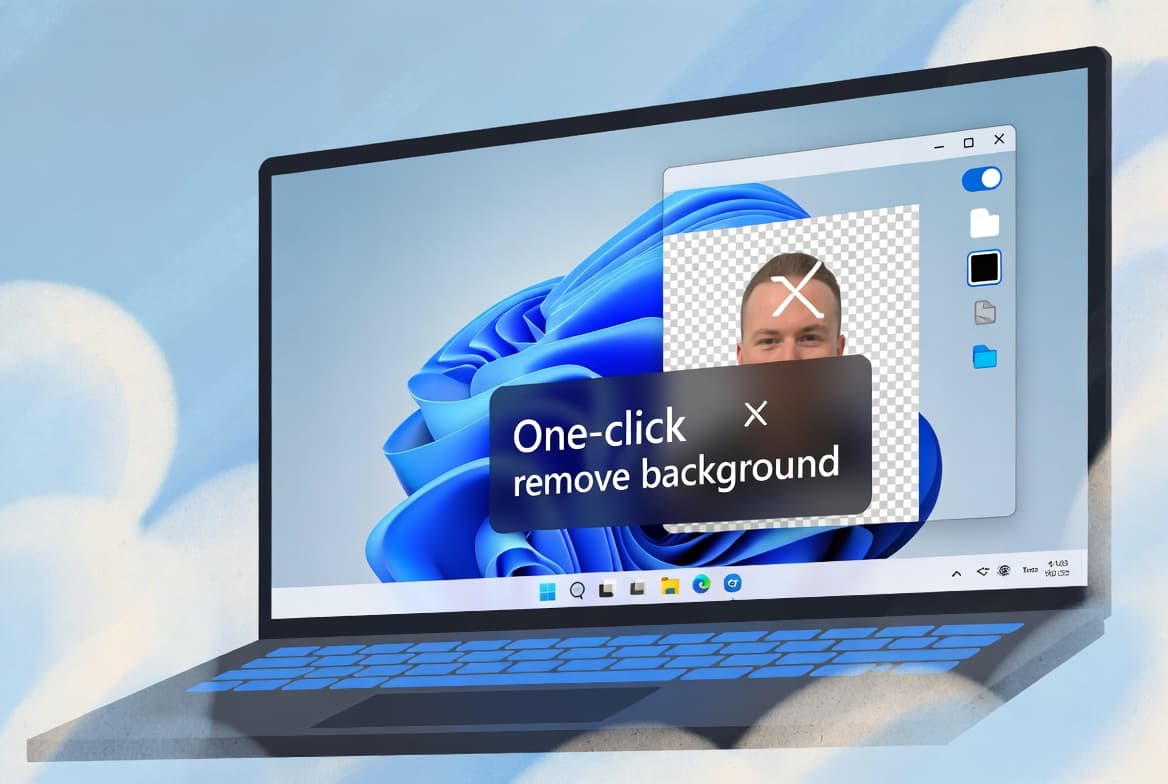
- Click to Do now shows a quick interactive tutorial on first launch, demonstrating text and image actions such as summarizing text or removing image backgrounds. The tutorial can be revisited via More options > Start tutorial.
- Privacy prompts have been redesigned. When an app requests access to location, camera, microphone, or other device capabilities, the screen dims slightly and a centered dialog box appears to emphasize the privacy request.
- Taskbar - The larger clock with seconds is back in the notification center, displayed above the date and calendar. Enable it at Settings > Time & language > Date & time > Show time in the Notification Center. Fixed: dragging the mouse across a taskbar preview thumbnail could cause the preview to stop working.
- Search on the taskbar - A new grid view helps users identify images within search results more quickly. Search also now shows clearer status information when results are incomplete due to background file indexing, including a link to check indexing progress. File and folder status (cloud or local) is now visible.
- Lock screen widgets - More widget options and personalization support (previously called "Weather and more") are expanding from the European Economic Area to all regions. Users can add, remove, and rearrange widgets such as Weather, Watchlist, Sports, and Traffic at Settings > Personalization > Lock screen.
- File Explorer - Dividers now separate top-level icons in the context menu. When signed in with a work or school account (Entra ID), people icons appear in the Activity column and Recommended section; hovering over or selecting an icon opens a Microsoft 365 Live Persona Card. Fixed: a file marked as blocked in Properties continued to show as blocked after using the unblock option.
- Windows Hello - A redesigned interface rolls out as part of enhanced passkey features. The updated credential experience supports fast, secure sign-in and allows switching between authentication options such as passkeys or connected devices. Fixed: Windows Hello facial recognition could succeed visually but still fail and fall back to a PIN prompt. Fixed users can go to Settings > Accounts > Sign-in options > Facial Recognition > Improve recognition. Improved: fingerprint login after standby is more reliable.
- Settings - Windows activation and expiration prompts now match Windows 11 design and appear as system notifications. A new Settings > Privacy & security > Text and Image Generation page shows which third-party apps have recently used Windows-provided generative AI models and lets users control which apps are permitted. The agent in Settings for Copilot+ PCs now supports AMD- and Intel-powered Copilot+ PCs in addition to Snapdragon devices (English primary display language required). Fixed: Settings could crash when adding a security key under Settings > Account > Sign-in options.
- Task Manager - Now uses standard metrics to display CPU workload consistently across all pages, aligning with industry standards and third-party tools. An optional CPU Utility column in the Details tab restores the previous CPU usage value if preferred.
- Widgets - Multiple dashboards are now available on the Widgets Board, with a left-side navigation bar to switch between the widget dashboard and the Discover feed. The Discover feed has a new visual layout with Copilot-curated stories, summaries, videos, and images from MSN premium publishers. Rolling out from the EEA to all regions.
- Windows Backup for Organizations - Now generally available. Provides enterprise-grade backup and restore to support device refresh, Windows 11 upgrades, and AI PC deployments.
- PowerShell 2.0 removal - Starting August 2025, Windows 11 version 24H2 no longer includes Windows PowerShell 2.0. This legacy component was introduced in Windows 7 and deprecated in 2017. PowerShell 5.1 and PowerShell 7.x remain available. Scripts or tools depending on PowerShell 2.0 should be updated.
- Live captions - Fixed: changing caption opacity in Settings > Accessibility > Captions > Caption Style had no effect.
- Input - Fixed: typing Chinese with an IME after using CTRL+C could result in the first character not displaying. Fixed: an issue with textinputframework.dll could cause apps such as Sticky Notes and Notepad to crash.
- dbgcore.dll - Fixed: an issue with dbgcore.dll could cause certain apps, including explorer.exe, to crash.
- Kerberos - Fixed: an underlying crash in Kerberos could occur when accessing a cloud file share.
- Login - Improved: addressed underlying cases that could cause a blank white screen or a "just a moment" screen to appear for several minutes at login.
- Miracast - Fixed: on certain devices, audio would play briefly and then stop a few seconds after casting to a TV.
- Audio - Improved: addressed an underlying issue where the audio service could stop responding, preventing audio playback in certain cases.
- Cryptographic Provider - Fixed: an error in Windows Event Viewer with Error ID 57 stating "The 'Microsoft Pluton Cryptographic Provider' provider was not loaded because initialization failed."
Improvements and fixes
The following improvements are part of the normal (non-gradual) rollout portion of this update.
- Device management - Fixed an issue that prevented some system recovery features from working properly due to a temporary file sharing conflict, which affected certain device management tools and disrupted key functions on some devices.
- File system - Fixed an issue in Resilient File System (ReFS) where backup apps working with large files could exhaust system memory.
- Input - Fixed an issue with the Chinese (Simplified) IME where some extended characters appeared as empty boxes. Fixed an issue that prevented typing on the touch keyboard when using the Microsoft Changjie, Microsoft Bopomofo, or Microsoft Japanese IMEs after switching to a previous IME version.
- Performance - Fixed an issue that slowed application installation on ARM64 devices, causing some installers to take longer than expected.
- Print - To meet security goals and support new print capabilities, this update transitions Windows printing components from MSVCRT to a modern Universal C Runtime Library. As a result, print clients running versions of Windows earlier than Windows 10 version 2004 / Windows Server version 2004 (Build 19041) will intentionally fail to print to remote print servers running Windows 11 versions 24H2 or 25H2, and Windows Server 2025, after this update or later updates are installed. Failures will produce one of these errors: "The printer driver is not installed on this computer" or "Windows cannot connect to the printer." To resolve this, either upgrade print clients to Windows 10 version 22H2 or newer, or configure pre-22H2 print clients to use pre-Windows Server 2025 print servers.
AI component versions updated in this release:
| AI Component | Version |
|---|---|
| Image Search | 1.2508.906.0 |
| Content Extraction | 1.2508.906.0 |
| Semantic Analysis | 1.2508.906.0 |
| Settings Model | 1.2508.906.0 |
Servicing stack update: This release includes Windows 11 servicing stack update KB5064531 (Build 26100.5074), which improves the reliability of the component that installs Windows updates.
Known issues
Network Device Interface streaming performance degradation
Symptom: After installing the August 2025 Windows security update (KB5063878), users may experience delays or uneven audio and video performance when using Network Device Interface (NDI) to stream or transfer feeds between PCs. This affects streaming apps such as OBS Studio and NDI Tools, particularly when Display Capture is enabled on the source PC, and can occur even under low-bandwidth conditions.
Workaround: This issue is addressed in KB5065426.
Unexpected User Account Control prompt during MSI repair operations
Symptom: A security improvement included in the August 2025 Windows security update enforces a requirement for UAC to prompt for administrator credentials when performing Windows Installer (MSI) repair and related operations, addressing security vulnerability CVE-2025-50173. After installing the update, standard users may see a UAC prompt when: running MSI repair commands (such as msiexec /fu); opening Autodesk apps including some versions of AutoCAD, Civil 3D, and Inventor CAM, or when installing an MSI file after first sign-in; or installing apps that configure on a per-user basis.
Workaround: Microsoft has not listed a workaround for this issue at this time. The UAC prompt behavior is a deliberate security enforcement.
How to get this update
This is an optional preview update. The recommended delivery methods are:
- Windows Update - Go to Settings > Windows Update and check for updates. Because this is a preview release, you may need to select "Get the latest updates as soon as they're available" or manually check for optional updates.
- Microsoft Update Catalog - Search for KB5064081 to download the standalone package. Note that the second MSU file listed under Catalog in Method 2 was updated on May 26, 2026.
- WSUS (Windows Server Update Services) - Administrators can approve and deploy the update through WSUS.
If earlier updates are already installed, the device downloads and installs only the new content included in this package. This update also includes the servicing stack update KB5064531, which should be installed before applying the main update to ensure a reliable update process.
Frequently asked questions
Is this update mandatory for Windows 11 24H2 devices?
No. KB5064081 is classified as an optional preview update. It previews the quality improvements and new features that will be included in the next monthly cumulative update. Sysadmins can choose to deploy it early for testing or wait for the next scheduled monthly release.
Will PowerShell 2.0 removal affect my environment?
Possibly. Starting August 2025, Windows 11 version 24H2 no longer ships with Windows PowerShell 2.0, which was deprecated in 2017. PowerShell 5.1 and PowerShell 7.x remain fully supported. Audit scripts and tools for any dependencies on PowerShell 2.0 and update them before deploying this update broadly.
What does the printing change mean for my organization?
Print clients running Windows versions earlier than Windows 10 version 2004 (Build 19041) will fail to print to updated remote print servers running Windows 11 24H2, 25H2, or Windows Server 2025. Errors will reference missing drivers or a failed connection. The fix is to upgrade those clients to Windows 10 version 22H2 or later, or route them to pre-Windows Server 2025 print servers.
How do I check whether my devices have the updated Secure Boot certificates?
Microsoft states that users can check PC status in the Windows Security app. IT administrators should follow the guidance in the Secure Boot Playbook for Windows clients and Windows Server. Devices that have not yet received the newer certificates will continue to start and operate normally in the meantime.