KB5074109 - Windows 11 versions 25H2 and 24H2 Security Update (January 13, 2026)
KB5074109 is the January 13, 2026 cumulative security update for Windows 11 versions 25H2 and 24H2, delivering OS builds 26200.7623 and 26100.7623.
Summary
KB5074109 is the cumulative security update for Windows 11 versions 25H2 and 24H2, released on January 13, 2026, producing OS builds 26200.7623 and 26100.7623. It bundles the latest security fixes together with non-security improvements carried over from the previous month's optional preview release. Full details are available from Microsoft Support.
Highlights
- Secure Boot certificate update delivery is now integrated into Windows quality updates, using device-targeting data to phase the rollout safely.
- Windows Deployment Services (WDS) no longer supports hands-free deployment functionality by default.
- Legacy modem drivers have been removed from Windows.
- A credentials autofill security hardening behavior restricts certain applications from autofilling credentials during remote support or automated authentication sessions.
- Fixes land for WSL mirrored networking failures, RemoteApp connection errors in Azure Virtual Desktop, and an NPU idle power issue.
Improvements and fixes
- Modem driver removal: Four legacy modem drivers - agrsm64.sys, agrsm.sys, smserl64.sys, and smserial.sys - have been removed. Modem hardware that depends on these drivers will no longer function in Windows.
- Credentials autofill hardening: A new security behavior prevents certain applications from autofilling credentials during remote support sessions or automated authentication workflows. Credential dialogs will no longer respond to virtual keyboard input from remote desktop or screen-sharing tools.
- WSL networking fix: An issue where mirrored networking in Windows Subsystem for Linux could fail with "No route to host" errors - blocking access to corporate resources over VPN even when the Windows host stayed connected - has been resolved. This regression was introduced by KB5067036.
- Azure Virtual Desktop RemoteApp fix: Connection failures affecting RemoteApp sessions in Azure Virtual Desktop environments, introduced by KB5070311, have been addressed.
- NPU power fix: Devices equipped with a Neural Processing Unit could remain powered on while idle, hurting power performance. This has been corrected.
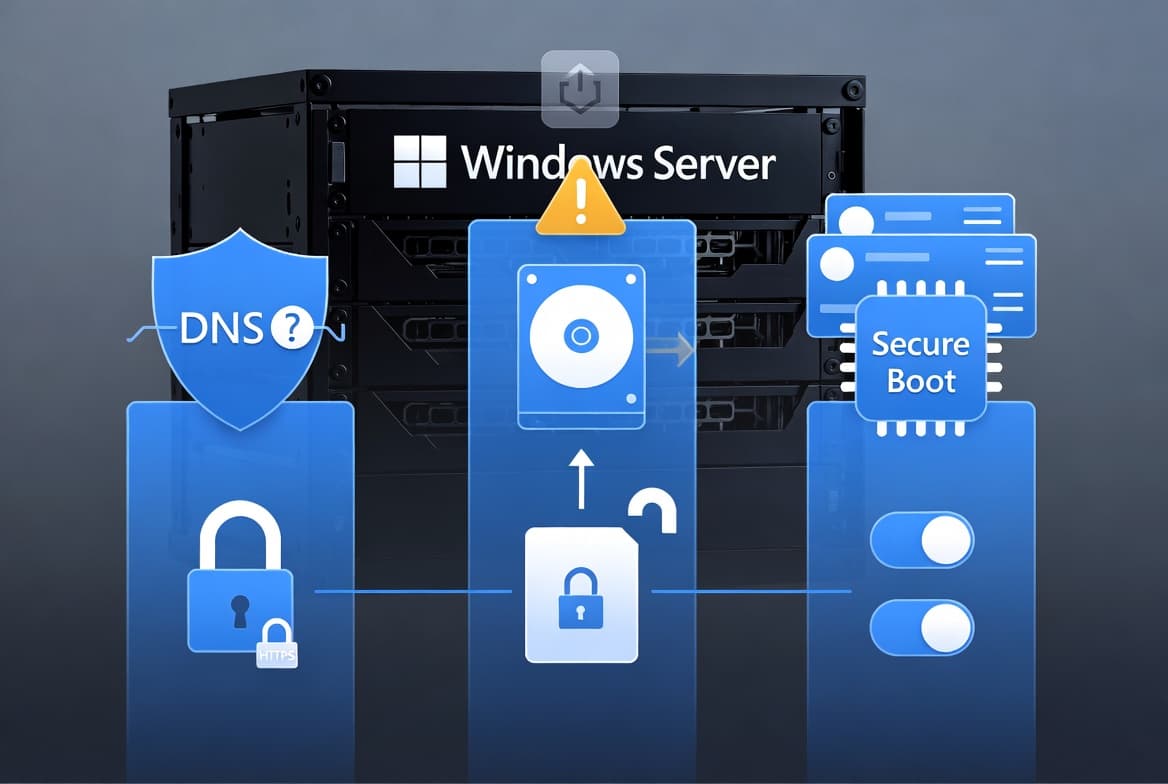
- Secure Boot phased rollout: Quality updates now include a subset of high-confidence device-targeting data to identify which devices are eligible to receive updated Secure Boot certificates automatically, ensuring a safe and phased deployment.
- WDS hands-free deployment hardening: Windows Deployment Services will stop supporting hands-free deployment functionality by default. IT administrators should consult the WDS Hands-Free Deployment Hardening Guidance for details.
- WinSqlite3.dll update: The Windows core component WinSqlite3.dll has been updated. Previously, some security software incorrectly flagged this component as vulnerable.
- AI component updates: Image Search, Content Extraction, Semantic Analysis, and Settings Model AI components are all updated to version 1.2511.1224.0. These components apply only to Windows Copilot+ PCs.
Known issues
Password icon missing on lock screen
Symptom: After installing the August 2025 non-security preview update (KB5064081) or later updates, the password icon may not be visible in the lock screen sign-in options. Hovering over the empty area still reveals the password button, and selecting it opens the password text box for normal sign-in. This issue primarily affects enterprise or managed IT environments; users on Windows Home or Pro personal devices are very unlikely to encounter it.
Workaround: This issue is addressed in KB5074105.
Connection and authentication failures in Azure Virtual Desktop and Windows 365
Symptom: After installing KB5074109, credential prompt failures occur during Remote Desktop connections using the Windows App on Windows client devices, affecting Azure Virtual Desktop and Windows 365. The issue causes sign-in failures on specific Windows builds.
Workaround: This issue is addressed in KB5077744.
Apps become unresponsive when saving files to cloud-based storage
Symptom: After installing this update, some applications may become unresponsive or encounter unexpected errors when opening or saving files to cloud-based storage such as OneDrive or Dropbox. In certain Outlook configurations that store PST files on OneDrive, Outlook may hang and fail to reopen unless the process is terminated or the system is restarted. Users may also see missing sent items or previously downloaded emails being re-downloaded.
Workaround: This issue is addressed in KB5078127.
How to get this update
Microsoft combines the latest servicing stack update (SSU) - KB5071142, version 26100.7295 - with this cumulative update, so no separate SSU installation step is required. The update is available through the following channels:
- Windows Update and Microsoft Update: The update downloads and installs automatically.
- Windows Update for Business: Deploys automatically in accordance with configured policies.
- Microsoft Update Catalog: Download the standalone MSU package. Use Method 1 (place all MSU files in one folder and run a single DISM or PowerShell command) or Method 2 (install each MSU file individually in order: KB5043080 first, then KB5074109). Running wusa.exe with the /uninstall switch on the combined package will not work because it contains the SSU, which cannot be removed after installation.
- Windows Server Update Services (WSUS): Syncs automatically when Product is set to "Windows 11" and Classification is set to "Security Updates."
Note: AI component updates included in this package install only on Windows Copilot+ PCs and will not install on standard Windows PCs or Windows Server.
Frequently asked questions
Does this update change how Windows Server 2025 updates are managed?
Starting with the January 2026 security update, Windows Server 2025 uses its own KB identifiers and build numbers. This change is limited to Windows Server 2025 only. It has no effect on how you receive or manage updates for Windows 11 version 24H2 or version 25H2, and no action is required on the Windows 11 side.
What should I know about the Secure Boot certificate expiration coming in June 2026?
Secure Boot certificates on most Windows devices are set to expire starting June 2026. Microsoft has been updating these certificates on consumer and non-managed business devices for several months. Devices that have not yet received newer certificates will continue to start and operate normally, and standard Windows updates will continue to install. IT administrators should consult the Secure Boot Playbook for Windows clients and Windows Server for managed environment guidance.
How does the credentials autofill change affect remote support and automation workflows?
This update introduces a security hardening behavior that prevents credential dialogs from responding to virtual keyboard input from remote desktop or screen-sharing tools. This means automated or remote-assisted workflows that rely on credential autofill may stop functioning as expected. Administrators should review the Microsoft guidance on this new behavior and adjust remote support or automation tooling accordingly.
How do I remove this update if needed?
To remove only the cumulative update (LCU) portion after installing the combined SSU and LCU package, use the DISM /Remove-Package command with the LCU package name as the argument. Identify the package name first by running DISM /online /get-packages. Using wusa.exe with /uninstall will not work on the combined package because the SSU component cannot be removed once installed.