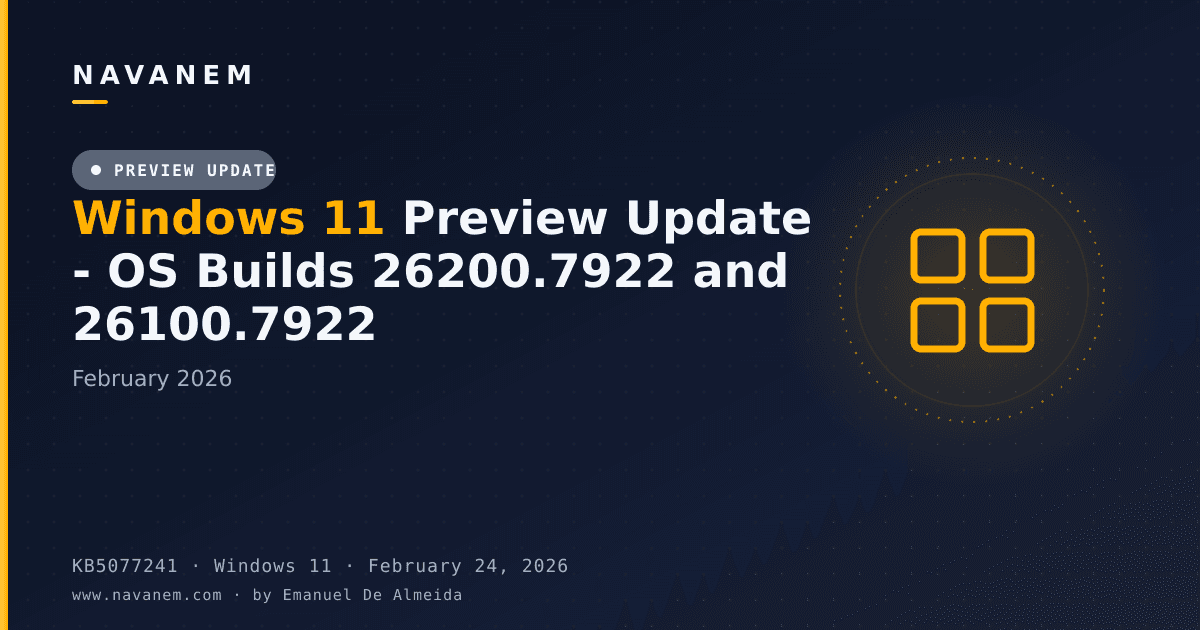
KB5077241: Windows 11 Preview Update - OS Builds 26200.7922 and 26100.7922 (February 2026)
Optional non-security preview update for Windows 11 versions 25H2 and 24H2, released February 24, 2026, delivering new features, fixes, and reliability improvements.
Summary
This optional non-security preview update (Microsoft Support) applies to Windows 11 versions 25H2 and 24H2. Released on February 24, 2026, it brings OS builds to 26200.7922 and 26100.7922 and focuses on new features, functionality improvements, and reliability fixes rather than security patches.
Highlights
- Emoji 16.0 support adds a curated set of new emojis to the emoji panel, one from each major category.
- The first sign-in restore experience joins Windows Backup for Organizations, supporting Entra hybrid joined devices, Cloud PCs, and multi-user environments.
- Quick Machine Recovery (QMR) now enables automatically on non-domain-joined, non-enterprise-managed Windows Professional devices.
- A built-in network speed test is accessible from Wi-Fi or Cellular Quick Settings and the system tray network icon.
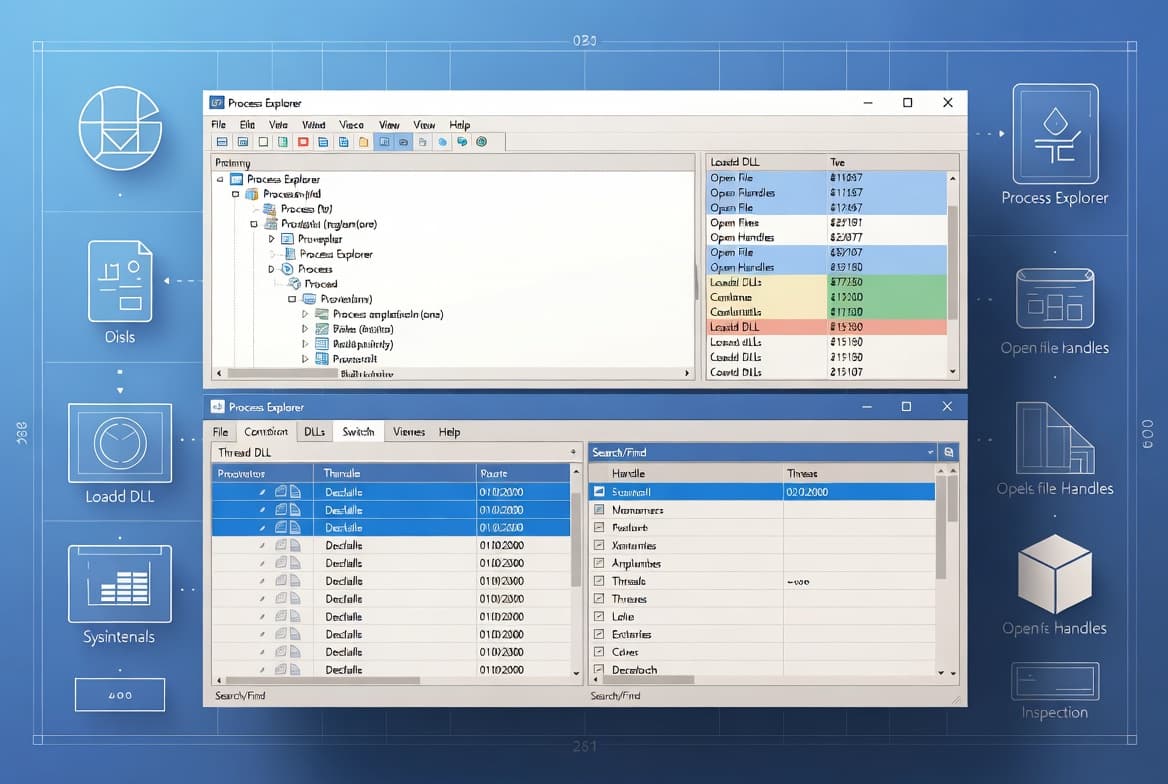
- Native Sysmon (System Monitor) functionality is now included in Windows as an optional feature, writing events to Windows Event Log.
- Remote Server Administration Tools (RSAT) are now supported on Windows 11 Arm64 devices.
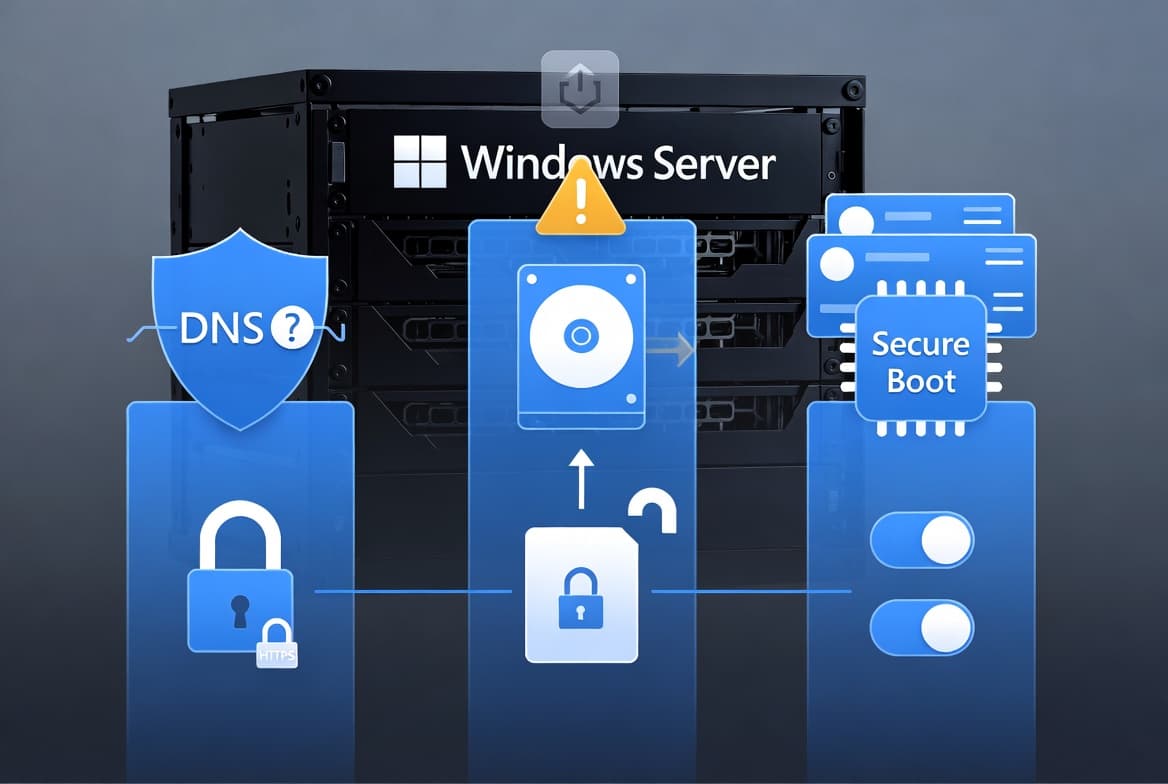
- Secure Boot certificate rollout coverage is expanded, and two new PowerShell cmdlets help manage Secure Boot key status.
- Battery icon updates and the redesigned Start menu continue their gradual rollout to more devices.
Improvements and fixes
- Secure Boot: Quality updates now include additional high-confidence device targeting data, widening the pool of devices eligible to receive updated Secure Boot certificates automatically. The new
Get-SecureBootUEFI -Decodedoption displays Secure Boot keys and certificates in a readable format, and the newGet-SecureBootSVNcmdlet reports a device's Secure Boot Security Version Number and whether it follows the latest Secure Boot policy. - BitLocker: A fix prevents a device from stopping responding after a BitLocker recovery key is entered.
- Taskbar - overflow behavior: When the taskbar is set to uncombined mode and space runs out, only the windows that do not fit move to the overflow area rather than all windows for that app moving together.
- Accounts - Start menu: The account menu on the Start menu now includes a link to the Microsoft account benefits page.
- Camera Settings: Pan and tilt controls for supported cameras are now available under Settings > Bluetooth & devices > Cameras.
- Desktop Background: WebP (.webp) images can be set as the desktop background via Settings or File Explorer right-click.
- Search on Taskbar: Group headers now show result counts, and a Preview option lets users see content without opening it. The Search process icon in Task Manager is updated to a magnifying glass.
- Storage Settings: Several dialogs have a more modern design, and scanning performance for temporary files is improved.
- Windows Update Settings: The Windows Update settings page is more responsive.
- Sign-in screen: Reliability of the sign-in and lock screen is improved.
- Nearby Sharing: Reliability when sending larger files is improved.
- Projecting: Reliability of the project menu (Windows logo key + P) is improved.
- Printing: Performance of the Windows printing service (spoolsv.exe) is improved, reducing slowdowns during high-volume printing.
- File Explorer: Opening a new File Explorer window via Shift-click or middle-click on the taskbar icon is more reliable; an "Extract all" option now appears on the command bar for non-ZIP archive folders; reliability of showing devices on the Network page is improved.
- Display: Reliability and performance when a PC wakes from sleep are improved, reducing resume time especially under heavy load.
- Visual consistency: Improvements across the taskbar (auto-hide mode), credential fields in the Windows Security dialog, and the print dialog.
- AI Components updated: Image Search, Content Extraction, Semantic Analysis, and Settings Model are all updated to version 1.2602.1451.0.
Known issues
Microsoft lists no known issues for this update at the time of writing.
How to get this update
Microsoft bundles the latest servicing stack update (SSU) - KB5077371, build 26100.7911 - with this cumulative update, so no separate SSU installation is required beforehand.
- Windows Update: Go to Start > Settings > Update & Security > Windows Update. The update appears under "Optional updates available." Select the link to download and install it.
- Windows Update for Business: These changes will appear in the next security update to Windows Update for Business.
- Microsoft Update Catalog: Download the package that matches your device architecture (x64 or arm64). For arm64 devices, download all MSU files for KB5077241, place them in a single folder, and use DISM or the
Add-WindowsPackagePowerShell cmdlet to install. DISM resolves prerequisite MSU files automatically from the specified folder. - Windows Server Update Services (WSUS): Available through the standard WSUS channel.
Frequently asked questions
Is this a security update?
No. KB5077241 is an optional non-security preview update. It delivers new features, reliability improvements, and non-critical fixes ahead of the next monthly security release. Installing it is voluntary; the changes it contains will roll into the next regular security update for devices that skip it.
What is the built-in Sysmon feature and how is it enabled?
Windows now includes System Monitor (Sysmon) natively as an optional feature, capturing system events for threat detection and writing them to Windows Event Log. It is off by default. Enable it via Settings > System > Optional features > More Windows features, or run Dism /Online /Enable-Feature /FeatureName:Sysmon and then sysmon -i. Remove any existing Sysinternals Sysmon installation before enabling the built-in version.
What should IT admins know about the Secure Boot certificate expiration?
Secure Boot certificates on most Windows devices are set to expire starting June 2026. Microsoft has been rolling out updated certificates to consumer and non-managed business devices. Devices that have not yet received new certificates continue to start and operate normally. IT admins should consult the Secure Boot Playbook for Windows clients and Windows Server and can check device status in the Windows Security app.
Is RSAT now supported on Arm64 devices?
Yes. This update adds RSAT support for Windows 11 Arm64 devices. Admins can install tools including Active Directory Domain Services and Lightweight Directory Services Tools, Active Directory Certificate Services Tools, Server Manager, Group Policy Management Tools, DNS Server Tools, and DHCP Server Tools through Settings > System > Optional Features or Control Panel > Programs > Turn Windows features on or off.