KB5083631: Windows 11 OS Builds 26200.8328 and 26100.8328 Preview - April 30, 2026
Optional non-security preview update for Windows 11 versions 25H2 and 24H2, releasing OS builds 26200.8328 and 26100.8328 on April 30, 2026.
Summary
This optional non-security preview update - Microsoft Support - applies to Windows 11 versions 25H2 and 24H2, producing OS builds 26200.8328 and 26100.8328. It released on April 30, 2026, and delivers production-quality improvements across gaming, input, security, storage, and enterprise management without carrying security patches.
Highlights
- Xbox mode is now available on Windows 11 PCs, offering a full-screen, controller-friendly gaming interface accessible from the Xbox app, Game Bar settings, or Windows logo key + F11.
- File Explorer gains support for additional archive formats (uu, cpio, xar, nupkg) and preserves View and Sort preferences in common folders.
- Haptic feedback effects are available on compatible input devices during actions such as snapping windows or aligning objects in PowerPoint.
- Voice typing on the touch keyboard has a refreshed, simpler design that shows animations on the dictation key rather than a full-screen overlay.
- A new Windows Driver Policy removes default trust for cross-signed drivers while keeping WHCP-certified and allowed legacy drivers, auditing compatibility before enforcement.
- Administrators gain a registry setting (LockBatchFilesWhenInUse) to prevent batch files from being modified during execution.
- Enterprise State Roaming can now be managed through Windows Backup for Organizations policies.
- The "Remove Default Microsoft Store packages" policy for Windows Enterprise and Education adds support for a dynamic app removal list specified by package family names via Group Policy.
- Agents running in supported apps now surface progress on the taskbar, starting with Researcher in the Microsoft 365 Copilot app.
- The FAT32 volume formatting size limit from the command line increases from 32 GB to 2 TB.
Improvements and fixes
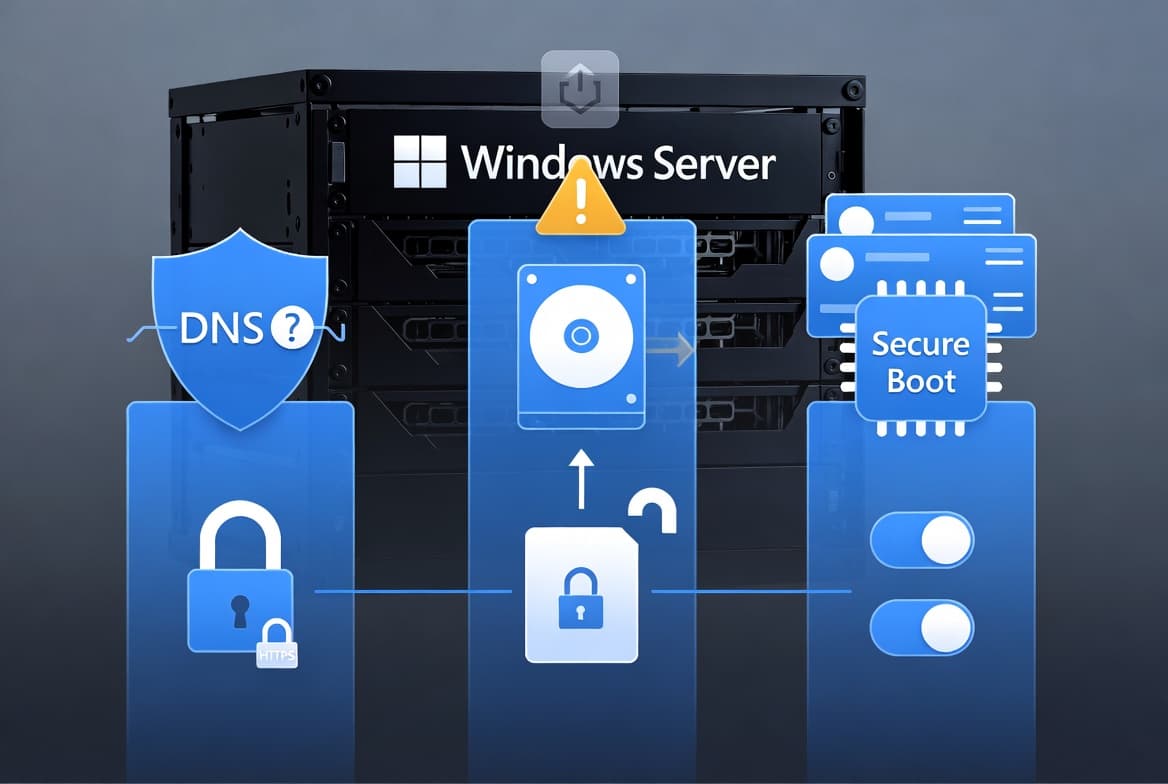
- Secure Boot: Quality updates now include additional device targeting data to expand automatic delivery of new Secure Boot certificates, using a controlled phased rollout gated on successful update signals.
- Kerberos authentication: Kerberos authentication in Remote Desktop sessions using Remote Credential Guard is improved, addressing error 0xc000009a.
- Remote Desktop (known issue fix): A bug that caused the Remote Desktop Connection security warning dialog to render incorrectly in multi-monitor setups with different scaling - introduced by the April 2026 KB5083769 security update - is now resolved.
- Windows Security event logging: Event logging related to CVE-2024-30098 now includes the name of the affected application, making it easier to identify apps that rely on smart card certificates.
- Windows Push Notification Services (WNS): A hang affecting Microsoft Outlook and other WNS-dependent applications is fixed, improving overall application reliability.
- Drag Tray renamed Drop Tray: Settings have moved to Settings > System > Multitasking, and the peek view is smaller to reduce accidental activation near the top of the screen.
- Arabic 101 Legacy keyboard layout: Now available under Time & Language > Language & Region for users who prefer the layout used before recent AltGr changes.
- Printing: A new icon in print settings indicates whether a printer supports Windows Protected Print Mode.
- Microsoft Store: Unexpected errors 0x80070057, 0x80240008, and 0x80073d28 during app downloads and installs are reduced.
- Leelawadee UI font: Improvements to glyph sequencing, positioning, and rendering for Thai, Lao, Khmer, and Lontara scripts.
- Audio: Third-party driver compatibility with midisrv.exe is improved.
- Windows Hello: Reliability of Windows Hello Face and persistence of Windows Hello Fingerprint across upgrades are both improved.
- Storage: Performance when viewing storage information for large volumes in Settings > System > Storage is improved, and FAT32 command-line formatting now supports volumes up to 2 TB.
- Delivery Optimization: Memory usage is reduced, lowering the chance of unexpectedly high memory consumption.
- Display and graphics: Persistence and availability of color profile options for supported monitors are improved.
- Kiosk mode: Configuration for allowed packaged apps in kiosks that include Microsoft Edge is simplified.
- General performance: Startup app launch time after device startup is improved.
- General reliability: Underlying changes improve explorer.exe reliability at sign-in, when using taskbar menus and Task View, and when unpinning items from Quick Access.
- AI components updated: Image Search, Content Extraction, Semantic Analysis, and Settings Model all updated to version 1.2604.515.0.
Known issues
Devices with an unrecommended BitLocker Group Policy configuration might need to enter the BitLocker recovery key
Symptom: Some devices may be prompted to enter their BitLocker recovery key on the first restart after installing this update. This affects only devices where all of the following conditions are true: BitLocker is enabled on the OS drive; the Group Policy "Configure TPM platform validation profile for native UEFI firmware configurations" is configured with PCR7 included in the profile; System Information (msinfo32.exe) reports Secure Boot State PCR7 Binding as "Not Possible"; the Windows UEFI CA 2023 certificate is present in the device's Secure Boot Signature Database; and the device is not already running the 2023-signed Windows Boot Manager. The recovery key needs to be entered only once - subsequent restarts will not trigger BitLocker recovery as long as the group policy configuration remains unchanged.
Workaround: This issue is addressed in KB5089549. After installing KB5089549, devices with this incompatible group policy configuration are prevented from installing the problematic change. Before installing this update, enterprises should audit their BitLocker group policies for explicit PCR7 inclusion and check msinfo32.exe for PCR7 binding status. The workaround description in the source page was also updated on May 12, 2026.
How to get this update
This update is delivered in two phases: a gradual rollout, which stages delivery across devices over time, and a normal rollout, which is the broad release to all eligible devices. Windows Push Notification Services (WNS) was added to normal rollout on June 23, 2026.
For most users, the update will appear in Windows Update under Settings > Windows Update > Advanced options > Optional updates. It can also be obtained from Windows Server Update Services (WSUS) and the Microsoft Update Catalog. If you installed earlier updates, only the new changes in this package are downloaded and installed.
This update includes the Windows 11 servicing stack update KB5088467 (build 26100.8247), which must be in place to ensure reliable installation of Windows updates.
Frequently asked questions
Is KB5083631 a security update?
No. KB5083631 is an optional non-security preview update. It delivers production-quality improvements, new features, and bug fixes ahead of the next monthly security release. Devices do not receive it automatically unless an administrator or user elects to install optional updates.
What should IT admins do about the Secure Boot certificate expiration notice?
Admins should check device status using the Windows Security app. For managed environments, Microsoft recommends following the guidance in the Secure Boot Playbook for Windows clients and Windows Server. Devices that have not yet received the newer certificates will continue to start normally, and standard Windows updates will keep installing in the interim.
How does the new Windows Driver Policy change affect my environment?
The policy removes default trust for cross-signed drivers while continuing to allow drivers certified through the Windows Hardware Compatibility Program and an approved list of legacy drivers. Windows audits driver compatibility for at least 100 hours and three reboots before enforcing the change, so a small number of cross-signed drivers could be blocked after enforcement. Admins should review the Windows driver policy documentation before deploying.
Can the new batch file locking feature be deployed via policy?
Yes. Admins can enable the more secure processing mode for batch files by setting HKEY_LOCAL_MACHINE\Software\Microsoft\Command Processor\LockBatchFilesWhenInUse to DWORD value 1. Application Control for Business policy authors can also enable it through the LockBatchFilesWhenInUse application manifest control. The dynamic app removal list added to the "Remove Default Microsoft Store packages" policy is available via Group Policy or custom OMA-URI but is not yet in the Intune Settings Catalog.