April 14, 2026 - KB5083769 (OS Builds 26200.8246 and 26100.8246)
Monthly security cumulative update for Windows 11 versions 25H2 and 24H2, releasing April 14, 2026, with security fixes, Secure Boot improvements, and Remote Desktop hardening.
Summary
KB5083769 is the April 14, 2026 monthly security cumulative update for Windows 11, versions 25H2 and 24H2. It delivers OS builds 26200.8246 and 26100.8246, rolling in all security fixes and quality improvements from March 2026 optional preview releases. This update is available through Windows Update, Windows Update for Business, WSUS, and the Microsoft Update Catalog. See the full release notes at Microsoft Support.
Highlights
- Secure Boot certificate status can now appear in the Windows Security app on eligible devices.
- Remote Desktop (.rdp) file handling now shows all requested connection settings before connecting, with a one-time security warning, to harden against phishing attacks.
- A fix is included for device resets failing after installing the March 2026 Hotpatch security update.
- Known vulnerable kernel drivers are added to the Microsoft vulnerable driver blocklist.
Improvements and fixes
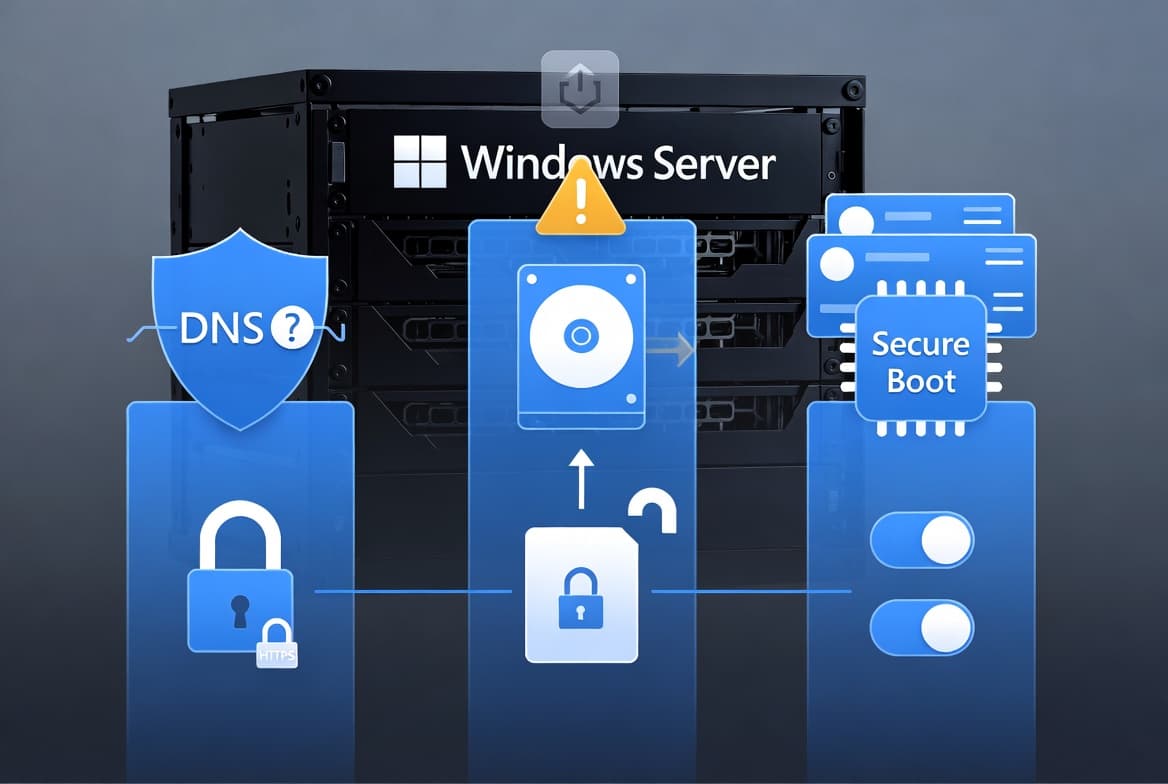
- Secure Boot - status visibility: The Windows Security app (Settings > Privacy & security > Windows Security) may now display the status of Secure Boot certificate updates on a device. Status alerts appear via badges and notifications. These enhancements are disabled by default on commercial devices.
- Secure Boot - expanded targeting: Windows quality updates now include additional high-confidence device targeting data, widening the pool of devices eligible to receive new Secure Boot certificates automatically. New certificates are delivered only after sufficient successful update signals are confirmed, keeping the rollout controlled and phased.
- Secure Boot - BitLocker recovery prevention: An issue where a device could enter BitLocker Recovery after Secure Boot certificate updates have been applied is now resolved.
- Networking - SMB over QUIC reliability: Reliability is improved when Windows performs SMB compression over QUIC. SMB compression requests over QUIC now complete more consistently, reducing timeouts and supporting more dependable performance.
- Remote Desktop - phishing protection: Protection against phishing attacks that use .rdp files is strengthened. When an .rdp file is opened, Remote Desktop now displays all requested connection settings before connecting, with each setting turned off by default. A one-time security warning appears the first time an .rdp file is opened on a device.
- Reset This PC - failure fix: An issue that could cause device reset to fail when using the "Keep my files" or "Remove everything" options - potentially occurring after installing the March 2026 KB5079420 Hotpatch security update - is now resolved.
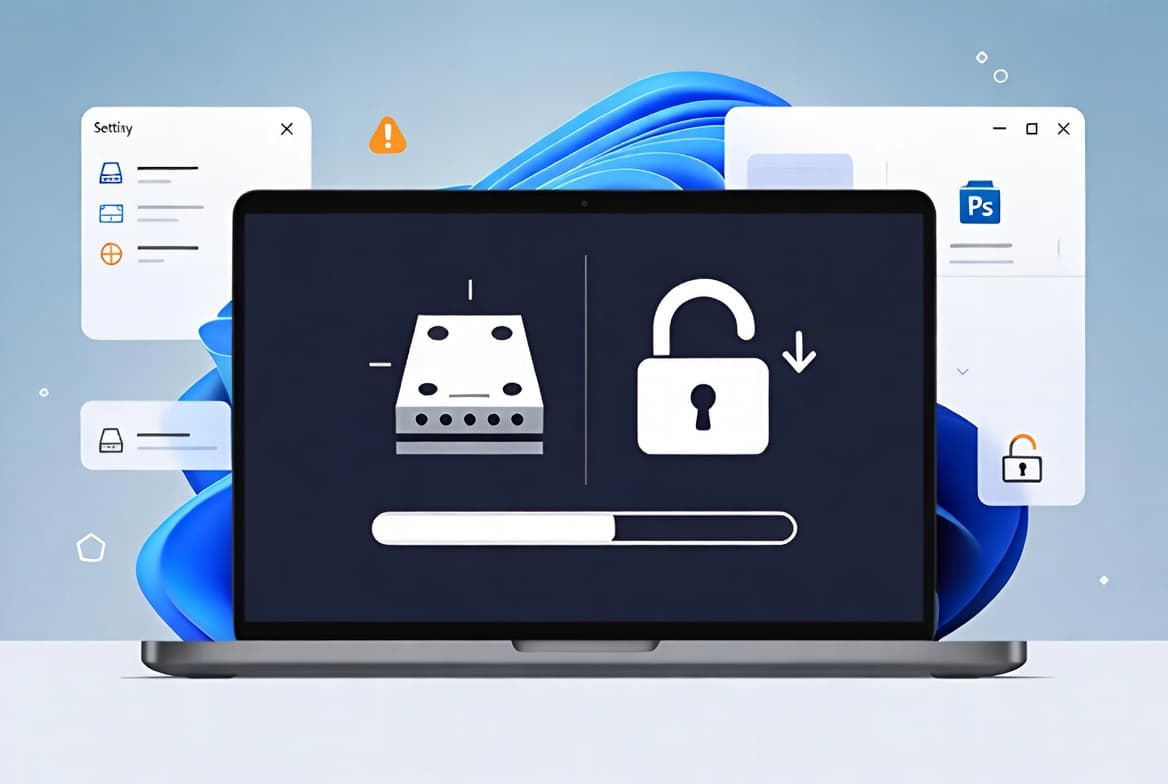
- Vulnerable driver blocklist: Known vulnerable kernel drivers are added to the Microsoft vulnerable driver blocklist as a security hardening measure. Backup applications that rely on blocked drivers may fail when trying to mount or manage disk images, displaying errors such as "The backup has failed because Microsoft VSS has timed out during the snapshot creation" or VSS_E_BAD_STATE. Affected users should update to a newer version of their application that uses drivers with the required protections.
- AI components updated: Image Search, Content Extraction, Semantic Analysis, and Settings Model are each updated to version 1.2603.377.0. These AI component updates apply only to Windows Copilot+ PCs.
- Servicing stack update (KB5088467 - build 26100.8247): A bundled servicing stack update improves the component responsible for installing Windows updates.
Known issues
Devices with an unrecommended BitLocker Group Policy configuration might be required to enter their BitLocker recovery key
Symptom: Some devices with an unrecommended BitLocker Group Policy configuration may be required to enter their BitLocker recovery key on the first restart after installing this update. This affects only devices where all of the following are true: BitLocker is enabled on the OS drive; the Group Policy "Configure TPM platform validation profile for native UEFI firmware configurations" is configured with PCR7 included in the validation profile (or the equivalent registry key is set manually); System Information (msinfo32.exe) reports Secure Boot State PCR7 Binding as "Not Possible"; the Windows UEFI CA 2023 certificate is present in the device's Secure Boot Signature Database (DB); and the device is not already running the 2023-signed Windows Boot Manager. The recovery key only needs to be entered once - subsequent restarts will not trigger a BitLocker recovery screen as long as the group policy configuration remains unchanged.
Workaround: This issue is addressed in KB5089549. After installing KB5089549, devices with this incompatible group policy configuration are prevented from installing the 2023-signed Windows Boot Manager. If a device is impacted, Event ID 1032 will appear in the System event log. Microsoft strongly recommends removing the Group Policy configuration before installing updates. To do so: open Group Policy Editor (gpedit.msc) or the Group Policy Management Console; navigate to Computer Configuration > Administrative Templates > Windows Components > BitLocker Drive Encryption > Operating System Drives; set "Configure TPM platform validation profile for native UEFI firmware configurations" to "Not Configured"; run gpupdate /force; run manage-bde -protectors -disable C:; then run manage-bde -protectors -enable C:. If you do not wish to remove the Group Policy configuration, you can temporarily suspend BitLocker, run the Secure Boot update scheduled task, restart the device, and then re-enable BitLocker.
Warnings related to Remote Desktop might not display correctly
Symptom: After installing this update, the security warning that appears when opening Remote Desktop (RDP) files might not display correctly in some cases. This issue may occur when using more than one monitor with different display scaling settings - for example, one display at 100% and another at 125%. When this happens, the warning window may show overlapping text or partially hidden buttons, making the message difficult to read or interact with.
Workaround: This issue is addressed in KB5083631.
How to get this update
Microsoft bundles the latest servicing stack update (SSU) for the operating system with this latest cumulative update (LCU), so no separate SSU installation is required beforehand.
This update is available through the following channels:
- Windows Update / Microsoft Update: Downloads and installs automatically.
- Windows Update for Business: Downloads and installs automatically in accordance with configured policies.
- Microsoft Update Catalog: Search for KB5083769 and select the package matching your device architecture (arm64 or x64). For arm64 devices, Microsoft supports two installation methods: using DISM to install all MSU files from a single folder in one pass, or installing each MSU file individually in a specified order. The arm64 package requires KB5043080 to be installed first when using the individual-file method.
- WSUS (Windows Server Update Services): Available for enterprise deployment through configured WSUS infrastructure.
Frequently asked questions
Will my device automatically receive the new Secure Boot certificates with this update?
Not necessarily all at once. This update expands the pool of devices targeted to receive new Secure Boot certificates automatically by including additional high-confidence device targeting data. Certificates are delivered only after a device demonstrates sufficient successful update signals, so rollout remains phased and controlled rather than immediate for every device.
What should IT admins do before deploying this update if BitLocker is in use?
Admins should audit BitLocker Group Policies for explicit PCR7 inclusion and check msinfo32.exe for PCR7 binding status on managed devices before deploying. Devices matching all five conditions described in the known issue may be prompted for a recovery key on first restart. Resolving the Group Policy misconfiguration in advance eliminates this risk entirely.
Which backup applications might break after this update is applied?
The update does not call out specific vendors by name, but backup applications that rely on kernel drivers now added to the Microsoft vulnerable driver blocklist may fail when mounting or managing disk images, reporting VSS timeout errors or VSS_E_BAD_STATE. Affected users should update their backup application to a version that ships drivers meeting current protection requirements.
Do the AI component updates in this package apply to all Windows 11 devices?
No. Although the AI component updates - covering Image Search, Content Extraction, Semantic Analysis, and Settings Model - are included in the update package, they install only on Windows Copilot+ PCs. Standard Windows 11 PCs that do not meet the Copilot+ hardware requirements will not have these components installed.